



UltData - No.1 Android Data Recovery Tool
Recover Lost Data Without Root or Backup for Any Android Devices!
UltData: No.1 Android Recovery Tool
Restore Lost Android Data Without Root
A cracked display is annoying, just like a missing contact list is worse. If you need to know how to recover contacts from broken Samsung phone, the right route depends on where those contacts were stored and how much of the device still works. Some people can restore everything from the cloud in just a few minutes. Others need the SIM card or recovery software. You should take a start by identifying your situation before you touch the damaged phone.

Yes. But "broken" covers several very different situations. A phone with a shattered screen may still boot and connect to a computer. A water-damaged handset may power on intermittently. However, a device with a serious hardware failure may be inaccessible until it can operate again.
Before retrieving contacts from a broken Samsung phone, crack where the contacts were saved:
 Please swipe to view
If you are asking, “How can I retrieve data from a broken Samsung phone that won’t turn on?”, start by checking your cloud accounts and SIM card for any available backups. Data stored only on the device itself can be more difficult to recover. Direct recovery software usually requires the Samsung phone to power on, establish a USB connection, and authorize access before scanning. For example, Tenorshare UltData requires a connected device and user permission to begin the recovery process.
That division saves a lot of wasted effort. Now you can begin with the least invasive option.

This is the first place to check if Samsung Cloud backup was enabled before the damage. On another working Galaxy phone, sign in with the same Samsung Account. Go to Settings > Samsung Account > Samsung Cloud > Restore data, choose the backed-up device, and tap Restore. The exact sequence can differ according to the model, One UI version, and region.
This route is handy when the old handset can't be used. Remember, you're restoring a stored copy rather than attempting to read contacts directly from damaged hardware.

Suppose your contacts were synced with Google. In that case, you may be able to get contacts from a broken Samsung phone without having to connect the old device at all. First, sign in to the same Google Account and open Google Contacts. If the names and numbers appear there, congratulations, the important part is already done. Google has a cloud copy.
On an Android replacement phone, open Settings > Google > All services > Backup & restore > Restore contacts. Select the appropriate account and source device, choose whether SIM or device-storage contacts should be included, and then tap Restore.
Google also allows you to undo contact changes made during 30 days. This is worth checking if contacts were accidentally deleted or altered shortly before the Samsung phone broke.
So, "How can I get my contacts back on Samsung?" sometimes has a pleasantly uneventful answer. That is, sign in to the account that was already syncing them.

This method is old-school. However, if contacts were saved directly to the SIM card, doing so would still be worth five minutes. If it is feasible to do so, power down the broken, remove the SIM card, and then insert it into another compatible Samsung handset.
What you have to do is open Contacts > Menu > Manage contacts > Import or export contacts > Import > SIM card. Select the entries, tap Done, choose where they should be stored, and finally import them. Samsung's current instructions follow this same basic route.
There is a catch. Samsung says that SIM transfer may preserve only the contact's name and phone number. Other information can be lost, and long entries may be shortened.
Note that if the SIM list comes up empty, don't keep repeating the import. Your contacts were probably saved in an account or the phone's internal storage instead.
No Samsung Cloud copy? Nothing advantageous in Google Contacts? Empty SIM? This is the moment when the remaining entries might exist only inside the phone.
For readers who are searching how to recover contacts from broken Samsung phone without an available backup, Tenorshare UltData for Android provides another direction only when the device is still accessible enough to communicate with a computer.

Tenorshare UltData for Android can recover contacts alongside messages, photos, videos, and different other Android data. It's compatible with more than 6,000 Android phones and tablets, including Samsung, as well as it supports through Android 16. Another noteworthy point is that its standard Android recovery process does not necessitate rooting the device. Users can scan and preview recoverable files before paying to recover them.




One condition is important, though. If you're wondering how to get contacts from a broken Samsung phone with no backup, the phone still needs to be functional enough for direct scanning. USB connectivity, USB debugging, and authorization on the Android device are required. A completely dead and undetectable handset is a different problem.


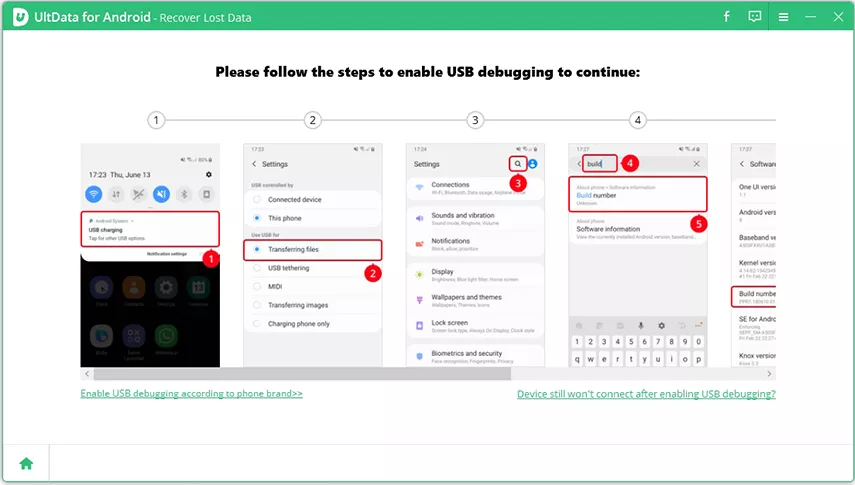
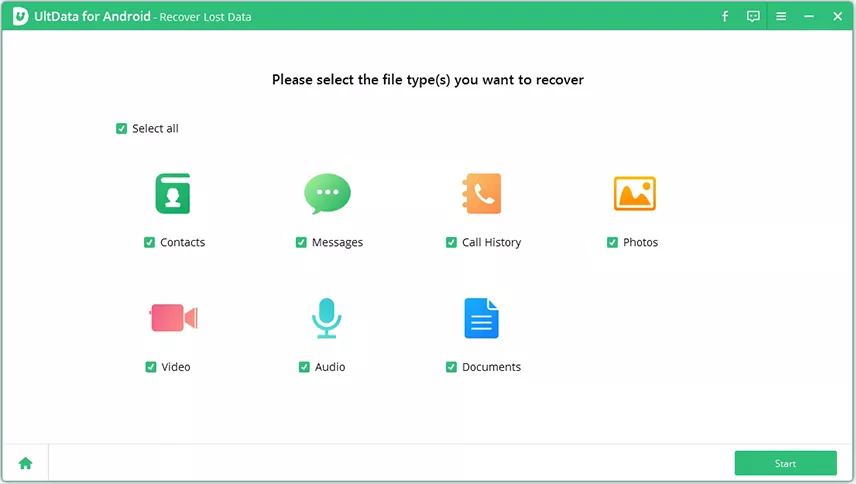
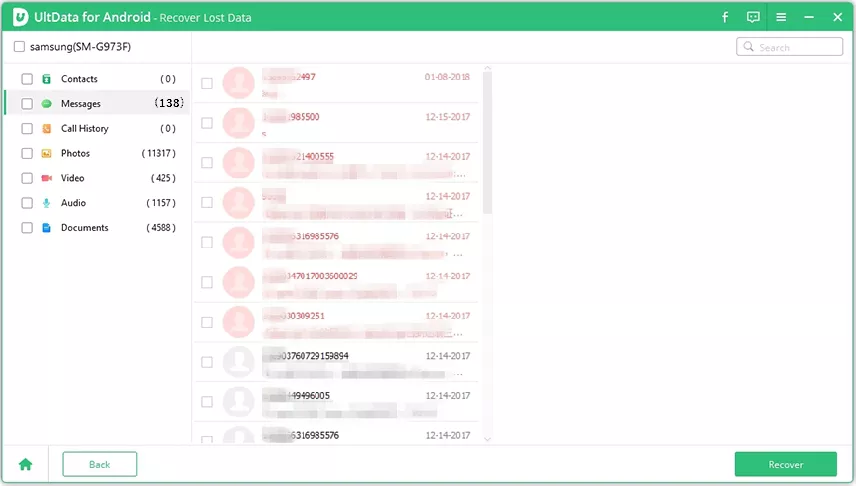
For someone who is attempting to get contacts from a broken Samsung phone without a cloud copy, this approach seems to be the most applicable when the display may be damaged or the handset may be unstable but can still boot, connect, and authorize access.
Once your address book is back, you should remove the single point of failure. For that purpose, pick a primary account, which can be Google or Samsung, and verify that contact synchronization or backup is genuinely enabled. Don't assume the setting switched itself on.
After that, you are advised to create an occasional offline copy. Particularly, this can be helpful before a factory reset, major repair, or device trade-in. For instance, Google Contacts can export contacts to a VCF file, which you can keep on a computer or another protected storage location.
If some numbers live on your SIM, remember its limits. Samsung warns that SIM cards aren't intended as comprehensive storage and can hold only a limited amount of contact information.
Last but not least, test the backup and don't merely trust the setting. Open Google Contacts or check Samsung Cloud from another device every so often and confirm that recently added people are actually present. A backup you've never verified is little more than a promise.
Recovering contacts from a broken Samsung phone depends on where they were stored. Check Samsung Cloud, Google Contacts, and your SIM card first. If no backup is available but the phone can still turn on and connect to a computer, Tenorshare UltData for Android can help scan and recover contacts from the device.
Before trying any recovery method, avoid resetting or repeatedly using the damaged phone to reduce the risk of further data loss.


UltData - No. 1 Android Data Recovery Tool




then write your review
Leave a Comment
Create your review for Tenorshare articles
Best Android Data Recovery Software
Highest Data Recovery Rate
UltData - No.1 Android Data Recovery Tool
Recover Lost Data Without Root or Backup for Any Android Devices!
UltData: No.1 Android Recovery Tool
Restore Lost Android Data Without Root
By Jenefey Aaron
2026-08-13 / iOS Data Recovery