
How to Transfer Data from Android to iPhone Duo: Complete Guide
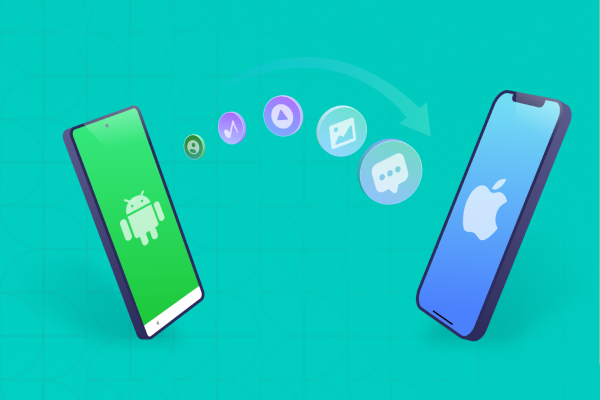
The easiest way to transfer data from Android to iPhone Duo is Apple's Transfer without App option (on supported Android 17+ phones) or the free Move to iOS app. Both work only during iPhone setup.
Already set up? You can still move your data without erasing the iPhone, using iCareFone iTransGo, Google sync, cloud storage, or a computer. iPhone Duo is eSIM-only, so plan your number transfer too. Below are 6 methods, what each one covers, and a checklist to confirm nothing is missing before you wipe your old phone.


Part 1. What to Do Before You Transfer Data from Android to iPhone Duo
Before you transfer data from Android to iPhone Duo, prepare both phones to avoid connection issues, missing files, or storage problems. Check your iPhone's available space, back up important data, and choose a transfer method that fits your needs.
Before You Start: 5 Checks That Prevent Failed Transfers
Before you transfer data from Android to iPhone Duo, complete these five checks:
- Charge both phones: Connect them to power to prevent battery problems during a large transfer.
- Check storage: Make sure your iPhone has enough free space for your Android photos, videos, messages, and files.
- Back up important data: Save your Android files and create an iPhone backup if you have already stored data on the new phone.
- Update your software: Install available updates and check whether your Android phone supports Apple's no-app transfer method.
- Keep your login details ready: Prepare your Google account, Apple Account, email passwords, and app login information.
Compare the Six Transfer Methods
 Please swipe to view
Choose your method quickly:
- If your iPhone is already set up and you want a whole-phone transfer, use iTransGo.
- If your iPhone is new and Android 17+ supports the feature, use Transfer without App.
- If you want Apple's official migration process, use Move to iOS.
- If you only need photos or documents, use cloud storage or a computer.
Part 2. How to Transfer Data from Android During iPhone Duo Setup (Official Methods)
Apple's built-in methods work during the initial iPhone setup. If you have already reached the home screen, you generally need to erase the iPhone before using either method. Back up existing iPhone data first because erasing removes local content.
Method 1: Transfer Without the Move to iOS App (Android 17+)
Apple supports a direct transfer option for compatible Android 17+ devices and compatible iOS versions. You do not need to install Move to iOS when your devices support this feature.
Steps:
- During iPhone Duo setup, open Transfer Your Apps & Data > From Android > Transfer without App. This option appears only on compatible devices.
- Keep your Android phone near your iPhone Duo and tap Continue. Use your Android camera to scan the QR code displayed on the iPhone.
- On your Android phone, select the supported data categories you want to transfer, such as photos, contacts, calendars, call history, and messages.
- Follow the on-screen instructions to complete the transfer. If your Android device and carrier support eSIM transfer, follow the separate prompts to move your phone number. Otherwise, contact your carrier for activation instructions.


Keep both phones close to each other and connected to power until the process finishes. The available data types depend on device and software compatibility.
QR Code Won't Scan? Pair the Phones Manually
If your Android camera cannot scan the QR code, try Apple's manual pairing option:
- On the iPhone, select Other Options when the QR code appears.
- On Android, open Settings and then Google Services.
- Select All Services, followed by Pair with iPhone or iPad and Copy Data.
- Enter the session ID and pairing code shown on the iPhone.
- Follow the prompts to finish the transfer.
Menu names can vary by Android manufacturer. If you cannot find these options, check your phone manufacturer's support instructions.
Method 2: Transfer with Move to iOS (Wi-Fi or USB-C Cable)
If your Android phone does not support Transfer without App, Apple's free Move to iOS app provides another way to move your data during iPhone Duo setup. You can connect both phones through Wi-Fi or a compatible USB-C cable to transfer supported contacts, messages, photos, videos, and other content.
Steps:
- Charge both phones or keep them connected to power during the transfer. If your devices support wired migration, you can connect them directly with a compatible USB-C data cable.
- On the Quick Start screen, tap Set Up Without Another Device. When you reach Transfer Your Apps & Data, tap From Android, then tap Transfer with App. Because iPhone Duo is eSIM-only, you may be asked to activate your eSIM during setup.
- On your Android phone, open Move to iOS, tap Continue, and accept the terms. On the iPhone Duo, tap Continue on the Move from Android screen and wait for a six- or ten-digit code. Enter it on your Android phone. When prompted, tap Connect to join the temporary Wi-Fi network the iPhone creates. Ignore any "weak internet connection" alert.
- Select the supported content you want to transfer and tap Continue. Keep both phones nearby, leave Move to iOS open on Android, and wait until the progress bar on your iPhone Duo finishes.


A cable may speed up large transfers. Depending on the Android phone and cable, you might need to approve a USB connection or change the USB mode.
Transfer Without App vs. Move to iOS: Which Should You Use?
Choose Transfer without App if your Android phone supports Android 17+ and the required pairing features. It avoids installing a separate migration app. Choose Move to iOS if your Android device does not support the no-app option. Both methods run during iPhone setup, and neither serves as a normal after-setup migration tool.
Part 3. How to Transfer Data from Android to iPhone Duo After Setup (4 Methods)
If you have already set up your iPhone, you can still transfer selected content without resetting it. The right method depends on whether you want to move several data types or only specific files.
Method 3: Use iCareFone iTransGo for Supported Phone-to-Phone Data
iCareFone iTransGo is a desktop tool that helps you transfer supported data from an Android phone to an iPhone after setup. Unlike Apple's official migration methods, it lets you move selected content without resetting your iPhone or removing existing data.
This option works well if you have already started using your iPhone Duo and want to keep your current files and settings. You can connect both phones to a Windows PC or Mac, select the available data categories, and start the transfer. Before using the tool, check device compatibility and back up important data.




Key Features
- No iPhone reset: Transfer supported data after setup without erasing existing iPhone content. Your number is separate, so an iPhone Duo eSIM transfer not working issue needs a carrier fix, not a second data transfer.
- Selective transfer: Choose supported data categories instead of moving everything at once.
- Multiple data types: Transfer supported contacts, messages, calendars, music, and videos, plus photos in bulk if you need to send multiple photos from Android to iPhone without losing quality.
- Computer-based connection: Connect both phones to a compatible Windows PC or Mac to manage the transfer.
- Existing data protection: The software advertises data merging without overwriting existing target-device content; back up both phones before starting.
Steps to transfer data:
- Download and install iCareFone iTransGo on your computer. Open the program and click Start under the Android to iOS section.
- Connect your Android phone and iPhone Duo to the computer using USB cables. Enable USB debugging on Android and tap Trust on your iPhone when prompted. Follow the on-screen instructions, then click Start.
- Select the types of data you want to transfer from Android to iPhone Duo. Choose one or more available categories based on your needs.
- Wait for the software to scan the selected data. Review your selection and click Transfer Data to start the transfer.
- Keep both phones connected until the software confirms that the transfer is complete. Then, check your iPhone Duo to make sure the transferred data appears correctly.


Check the current compatibility list before purchasing or transferring sensitive information. Available data types depend on the software version and device support.
Method 4: Sync Contacts, Calendars, and Mail with Your Google Account
Google sync works well if you want your contacts, calendar events, and email on your iPhone without copying your entire phone.
- On your Samsung Galaxy or another Android phone, open Settings and find your Google account's sync settings. Enable Contacts and Calendars, then tap Sync if your phone provides that option.
- On your iPhone Duo, open Settings > Apps > Contacts > Contacts Accounts > Add Account. Menu names may vary slightly depending on your iOS version.
- Select Google, then sign in with the same Google account you use on your Android phone. Follow the on-screen instructions to complete the sign-in process.
- Turn on Contacts, Calendars, and Mail to sync the available information. For notes, open the Google Keep app or the service that stores your notes, as Google account sync does not automatically move every note into Apple Notes.


For notes, check which app stores them. Google Keep notes generally appear through the Keep app rather than automatically becoming Apple Notes. Export or copy notes that use a different service.
Method 5: Move Photos, Videos, and Files with Cloud Storage
Cloud storage lets you transfer files without resetting your iPhone or connecting the phones directly.
- On your Android phone, open the Dropbox app, tap +, and select Upload Files.
- Select the photos, videos, or documents you want to transfer. Wait until Dropbox finishes uploading all selected files.
- Install Dropbox on your iPhone Duo and sign in with the same Dropbox account you used on Android.
- Open Dropbox on your iPhone and locate the uploaded files. Tap the three-dot menu beside a file and select Make Available Offline or Export/Save to Device, depending on the file type and available options.


Cloud access does not always mean files exist locally on your iPhone. Download important items before traveling or deleting your cloud copies. Check your storage limits and internet usage, especially when uploading large videos.
Method 6: Copy Photos and Files Through a Windows PC or Mac (USB)
A computer offers a practical option when you want to move many files without using cloud storage.
- Connect your Android phone to a Windows PC using a USB data cable. Unlock the phone, tap the USB Notification, and select File Transfer.
- Open File Explorer on your PC and locate the files you want to move. Copy them into a folder on your computer, then safely disconnect your Android phone.
- Open the Apple Devices app on your PC and connect your iPhone Duo using a USB cable. Select your iPhone and open the Files section.
- Select a compatible destination app, click Add File, choose the documents you copied from Android, and click Add to transfer them.
- Disconnect your iPhone safely after the transfer finishes. Open the destination app on your iPhone Duo to access the transferred documents.
- Check that your files open correctly in the selected app. Remember that this method transfers supported documents to specific apps; it does not automatically move all Android data, messages, or app settings to your iPhone.


If the Files tab does not appear, Apple explains that your iPhone may not have a compatible file-sharing app installed.

This method works well for photos, videos, and documents, but it does not automatically recreate Android app settings, SMS history, or all app-specific data.
Does a Direct USB-C Cable Work Without a Computer?
Yes, a compatible USB-C cable can connect Android and iPhone directly during Apple's supported setup transfer. However, simply plugging the phones together after setup does not provide a general way to copy all data.
If you need to transfer data from Android to iPhone Duo after setup with cable, use a supported computer-based tool or copy files through a computer. A cable alone cannot move every app, account, or message type.

Part 4. What Transfers and What Needs Separate Handling?
Different methods support different content. Use this table to plan your transfer and avoid assuming that reinstalling an app also restores its data.
Please swipe to view
For detailed instructions, read the official WhatsApp Android-to-iPhone migration guide and Apple's eSIM and data transfer guidance.

Downloading an app from the App Store only installs the iOS version. It does not guarantee that the app will restore your Android settings, saved files, or conversation history. Check the app's own migration and backup instructions.
Verify Your Data Before Wiping the Android Phone
Please swipe to view
Keep the Android phone intact until you complete these checks and confirm that you have a backup. Do not erase it simply because the transfer tool says the process has finished.
Part 5. Fix Common Android-to-iPhone Duo Transfer Problems
Try these low-risk fixes before repeating a transfer or erasing your iPhone.
Please swipe to view
Apple specifically advises users to restart both devices, turn off Android mobile data, disable connection-management features, and keep the Move to iOS app on screen during migration.
- If the transfer stops, first check the connection and available storage rather than immediately resetting your phone.
- If you need to erase your iPhone and try again, back up its existing content first.
An erase removes data from the device, so only repeat the official transfer after you have protected anything you want to keep.
Part 6. FAQs About Transferring Data from Android to iPhone Duo
1. What Is the Easiest Way to Transfer from Android to iPhone Duo?
For a new iPhone, use Transfer without App if your Android 17+ device supports it. Otherwise, use Move to iOS. Both options support Apple's setup-stage migration process.
2. Can I Still Transfer Data from Android to iPhone Duo After Setup?
Yes. You can use iCareFone iTransGo for supported phone data, Google sync for contacts and calendars, cloud storage for photos and documents, or a computer for manual file copying. These options do not normally require an iPhone reset, although their data coverage varies.
3. How Do I Get All Data from Android to iOS?
No single method guarantees that every item will transfer. Start with Apple's setup migration for supported contacts, messages, photos, videos, calendars, and other eligible content. Then handle music, books, PDFs, apps, and app-specific data separately. Check WhatsApp's requirements before starting because its Android-to-iPhone chat migration has specific setup conditions.
4. Will I Lose Anything When Switching from Android to iPhone Duo?
You may leave some data behind if you rely on one transfer method alone. Android apps may not have iOS versions, and app settings or local data may not transfer. Music, books, and PDFs also need manual handling through Apple's process. Back up your Android phone, check the transferred files, and keep the old phone until you confirm everything important is available.
Conclusion
Learning how to transfer data from Android to iPhone Duo starts with choosing the right method for your situation. For a new iPhone Duo, use Transfer without App (supported Android 17+ devices) or Move to iOS.
If you've already set up, use iCareFone iTransGo for several data types, Google sync for contacts and calendars, and cloud storage or a computer for photos and files. No single method moves everything, because music, books, PDFs, and some app data need separate handling. Verify your data and eSIM, and keep your Android until you're sure.

 iOS Tips & Latest Updates
 Bug Fixes, Unlock Guides
 Giveaways & Freebies

Speak Your Mind
then write your review
Speak Your Mind
Leave a Comment
Create your review for Tenorshare articles
Related articles
All topics
Share this post



By Jenefey Aaron
2026-10-26 / iPhone 18