
How to Transfer Data From Samsung to iPhone Duo: 5 Safe Methods
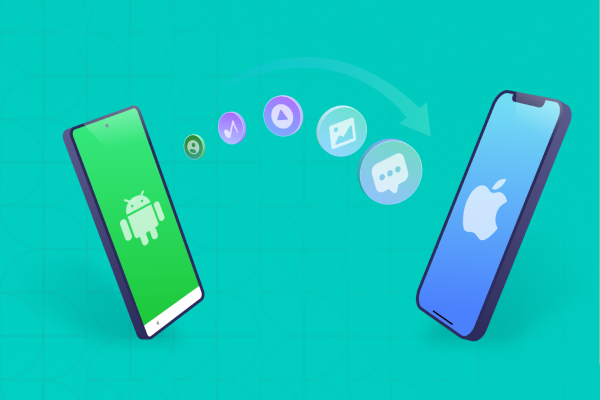
Switching from Samsung to a new iPhone can feel difficult when you have photos, contacts, messages, videos, and other important files to move. The good news is that you can transfer most supported data by choosing the right method for your needs. How to transfer data from Samsung to iPhone Duo depends on whether your iPhone is new, erased, or already set up.
Apple's Move to iOS app works during initial setup, while tools like Tenorshare iCareFone iTransGo and Google Photos offer other options after setup. This guide explains five safe methods, simple steps, and common fixes to help you move your data without unnecessary trouble.


Part 1. Choose the Right Samsung-to-iPhone Transfer Method First
Before you start, decide which transfer method suits your situation. Some methods move several types of data during initial setup, while others focus on photos, contacts, or selected files. If you have already set up your iPhone Duo, you do not need to erase it just to move photos or contacts. You can use cloud services, manual transfers, or a compatible computer-based tool.
Samsung-to-iPhone Transfer Methods Compared
 Please swipe to view
Apple explains that Move to iOS works during the initial setup process. If you have already completed setup, you generally need to erase the iPhone to use that method again. Otherwise, you can move supported content manually or use another compatible solution.
Part 2. How to Transfer Data From Samsung to iPhone Duo With Move to iOS
Move to iOS is the official Apple app for transferring supported information from an Android phone to an iPhone. It can move contacts, messages, photos, videos, calendars, email accounts, WhatsApp content, and other supported data. You can connect the phones wirelessly or use a compatible cable for a direct connection. A cable may help speed up the process, especially when you have many photos and videos.
What You Need Before Starting
Prepare both phones before you begin:
- Charge your Samsung and iPhone Duo or connect them to power.
- Turn on Wi-Fi on your Samsung phone.
- Make sure your iPhone has enough storage for the data you want to move.
- Install the official Move to iOS app from Google Play.
- Keep both phones close together throughout the transfer.
- Update Chrome on Samsung if you want to transfer supported browser bookmarks.
- Back up important information before starting.
Check your storage carefully. If your Samsung contains more data than the available space on your iPhone, the transfer may stop or leave some content behind.
Steps to Transfer Samsung Data With Move to iOS
- Charge both phones or keep them connected to power during the transfer. If your devices support wired migration, you can connect them directly with a compatible USB-C data cable.
- On the Quick Start screen, tap Set Up Without Another Device. When you reach Transfer Your Apps & Data, tap From Android, then tap Transfer with App. Because iPhone Duo is eSIM-only, you may be asked to activate your eSIM during setup.
- n your Android phone, open Move to iOS, tap Continue, and accept the terms. On the iPhone Duo, tap Continue on the Move from Android screen and wait for a six- or ten-digit code. Enter it on your Android phone. When prompted, tap Connect to join the temporary Wi-Fi network the iPhone creates. Ignore any "weak internet connection" alert.
- Select the supported content you want to transfer and tap Continue. Keep both phones nearby, leave Move to iOS open on Android, and wait until the progress bar on your iPhone Duo finishes.


Do not disconnect the phones just because Samsung shows that the transfer has finished. Wait until the progress indicator on the iPhone completes.
Transfer Samsung Data With a USB-C Cable During Setup
A compatible USB-C cable can connect the two phones directly. This option may reduce transfer time compared with a wireless connection. Connect the devices when the setup instructions allow it. If Samsung displays a USB permission message, follow the instructions on the screen. Use a cable that supports data transfer rather than charging only. Keep both devices powered during the process. The actual transfer time depends on the amount of data, cable speed, phone performance, and connection quality.
What Move to iOS Transfers and What Needs a Separate Move
Move to iOS supports several important data categories, but it does not copy every part of your Samsung phone exactly as it is.
Please swipe to view
Supported categories and features can vary with software versions and device compatibility. Review Apple's current instructions before starting, particularly if you need to move WhatsApp data or other important content.

Part 3. How to Transfer Data From Samsung to iPhone After Setup Without Factory Reset
If you have already started using your iPhone Duo, you may not want to erase your photos, apps, and settings just to transfer information from Samsung. In this situation, a compatible selective-transfer tool can help. Tenorshare iCareFone iTransGo is a computer-based tool designed to transfer selected data between Android and iPhone. Its product page describes post-setup transfers without a factory reset and lists photos, videos, contacts, messages, calendars, and music among its supported categories.




Key Advantages
- Transfer after setup: Move supported data from Samsung to iPhone without resetting your iPhone. Data and your number move separately, so an iPhone Duo phone number not activating problem is an eSIM issue to settle with your carrier, not a failed transfer.
- Select data categories: Choose the supported files and information you want to transfer.
- Computer-based connection: Connect both phones to a compatible Windows PC or Mac and follow the software instructions.
- Existing data: The tool describes data merging without overwriting existing iPhone data, subject to feature limits.
- Photos and videos: Transfer supported photos and videos from your Samsung phone, which matters if you want to send pictures from Android to iPhone without losing quality instead of the compressed copies most chat apps send.
- Other data types: Transfer supported contacts, messages, calendars, and music without repeating the entire iPhone setup.
How to Transfer Samsung Data After Setup With iCareFone iTransGo
- Download and install iCareFone iTransGo on your computer. Open the program and click Start under the Android to iOS section.
- Connect your Android phone and iPhone Duo to the computer using USB cables. Enable USB debugging on Android and tap Trust on your iPhone when prompted. Follow the on-screen instructions, then click Start.
- Select the types of data you want to transfer from Android to iPhone Duo. Choose one or more available categories based on your needs.
- Wait for the software to scan the selected data. Review your selection and click Transfer Data to start the transfer.
- Keep both phones connected until the software confirms that the transfer is complete. Then, check your iPhone Duo to make sure the transferred data appears correctly.


Part 4. How to Transfer Photos From Samsung to iPhone Duo Without a Computer
You can transfer photos from Samsung to iPhone Duo without a computer by using Google Photos. This method works well when you want access to your pictures on both phones and do not need a direct copy of every file.
Sync Contacts and Calendars With Your Google Account
- On your Samsung Galaxy or another Android phone, open Settings and find your Google account's sync settings. Enable Contacts and Calendars, then tap Sync if your phone provides that option.
- On your iPhone Duo, open Settings > Apps > Contacts > Contacts Accounts > Add Account. Menu names may vary slightly depending on your iOS version.
- Select Google, then sign in with the same Google account you use on your Android phone. Follow the on-screen instructions to complete the sign-in process.
- Turn on Contacts, Calendars, and Mail to sync the available information. For notes, open the Google Keep app or the service that stores your notes, as Google account sync does not automatically move every note into Apple Notes.


This method requires an internet connection and enough available Google storage. You can view backed-up pictures on your iPhone without downloading every file to its local storage.

If you want certain pictures inside Apple's Photos app, open the required image and use the available save or download option. Check the downloaded files afterward.
Move Contacts, Calendar, and Files Without a Computer
You can also move other information without connecting a computer.
- For contacts: Add your Google Account to your iPhone and enable Contacts in the account settings. Your Google contacts can then sync with the iPhone.
- For calendars: Sign in to the same Google Account and enable Calendar access. Check the Calendar app to confirm that your events appear.
- For documents: Upload PDFs, Word files, and other documents from Samsung to Google Drive, OneDrive, or another supported cloud service. Install the same service on your iPhone and download the files you need.
- For browser bookmarks: Sign in to Chrome on both devices and enable bookmark syncing. This works best when you want to keep using Chrome rather than move every bookmark into Safari. These methods do not require a factory reset. However, they sync supported information rather than creating an exact copy of the entire Samsung phone.
Transfer Samsung Photos, Downloads, and SD Card Files With a Cable or Computer
If your Samsung phone stores files in the Downloads folder or on a microSD card, you may need to transfer them separately:
- Connect Samsung to a computer: Use a USB cable and select the file-transfer option if prompted.
- Copy files to your computer: Move your photos, videos, and documents into a folder on the computer.
- Transfer files to your iPhone: Use a compatible transfer method or cloud storage to move the copied files.
- Check your microSD card: If your Samsung uses a microSD card, check its contents before removing or formatting it. A card reader can help you copy files to your computer.
Move Music, Books, and PDFs Separately
Move to iOS does not transfer every file type directly into the appropriate iPhone app, so some music, books, and PDFs may need a separate method:
- PDFs: Upload them to a cloud service or copy them through a computer, then open them on your iPhone and save them to the Files app.
- Music files: Use a supported cloud music service or a compatible computer-based transfer method.
- Streaming music: Install the service's iPhone app and sign in to your account to access your music.
- Books and protected content: Check file compatibility and copyright restrictions before transferring purchased music or protected books.
Part 5. How to Fix Samsung-to-iPhone Duo Data Transfer Problems
A transfer may fail because of a weak connection, insufficient storage, incorrect settings, or incompatible content. Try these fixes before starting the process again.
1. Move to iOS Cannot Connect or Keeps Failing
- Restart both phones.
- Keep the devices close together.
- Turn off mobile data on Samsung temporarily if it interferes with the transfer.
- Disable VPN connections during troubleshooting.
- Keep Move to iOS open on Samsung.
- Check the cable and USB permissions if you use a wired connection.
- Update the app and device software where possible.
- On Samsung, open Wi-Fi settings, touch and hold each saved network, and tap Forget. Also turn off Smart Network Switch or similar features.
Avoid switching apps or answering calls during the transfer. If the connection repeatedly fails, restart the process and follow the on-screen instructions.
2. Not Enough Storage or Missing Data After Transfer
Check the available storage on your iPhone before trying again. Delete unnecessary files only after backing up anything important. Compare the amount of data on Samsung with the free space on the iPhone. Remember that the iPhone also needs room for iOS, apps, and other files.
If the iPhone ran out of space during an initial Move to iOS transfer, Apple may recommend erasing the iPhone and repeating the transfer with a smaller selection. Back up the iPhone first, because erasing it removes existing local data.
3. Data Is Missing After Samsung-to-iPhone Transfer
First, identify exactly what is missing. Check Contacts, Photos, Messages, Calendar, and Files separately.
Then try these steps:
- Confirm that you selected the required categories during the original transfer.
- Check whether Google Photos or Google Contacts still needs to sync.
- Sign in to the correct Google Account or cloud account.
- Check the Downloads folder and any external SD card.
- Install the required apps from the App Store.
- Review the app's official transfer instructions if messages or other app-specific content are missing.
Do not erase Samsung until you have checked the important files on your iPhone. Keep the original phone as a backup until you feel confident that the transfer is complete.
Part 6. FAQs About Transferring Data From Samsung to iPhone Duo
1. Is There an Easy Way to Transfer From Samsung to iPhone Duo?
Yes. Move to iOS is a good starting point for a new or erased iPhone. It transfers supported data during setup. If your iPhone is already set up, Google Photos, Google Account syncing, cloud storage, and compatible computer-based tools can help you move selected information.
2. Is Switching From Samsung to iPhone Duo Difficult?
No, not if you prepare first. Charge both phones, check storage, back up important files, and choose the right method. You may need to install iPhone versions of your apps and transfer some music, books, and documents separately.
3. How Long Does It Take to Transfer Data From Samsung to iPhone?
The transfer may take a few minutes or several hours. The time depends on the amount of data, connection speed, cable quality, and device performance. A large photo library or a slow wireless connection can increase the time. Keep both phones connected to power until the process finishes.
Conclusion
The best way to transfer data from Samsung to iPhone Duo depends on your phone's setup status and the type of information you want to move. Use Move to iOS when your iPhone is new or erased. If you have already completed setup, Google Photos and Google Account syncing can move photos, contacts, and calendars without a factory reset.
For selected data categories, Tenorshare iCareFone iTransGo offers another computer-based option, subject to device compatibility and supported file types. Back up both phones before making major changes, check your transferred data, and keep your Samsung until you confirm that all important information has reached your iPhone.

 iOS Tips & Latest Updates
 Bug Fixes, Unlock Guides
 Giveaways & Freebies

Speak Your Mind
then write your review
Speak Your Mind
Leave a Comment
Create your review for Tenorshare articles
Related articles
All topics
Share this post



By Jenefey Aaron
2026-10-20 / iPhone 18