

 iOS Tips & Latest Updates
 Bug Fixes, Unlock Guides
 Giveaways & Freebies

UltData - Best iPhone Data Recovery Tool
Recover Deleted & Lost Data from iOS Devices Easily, No Backup Needed!
UltData: Best iPhone Recovery Tool
Recover Lost iPhone Data without Backup
Opening your music app to find your favorite curated tracks gone can be frustrating, but when your Apple Music playlists disappear, it rarely means your files are gone forever. In most cases, these issues stem from simple sync setting adjustments, account updates, or temporary app glitches on your device.
This article starts with the Apple Music settings that cause most of these cases, and then looks at recovery options for related data lost from the phone itself.

Usually, one of these would be the reason my playlist vanished from Apple Music.
Playlists belong to the account that created them. If you log in with a different account, you'll see the library for that account, which might be empty.
A weak connection or a large library can leave the sync stuck halfway.
Once the plan lapses, catalog music and the playlists built from it can become unavailable.
If you removed a playlist on your Mac or iPad, that change can reach your iPhone.
Sometimes the app just fails to display the library properly.
Tap your name at the top of Settings. Does the Apple Account listed there match the one you used for Apple Music before? If you recently restored your phone or switched accounts, this is the first thing to look at.
Then go to Settings → your name → Subscriptions → Apple Music and confirm the plan is still active. If it expired, renew it and give the library a few minutes to load.
One distinction matters here. Catalog playlists depend on your account and subscription. Music you bought or imported yourself is stored in your own library, so it's recovered in a different way. Don't treat the two as the same problem.

Go to Settings → Apps → Music and make sure Sync Library is switched on. The exact path varies slightly across iOS versions. If you also use Apple Music on a Mac or Windows PC, check that the same Apple Account is signed in there and that the library is syncing.
Just turned Sync Library on? Be patient. Big libraries can take a while to appear, and checking too early makes it look like nothing happened.

switching Sync Library off and back on can remove downloaded songs from the phone. Don't flip it repeatedly as a first move. Check your account and sync status first, then back up any local music you can't replace.

Search for the playlist's name in Apple Music. It may just be sitting somewhere you didn't expect. Then look at a Mac, a Windows PC, or any other device signed in to the same Apple Account. If a copy is still there, leave it alone. Don't delete or edit it until the iPhone has caught up.
Don't expect to find a "Recently Deleted" folder for playlists either. Apple Music doesn't have a universal one.
Install any pending iOS update under Settings → General → Software Update, and check the App Store for an Apple Music update. On a computer, make sure your local music files are still where they should be and that the library is syncing. Run the Update Cloud Music Library option if it is available in your version of Apple Music. After that, reopen Apple Music on your iPhone and look again.
Skip the drastic fixes. Uninstalling the app, wiping the library, or resetting the phone rarely solves this and can create new problems.
Say you've done all four steps, and the playlist disappeared in Apple Music anyway. At that point, the cause may be data on the phone itself, not a sync error. If you've lost other things from the device as well, a recovery tool is worth a look.
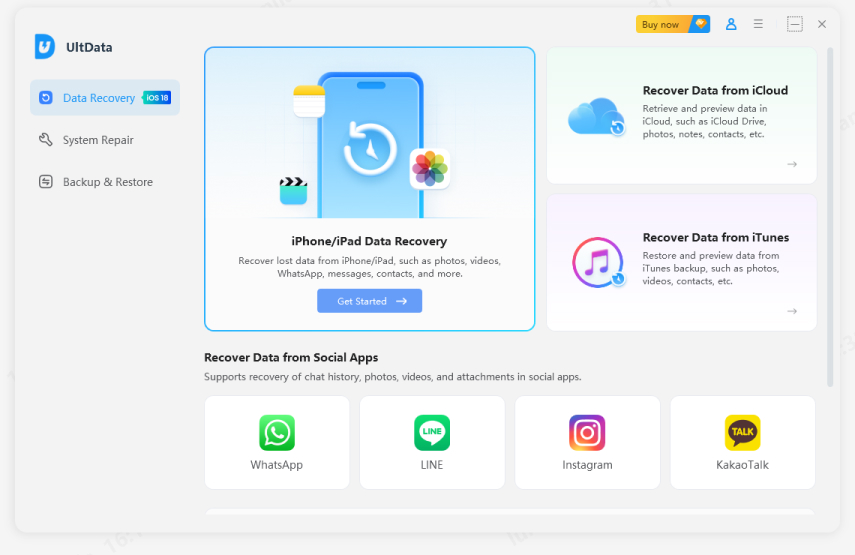
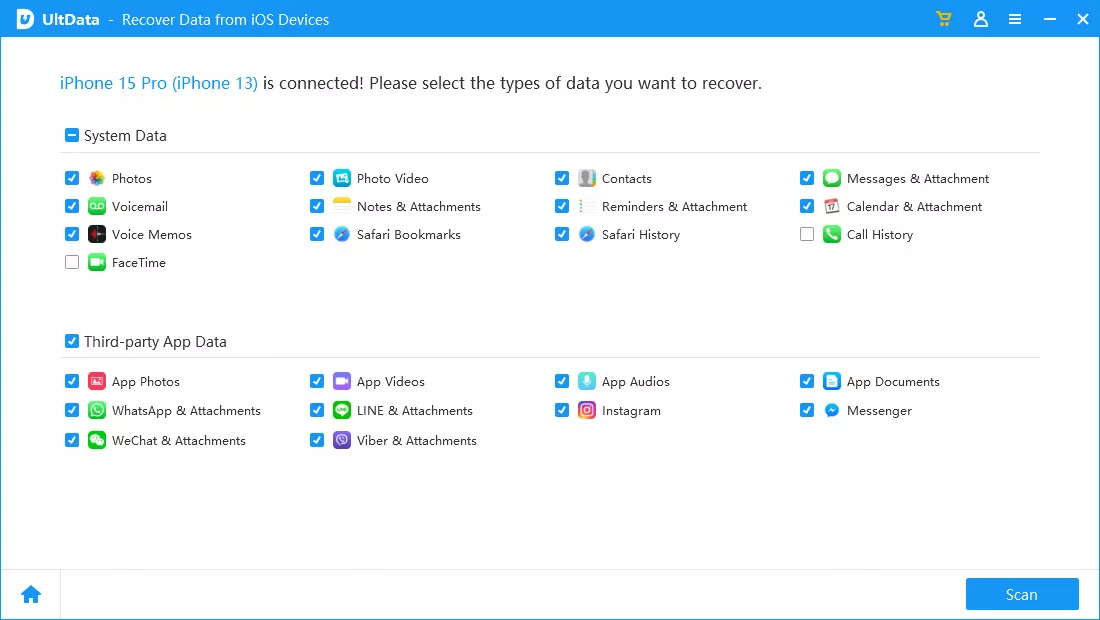
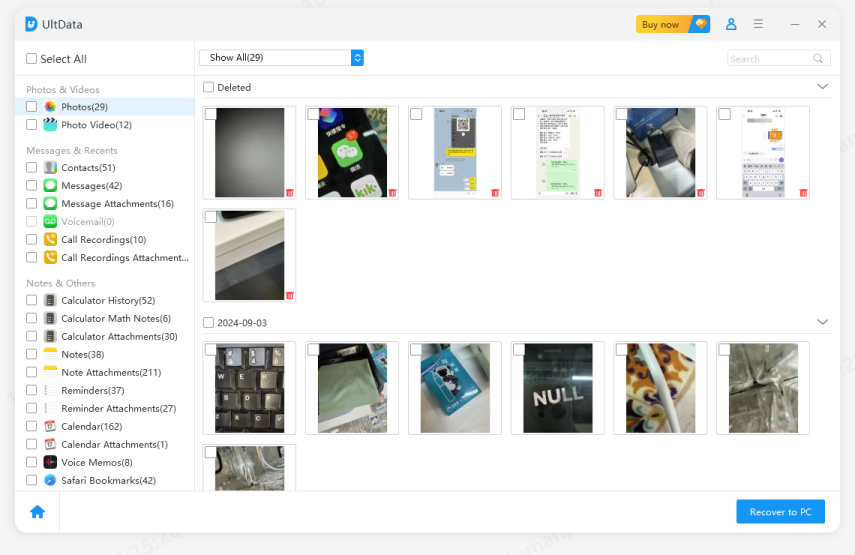
Tenorshare UltData iPhone Data Recovery is a desktop program for Windows and Mac. It scans your iPhone for supported data that can still be detected. It doesn't restore playlists from Apple's cloud, and if a playlist was deleted there, no tool can promise to bring it or its catalog back. UltData earns its place when the loss is bigger than one playlist, such as photos, messages, contacts, notes, or app data.


1. No backup needed
It scans the device directly, so you can try recovery even if you never backed up.
2. Preview first
You see what it found and restore only the items you want.
3. Three recovery routes
You can recover from the device, an iTunes backup, or an iCloud backup.
4. Broad support
It handles many data types on recent iPhones and iOS versions.
5. Easy to follow
The layout is plain enough that a first-time user won't get lost.
A few habits are enough to avoid most repeats of this:
Check your account, Sync Library, subscription, and additional devices in that sequence if your iPhone's Apple Music playlists vanish. Although nothing is guaranteed, playlists that disappear are frequently nonetheless recovered. How can I retrieve my Apple Music playlists, then?
Begin with those four checks. And if your iPhone has lost other data as well, Tenorshare UltData can scan for supported files and let you preview them before restoring anything.


UltData - Best iPhone Data Recovery Software




then write your review
Leave a Comment
Create your review for Tenorshare articles
Share this post


UltData - Best iPhone Data Recovery Tool
Recover Deleted & Lost Data from iOS Devices Easily, No Backup Needed!
UltData: Best iPhone Recovery Tool
Recover Lost iPhone Data without Backup
By Jenefey Aaron
2026-11-03 / iOS Data Recovery