

 iOS Tips & Latest Updates
 Bug Fixes, Unlock Guides
 Giveaways & Freebies


4uKey for Android - No.1 Android Unlocker & FRP Tool
Unlock Android Screen Lock & Remove FRP without Password
Android Unlocker & FRP Tool
Unlock Android Screen Lock & Remove FRP
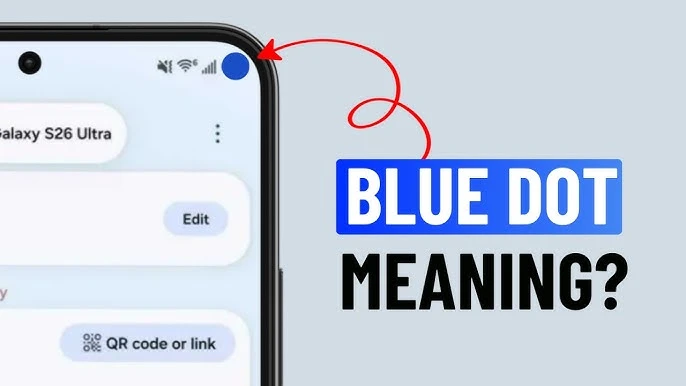
Your Android phone shows a lot of small indicators that are easy to miss. Some of them matter more than others. You may have noticed a small blue dot appearing at the top of your Android screen. This dot is a privacy indicator that Android 17 introduced. What does it mean? How to manage it? Let's understand about android 17 blue dot in detail.

Google introduced the android 17 blue dot to match the same high transparency standards already applied to camera and microphone activity alerts. It gives you real-time visibility into when an app is actively accessing your physical location. So you always know what your device is doing, even when your screen is off.
The blue dot appears in two main scenarios:
Active tracking: An app currently open on your screen and that is pulling your GPS data in real time.
Background tracking: A background service such as a weather app, fitness tracker, or potentially malicious software is quietly accessing your location while you are using another app or while your screen is completely off. This second scenario is the more concerning one, since it can happen entirely without your knowledge.
Different colored dots and blue dots in different contexts mean very different things. Here is a quick breakdown to help you tell them apart:
 Please swipe to view
The green and orange indicators are equally important. If an app is accessing your camera or microphone without your knowledge, it could indicate a hacking attempt or at minimum, unnecessary battery drain. GPS services in particular are well known for being power-hungry.
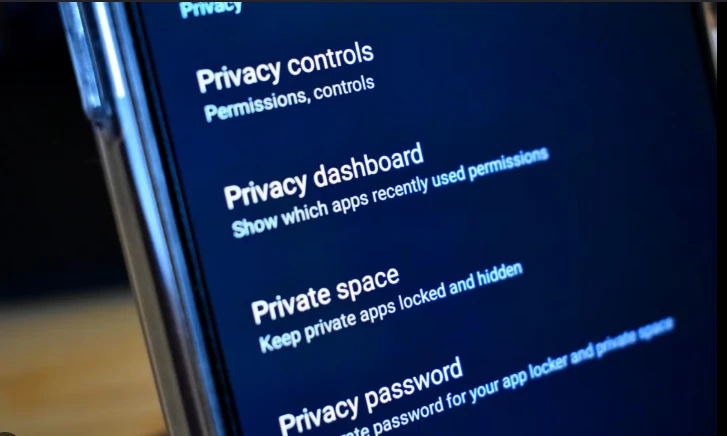
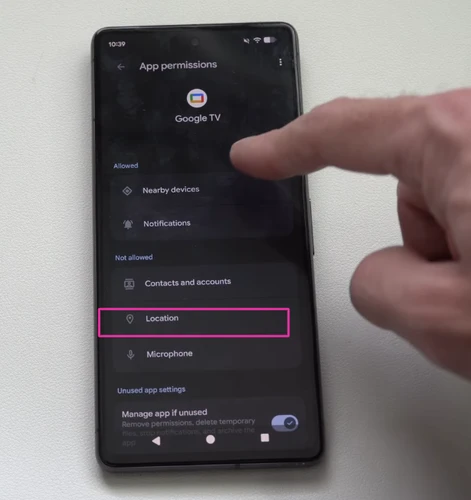
If the blue dot keeps appearing and you want to take control, work through the following fixes in order. Here's how to turn off blue dot on android:


Outdated apps and system software can cause privacy indicators to behave incorrectly or get stuck on screen.

A simple restart can clear temporary UI glitches that make the indicator appear even when no app is actively using your location.
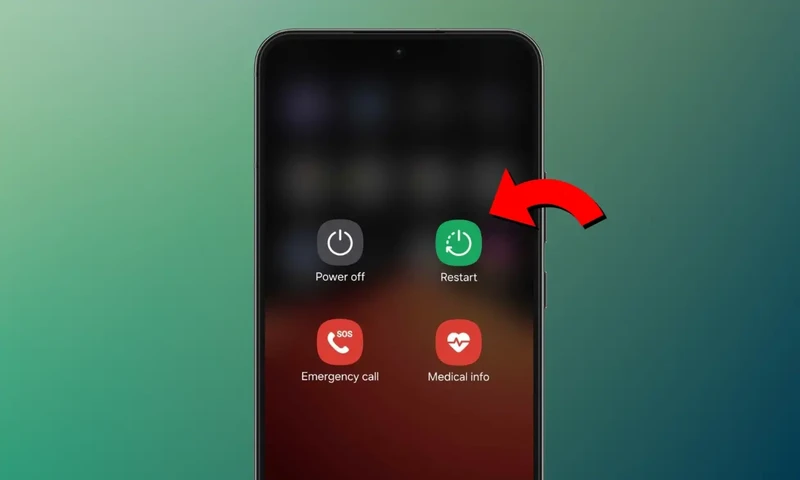
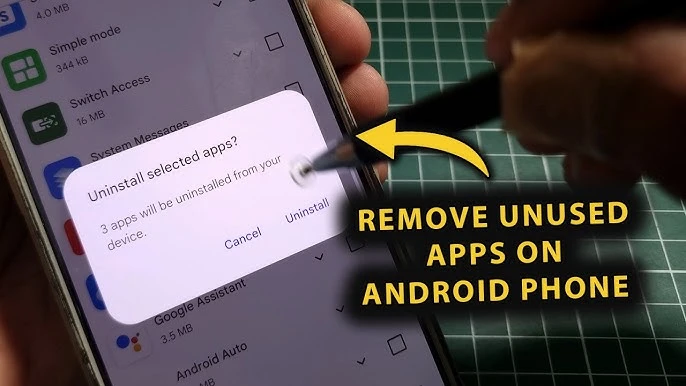
If the blue dot keeps reappearing with no obvious cause, a suspicious or forgotten app may be the culprit.
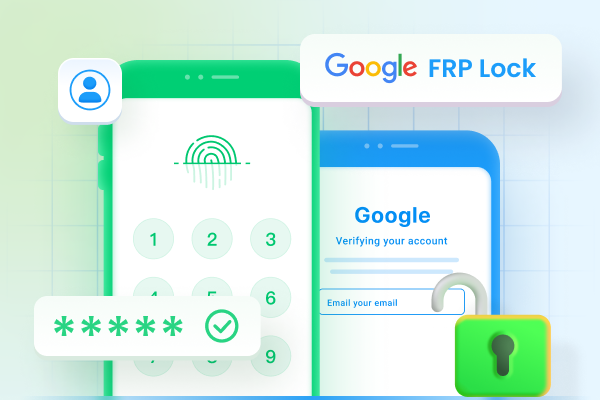
If working through location permissions has left you locked out of your device or if you have inherited a phone with a forgotten PIN, pattern, or Google account lock, Tenorshare 4uKey for Android is a dedicated tool designed to resolve exactly these situations. It's a beginner friendly and effective tool that can solve your problem with hassle.




Key features include:
Android Lock Screen Removal: Unlock Android password, PIN, pattern lock, fingerprints, and Face ID effortlessly, without needing the original credentials.
Easy Samsung FRP Tool: Quickly bypass Samsung FRP (Factory Reset Protection) lock --- no Google account required, including support for Samsung S25 and S26 devices.
Instant FRP Bypass: Seamlessly bypass FRP locks on Xiaomi, Redmi, Vivo, OPPO, Realme, OnePlus, Huawei, and Motorola devices without a password.
Data-Safe Unlocking: Unlock early Samsung devices without wiping your data, which is particularly useful if you just need to regain access without losing files.
If you find yourself locked out while trying to manage your privacy settings, Tenorshare 4uKey for Android is the most straightforward path back in.


Once you are back in, take a few minutes to clean up your privacy settings before anything else.
These steps take less than ten minutes and significantly reduce the risk of unauthorized tracking going forward.
No, the blue dot itself is not a sign of a virus. It is a built-in Android privacy indicator introduced by Google. However, if the dot appears constantly and you cannot identify which app is causing it, that could indicate that an unauthorized or malicious app is running in the background.
A blue dot that never disappears usually means an app has permanent background location access enabled. Common culprits include weather apps, fitness trackers, navigation apps, and certain social media platforms. Open the Privacy Dashboard, check the 24-hour timeline, and restrict background location access for any app that does not genuinely need it.
The indicator itself cannot be disabled in standard Android settings, because it is a transparency feature built into the operating system. Revoke location permissions from the apps that trigger it. Once no app has active access to your location, the dot will stop appearing on its own.
The android blue dot top right corner is one of the most useful privacy features Google has added to Android in recent years. Understanding what is the blue dot on the top right of my pixel phone puts you back in control. You can tap it, investigate through the Privacy Dashboard, and revoke permissions from any app that does not need your location.
For most users, simply adjusting app permissions and disabling background location access is all it takes to manage the indicator. If you find yourself locked out of your device during the process, [Tenorshare 4uKey for Android](http://v) provides a fast, reliable way to regain access without losing your data.


4uKey for Android - No.1 Android Unlocker & Samsung FRP Tool






then write your review
Leave a Comment
Create your review for Tenorshare articles
Share this post


4uKey for Android - No.1 Android Unlocker & FRP Tool
Unlock Android Screen Lock & Remove FRP without Password
Android Unlocker & FRP Tool
Unlock Android Screen Lock & Remove FRP
By Jenefey Aaron
2026-09-28 / Unlock Android