Looking for something other than Tenorshare iCareFone WhatsApp Transfer? Maybe
your device setup is different, or maybe you just want different features or
to save a few bucks. There are a number of tools out there, each with their
own benefits when it comes to speed, flexibility, and what devices they
actually support. But it pays to see what's out there before you settle.
Here, we've reviewed 5 iCareFone Transfer alternatives, each with its own
upsides and drawbacks. Check them out to see which one clicks with what you
need, or you're better off just sticking with Tenorshare. Either way, you'll
know you made the right call.
Part 1. Why You Search for iCareFone WhatsApp Transfer Alternatives
Users might want to look for Tenorshare iCareFone Transfer alternatives
because of the following reasons:
iCareFone Transfer Price: They might want to look for a
free option or a tool that offers a one-time price rather than the
iCareFone subscription model.
Device Compatibility: Users might want to look for an
option that only offers compatibility between iPhones or Androids rather
than a cross-platform tool.
Cracked Version: Individuals might have used the cracked
version of the iCareFone Transfer tool, which is not working out for them.
Part 2. Popular 5 iCareFone WhatsApp Transfer Alternatives Review
iMazing
iMazing is a good iCareFone Transfer alternative that lets you archive
WhatsApp chats, manage history selectively, and create legally documented
exports. Moreover, it extracts detailed data such as message status (sent,
delivered, read), group events (joins or leaves), and media. You can also
export chats in legal-style PDFs that contain metadata like device serial
numbers and export timestamps on each page.
Pros
Captures complete chat history in detail, including metadata and
message statuses.
Offers strong legal and archival support with PDF export and printing
for court or official use.
Provides flexible transfer options, such as moving data from backups
to already set-up iPhones.
Keeps data local and private since processing happens on your
computer.
Cons
Can be slow at first because it must create or access a full local
backup, which may take an hour or more.
Has a steeper learning curve.
Doesn’t support Android-to-iPhone transfers.
May have occasional connectivity issues or slowdowns, especially over
Wi-Fi.
AnyTrans
AnyTrans is a desktop iPhone-to-Android and Android-to-iPhone WhatsApp
transfer alternative for iCareFone Transfer. It can migrate WhatsApp history
in both directions, including messages and all media.
The software also lets you create full local backups of WhatsApp data (along
with LINE and Viber) on your computer and restore them later. In addition,
you can preview chats and export them as HTML files for reading or printing,
and it supports many Android and iOS devices and system versions.
Pros
Solve the lack of an official way to move WhatsApp history from
Android to iPhone.
Designed as a simple one-click transfer process with guided steps.
Functions as an all-in-one phone manager for photos, music, backups,
and full phone switching.
Cons
Users often report technical issues like connection errors, crashes,
or failed transfers, especially with large data.
The process has extra steps (like changing encryption settings or
keeping phones unlocked).
It has a non-intuitive interface.
It is paid software with only a limited free trial, and licenses are
often locked to one computer.
The Windows version requires iTunes to be installed to function.
MobileTrans
MobileTrans by Wondershare is a popular replacement for iCareFone Transfer
to iPhone from Android and vice versa. It lets you move WhatsApp chats,
media, contacts, and voice notes directly between devices and merge data
with existing chats without overwriting them.
You can also create full, encrypted backups on your computer and restore
them later. The software supports a wide range of devices and operating
systems, including the latest models. Moreover, it offers transfer options
via USB on desktop (Windows/Mac) or wirelessly using the MobileTrans mobile
app.
Pros
Fills the gap for official cross-platform WhatsApp transfers.
Transfers all chat data types quickly and is faster than Bluetooth.
Simple, user-friendly interface.
Cons
Some users report connection issues, failed transfers, or crashes.
Paid software with a limited free trial, and subscriptions can be
restrictive.
Requires careful setup (e.g., USB debugging), and the free version may
show ads.
Some features, like moving WhatsApp from Google Drive to an iPhone,
only function on desktop.
iCloud
iCloud is an iCareFone WhatsApp Transfer free alternative that backs up your
old device to iCloud and restores it on a new one. This iOS-exclusive method
uses WhatsApp's built-in iCloud backup, which can be scheduled daily,
weekly, or monthly.
You can also enable end-to-end encrypted backups for extra security with a
password separate from your Apple ID. The tool transfers your full chat
history, including messages, photos, voice notes, and documents, with the
option to exclude videos to save space.
Pros
Official and secure method supported by Apple and WhatsApp, with
optional encrypted backups.
Fully wireless and simple, operating over Wi-Fi without cables or
computers.
Auto-backups save data regularly without manual effort.
Cons
Depends heavily on iCloud storage, and large backups may require paid
plans.
Can be slow and fail on unstable Wi-Fi, especially for large amounts
of data.
An all-or-nothing process with no option to preview or selectively
transfer chats.
Limited to iPhones, and cannot transfer to or from Android devices.
Google Drive
Google Drive is a free alternative to iCareFone Transfer for backing up data
from an Android phone to Google Drive and restoring it on a new one. This is
an Android-only process that ties the backup to your phone number and Google
account, with options to schedule automatic backups daily, weekly, or
monthly. You can also choose whether to include videos to manage backup
size. The process is fully wireless and managed entirely within WhatsApp
over Wi-Fi, requiring no cables or computer.
Pros
Official WhatsApp transfer feature for Android phones.
Auto-backups save data regularly without manual effort.
Google cloud storage protects WhatsApp backups from phone loss or
damage.
Cons
Can only restore during initial WhatsApp setup, and skipping requires
reinstalling the app.
Restores the entire backup at once, with no option to select
individual chats or media.
Requires stable internet, enough Google Drive space, and updated
Google Play Services.
Cannot transfer WhatsApp data to iPhone.
Part 3. How to Choose the Right Alternative
Picking the right WhatsApp transfer tool depends on your device type, data
size, and how you want to manage your chats. Different tools offer different
features, speeds, and levels of flexibility. Here are the important criteria
to consider when making your choice:
Device Compatibility: Make sure the tool supports your
devices and platform (iOS, Android, or both).
Data Control & Flexibility: Look for options to
preview, selectively transfer chats, or export media if you don't want an
all-or-nothing backup.
Speed & Reliability: Consider how fast and stable the
transfer is, especially for large chat histories or media files.
Security & Privacy: Check whether data is processed
locally or on the cloud, and if backups can be encrypted.
Ease of Use: Some tools are simple with one-click
processes, while others have a steeper learning curve.
Cost: Free options are limited to their ecosystems, while
paid tools may offer more features.
Extra Features: Some tools provide backups for other
apps, merging chats, or legal-grade exports, which may be important
depending on your needs.
Part 4. Coupon Code of Tenorshare iCareFone Transfer [100% Work]
Part 5. Coupon Code of Tenorshare iCareFone Transfer [100% Work]
Coupon Code of Tenorshare iCareFone Transfer [100% Work]
40% OFF iCareFone Transfer: YH40TS -- apply at checkout to get a 40%
discount on Tenorshare iCareFone Transfer licenses.
40% OFF / Sitewide Promo: codes like CN-30 (around 30% or
more off) may work during select sales events.
A8DTE: Often shown as a high‑percentage discount code on
coupon sites (e.g., up to 60--79%+ off when active).
SS30OFF: Another promo code frequently listed for
significant savings.
Codes like F5PA, SARY5, or A2F6N appear in community listings with various
discount levels (20--70% off).
TS2420OFF: 20% most reliable "Sitewide" code for all plans.
DFT28A8: 10% Verified code for all Tenorshare software
products.
Part 5. Tenorshare iCareFone Transfer Real Reviews from Users
User reviews
appreciate that Tenorshare iCareFone can restore Google Drive backups to
iPhones and transfer data without resetting the phone. Many say it provides
an easy one-click way to move WhatsApp from almost any Android model to an
iPhone, simplifying a normally restricted process.
Its backup and restore features are also valued, as it lets users preview
and selectively restore chats or attachments for better control.
Furthermore, iCareFone Transfer reviews often mention faster, stable
transfers through USB compared to official methods. Some also praise its
ability to handle special cases like working with GBWhatsApp or transferring
data linked to an old phone number on the same device.
Part 6. iCareFone Transfer vs. Alternatives: Why iCareFone Transfer Is Still
the Best Option?
Tenorshare iCareFone Transfer
still remains the best WhatsApp transfer tool out there, and for good
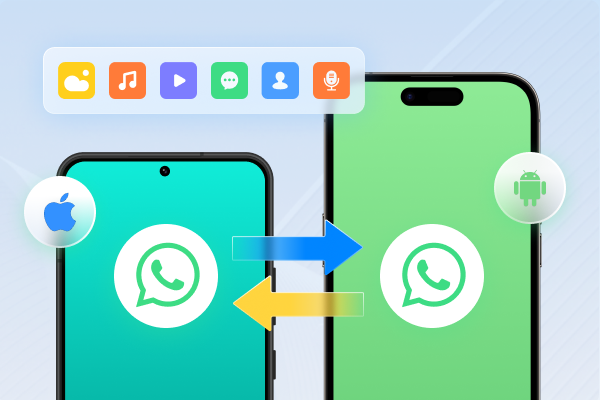
reason. Unlike other tools, it supports full cross-platform transfers
between Android and iPhone, as well as Android-to-Android and
iPhone-to-iPhone, without requiring a factory reset.
Moreover, iCareFone also allows selective data restoration and previewing
backups from iCloud or Google Drive, giving you complete control over what
you restore. Here are some more benefits this tool provides:
It can manage all WhatsApp versions, including WhatsApp Business and
GBWhatsApp.
The transfer is fast, even with large files, usually taking around 30
minutes, and highly accurate, ascertaining no data is lost.
The tool lets you merge old and new WhatsApp messages flawlessly.
Move WhatsApp Business between Android and iPhone after setting up.
Free backup and export options for WhatsApp, Kik, and Viber.
Supports iOS 26, Android 16, and earlier versions.
Here's an example of using iCareFone Transfer to move WhatsApp from an
Android to an iPhone:
Launch iCareFone Transfer on your computer. Then, attach your Android
and iPhone to the same computer. Tap "Transfer" on the tool.
On your Android (e.g., Samsung), enable USB debugging if prompted.
Confirm the popup on your iPhone to create a WhatsApp backup. Hit
"Continue."
Turn off WhatsApp end-to-end encryption on Android. Click "Backup."
Then, click "Next step."
Enable end-to-end encryption on your Android by following the
instructions. Then, choose the 64-bit key option. Hit "Next step."
Create a backup of WhatsApp data on the source device. Tap "Next Step."
Wait while iCareFone Transfer retrieves data from the Android.
Verify your WhatsApp backup account when prompted. Select the types of
attachments you want to transfer. Hit "Continue."
The tool will generate data for the iPhone. Make sure you're logged into
WhatsApp on the iPhone. Hit "Logged in" to restore the data.
Turn off "Find My iPhone" when prompted to allow restoration. Wait for
the transfer to complete.
Once finished, the iPhone will restart, and WhatsApp data will be
successfully transferred.
Part 7. FAQs on iCareFone Transfer Alternatives
Q1. Is iCareFone Transfer safe?
Yes, iCareFone Transfer is safe to use and includes several security
features. Backups and transfers are encrypted, and your personal data isn't
shared, since everything happens locally on your desktop through a direct
USB connection.
This keeps the process offline and private. Besides, iCareFone Transfer is
developed by Tenorshare Co. Ltd., an established company. But for safety,
you should download it only from the official website to avoid modified or
unsafe versions.
Q2. Is iCareFone Transfer worth it?
Yes. If you need cross-platform WhatsApp transfers or advanced features, it
can be worth it. The tool saves time compared with manual methods and
supports selective restore and different WhatsApp versions. It also avoids
some limits of official tools, making it useful for users who want
convenience and flexibility.
Q3. Are iCareFone Transfer alternatives safe to use?
Yes. Major alternatives like iMazing and AnyTrans are generally safe because
they come from well-known software companies. However, their safety depends
on downloading them from the official websites to avoid malware or modified
versions.
Conclusion
Picking the right iCareFone Transfer alternative for WhatsApp transfer boils
down to your specific needs, such as device compatibility, budget, ease of
use, or data control. Tools like iMazing, AnyTrans, MobileTrans, iCloud, and
Google Drive support certain scenarios. But each has trade-offs in
flexibility, support, or dependability.
However,
Tenorshare iCareFone Transfer
remains the most complete solution. It offers broad device support, fast and
accurate transfers, and selective restore options. The tool also supports
WhatsApp Business, GBWhatsApp, and cross-platform transfers without resets.
So, for most users, sticking with Tenorshare iCareFone Transfer is likely
the best choice.










 iOS Tips & Latest Updates
 Bug Fixes, Unlock Guides
 Giveaways & Freebies




By Jenefey Aaron
2026-10-14 / Transfer