

 iOS Tips & Latest Updates
 Bug Fixes, Unlock Guides
 Giveaways & Freebies


Cleamio: All-in-One Mac Cleaner & Optimizer
Clean junk files, free up space, and boost Mac performance
No.1 Mac Cleaner & Optimizer
Clean, speed up, and optimize your Mac
Seeing the alert “Mac startup disk full” can be alarming, especially when your Mac begins slowing down, freezing, or refusing to install updates. The startup disk is where macOS runs and stores essential system data, so when it fills up, performance suffers quickly. Fortunately, you can fix this issue with the right tools and cleanup methods.

Before jumping into fixes, it’s important to understand what the startup disk actually does. Many users confuse it with external drives or backup disks, but it plays a much more critical role in your Mac’s operation.
Your Mac's startup disk is the primary storage drive where macOS is installed. It's the foundation your computer relies on every time it powers on. Think of it as the engine room of your Mac: it stores the operating system, all your apps, your personal files, temporary system files, and everything else your Mac needs to run smoothly.
On most modern Macs, the startup disk is a built-in SSD. You can find it listed as "Macintosh HD" in Finder or Disk Utility. Without a properly functioning startup disk with enough free space, your Mac simply can't operate.
The startup disk is responsible for:
When you see the warning "Your startup disk is almost full on Mac", it means your Mac's main drive (where macOS and all your apps live) has run out of free space. macOS needs at least 15–20% of disk space free to run virtual memory, save temporary files, and process everyday tasks. When it's gone, your Mac slows down, apps crash, files fail to save, and the Mac gets stuck on choosing startup disk during boot.
What catches many users off guard is that the startup disk can fill up even without saving large files. System caches, log files, and app leftovers quietly pile up in the background, which is why your Mac startup disk may still appear full even after deleting files manually.

To fix the problem effectively, you first need to identify what’s consuming your startup disk space. macOS provides built-in tools to analyze storage usage, making it easier to locate large or unnecessary files.
Click the Apple menu and select “System Settings” (or “About This Mac” on older versions).
Click “General” then go to “Storage” and wait for macOS to calculate the storage breakdown.

This view shows how much space is used by Apps, Documents, Photos, System Data, and more.
The most common storage culprits include:
Often, these files accumulate silently over time until the startup disk becomes overloaded.
Manually searching through folders can be time-consuming and risky, especially for hidden junk that macOS Storage doesn't fully reveal. If you want a faster and safer solution, a dedicated Mac cleaning tool like Tenorshare Cleamio offers a fast, safe, and comprehensive solution.
This AI-powered optimizer is designed specifically to tackle "startup disk full" problems by freeing up gigabytes of space in minutes. It's Apple-notarized for security, user-friendly, and focuses on deep yet safe cleaning without risking important data.
Key features of Tenorshare Cleamio that directly address startup disk full issues:
These tools work together for a 360° cleanup, often recovering 20GB+ of space while boosting overall Mac performance and reducing lag.
Steps to Free Up Disk Space Using Cleamio
Download and install Tenorshare Cleamio. Launch the program, choose “Junk Files” from the left menu, and click “Scan” to analyze the junk files on your disk.

After the scan is complete, select the files you want to delete, then click "Smart Cleanup”.

Cleamio will automatically delete those files, and once it is done, you can click "OK”.

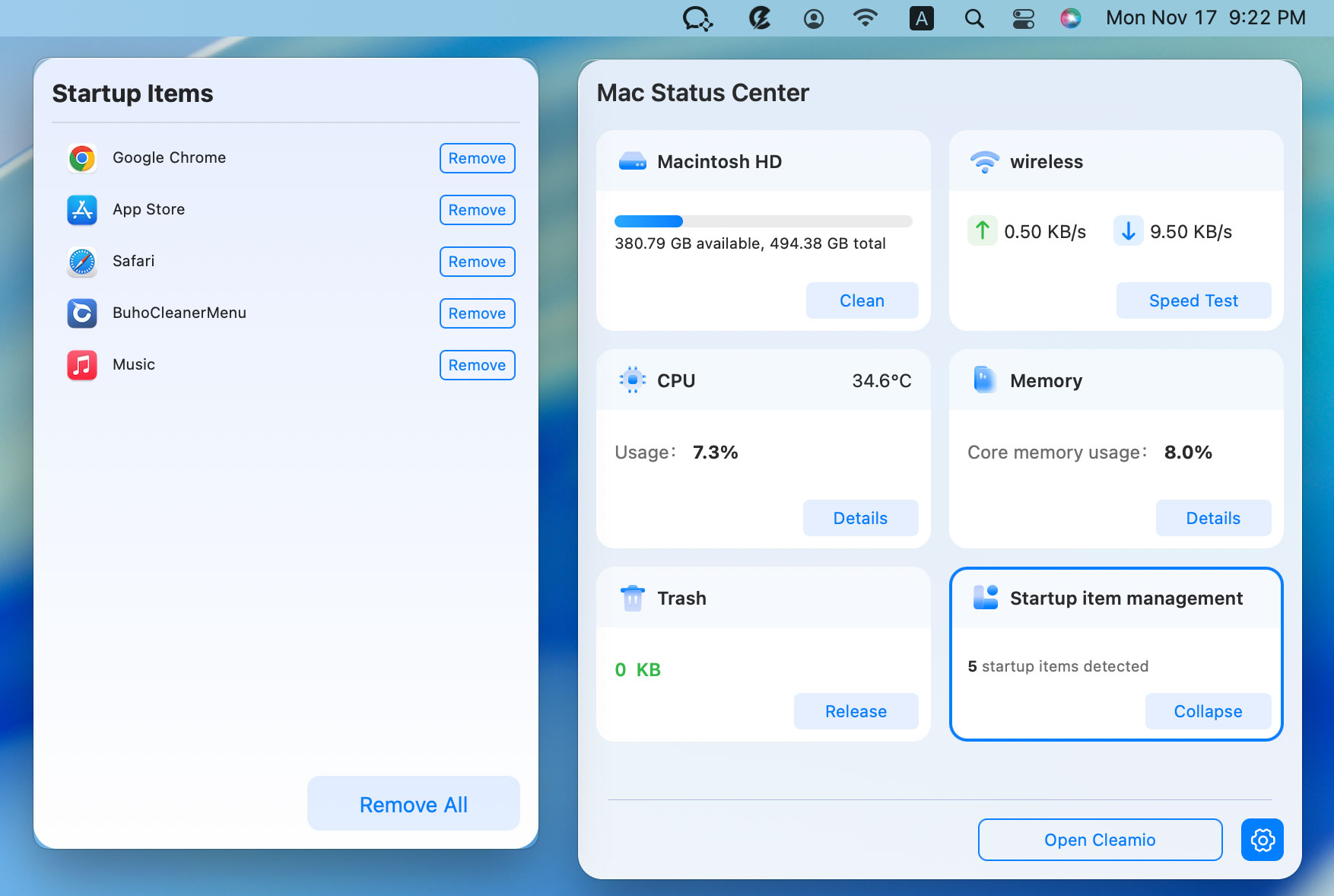
Select the left menu items, such as “Large Files”, “Duplicate Files”, “Similar Photos”, “App Management”, you can deep detect and remove those space-hogging items. Also, by clicking the top-right Cleamio logo, you can open its Mac Status Center to check CPU/memory usage, manage and disable startup items and background process.
Find and Delete Mac Large Files

Manage and Disable Startup Items and Background Processes
If you prefer using built-in macOS tools, several manual methods can help reduce startup disk usage. These options are effective but require careful attention to avoid deleting important system files. Now, let’s see how to fix full startup disk on Mac:

Only needed if your Mac freezes at startup, shows a flashing folder icon, or refuses to boot. If your Mac starts normally, skip to Method 2.
When your Mac won’t start due to a full startup disk, Recovery Mode can help diagnose disk issues. Running First Aid checks for disk errors and repairing them if necessary. This is especially helpful when storage problems affect booting.
Restart your Mac and immediately hold “Command + R” until you see the Apple logo.
Select “Disk Utility” in the macOS Utilities window and choose your startup disk (usually Macintosh HD).
Click “First Aid” then click “Run” to check and repair disk errors.

Local backups can quietly consume dozens of gigabytes. Deleting outdated backups can immediately free up space. This method is highly effective for users who regularly sync devices to fix full startup disk on Mac.
Open “System Settings” and go to “General” to open “Storage” details.
Click “iOS Files” “i” button and expand the iOS backups.
Select an iOS backup and click “Delete” to free up storage on your Mac.
Now, open “Terminal” and run “tmutil listlocalsnapshots /."
Delete Time Machine snapshots using: “sudo tmutil deletelocalsnapshots [date]."

macOS offers built-in optimization tools to manage large files and offload content to iCloud. This feature helps reduce local storage usage automatically. It’s safe and easy for most users.
Go to “System Settings”, then “General", and finally “Storage”.
Enable “Optimize Storage”, “Empty Bin Automatically”, and click “Store in iCloud” to free up some space from your Mac by moving items to iCloud.

Caches and log files accumulate over time. While necessary temporarily, they often become oversized. Clearing them can free up noticeable space.
Open Finder and from the menu bar at the top, click "Go" then choose "Go to Folder”.
Enter “~/Library/Caches” to remove the cache and "/var/log" to remove the system logs.
Delete unnecessary folders carefully.

Large files like videos and archives are major storage consumers. Moving them to an external drive reduces pressure on your startup disk. Always back up before deleting.
Connect an external drive to your Mac and open it in a Finder window
Open another Finder window with your important files and drag large files to the drive window.
Verify transfer before deleting originals.
Sorting files by size helps identify hidden large items. Removing unused large files is one of the quickest ways to reclaim space.
Open Finder and go to the location where you want to delete the large files from.
Click the "Grouping" icon at the top and choose "Size" to group files by size.

Now you can look for the unnecessarily large files on your Mac and delete them easily.
Files remain on your startup disk until Trash is emptied. The Downloads folder often contains forgotten installers and duplicates. Clearing both is a simple but effective step if your Mac's startup disk is full.
Open the Downloads folder and delete unused files.
Right-click Trash and choose “Empty Trash”.
Click “Empty Trash” in the pop-up window to confirm this action.
Sometimes you may need to change your startup disk, especially if you’re booting from an external drive or troubleshooting. Knowing how to switch startup disks can help resolve boot conflicts or test alternate macOS installations.
You might change startup disks when installing macOS on another drive or diagnosing system errors. It’s also useful when your internal disk is damaged or full.
Open System Settings and go to “General", then open "Startup Disk”.

Select your desired disk and click “Restart”.
Shut down your Mac and hold the power button until you see the "Apple” logo to boot into recovery mode.

Select the disk that you want to use as your startup disk and click “Continue” under it.
Your Mac will use this disk as the startup disk once, and next time it will boot from the default one unless you switch it in "System Settings”.
Deleting the startup disk erases macOS and all stored data. Your Mac will not boot until macOS is reinstalled.
You can manually delete files through Finder or use storage management tools. Always ensure you don’t remove essential system files.
Restart your Mac and hold Command + R. Then select Disk Utility from the Recovery menu.
It may be disconnected, corrupted, or not properly formatted. Running Disk Utility First Aid may help detect it.
You cannot fully “empty” the startup disk without erasing macOS. Instead, delete unnecessary files to free up space safely.
The Mac startup disk full warning can slow down your system and prevent updates, but it’s usually caused by accumulated files, backups, and caches. By identifying storage-heavy items and removing unnecessary data, you can restore performance quickly. For a faster, safer, and more comprehensive solution, Tenorshare Cleamio helps reclaim disk space efficiently and keep your Mac running smoothly.


then write your review
Leave a Comment
Create your review for Tenorshare articles
 Cleamio
All-in-One Mac Cleaner & Optimizer
Share this post


Cleamio: All-in-One Mac Cleaner & Optimizer
Clean junk files, free up space, and boost Mac performance
No.1 Mac Cleaner & Optimizer
Clean, speed up, and optimize your Mac
By Jenefey Aaron
2026-10-20 / Mac Cleanup