

 iOS Tips & Latest Updates
 Bug Fixes, Unlock Guides
 Giveaways & Freebies


Cleamio: All-in-One Mac Cleaner & Optimizer
Clean junk files, free up space, and boost Mac performance
No.1 Mac Cleaner & Optimizer
Clean, speed up, and optimize your Mac
Background apps on a Mac can use your system without you noticing. Whether you use a MacBook Pro or MacBook Air, many apps keep running in the background. These apps may look harmless, but together they can slow your system, drain your battery, and reduce performance. Apps like Google Updater, Steam, or Setapp often run automatically. That is why understanding how to close background apps on Mac is essential.
This article explores how to check, manage, and stop unnecessary processes and even prevent them from launching automatically.

Identifying which apps are running in the background helps users understand what's consuming system resources. Mac provides many built-in tools to view active processes. Each serves a different purpose depending on the level of detail needed.

The Dock is the quickest way to spot background apps. If an app icon has a small dot underneath it, that means it’s still running even if no window is open. This method is ideal for beginners who want a simple visual way to monitor apps.


Some apps stay in the Dock even when not running, so always check for the dot.
Activity Monitor is the most powerful built-in tool for viewing and managing background processes. It shows CPU, memory, energy usage, and disk activity, helping you identify resource-heavy apps. This is particularly useful for identifying non-app processes that the Dock won't show you.

This method helps you find hidden background processes that you can’t see in the Dock.
Some apps automatically launch when your Mac starts. These background tasks can slow down performance without you realizing it. Managing login items helps prevent unnecessary apps from running.
Steps:


Disabling unnecessary startup apps can make your Mac faster.
Once users know which apps consume system resources, the next step is to close them properly. Mac offers many ways to quit background apps, ranging from simple Dock interactions to advanced system utilities.
The simplest way to close an app that you no longer need is through the Dock. This sends a standard termination signal to the app, allowing it to save your work and close gracefully. It is the safest method for regular maintenance and should be your first choice for closing non-essential tools.

Keyboard shortcuts can save time, especially when you’re multitasking or working with multiple applications. Instead of manually closing each app, you can cycle through them and quit quickly. This method is particularly useful for power users who want to improve workflow efficiency.
Sometimes apps become unresponsive and refuse to close through normal methods. In such cases, the Force Quit window is essential. It allows you to immediately terminate frozen apps and restore system stability. This method is safe for most apps and is commonly used when your Mac slows down or becomes unresponsive.

When a background process is invisible to the Dock and the Force Quit window, Activity Monitor is your best friend. It allows you to target specific sub-processes or system tasks that are chewing through your RAM. This level of control is vital for power users who want to maintain peak performance during intensive tasks like 8K video editing or 3D rendering.
Steps:
Manually closing apps works, but preventing them from launching in the first place is even better. Many apps automatically run at startup, consuming CPU and memory in the background. Managing startup items ensures a faster boot time and smoother performance overall.
A powerful solution for this is Tenorshare Cleamio, which offers a built-in Mac Status Center. It allows you to monitor CPU and memory usage, detect resource-heavy apps, and manage startup programs efficiently. You can also close background apps and clear junk files with just one click making it an all-in-one optimization tool.

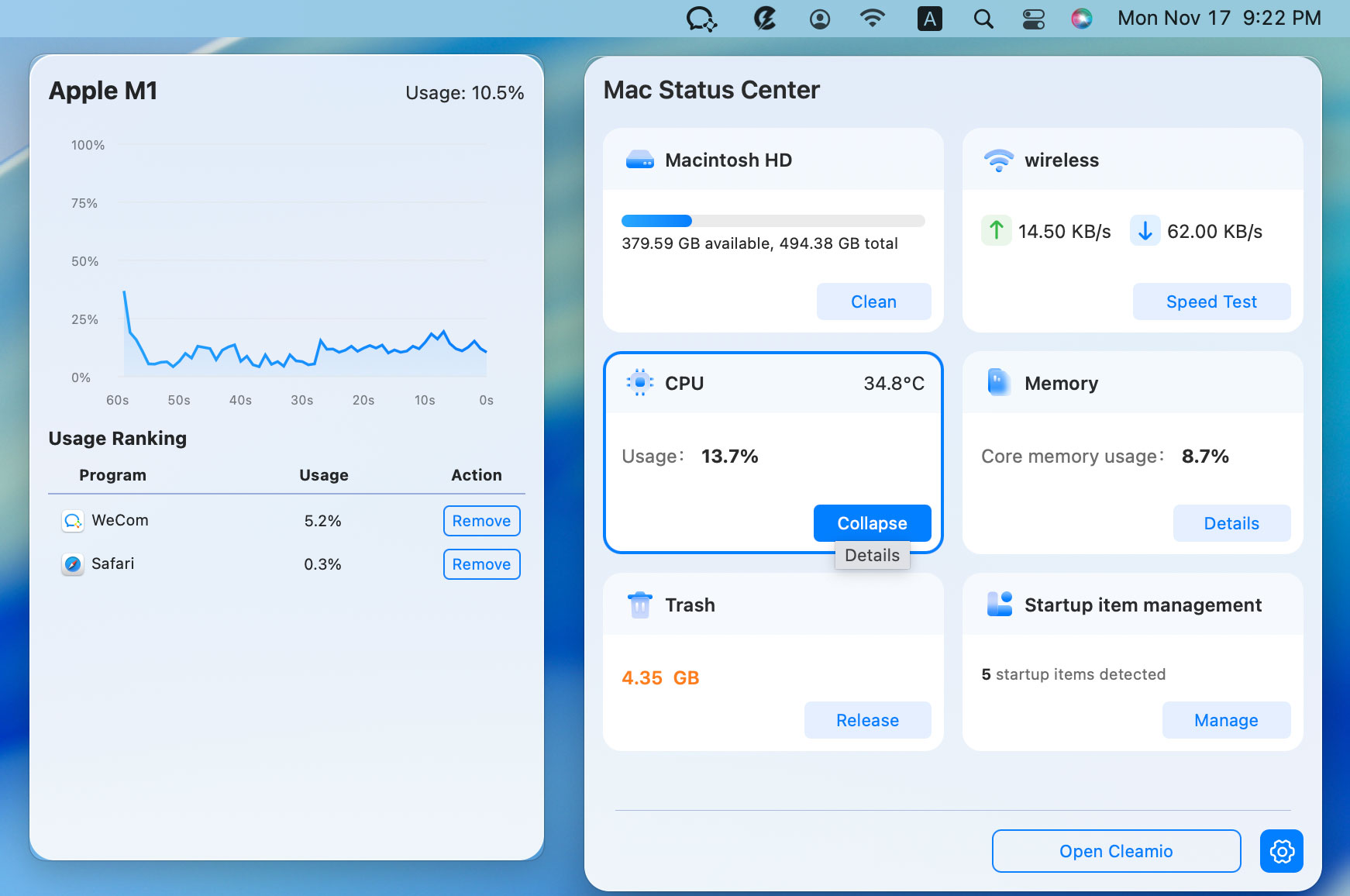
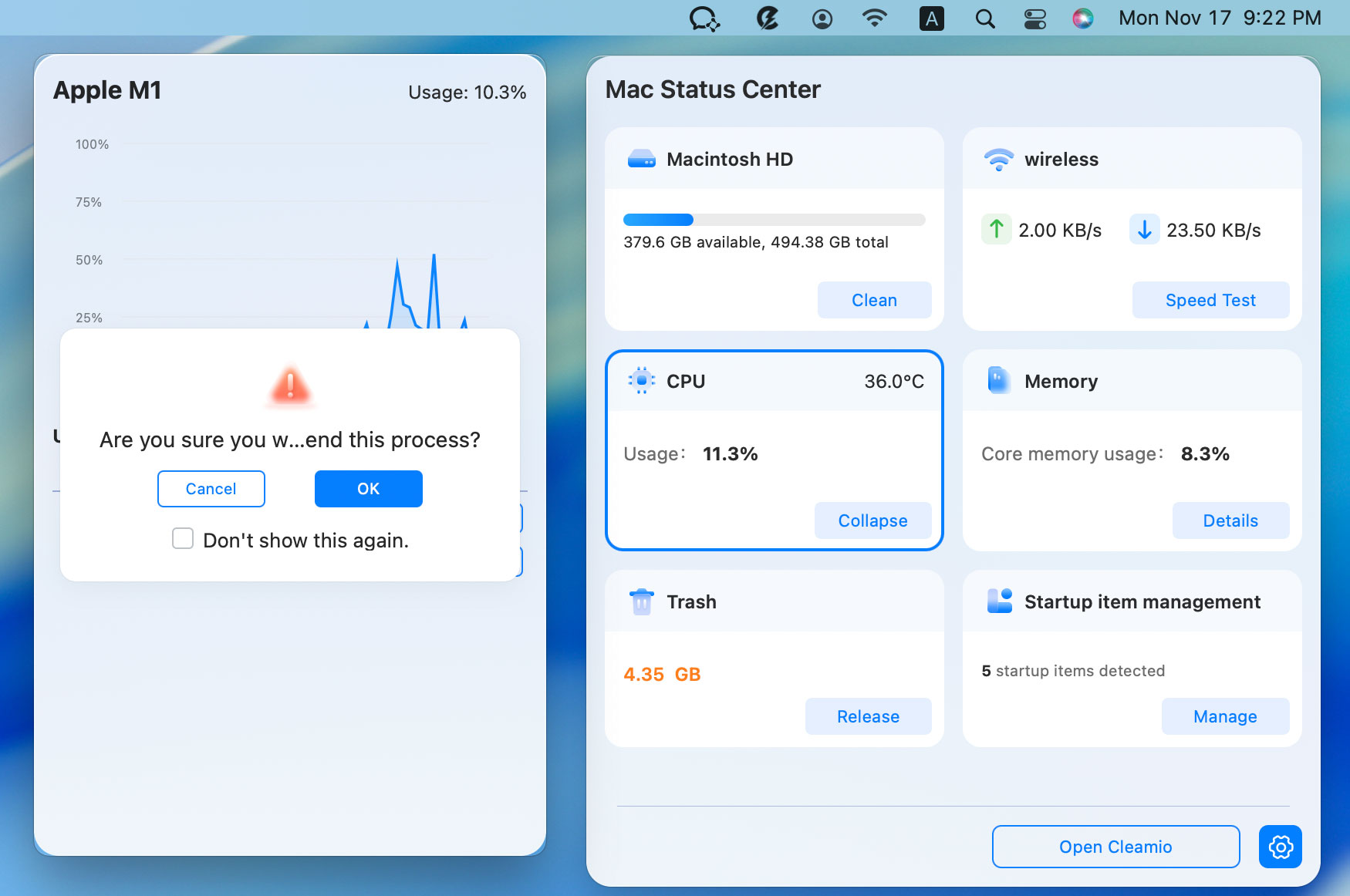
For advanced users and developers, the Terminal offers the most direct way to kill a background process Mac. If you are comfortable with the command line, you can kill a task in Mac by using the Process ID (PID) or the process name. This method is incredibly powerful and bypasses all GUI limitations.

Unlike Windows, clicking the red "X" on a Mac app usually only closes the window, not the application itself. This allows you to reopen windows instantly. To fully close an app, you must use the Command + Q shortcut or select "Quit" from the app's menu.
Music apps may keep playing even when hidden. You can stop them using the keyboard media keys or by opening the app and pressing stop. If it doesn’t close, use Force Quit.
Yes, it is generally safe. However, you may lose any unsaved work. Only use Force Quit when an app is frozen or not responding.
"Closing" (clicking the red button) removes the visual window but keeps the app loaded in RAM for quick access. "Quitting" (Command + Q) removes the app from memory entirely, freeing up resources for other tasks.
Yes. Background processes consume memory and CPU, slowing down the Mac over time. Too many open apps affect speed and performance. Quitting unused apps helps maintain smooth operation and extends battery life.
You can use the Terminal commands like kill or pkill, or use the Force Quit Applications shortcut (Option + Command + Escape). Third-party tools like Tenorshare Cleamio also offer a GUI-based way to manage processes without digging into system utilities.
In conclusion, learning how to close background apps on Mac is important for keeping your MacBook Pro or MacBook Air fast. You can check and manage apps using the Dock, Activity Monitor, or Terminal. For a more streamlined approach, we recommend Tenorshare Cleamio. This tool helps monitor performance, remove startup apps, and clean your system in one click. Using it regularly can improve speed, reduce lag, and extend your Mac’s overall lifespan.


then write your review
Leave a Comment
Create your review for Tenorshare articles
 Cleamio
All-in-One Mac Cleaner & Optimizer
Share this post


Cleamio: All-in-One Mac Cleaner & Optimizer
Clean junk files, free up space, and boost Mac performance
No.1 Mac Cleaner & Optimizer
Clean, speed up, and optimize your Mac
By Jenefey Aaron
2026-09-28 / Mac Cleanup