

 iOS Tips & Latest Updates
 Bug Fixes, Unlock Guides
 Giveaways & Freebies


ReiBoot - No.1 Free iOS System Repair Software
Fix 150+ iOS Issues without Data Loss & Safely iOS 27 Upgrade/Downgrade
ReiBoot: No.1 iOS Repair Tool
Fix 150+ iOS Issues, No Data Loss
It is incredibly frustrating when you urgently need to charge your device or connect a peripheral, only for your screen to suddenly flash the warning: this accessory uses too much power. This annoying alert has become especially common on newer USB-C models, such as the iPhone 15, 16, and 17 series. Whether you are dealing with a simple charging glitch or a blocked external connection, this guide explains exactly why this error happens and compiles 10 proven solutions—from quick hardware checks and resolving peripheral overloads to permanently fixing deep iOS system and hardware issues—to help you fix the issue instantly.

Before diving into the fixes, it is crucial to clarify your situation. Understanding what does this accessory uses too much power mean requires identifying exactly when the warning appears. This error generally occurs in two completely different scenarios:
At its core, this warning is a built-in iOS safeguard designed to prevent permanent hardware damage. When an accessory demands more electrical current than your iPhone's port is safely rated to supply, the system instantly cuts the connection to avoid overheating, extreme battery drain, or frying the logic board. Beyond this basic protection mechanism, here are the deeper technical reasons behind this warning:
Accessories like external SSDs or professional microphones often require a higher electrical current than iOS's built-in safety output limits can provide. When the demand is too high, iOS instantly cuts the connection.
When your iPhone's battery drops below 20%, the system automatically throttles power supplied to external ports to conserve energy. An accessory that works perfectly at 80% battery might trigger this error when your phone is nearly dead.
Since the iPhone 15 transitioned to USB-C, the port not only receives power but also supports a 4.5W reverse charging feature (to charge AirPods or an Apple Watch). This 'two-way power delivery' creates two major triggers:
The Strict 4.5W Output Wall (For Peripherals): Apple has set a highly sensitive threshold for the USB-C port. If an accessory's peak current draw exceeds 4.5W, iOS blocks it.
In a recent Apple Community discussion, iPhone 17 Pro users reported that Flir Thermal Cameras—which worked fine on older Lightning iPhones—now constantly trigger the power warning. Experts explained this is due to the newer, stricter USB-C power limits.

The Power Handshake Bug (For Charging): Because the port is bidirectional, connecting your iPhone to certain non-PD (Power Delivery) chargers or low-quality cables causes the underlying Power Handshake protocol to crash. The iPhone mistakenly thinks the wall charger is an accessory trying to steal its battery. This explains why users get the error just by charging.

This deep firmware logic bug is exactly why a system repair tool like Tenorshare ReiBoot is highly recommended in Solution 9
A top-voted Reddit thread confirmed this reverse charging bug, noting that iPhone 15/16 Pro models confuse older charging bricks with power-drawing peripherals.

A simple layer of pocket lint inside the port can disrupt electrical contacts, causing misread power outputs. Similarly, cheap, non-MFi-certified cables lack the proper chips to communicate their power needs, leading iOS to reject them by default.
If you are wondering how to fix accessory uses too much power without diving into complex system settings, start with these simple physical checks. These quick fixes resolve the majority of minor hardware and connection glitches in seconds.
Sometimes, the simplest method works best. Unplug the accessory from your device, wait for about 10 seconds, and firmly plug it back in.
This brief pause forces iOS and the accessory to reset their 'Power Handshake' protocol, clearing out any temporary communication errors that may have triggered the warning.
Dust and pocket lint can easily accumulate inside your iPhone's charging port, preventing a clean connection.
Debris blocks the connection pins, causing the system to misread the electrical current and trigger a false power overload warning.
How to do it: Use a dry, soft-bristled brush or a wooden toothpick to gently sweep out the port. Never use metal objects like paperclips, as they can short-circuit or permanently damage the delicate pins.

If your battery is in the red (below 20%), your device is basically in survival mode. To conserve remaining battery life, iOS automatically throttles power output to external ports. Plug your iPhone into a standard wall charger until it reaches a healthy level (at least 50%) before trying to connect any high-power peripheral again.

If your iPhone says accessory uses too much power when charging (meaning you are not even connecting a peripheral), the culprit is likely your charging brick.
A highly upvoted solution on Reddit reveals that older, non-PD (Power Delivery) charging blocks frequently confuse the bidirectional USB-C ports on newer iPhones, triggering the reverse charging bug. Upgrading to a modern 20W PD-compatible charger (like those from Anker or Apple) instantly solves the problem.
The original poster confirmed that simply switching from an old charging block to a newer PD-supported adapter stopped the error completely.


When upgrading your charging setup, always opt for MFi-certified products or, ideally, genuine Apple accessories to eliminate all doubt about compatibility and power compliance.
If you are wondering how to stop iPhone from saying accessory uses too much power when actively plugging in external devices, the issue is almost certainly a power deficit. The following solutions are designed specifically for heavy-duty peripherals.

Connecting USB flash drives, external hard drives, MIDI keyboards, or microphones.( If you only encounter this error while trying to charge your iPhone, this solution is not for you. Please skip to other following fixes for system repair).

Why a direct connection fails: If you connect a portable USB drive or microphone that lacks a built-in battery, it is forced to draw both 'power' and 'data' simultaneously through your device's port. Because iPhones and iPads have strict electrical output ceilings, a direct connection will inevitably trigger the power overload warning.
Why a Powered USB Hub works: A powered hub comes with its own dedicated AC adapter that plugs directly into a wall outlet. The wall socket provides all the heavy-lifting power your external accessory needs, while the cable connecting to your iOS device is used solely for data transfer. This completely bypasses Apple's internal power restrictions. This is especially useful if you are constantly getting the This accessory uses too much power iPad error when using your tablet for heavy mobile workflows.
Apple’s official Lightning (or USB-C) to USB 3 Camera Adapter features a brilliant design: it includes an extra charging port alongside the standard USB port. This allows you to plug your phone into a wall charger to provide continuous power while simultaneously connecting your external peripheral.
This is the absolute best fix if you are dealing with a This accessory uses too much power headphones error when using a professional DAC (Digital-to-Analog Converter), a USB microphone, or external audio interfaces.
Top-ranking members in the Apple Support Community consistently point to this adapter as the definitive cure for peripheral power warnings. An expert clearly advises a user that they must use the Apple USB 3 Camera Adapter with power passthrough to handle audio interfaces.

Similarly, in another post, a community user confirmed that plugging a charging cable into the adapter's extra port immediately resolves the 'Too Much Power' block.

A Bizarre Real-World Case: A Charger Mistaken for an Accessory? In the Apple Support Community, many users have complained about a mind-boggling bug: they simply plug their iPhone into a standard wall charger, and the phone unexpectedly pops up the this accessory uses too much power warning!

Why does this happen? Your charger isn't actually 'draining' power from your phone. Instead, the underlying Power Handshake Protocol in iOS has completely derailed. A deep firmware logic glitch causes the system to mistakenly identify the input power source as an output load.
Because a massive number of newer devices (especially the iPhone 15 and 16 series) suffer from these software-induced false alarms, you must shift your focus to system-level troubleshooting.
Before trying anything drastic, start with a hard reset.
A force restart clears out corrupted temporary cache files and forces the iOS power management system to reboot from scratch. This is often enough to resolve superficial software loops that cause false power readings. You can click Apple Support Guide to see how to force start your iPhone. And you can also click here to force restart your iPad.
If a force restart doesn't work, check your software version. Apple is well aware of the strict USB-C power allocation bugs and compatibility issues plaguing newer iPhones. They frequently release silent patches within routine iOS updates to fix these exact Power Handshake errors.
Go to Settings > General > Software Update to ensure your device is running the latest firmware.
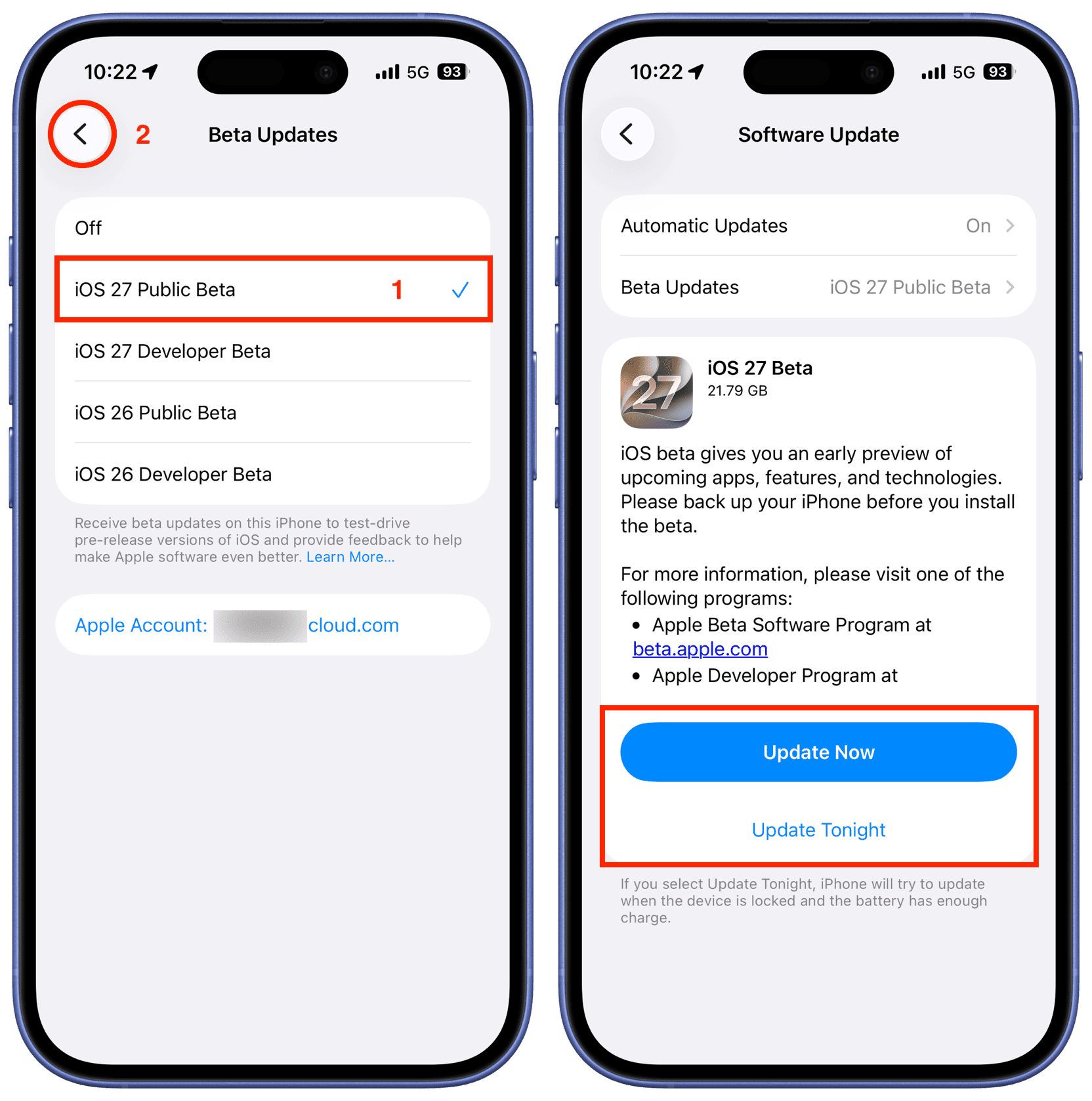
If you are using genuine accessories, your charging port is spotless, and a force restart did nothing, yet your iPhone still aggressively flashes the this accessory uses too much power error, you are almost certainly dealing with a deep firmware failure.
In this scenario, the iOS power management firmware has encountered a deep logical bug. A standard restart cannot fix this. Instead of wasting time queuing at an Apple Store, your most efficient option is to use a professional iOS system recovery tool like Tenorshare ReiBoot .




Why ReiBoot Works When Other Fixes Fail
To truly convince you, you need to understand why this works. A normal restart only clears temporary memory (RAM). However, when the 'Power Handshake Protocol' file itself is corrupted, the system will permanently misread the voltage and current coming from your port.
Here is how ReiBoot fixes the root cause:
With just one click on 'Standard Repair', ReiBoot completely eliminates phantom power warnings caused by logic errors. For iPhone users experiencing charging recognition bugs after a recent iOS update, a beta version glitch, or a jailbreak, this is the safest and most definitive ultimate solution.
How to use it:
Step 1: Install ReiBootInstall ReiBoot on your Windows computer or Mac.
Step 2: Connect Your iPhoneInstall the software and use a certified cable to connect with the device.

Once your device is detected, click 'Standard Repair'.
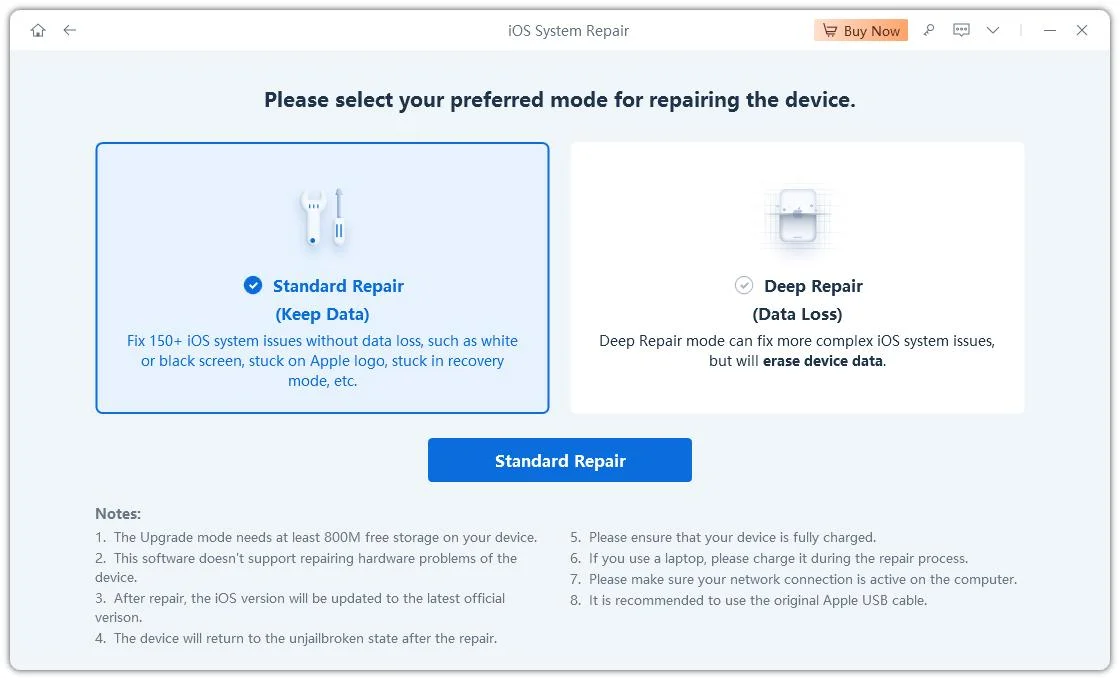
ReiBoot automatically detects the correct firmware version and downloads it.
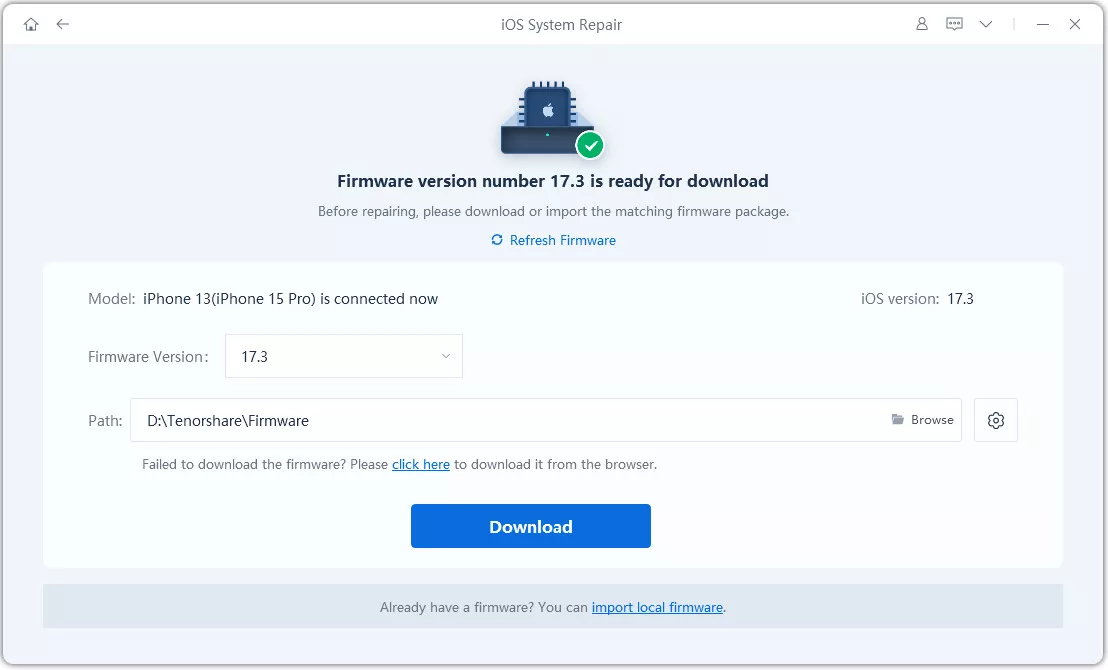
Click 'Start Standard Repair' and wait for the process to complete.


If you have tried the basic fixes and the error persists, you need to use a logical Cross-Testing method to pinpoint the exact source of the problem. Is your iPhone hardware damaged, or does the accessory simply belong in the trash?
This professional diagnostic approach will save you hours of guesswork. Please follow these two testing steps:

1.Why does my iPhone say 'this accessory uses too much power' when nothing is plugged in?
This phantom error usually occurs if there is liquid, moisture, or hidden debris short-circuiting the pins inside your USB-C or Lightning port. If you have completely cleaned and dried the port but the warning keeps popping up, it is highly likely a deep iOS firmware glitch. In such cases, using a system recovery tool like Tenorshare ReiBoot is the safest way to recalibrate the power management system without data loss.
2.Can a dirty charging port cause power errors?
Yes, absolutely. Lint, dust, or dirt can block the internal connection pins, causing the iPhone to miscalculate the electrical current being drawn. Gently cleaning the port with a wooden toothpick or a soft brush resolves this issue most of the time.
3.Is it safe to bypass or ignore this warning?
You cannot easily bypass this warning because iOS actively blocks the connection to protect your device. Forcing a high-power or incompatible accessory to connect could lead to logic board short circuits, overheating, or permanent battery degradation. It is always better to address the root cause.
4.Will using a non-Apple charger trigger this alert?
Yes. Cheap, uncertified chargers or cables lack the MFi (Made for iPhone) chip, which is required to communicate proper power limits with iOS. If the system cannot verify the power safety, it will automatically block the accessory. Always use MFi-certified or original Apple adapters.
Resolving the this accessory uses too much power error ultimately comes down to identifying your specific situation, following a logical troubleshooting path from simple physical port cleanings to using powered hubs for demanding peripherals. Once you have ruled out hardware incompatibilities, any lingering false alarms are usually just deep iOS software glitches, which can be smoothly ironed out with a quick system refresh using tools like Tenorshare ReiBoot .


then write your review
Leave a Comment
Create your review for Tenorshare articles

Share this post


ReiBoot - No.1 Free iOS System Repair Software
Fix 150+ iOS Issues without Data Loss & Safely iOS 27 Upgrade/Downgrade
ReiBoot: No.1 iOS Repair Tool
Fix 150+ iOS Issues, No Data Loss
By Jenefey Aaron
2026-09-24 / iPhone Tips