SP Flash Tool, also known as Smart Phone Flash Tool, is a free firmware-flashing utility for MediaTek Android phones and tablets. It can flash stock firmware, restore some soft-bricked devices, install recovery images, and test device memory. However, using the wrong firmware or flash mode can cause data loss or leave a phone unable to boot.
This guide explains how to download SP Flash Tool for PC, choose between SP Flash Tool v6 and v5, and use the tool safely on a compatible device. It also covers SP Flash Tool for Windows, Mac availability, Smart Phone Flash Tool Runtime Trace Mode, common errors, and an easier option when your real goal is Android screen lock or FRP removal.
Part 1: What Is SP Flash Tool? Features, Compatibility, and Risks
SP Flash Tool is available in both v5 and v6 branches. The correct choice depends on the firmware package for your exact device, not simply on which version has the higher number. MediaTek does not maintain a clearly identifiable public consumer download page for the tool, so only use a reputable source, scan the downloaded archive, and avoid modified or “bypass” builds.
1.1 Overview of SP Flash Tool
SP Flash Tool, short for Smart Phone Flash Tool, is designed for flashing firmware and individual partitions on MediaTek-powered Android devices. It does not support phones based only on Qualcomm, Exynos, Unisoc, or other non-MediaTek chipsets.
1.2 Main Features of MediaTek SP Flash Tool
The MediaTek SP Flash Tool includes the following functions on supported devices:
Firmware Flashing -
Update or fix firmware to resolve bugs, improve performance, or add features.
Unbricking -
Restore bricked devices by flashing stock firmware.
Custom ROMs -
Install custom ROMs for extra features and updates.
Rooting Support -
Flash recovery images to gain root access and customize MediaTek Android device further.
Memory Test and Readback -
Diagnose supported memory components or read selected partitions for advanced repair work.
1.3 System Requirements and Supported Devices
System Requirements:
Operating System
- SP Flash Tool for Windows is the most practical choice for most users, and Linux builds are also available. There is no mainstream current SP Flash Tool for Mac release, so macOS users should use a supported Windows or Linux computer.
Processor
- At least 1 GHz.
RAM
- Minimum 512 MB.
Storage
- Requires 100 MB of free space.
Drivers
- MediaTek USB VCOM drivers must be installed.
Supported Models:
Supports compatible Android phones and tablets with MediaTek chipsets. Exact support depends on the chipset, firmware format, security configuration, and required Download Agent or authentication file.
1.4 Pros and Cons of SP Flash Tool
Before you download SP Flash Tool for free, consider these advantages and limitations:
Please swipe to view:
Pros
Cons
Free and portable, with no installation required. It can flash complete
firmware or selected partitions, recover some soft-bricked MediaTek
devices, and provide memory testing and readback tools.
Only supports compatible MediaTek devices. The wrong firmware,
preloader, or flash mode can erase data, damage IMEI/NVRAM information,
or leave the device unable to boot. Newer secured devices may also
require authorized files.
Part 2: Download SP Flash Tool for PC and Use It Safely
Before you download Smart Phone Flash Tool, check the files included with your device firmware. The required configuration file usually determines which branch you should use.
2.1 Smart Phone Flash Tool Latest Version: v6 vs. v5
SP Flash Tool v6 -
Use the v6 branch when the correct firmware package contains a flash.xml file and the device documentation calls for the v6 workflow.
SP Flash Tool v5 -
Use the v5 branch when the firmware package contains an Android_scatter.txt file. Many older and scatter-based MediaTek firmware packages still require v5.
Do not assume that the latest version of Smart Phone Flash Tool is automatically right for every phone. Match the tool branch, firmware, model number, region, and storage variant before flashing.
2.2 SP Flash Tool for Windows and Mac Availability
Most users should download SP Flash Tool for Windows because it offers the most practical driver support for MediaTek USB VCOM and Preloader connections. Windows builds are portable: extract the archive and launch flash_tool.exe instead of running a traditional installer.
Users searching for SP Flash Tool for Mac should note that there is no mainstream current macOS release. A virtual machine may also lose the low-level USB connection during flashing, so a supported Windows or Linux computer is safer.
2.3 How to Use MediaTek SP Flash Tool Step by Step
Back up accessible data, charge the phone, and use a reliable USB cable before following these steps:
Download the exact stock firmware for your MediaTek device from the manufacturer or another reputable source. Confirm the full model number, hardware variant, region, and firmware format, then extract the package to a folder.
Install the correct MediaTek USB VCOM or Preloader driver. Restart the computer if required, then check Device Manager to confirm that the powered-off phone is briefly detected when connected.
Download SP Flash Tool for PC from a reputable source, scan the archive for malware, and extract it to a short folder path. Avoid cracked, patched, or “auth bypass” packages from unknown sites.
Open flash_tool.exe on Windows. For v6 firmware, load the required flash.xml file. For v5 firmware, select the matching Android_scatter.txt file from the extracted stock firmware folder.
Review every loaded partition. Start with “Download Only” unless the device manufacturer’s instructions require another mode. Avoid “Format All + Download,” and do not flash the preloader unless you have verified that it exactly matches your device.
Click “Download,” fully power off the phone, and connect it to the computer. Hold the required Volume Up, Volume Down, or both volume keys only if your model needs them for Preloader detection.
Wait for the “Download OK” message or green checkmark. Do not disconnect the cable while the process is running. Close the program, disconnect the phone, and allow extra time for the first boot.
2.4 What Is Smart Phone Flash Tool Runtime Trace Mode?
Smart Phone Flash Tool Runtime Trace Mode is a diagnostic logging option used to capture more detailed information while the program is running. It can help a technician investigate connection or flashing failures, but it does not improve normal flashing success and is not required for routine use.
Leave Runtime Trace Mode at its default setting unless you need to reproduce an error and collect logs. Review log files before sharing them because they may include device details and local file paths.
Part 3: Troubleshooting Common SP Flash Tool Issues
3.1 SP Flash Tool Stuck on Download DA 100%
If SP Flash Tool stays at Download DA 100%, the tool may be failing to move from the Download Agent stage to device initialization. Common causes include an incompatible DA file, incorrect drivers, an unstable USB connection, or security authorization on a newer MediaTek device.
Update Drivers
- Reinstall the correct MediaTek USB VCOM or Preloader drivers and restart the computer.
Check USB Connection
- Use a reliable data cable and a direct USB port instead of a hub.
Verify the Download Agent
- Use the default or device-specific DA required by the matching firmware instructions.
Check Device Security
- If the error requests an authentication file, the device may require authorized manufacturer or service-center access.
3.2 BROM Error Status S_FT_ENABLE_DRAM_FAIL (4032)
Error 4032 means SP Flash Tool could not initialize the device’s DRAM. It is commonly linked to mismatched firmware, an incorrect preloader or Download Agent, or an unstable connection.
Reinstall Drivers -
Remove conflicting MediaTek drivers, install the correct version, and reconnect the powered-off phone.
Verify Firmware -
Confirm that the firmware matches the exact model, hardware revision, region, and memory configuration.
Check Preloader and DA Files -
Do not use a preloader or DA file from another device, even if the chipset name looks similar.
3.3 SP Flash Tool Not Detecting the Device
This usually happens because the MediaTek driver is missing, the phone is not entering Preloader mode, or the USB connection is unstable. Try these fixes:
Install Drivers
- Install the correct MediaTek USB VCOM or Preloader driver and check Device Manager for a briefly appearing MediaTek port.
Check Connection
- Try another data cable and a direct USB port, then connect the phone only after clicking “Download.”
Use a Powered-Off Connection
- Fully power off the device. If required for your model, hold Volume Up, Volume Down, or both volume keys while connecting it.
3.4 BROM Error Status S_DL_GET_DRAM_SETTINGS_FAIL (5054)
BROM error 5054 usually means the loaded firmware or scatter file does not match the connected device’s DRAM settings. To fix it:
Check Files -
Download a clean firmware package for the exact model and hardware variant.
Match the Tool Branch -
Use v6 with the required XML-based firmware workflow or v5 with the correct scatter-based package.
Use Correct Preloader -
Never substitute a preloader or DSP_BL file from another model.
Preloader Mode -
Connect the device while it is fully powered off and follow the model-specific volume-key method if needed.
Disable Signature Verification -
If Windows blocks a legitimate MediaTek driver, follow Microsoft’s recovery options carefully and restore normal signature enforcement afterward.
Re-extract Tool -
Delete and re-extract SP Flash Tool to avoid file corruption.
3.5 Phone Stuck in Bootloop After Flashing
The first startup after flashing can take several minutes. If the phone continues restarting or remains on the boot logo, try these steps:
Enter Recovery Mode -
Use button combinations (e.g., Power + Volume Up/Down) to access recovery mode. Once your phone is in recovery mode:
Wipe Cache -
Clear cache without losing data.
Factory Reset -
If wiping the cache does not work, reset the device from recovery mode. This erases user data.
Re-flash Firmware -
Recheck the model and firmware package, then re-flash with “Download Only” using the correct tool branch.
Remove Battery -
For removable batteries, take it out for a few minutes, then reinsert it in your phone.
Part 4: Easier Alternative for Android Screen Lock and FRP
SP Flash Tool is primarily a firmware utility for compatible MediaTek devices. It is not a one-click solution for every screen lock or Google FRP problem. If you need to regain access to your own Android phone rather than flash its firmware,
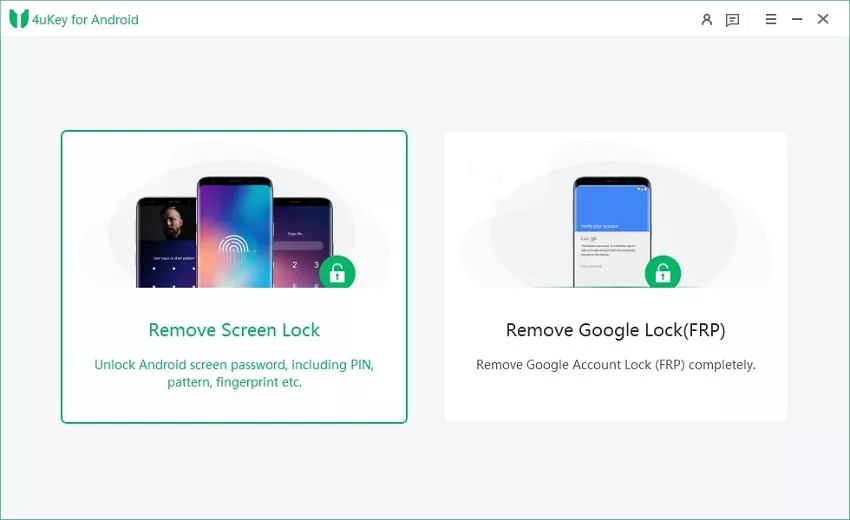
Tenorshare 4uKey for Android
provides a more guided approach on supported models:
Removes common Android screen locks, including PINs, patterns, passwords, fingerprints, and face locks.
Bypasses Google FRP on supported Samsung, Xiaomi, Redmi, Vivo, OPPO, Realme, OnePlus, Huawei, and Motorola devices.
Supports screen-lock removal on Android 4 through Android 16, depending on the device model.
Offers Windows and macOS versions with an on-screen guided workflow.
Does not require users to find a scatter file, Download Agent, or device firmware package for supported unlocking tasks.
Here is how to use Tenorshare 4uKey for Android on a device you own or are authorized to manage:
Launch 4uKey for Android on your computer, connect the phone with a USB cable, and select “Remove Screen Lock.”
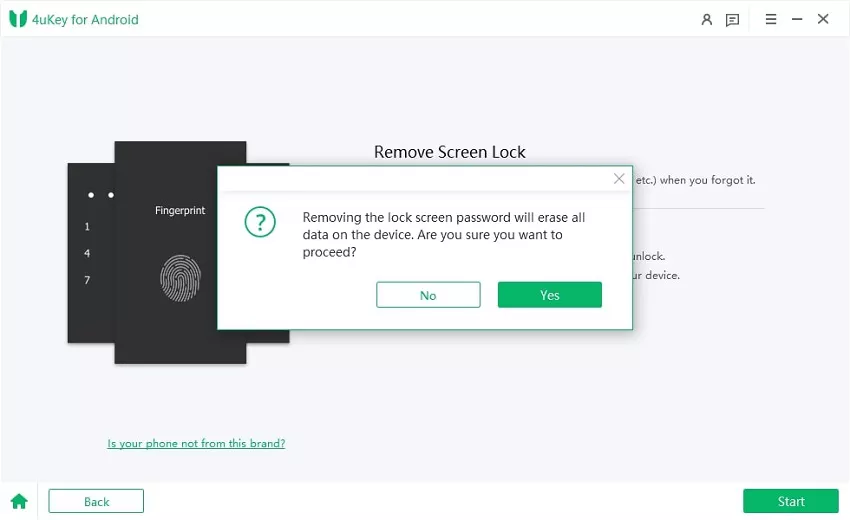
Choose the correct device brand and follow the on-screen option for your model. Read the data-loss warning, click “Start,” and confirm only when you are ready to continue.
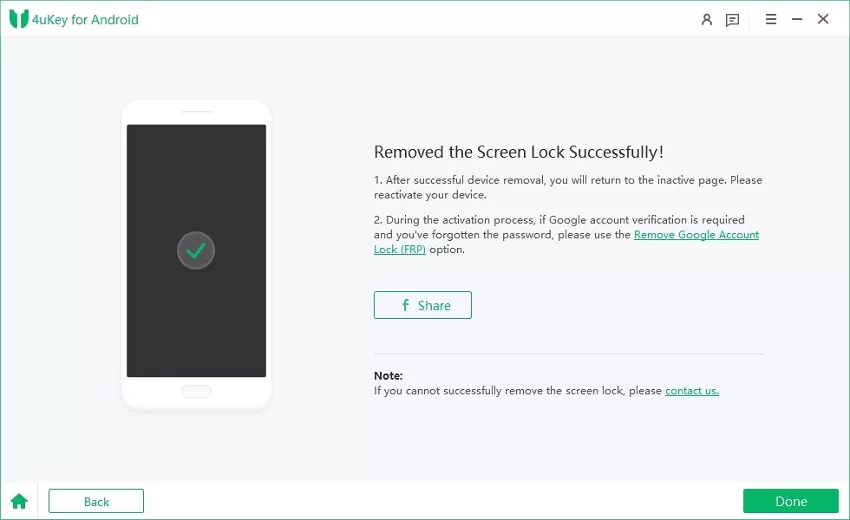
Follow the prompts to place the phone in the required mode. Keep it connected until the program confirms that screen lock removal is complete.
3. Watch this video to learn how to use Tenorshare Easy FRP Tool.
Part 5: FAQs About SP Flash Tool Download
5.1 Is SP Flash Tool safe to use?
The program itself is a legitimate flashing utility, but the process is not risk-free. An incorrect firmware package, preloader, partition selection, or flash mode can erase data, void warranty coverage, or leave the device unable to boot.
5.2 Can SP Flash Tool be used on all Android devices?
No. SP Flash Tool is intended for compatible MediaTek devices. It does not work as a universal flash tool for phones using Qualcomm, Exynos, Unisoc, or other unsupported chipsets.
5.3 How can I download and install SP Flash Tool for PC?
SP Flash Tool is generally portable and does not require a traditional installation:
Download the correct v5 or v6 build from a reputable source, scan the archive, and extract it to a folder on your PC.
Install the required MediaTek USB drivers, then open flash_tool.exe on Windows.
Load the exact XML or scatter file supplied with the matching stock firmware and follow the safe flashing steps above.
5.4 Is SP Flash Tool free to download?
Yes, you can download SP Flash Tool for free. Be cautious of websites that charge for modified packages or bundle the tool with unrelated software.
5.5 Is SP Flash Tool available for Mac?
There is no mainstream current SP Flash Tool for Mac release. Windows is the recommended platform for most users, while Linux builds are available for experienced users. Avoid relying on a virtual machine for critical flashing because USB passthrough can disconnect during the process.
Final Verdict on SP Flash Tool
SP Flash Tool remains useful for flashing stock firmware and repairing some compatible MediaTek devices. When you download Smart Phone Flash Tool, choose v6 or v5 according to the firmware format, verify every device detail, back up accessible data, and start with the least destructive flash mode.
If your goal is screen lock or FRP removal rather than firmware flashing, try
Tenorshare 4uKey for Android
on a supported device. It provides a guided Windows or macOS workflow without requiring users to locate a scatter file or stock ROM.








 iOS Tips & Latest Updates
 Bug Fixes, Unlock Guides
 Giveaways & Freebies





By Jenefey Aaron
2026-11-03 / Unlock Android