

 iOS Tips & Latest Updates
 Bug Fixes, Unlock Guides
 Giveaways & Freebies
then write your review

ReiBoot - No.1 Free iOS System Repair Software
Fix 150+ iOS Issues without Data Loss & Safely iOS 27 Upgrade/Downgrade
ReiBoot: No.1 iOS Repair Tool
Fix 150+ iOS Issues, No Data Loss
If your iPhone photos are showing up as black or blank, you may see dark thumbnails in your camera roll, photos that turn black when opened, or images that won't load at all. This can happen because of a Photos app glitch, an iCloud download issue, an incomplete photo file, or an iOS problem. Before deleting anything or trying a repair tool, it's important to check whether the original photos are still intact. Here are seven ways to troubleshoot the issue and what to do if some pictures have disappeared.

The cause depends on whether the problem affects only thumbnails, the full-size images, or the original photo files. Here are some common possibilities.

Sometimes, the Photos app may fail to display thumbnails or load images correctly. You might see a black thumbnail in your library even though the original photo is still available. If the image appears normally after reopening the app or viewing it on another device, the issue may be related to how Photos is displaying the picture rather than the file itself.
If you use iCloud Photos with Optimize iPhone Storage enabled, your iPhone may keep smaller versions of photos locally while the full-resolution originals remain in iCloud. When an original needs to download, a weak internet connection, paused syncing, or an iCloud issue may prevent it from loading properly.
Learn more in Apple's guide to setting up and using iCloud Photos.
A photo may appear black if its original file is damaged or wasn't saved or transferred completely. This is more likely if the same image remains black after you export the original file and open it on another device. In that case, simply refreshing the Photos app may not solve the problem.
An iOS glitch may affect how the Photos app loads or displays images. Low available storage can also interfere with app performance and photo downloads. If the black photos appear alongside other symptoms, such as app crashes, system freezes, or unexpected restarts, you may need to troubleshoot the broader iOS system.
Before trying the fixes below, identify what you're experiencing. This quick reference can help you choose where to start.
 Please swipe to view
A temporary app glitch may prevent thumbnails or full-size photos from displaying correctly.
If the photos are still black, restart your iPhone and check again.
If you use iCloud Photos, check whether your library has finished syncing. A paused upload or download may leave some images unavailable on your device.
You can also sign in to iCloud.com/photos and check whether the original images appear there.

With Optimize iPhone Storage enabled, full-resolution photos may need to download from iCloud before they can be viewed. If you have enough local storage, you can check whether downloading the originals makes a difference.
Keep in mind that downloading your entire photo library may require considerable storage and time. Don't change this setting if your iPhone doesn't have enough available space.
Insufficient storage can interfere with app performance and photo downloads. To check your available space:
Avoid deleting the affected photos as a way to free up space. Make sure important pictures are backed up before removing anything.
This is one of the most useful checks because it helps you distinguish a display issue from a potentially damaged photo file.
What the result means:
Keep an untouched copy of the exported file. Avoid repeatedly editing or overwriting the original while troubleshooting.

If some photos are missing rather than simply appearing black, make sure they haven't been moved, hidden, or deleted.
You can also check your library at iCloud.com/photos. For more details, see Apple's guide to finding missing photos and videos.
If the Photos app continues to display images incorrectly, check whether an iOS update is available. Software updates may include fixes for bugs affecting built-in apps and system features.
After updating, reopen Photos and check whether the affected images display correctly.
If the basic troubleshooting steps don't help, the next step depends on what you discovered.
Please swipe to view
Recover Missing Photos with Tenorshare UltData
If some iPhone photos have disappeared or were accidentally deleted, Tenorshare UltData can help you check for recoverable photos from your device and supported backups.


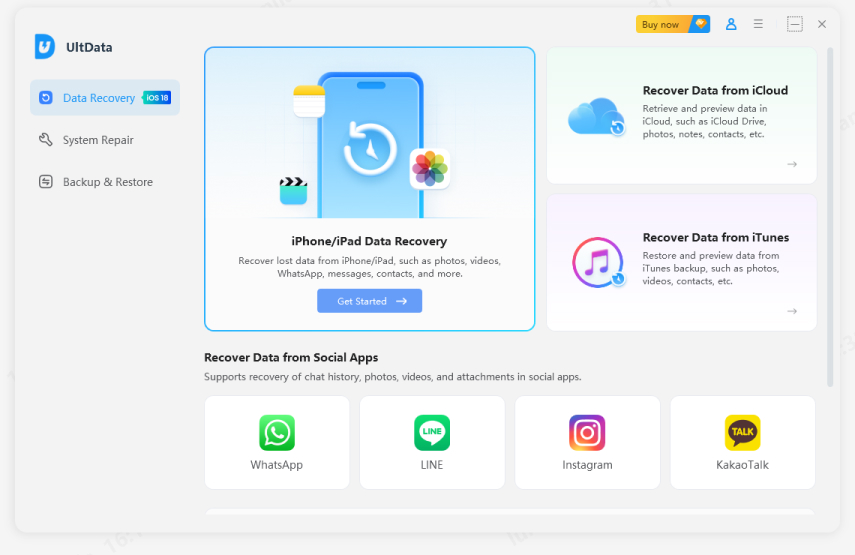
Key Features:
It's an option for checking whether missing photos are still recoverable, but it cannot guarantee recovery or repair corrupted original image files.
Fix Broader iOS Issues with Tenorshare ReiBoot
If black or blank photos appear alongside other iPhone problems, such as frequent app crashes, system freezes, or unexpected restarts, an underlying iOS issue may also be involved. Tenorshare ReiBoot offers repair options for supported iOS system problems.

Key Features:
ReiBoot may help address broader iOS issues, but it cannot repair corrupted photo files or guarantee that black images will become viewable again. Back up your iPhone whenever possible before starting a repair.
Consider contacting Apple Support if:
If you suspect that your photos are damaged, keep any remaining copies and backups unchanged until you've explored your recovery options.
The affected photos may have individual loading or file issues, or the Photos app may be having trouble displaying certain images. Check whether the originals open on iCloud.com or another device to narrow down the cause.
It depends on whether the original photo data is still available. If the images were deleted or are missing, check Recently Deleted and existing backups. Recovery software may also help locate recoverable data, but it cannot guarantee that a damaged image file can be restored.
This may be a thumbnail display or caching issue rather than a problem with the original images. Try closing and reopening Photos, restarting your iPhone, and allowing your photo library to finish syncing.
Yes. iCloud Photos stores your original photos and videos in iCloud. If Optimize iPhone Storage is enabled, your iPhone may keep smaller local versions and download the full-resolution originals when needed.
No. A normal restart does not delete photos or other personal data. However, if your pictures are already missing or damaged, restarting will not necessarily restore them. It's still a good idea to keep a backup of important photos.
Black or blank photos on an iPhone don't always mean the original files are lost. Start by checking iCloud syncing, available storage, and whether the affected images open on another device. If photos have disappeared, check your backups and available recovery options. If the problem occurs alongside broader iOS system issues, a system repair tool such as ReiBoot may be worth considering. Most importantly, keep copies of your original photos and avoid deleting or overwriting them while troubleshooting.


then write your review
Leave a Comment
Create your review for Tenorshare articles

Share this post


ReiBoot - No.1 Free iOS System Repair Software
Fix 150+ iOS Issues without Data Loss & Safely iOS 27 Upgrade/Downgrade
ReiBoot: No.1 iOS Repair Tool
Fix 150+ iOS Issues, No Data Loss
By Jenefey Aaron
2026-11-13 / iPhone Tips