

 iOS Tips & Latest Updates
 Bug Fixes, Unlock Guides
 Giveaways & Freebies


ReiBoot - No.1 Free iOS System Repair Software
Fix 150+ iOS Issues without Data Loss & Safely iOS 27 Upgrade/Downgrade
ReiBoot: No.1 iOS Repair Tool
Fix 150+ iOS Issues, No Data Loss
Auto-scrolling can make using your iPhone frustrating. The screen may keep jumping back to the top without warning. This problem often happens due to ghost touches, software glitches, or accidental gestures. It can affect browsing, emails, and apps.
Fortunately, there are fast and effective ways to fix the iPhone keeps scrolling up. In this guide, we'll show simple tips and advanced solutions to stop your iPhone from scrolling up on its own. Follow these steps to get full control of your screen again.
Unexpected screen jumps can be frustrating, especially when your iPhone scrolls up on its own. You might ask, "Why does my phone keep scrolling up by itself?" This problem can occur due to several reasons:
Ghost Touch Issues
The screen may register touches that aren't real, causing automatic scrolling.
Software Glitches
Bugs in iOS or conflicts within apps can trigger unwanted movement.
Dirty or Damaged Screen
Dust, oils, moisture, or scratches can affect touch sensitivity and make the screen jump.
Faulty Accessories
Chargers, headphones, or Bluetooth devices can sometimes interfere, causing the phone to scroll by itself.
Accidental Gestures
Features like Scroll to Top or multi-finger gestures may make your iPhone scroll unexpectedly.
App-Specific Bugs
Email or social media apps may auto-scroll due to glitches.
Outdated iOS
Running an older iOS version can cause system instability, leading to auto-scrolling issues.
Email apps can scroll on their own if the touchscreen is misreading input. Many users experience this when checking Mail or Gmail. If you're asking iphone keeps scrolling up by itself, the problem often comes from dirt, oils, or tiny cracks on the screen.
Even a screen protector or case that doesn't fit perfectly can create interference, triggering ghost touches.
Steps to Fix iphone screen keeps scrolling up:
Remove your iPhone case and screen protector.
Use a microfiber cloth to wipe the screen gently, removing any oils, dust, or moisture.

Check for small cracks on the protector replace if necessary.
Open your email app and test scrolling.
Sometimes, temporary software glitches make the iPhone scroll automatically. This can happen during app use, browsing, or even on the Home screen. For users wondering why is my iPhone scrolling by itself?, a force restart resets temporary system errors without affecting your personal data.
Steps to Fix iphone keeps scrolling up on its own:
iPhone 8 or later:
Press Volume Up, then Volume Down, then hold the Side button until the Apple logo appears.
iPhone 7/7 Plus:
Hold Volume Down + Side button until the Apple logo appears.
iPhone 6s and earlier:
Hold Home + Side button until the Apple logo appears. After restart, open any app where auto-scrolling occurred and test.

Accessories such as low-quality chargers, adapters, or headphones can sometimes interfere with the touchscreen. If you've been asking "Why does my phone keep scrolling up by itself?", electrical noise from these accessories may be the culprit.
Steps to Fix my iphone keeps scrolling up by itself:
Unplug all third-party accessories connected to your iPhone.

Test scrolling without any accessories connected.
Use only Apple-certified Lightning or USB-C cables and adapters.
If the issue disappears, gradually reconnect accessories one at a time to identify the problematic one.
iPhone gestures, system preferences, or misconfigured settings can lead to unexpected scrolling. On iPhone 15, users may want to disable scroll to top iPhone 15 to prevent accidental jumps when tapping the status bar. Resetting all settings restores defaults without deleting apps or personal data, making it a safe way to solve system-level issues.
Here how to fix iphone screen keeps scrolling up:
Open your Settings app and navigate to General. Scroll to the bottom and select Transfer or Reset iPhone. From there, tap Reset and choose the first option: Reset All Settings.

Your iPhone will prompt you for your passcode and then undergo a quick reboot.
It is important to remember that this will not delete your data, photos, or apps. However, it will revert your customized preferences such as saved Wi-Fi passwords, Bluetooth pairings, and wallpaper back to their original factory defaults.
Auto-scrolling problems often stem from software bugs. Updating to the latest iOS fixes known issues, improves touchscreen responsiveness, and enhances overall device stability.
Here how to fix iphone keeps scrolling up by itself:
Persistent auto-scrolling on iPhones often points to deeper software issues. Tenorshare ReiBoot is a powerful iPhone repair tool designed to fix system glitches, screen jumping, and ghost touch problems efficiently.
It resolves software bugs while keeping personal data safe, restoring smooth and responsive performance. With ReiBoot, even stubborn auto-scrolling issues that basic fixes can't solve are handled quickly and professionally.
Key Features of Tenorshare ReiBoot:




Step-by-Step: Fix Auto-Scrolling Using Tenorshare ReiBoot
Connect Your Device and Launch ReiBoot
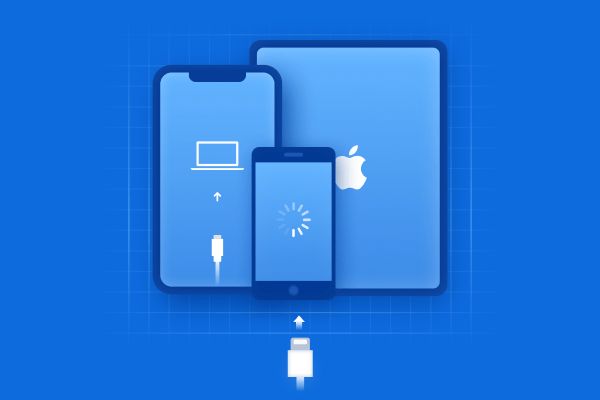
Open Tenorshare ReiBoot on your computer. Connect your iPhone or iPad using an Apple-certified cable. Wait for the software to detect your device. Click "Start Repair".

Enter Standard Repair Mode
Select "Standard Repair" to enter Standard Mode. This fixes most issues without erasing your data.

Download the Firmware Package
ReiBoot will automatically detect your device model and iOS version. Click Download to get the latest firmware package. Make sure your internet connection is stable to prevent download errors.

Start the Repair Process
Click Start Standard Repair to begin repairing your device. The software will work on your iPhone or iPad to resolve auto-scrolling and phantom touch issues.

Random scrolling can make your iPhone difficult to use and slow down everyday tasks. When your iPhone keeps scrolling up, simple solutions like cleaning the screen, restarting the device, or updating iOS often help. For issues that persist, Tenorshare ReiBoot provides a reliable and professional fix. Its Standard Repair resolves common glitches without affecting your data, while Deep Repair handles more serious system problems.


Tenorshare ReiBoot - Fix iOS Issues






then write your review
Leave a Comment
Create your review for Tenorshare articles
Share this post


ReiBoot - No.1 Free iOS System Repair Software
Fix 150+ iOS Issues without Data Loss & Safely iOS 27 Upgrade/Downgrade
ReiBoot: No.1 iOS Repair Tool
Fix 150+ iOS Issues, No Data Loss
By Jenefey Aaron
2026-09-28 / iPhone Tips