
How to Transfer Data from Android to iPhone 18 Pro Easily: 2026 Guide
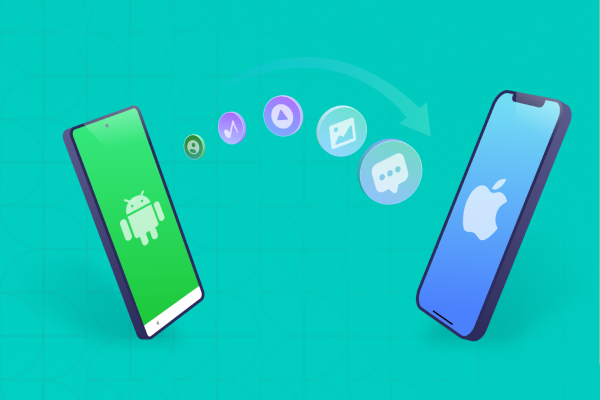
The fastest way to transfer data from Android to iPhone 18 Pro is Apple's Move to iOS, which runs during iPhone setup and moves contacts, messages, photos, videos, calendars, WhatsApp chats and more over Wi-Fi or a USB-C cable. If your Android runs Android 17 or later, you can also transfer without the app by scanning a QR code.
If setup is already finished, Apple's method requires erasing the iPhone, so keep your data by transferring manually or with a no-reset tool like iCareFone iTransGo. This guide covers 7 methods for the iPhone 18 Pro (released September 18, 2026), with steps, limits, and fixes when a transfer fails.

Part 1. Before You Transfer Data from Android to iPhone 18 Pro
Before learning how to transfer data from Android to iPhone 18 Pro, check your iPhone's setup status, storage, battery, and connection. The right method depends mainly on whether you have already completed iPhone setup.
Is Your iPhone 18 Pro New or Already Set Up?
Move to iOS only works during initial setup. If your iPhone 18 Pro has already reached the Home Screen, Apple says you must erase it and start over, or move your content manually.
Apple says you can transfer contacts, messages, photos, videos, calendars, call history, files, folders, WhatsApp messages and media, and some free apps during setup. If you already completed setup, Apple's standard Move to iOS process requires you to erase the iPhone and start the setup again. If you do not want to erase your existing data, you need a manual transfer method or a third-party tool.
What to Check Before Starting the Transfer
Before you Transfer data from Android to iPhone 18 pro after setup, check these points:
- Back up important Android data before starting.
- Check that the iPhone has enough free storage.
- Charge both phones or keep them connected to power.
- Turn on Wi-Fi when using a wireless method.
- Keep both phones close together during a wireless transfer.
- Update Chrome on Android if you want to move Chrome bookmarks.
- Keep your Apple Account and important app passwords available.
- If using USB, make sure you have a compatible USB-C cable.
- On the Android, turn off cellular data and any Wi-Fi optimizers (such as Smart Network Switch) if the transfer fails to connect.
Apple also recommends checking that the content you want to move, including content on an external microSD card, will fit on the new iPhone.
Which Transfer Method Should You Use?
 Please swipe to view
If your iPhone is already set up and you don't want to erase it, Apple recommends manual transfer; a no-reset tool such as iCareFone iTransGo is a third-party alternative.




Part 2. How to Transfer Data from Android to iPhone 18 Pro During Setup
The official way to transfer data from Android to iPhone 18 Pro during setup is Apple's Move to iOS, over Wi-Fi or a USB-C cable. If your Android runs Android 17 or later, you can also transfer without the app.
How to Transfer Android Data with Move to iOS
Follow these steps to use Move to iOS on your iPhone 18 Pro:
- Turn on the iPhone 18 Pro and follow the setup prompts. On the Quick Start screen, tap Set Up Without Another Device, then continue until you reach Transfer Your Apps & Data. Tap From Android, then tap Transfer with App.
- Open Google Play on your Android phone and install Apple's Move to iOS app. Open the app, agree to the terms, and allow the requested permissions.
- Tap Continue on the iPhone. The iPhone will display a six-digit or 10-digit code. Enter this code on the Android phone. If the Android shows a weak internet connection alert, you can ignore it.
- The iPhone creates a temporary Wi-Fi network. Connect your Android phone to that network when prompted.
- Choose the information you want to move. Depending on the devices and software, this can include contacts, messages, photos, videos, calendars, call history, files, folders, and WhatsApp data.
- Even if the Android says the transfer is complete, leave both phones alone until the loading bar on the iPhone finishes. Keep the Move to iOS app on screen: opening another app or taking a call on the Android can stop your content from transferring.
- After the transfer finishes, complete the remaining iPhone setup steps and check your transferred content.


How to Transfer Android Data to iPhone 18 Pro with USB
A USB-C cable connects the two phones directly, and Apple says this gives a faster transfer than Wi-Fi, which helps with large photo and video libraries. The steps match the wireless method above, with these differences:
- Connect the Android and the iPhone with a USB-C cable that supports data transfer, and keep them connected throughout.
- If a USB pop-up appears on the Android, adjust the USB settings before opening Move to iOS.
- Follow Steps 1 to 6 above: open Move to iOS, then choose the content and wait for the loading bar on the iPhone. Follow the on-screen prompts on both phones.
- When the iPhone finishes, safely disconnect both phones.

How to Transfer Android Data Without the Move to iOS App
Apple's Transfer without App option lets a compatible Android 17 (or later) phone send data straight to a new iPhone 18 Pro during setup, with no download needed. Whether your phone supports it depends on its manufacturer, so check before you start.
- On the Transfer Your Apps & Data screen, tap From Android, then tap Transfer without App.
- Place the Android next to the iPhone and tap Continue.
- Scan the QR code on the iPhone with the Android camera.
- On the Android, select the data to move, such as photos, contacts, calendars, call history, or messages.
- When the transfer finishes, tap Continue on the iPhone. To move an eSIM, select the number on the Android and tap Transfer.

Can't scan the QR code? Tap Other Options on the iPhone. On the Android, open Settings > Google Services > All Services > Pair with iPhone or iPad > Copy Data, then enter the session ID and pairing code shown on the iPhone.
Part 3. How to Transfer Data from Android to iPhone 18 Pro After Setup
Move to iOS only works during initial setup. If your iPhone 18 Pro is already set up, Apple's options are to erase it and start over, or to move content manually. A no-reset tool is a third-party alternative that keeps your existing data.
Can You Use Move to iOS After Setting Up iPhone 18 Pro?
Please swipe to view
How to Transfer Data from Android to iPhone 18 Pro Without Resetting: iCareFone iTransGo
If you need to transfer data from Android to iPhone 18 Pro without resetting, iCareFone iTransGo provides a computer-based option designed for transfers after the initial iPhone setup.
iCareFone iTransGo transfers data from Android to an already set-up iPhone without a factory reset. It lets you select data types rather than restoring everything at once, and it supports photos, videos, music, contacts, messages, and calendars. This makes it useful when you want to move data after setup while keeping your existing iPhone configuration.
Key Features
- Transfer supported data: Move photos, videos, music, contacts, messages, and calendars.
- No factory reset required: Transfer supported content without starting iPhone setup again.
- Direct connection: Connect the phones through a computer rather than depending on Wi-Fi.
- Select data types: Choose the categories you actually need instead of moving everything.
- Keep existing iPhone setup: The tool is designed to merge supported data without overwriting existing device data. If anything looks incomplete afterward, check the causes of data missing after transfer to iPhone 18 Pro before repeating the transfer.
How to Use iCareFone iTransGo
- Download and install iCareFone iTransGo on your Windows PC or Mac. Launch the program after installation to start the transfer process.
- Connect your Android phone and iPhone 18 Pro to the computer using compatible USB cables. Keep both phones connected while iTransGo detects them.
- Check that your Android phone appears as the Source and your iPhone 18 Pro appears as the Destination. If the devices appear in the wrong order, click the Swap icon to switch them.
- Choose the types of data you want to move, such as contacts, photos, videos, and messages. Select only the data you need to keep the transfer focused.
- Click Transfer to begin moving the selected data from Android to your iPhone 18 Pro. Keep both phones connected to the computer and avoid disconnecting them until the process finishes.


Part 4. How to Transfer Photos, Files, WhatsApp, and Other Data
Different types of data may need different methods. For example, you can transfer photos from Android to iPhone 18 pro wirelessly without moving your entire phone, while WhatsApp needs a supported migration process.
How to Transfer Photos/Files from Android to iPhone 18 Pro Wirelessly
The easiest wireless option is Google Photos, which syncs your library through your Google account.

- On the Android, open Google Photos, sign in, and turn on Backup. Wait until the upload finishes.
- On the iPhone, install Google Photos from the App Store and sign in with the same Google account.
- Open the photos you want and save them to the iPhone's Photos library.

a Google account includes 15 GB of free storage shared across Google services, so large libraries may need extra storage.
For documents stored in Google Drive, OneDrive, or Dropbox, install the same app on the iPhone and sign in. To move contacts and calendars, add your Google account in iPhone Settings and turn on sync.
How to Transfer WhatsApp from Android to iPhone 18 Pro
WhatsApp's official Android-to-iPhone transfer runs through Move to iOS and only works on a new or factory-reset iPhone. Before you start, make sure that:
- Your Android runs Android 5 or later and your iPhone runs iOS 15.5 or later.
- Move to iOS is installed on the Android.
- Both phones have the latest WhatsApp version.
- You use the same phone number on the new phone.
How it works: During Move to iOS, choose WhatsApp, tap Start in WhatsApp on the Android, then return to Move to iOS and tap Continue. After the transfer, install WhatsApp on the iPhone, log in with the same number, and tap Start.
What you can't move: call history, display name, media from Channels, and chats from WhatsApp Business. You also can't merge Android chats with chats already on the iPhone.
iPhone already set up? The official method would require a reset. iCareFone Transfer is a third-party option that moves WhatsApp chats without erasing the iPhone, but WhatsApp does not officially support third-party migration tools. Back up your chats before you start.
How to Transfer Android Data After Setup with a Cable
If your iPhone is already set up, connect both phones to a computer and use iCareFone iTransGo. The steps are in Part 3 above, and no factory reset is needed.
If you prefer no extra software, you can also sync files through a computer: copy photos or documents from the Android to a folder (photos are usually in the DCIM folder), disconnect it, connect the iPhone, then sync with Finder on a Mac or the Apple Devices app on Windows.
Part 5. Android to iPhone 18 Pro Transfer Not Working: Fixes and FAQs
If Transfer data from Android to iPhone 18 pro after setup does not work, first check storage, cables, Wi-Fi, permissions, and software versions. Restarting both phones can also solve temporary connection problems. Apple recommends keeping the devices connected to power and avoiding other activity on Android during the transfer.
1. Can I Transfer Everything from My Android to My iPhone 18 Pro?
You can transfer many common types of content, but not every Android app or file moves exactly as it exists on Android. Apple lists contacts, messages, photos, videos, calendars, call history, files, folders, WhatsApp messages and media, and other supported content. Music, books, and PDFs may require manual transfer.
2. How to Transfer Data from Android to iPhone Pro After Setup Is Complete?
If setup is already complete, the standard Move to iOS process requires you to erase the iPhone first. If you want to keep the current setup, use manual transfers or a no-reset tool such as iCareFone iTransGo for supported data. This makes transferring data from Android to iPhone 18 pro without resetting an important option for users who already have apps, accounts, photos, or other information on the iPhone.
3. How Long Does Android-to-iPhone 18 Pro Transfer Take?
The time depends on the amount of data, connection method, phone speed, and number of files. A small contact transfer can finish quickly, while thousands of photos and videos can take much longer. A cable can help when you move a large amount of data. Apple also recommends keeping both phones connected to power until the transfer finishes.
4. Is It Difficult to Transition from an Android Phone to an iPhone 18 Pro/Pro Max?
The transfer itself does not have to be difficult. The main decision is whether your iPhone is new or already set up. For a new phone, Move to iOS provides Apple's setup-based process. For an already configured iPhone, you can manually move selected content or use a no-reset tool for supported data.
Conclusion
To transfer data from Android to iPhone 18 Pro, pick the method by setup status. If the iPhone is new, use Move to iOS over Wi-Fi or USB-C, or Transfer without App on Android 17 or later. If it's already set up and you don't want to erase it, use a no-reset tool like iCareFone iTransGo for photos, videos, music, contacts, messages, and calendars. Use WhatsApp's official method only on a new or reset iPhone. Back up your Android first and keep both phones charged until the transfer finishes.

 iOS Tips & Latest Updates
 Bug Fixes, Unlock Guides
 Giveaways & Freebies

Speak Your Mind
then write your review
Speak Your Mind
Leave a Comment
Create your review for Tenorshare articles
Related articles
All topics
Share this post



By Jenefey Aaron
2026-10-08 / iPhone 18