

 iOS Tips & Latest Updates
 Bug Fixes, Unlock Guides
 Giveaways & Freebies


iCareFone - Free iOS Backup tool & Easy Data Manager
Backup/Transfer/Restore/Manage iOS Data with Simple Clicks
Backup/Manage iOS Data Easily
Backup/Manage iOS Data in Clicks
Everything looks ready. Your old iPhone is beside the new one, Quick Start is running, and then it gets stuck on "Preparing to Transfer." Minutes turn into hours, and sometimes the screen barely moves at all. Many iPhone Duo users have reported the same issue on Reddit when moving their data to a new device.
This usually means the transfer needs a little troubleshooting rather than more waiting. In this guide, we'll start with a few quick checks, move on to settings resets, and then cover an alternative wired transfer method with Tenorshare iCareFone.

The "Preparing to Transfer" screen can stay there when Quick Start cannot establish a stable connection or needs more time to prepare your data. Common causes include:
Quick Start can get stuck because of a weak connection, network settings, or interruptions during setup. Try these native fixes first to get your iPhone Duo transfer stuck issue moving again.
Place the old and new iPhones next to each other and connect both to wall chargers. Keep them in the same place while the transfer is running.
Avoid using either device or moving them away from each other during the transfer. A stable setup gives Quick Start the best chance to maintain the connection.

An active VPN or incorrect network configuration can interfere with communication between the two iPhones. Turn off any VPN or third-party security service, then try Quick Start again.
If the iPhone Duo data transfer stuck again, reset the network settings on the old iPhone:

Quick Start can sometimes stop responding because a background process gets stuck during setup. Restarting both iPhones gives the transfer process a fresh start. This is especially useful when the iPhone Duo transfer taking too long and there is no visible progress.

Quick Start works best when the new iPhone has a compatible, up-to-date version of iOS. If the old iPhone has already been updated but the new iPhone is still running an older version, updating the new device can help when iPhone Duo transfer not working.


A large amount of temporary data, downloads, and unused files can add to the amount of data Quick Start needs to prepare for transfer. If your iPhone Duo transfer taking too long, clearing some unnecessary files from the old iPhone can help reduce the data that needs to be processed.

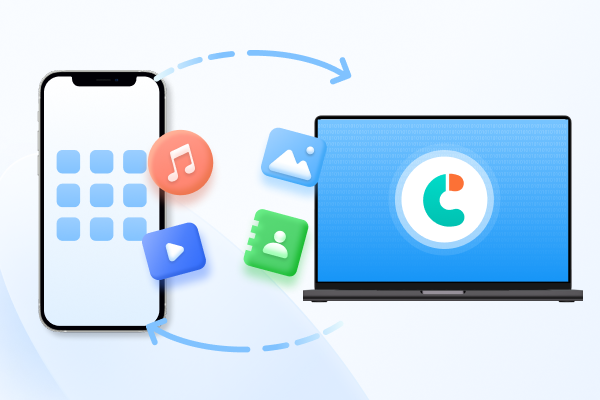
A computer-based transfer can give you more control over which iPhone data you want to move. Tenorshare iCareFone lets you back up your old iPhone to a PC or Mac, preview the backup, and restore supported data to another iPhone.




You can also select specific data types instead of transferring everything at once. It supports photos, videos, contacts, messages, music, notes, calendars, and other data. This makes it a practical option when iPhone Duo transfer taking too long or Quick Start is not working as expected.
Key iCareFone Features
How to Back Up and Restore iPhone Data with iCareFone


It usually takes a few minutes, but the time depends on how much data you have. If there is no progress after 30 minutes, the transfer may be stuck.
No. Canceling the transfer will not delete your data from the old iPhone. Your photos, messages, apps, and other files will stay on it.
Yes. You can set up the new iPhone first and transfer your data later using an iCloud backup or iCareFone.
The transfer can still have connection problems. A VPN, network settings, or an unstable connection may stop the iPhones from communicating properly.
No, not right away. Check your photos, messages, contacts, apps, and other important data on the new iPhone first. Once everything is there, you can erase the old iPhone.
An iPhone Duo stuck on preparing to transfer does not have to stop your setup. Keep both iPhones close and charged, check your Wi-Fi, turn off any VPN, and update iOS. If Quick Start still does not work, Tenorshare iCareFone lets you back up your data and transfer it to your new iPhone using a computer. You can choose the data you want and restore it to your new iPhone with iCareFone. It makes the transfer easier.


iCareFone for LINE - Easy LINE Data Transfer






then write your review
Leave a Comment
Create your review for Tenorshare articles
Best Free iPhone Transfer & iOS Backup Tool
Easily, without iTunesShare this post


iCareFone - Free iOS Backup tool & Easy Data Manager
Backup/Transfer/Restore/Manage iOS Data with Simple Clicks
Backup/Manage iOS Data Easily
Backup/Manage iOS Data in Clicks
By Jenefey Aaron
2026-10-20 / iPhone 18