
 iOS Tips & Latest Updates
 Bug Fixes, Unlock Guides
 Giveaways & Freebies
then write your review


ReiBoot - No.1 Free iOS System Repair Software
Fix 150+ iOS Issues without Data Loss & Safely iOS 27 Upgrade/Downgrade
ReiBoot: No.1 iOS Repair Tool
Fix 150+ iOS Issues, No Data Loss
Getting a new iPhone 18 Pro Max should be exciting, but the setup process can become frustrating if your phone gets stuck on “Update Requested”.
This issue can be especially confusing on a brand-new iPhone because the device may need to complete a software update before you can finish setting it up. With the release of iOS 27, some iPhone 18 Pro and iPhone 18 Pro Max users have reported getting stuck during this update process.
If your iPhone 18 Pro Max is stuck on Update Requested, don't panic. In many cases, the update is simply taking longer than expected. If the screen remains stuck, however, you can try several troubleshooting methods, starting with the simplest options and moving to computer-based repair if necessary.

The “Update Requested” message generally means that your iPhone has requested the software update but has not yet moved on to the next stage of the update process.
For a newly released iPhone 18 Pro Max, there is another factor to consider: iOS 27.
Apple released iOS 27 on September 14, 2026, and the iPhone 18 Pro and iPhone 18 Pro Max launched shortly afterward. Because some launch-day devices may require a software update during setup, users can encounter an update screen before they have fully completed the setup process.
The iOS 27 release includes the iPhone 18 Pro and iPhone 18 Pro Max among its supported devices, so seeing an iOS update during setup is not necessarily a sign that your new iPhone is defective.
However, if the phone remains on “Update Requested” without making progress, the problem may be related to the Wi-Fi connection, Apple's update servers, the update process itself, or a temporary iOS software issue.
Yes.
The iPhone 18 Pro and iPhone 18 Pro Max are closely tied to the iOS 27 launch cycle. iOS 27 became publicly available on September 14, while the iPhone 18 Pro lineup became available shortly afterward.
This means some new iPhone 18 Pro Max units may need to complete an update during the initial setup process.
Therefore, an update screen by itself does not necessarily mean something is wrong with your new iPhone.
The important distinction is whether the update is still progressing or whether it has genuinely become stuck.
If the phone has only been showing “Update Requested” for a short time, keeping it connected to power and stable Wi-Fi may be enough. If it remains unchanged for an unusually long period, continue with the troubleshooting steps below.
Try the following solutions in order. Start with the least disruptive method before moving on to more advanced troubleshooting.
If your iPhone 18 Pro Max is waiting for an update, connect it to a power source and leave it connected while the update process runs.
Software updates can take time, especially when a new iOS version has just been released and many users are attempting to update their devices at the same time.
Avoid repeatedly restarting the update process if the phone is still responding normally.
Give the device some time to complete the request before moving on to the next step.
A stable Wi-Fi connection is important when downloading an iOS update.
If your Wi-Fi connection is weak or unstable, the update may remain at the requested stage instead of continuing normally.
Try the following:
Apple also recommends using Wi-Fi when downloading iOS updates. Network configuration can affect whether an iPhone can properly communicate with Apple's update servers.
Once the connection is stable, try the update again.
If the iPhone remains stuck and does not respond normally, a force restart can clear a temporary software problem without requiring you to erase the device.
For iPhone 18 Pro Max, follow these steps:

The force restart does not require you to erase the iPhone. After the iPhone restarts, reconnect it to Wi-Fi and try the software update again.
After restarting your iPhone, go back to the software update screen and try the update again.
If you can access the iPhone's Settings app, open:
Settings > General > Software Updat
Then check whether an iOS 27 update is available.

If he update appears, follow the on-screen instructions to download and install it.
If the update request remains stuck, you can also check whether your iPhone has already downloaded an incomplete update package. If a downloaded update appears in iPhone Storage, deleting the update and downloading it again can sometimes resolve a stalled update.
Make sure you have a stable Wi-Fi connection and sufficient battery power before trying again.
If updating directly on the iPhone does not work, try updating it through a computer.
Apple supports updating iPhone using:
Connect your iPhone 18 Pro Max to the computer with a USB cable and open the appropriate app.
If the computer recognizes the iPhone and offers an Update option, try updating the device rather than immediately choosing Restore.
An update attempts to reinstall or update iOS while preserving your personal data. By contrast, choosing Restore reinstalls iOS and erases the device.
If your iPhone is new and you are still in the setup process, using the computer-based update method can be particularly useful when the normal over-the-air update is not progressing.
If your iPhone remains stuck after restarting, checking the network, retrying the update, and using a computer, the problem may require deeper iOS system troubleshooting.
At this point, you can consider using a dedicated iOS system repair tool such as Tenorshare ReiBoot.
ReiBoot supports the iPhone 18 Pro and iPhone 18 Pro Max, as well as iOS 27. It includes a Standard Repair mode designed to repair common iOS system problems without intentionally erasing user data.
Download and install Tenorshare ReiBoot on your Windows PC or Mac.
Connect your iPhone 18 Pro Max to the computer using a USB cable and launch ReiBoot.
Click Start Repair to begin the system repair process.
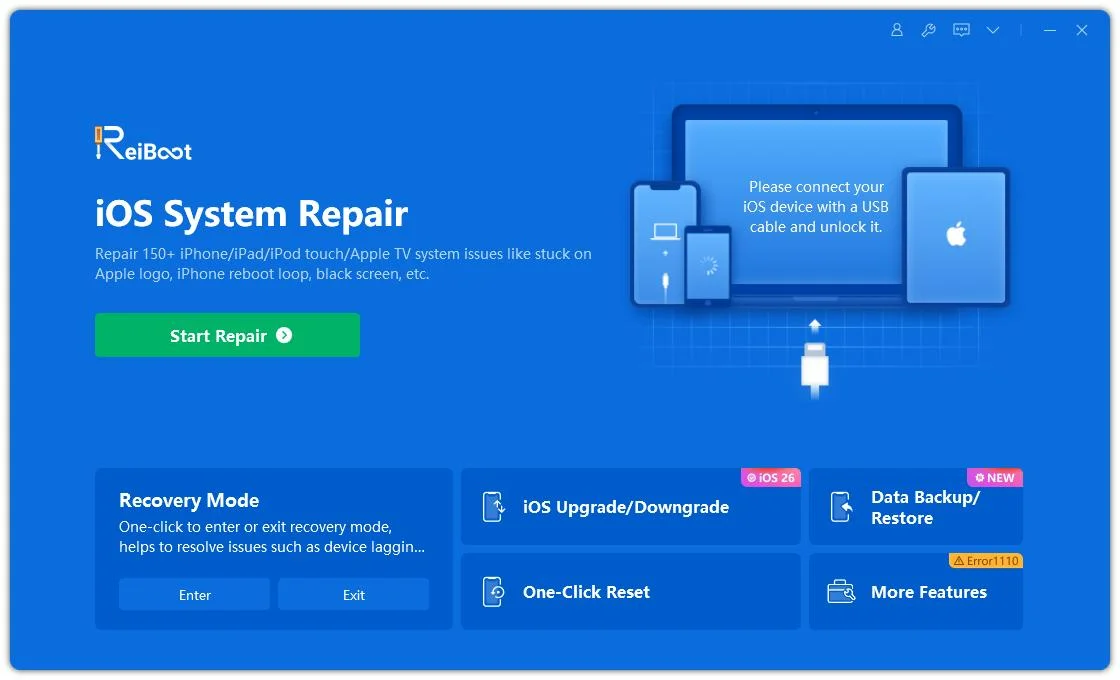
ReiBoot provides different repair options.
For an iPhone that is stuck during an update, start with Standard Repair.
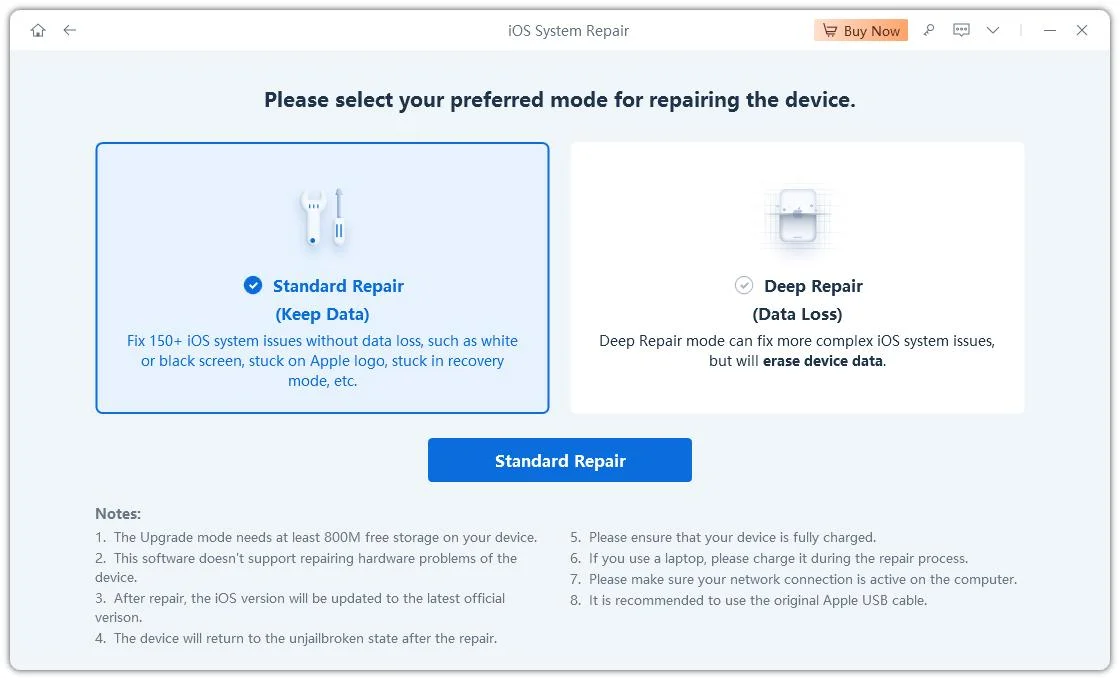
Standard Repair is designed to address iOS system problems while preserving user data under normal conditions.
This makes it a more appropriate option to try before considering a deeper repair that may erase the device.
ReiBoot will detect the connected iPhone and provide the appropriate firmware package.
Download the firmware package required for your iPhone 18 Pro Max.
Make sure the computer has a stable internet connection because the firmware package can be large.
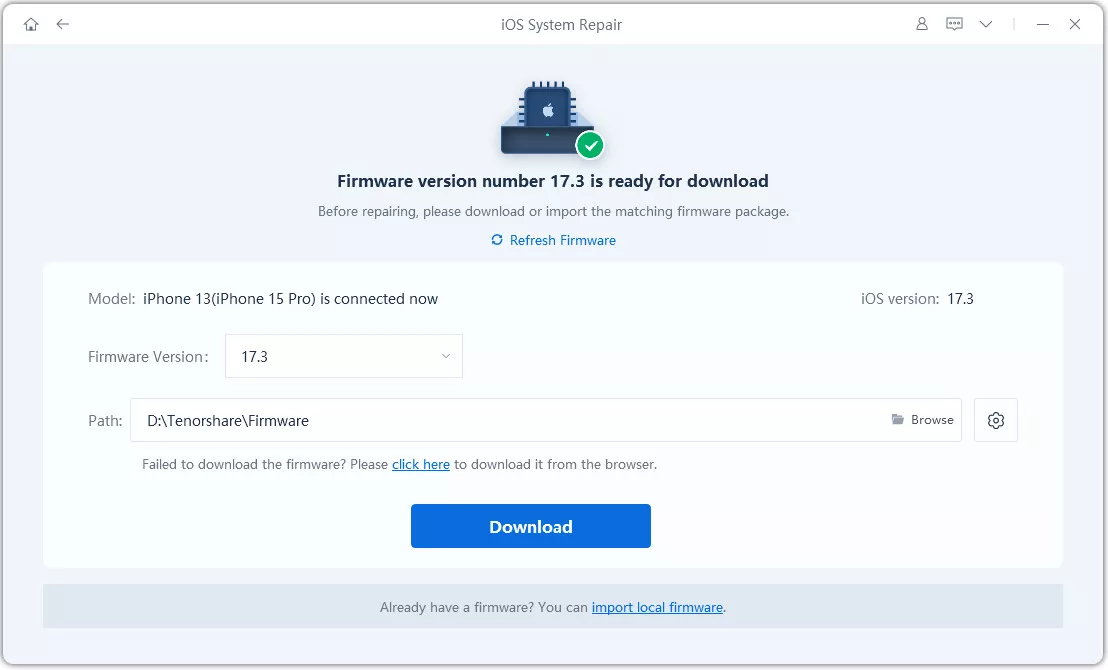
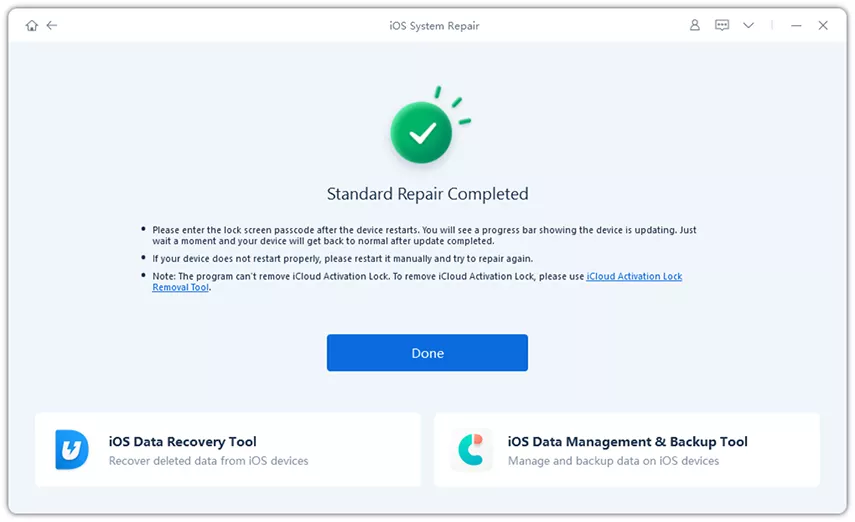
After the firmware package has been downloaded, click Start Standard Repair.
ReiBoot will use the firmware package to repair the iOS system.
Do not disconnect your iPhone during the repair process.
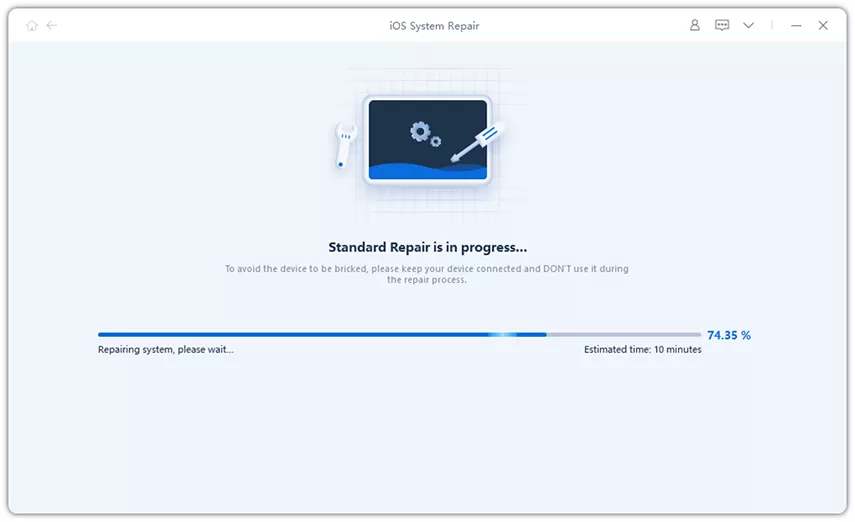
Keep your iPhone connected until the repair process finishes.
Once the process is complete, the iPhone should restart normally.
You can then check whether the software update and initial setup can continue.




It depends on the method you use.
A normal iOS update is designed to update the operating system without erasing your personal data.
A force restart also does not erase your data.
When using a computer, choose Update before considering Restore. Apple specifically recommends trying an update first when troubleshooting an iPhone that cannot update or restore.
Be careful with Restore, because Apple's Restore process reinstalls iOS and erases the device.
If you use ReiBoot, start with Standard Repair. Tenorshare describes Standard Repair as the data-preserving repair option, while its deeper repair mode can result in data loss.
If your iPhone 18 Pro Max still cannot update after trying the standard troubleshooting steps, Apple Support may be the next option.
This is especially important if:
Apple recommends using recovery mode when an iPhone cannot be updated or restored normally. If recovery mode also fails, Apple may recommend service.
If your iPhone 18 Pro Max is stuck on Update Requested, don't immediately assume that the phone is defective.
Because the iPhone 18 Pro lineup launched alongside iOS 27, an update during initial setup can be part of the normal setup process.
Start with the simplest solutions:
For most users, the key is to distinguish between an update that is taking longer than expected and an update that is actually stuck. Start with Apple's standard troubleshooting methods, and only move to deeper system repair when those methods do not resolve the problem.


then write your review
Leave a Comment
Create your review for Tenorshare articles

Share this post


ReiBoot - No.1 Free iOS System Repair Software
Fix 150+ iOS Issues without Data Loss & Safely iOS 27 Upgrade/Downgrade
ReiBoot: No.1 iOS Repair Tool
Fix 150+ iOS Issues, No Data Loss
By Jenefey Aaron
2026-09-24 / iOS 27