

 iOS Tips & Latest Updates
 Bug Fixes, Unlock Guides
 Giveaways & Freebies

UltData - Best iPhone Data Recovery Tool
Recover Deleted & Lost Data from iOS Devices Easily, No Backup Needed!
UltData: Best iPhone Recovery Tool
Recover Lost iPhone Data without Backup

Opening the Music app to find an empty or incomplete library is frustrating, but it is a common and fixable issue. If your Apple Music library disappeared, the cause is often a small setting or an account mismatch that takes a minute to fix. This guide starts with those quick checks and moves on to restore options for purchased music and local files. It also shows where a recovery tool may help when deleted audio files on an iPhone are the real problem.
Some of the common reasons why an Apple Music library may disappear include:
Also check whether songs are missing from the Library or only Downloaded. Removing a download can leave the library entry available for streaming and downloading again.
Work through these checks in order to fix the Apple Music library disappeared issue and avoid deleting music while investigating.
Best for: Users who recently changed devices, signed out of their account, or updated their account settings.
Steps:


Apple Music libraries are associated with the account used for the service. Switching accounts may make the original library appear to be missing.
Best for: Users whose Apple Music library disappeared after changing settings or updating iOS.
Steps:

Sync Library requires an eligible Apple Music or iTunes Match subscription. On older iOS versions, Music settings may appear directly under Settings.
Best for: Users who can no longer access their library or have recently changed or renewed their subscription.
Steps:

An expired subscription ends access to catalog songs and subscription playlists. Renewing should be followed by checking Sync Library, but a complete return of the previous library cannot be promised.
Best for: Users whose library is loading slower, appears empty temporarily, or fails to sync across devices.
Steps:

A temporary service or connection problem may prevent the library from loading correctly, which does not mean that your music has been deleted.
Best for: Users who still cannot see their library after checking their account and sync settings.
Steps:

An update may help with software issues, though it cannot guarantee that missing songs will return. Also back up important data before a major iOS update.
Best for: Users who have another iPhone, iPad, Mac, or computer signed in to the same Apple Account.
Steps:

Checking the Music library on other devices helps determine whether the issue is limited to one device or affects the library more broadly. Avoid signing out of accounts or deleting local music before confirming what is available elsewhere.
If the library is still missing after the basic fixes, it's time to work on how to restore Apple Music library.
First, confirm whether the songs were synced through Apple Music, purchased from the iTunes Store, or stored as local music files. Different types of music may require different recovery methods.
Best for: Users whose library may not have synced correctly.
Steps:

Turning Sync Library off and on is a troubleshooting step and does not guarantee recovery.
Best for: Users whose purchased songs are missing from their current device.
Steps:

Some versions place Purchased under More. Availability depends on your account and region. Subscription downloads remain subject to subscription access. Plus, downloading them does not create permanent purchases.
Best for: Users who imported music from a computer or have a previous backup containing relevant music files or device data.
Check whether the original music files are still stored on a Mac or PC. You should check the computer's music library and any external drives used to store music. If music was previously synced from a computer, reconnect the device and sync the available files again.
You can also restore an existing iPhone backup from iCloud or a computer (Finder/iTunes). However, restoring a backup replaces current device data with the backed-up data and does not guarantee that Apple Music's cloud library returns. A backup may also lack songs that were only streamed.

Some people ask, "How can I restore my Apple Music library?" when what they lost is local audio files deleted from an iPhone. In that case, a data recovery tool may help, but songs missing only from the streaming catalog or cloud library cannot be recovered this way.
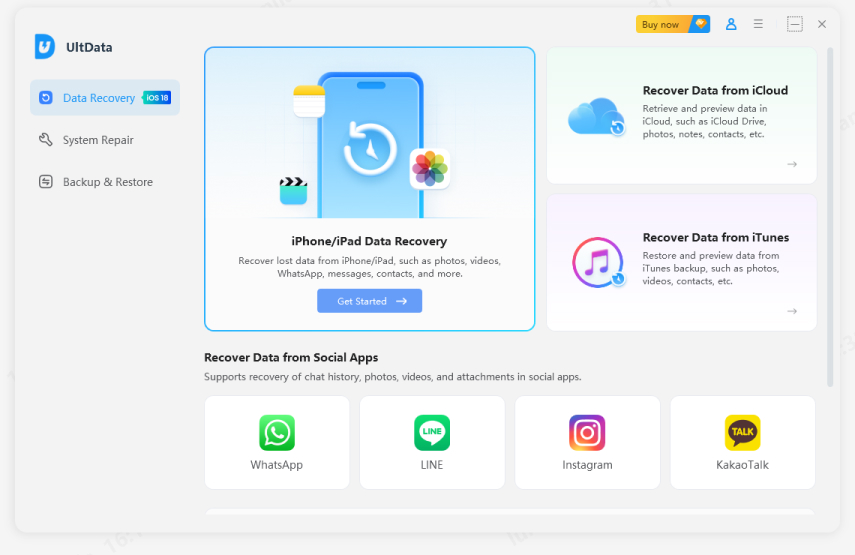
Tenorshare UltData is an iPhone data recovery tool that can scan a connected iOS device for supported recoverable data, with or without a backup. You can let the tool scan for music files in your iPhone's internal storage and then preview the results before you recover them.


Follow these steps on how to restore Apple Music library (local audio files) from iPhone using Tenorshare UltData:
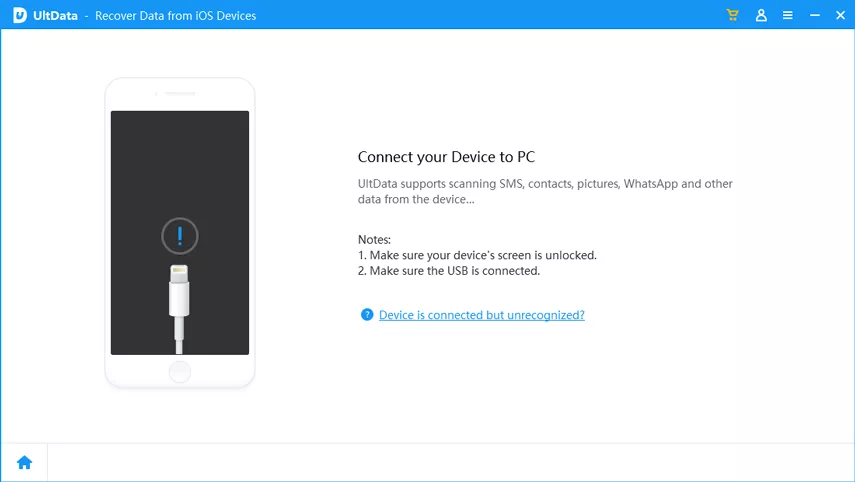
Under the list of file types, select "Music" and click "Scan". Wait for the scan to complete.
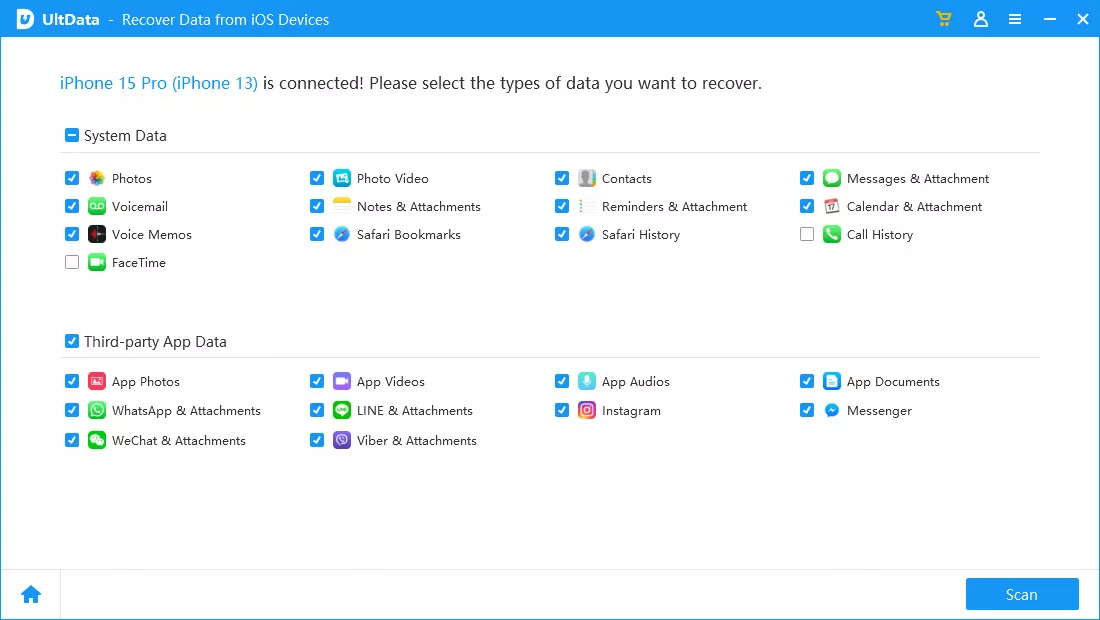
After the scan, you can preview the recoverable files. Select the ones you need and recover them.
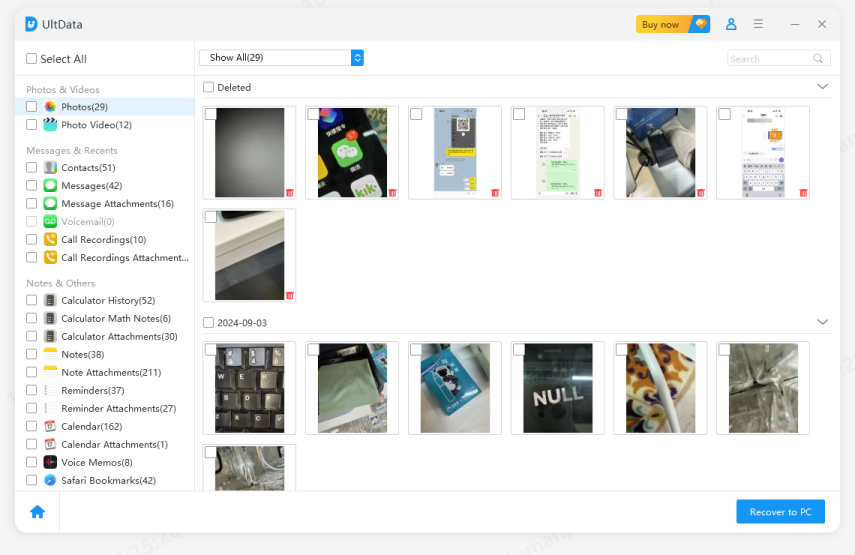
UltData recovers supported local files. It cannot restore an Apple Music subscription or songs removed from Apple's catalog, and no tool can guarantee 100% recovery of deleted music.
The Apple Music library disappeared is frustrating, but let's make sure it won't happen again. Follow these practical prevention tips:
Also, it's important to understand that cloud syncing is not a substitute for keeping separate copies of important original audio files.
When your Apple Music library disappeared, start with the basic troubleshooting steps. Verify the Apple account, enable Sync Library, check subscription and service status, and redownload purchased music where applicable.
If the music came from a computer, check the original files or backups. Use Tenorshare UltData when you want to recover local music files from an iPhone. Therefore, get started right now and retrieve the lost music library in the next five minutes.


UltData - Best iPhone Data Recovery Software




then write your review
Leave a Comment
Create your review for Tenorshare articles
Share this post


UltData - Best iPhone Data Recovery Tool
Recover Deleted & Lost Data from iOS Devices Easily, No Backup Needed!
UltData: Best iPhone Recovery Tool
Recover Lost iPhone Data without Backup
By Jenefey Aaron
2026-11-03 / iOS Data Recovery