

 iOS Tips & Latest Updates
 Bug Fixes, Unlock Guides
 Giveaways & Freebies
then write your review


ReiBoot - No.1 Free iOS System Repair Software
Fix 150+ iOS Issues without Data Loss & Safely iOS 27 Upgrade/Downgrade
ReiBoot: No.1 iOS Repair Tool
Fix 150+ iOS Issues, No Data Loss
Apple will reveal iOS 27 at WWDC 2026 on June 8, 2026, and the Developer Beta will launch the same day. Leaks suggest this update will focus on fixing problems from iOS 26. It will also add features like a smarter Siri, more Apple Intelligence tools, AI photo editing, and a new Camera app mode for Siri.
But even though iOS 27 is expected to improve stability, its Beta version could still have serious bugs. iOS 26 already caused issues like overheating, crashes, failed updates, and slow typing, and some iOS 27 bugs may pop up as well. This preparation guide explains how to prepare your iPhone before the Beta and fix frequent new Apple update issues if they crop up!
Apple is making big changes this year, including a rebuilt Siri powered by AI, new Apple Intelligence features, smarter Photos and Camera tools, AI wallpapers, and better system performance. With so many major updates, bugs are expected in the early Beta versions.
According to Mark Gurman, iOS 27 is designed more as a refinement update, similar to Apple's "Snow Leopard" era. Even so, the first Developer Beta release after WWDC 2026 on June 8 will likely be the least stable version. Users may notice much faster battery drain during the first couple of days, along with app crashes, especially in banking and security apps.
Based on what has been reported in early build testing and what typically surfaces in first-week Beta releases. Here's the iOS 27 bugs list forecasting issues most likely to affect users:
Most iPhone update issues are avoidable. The users who end up stuck in boot loops with no way back are almost always the ones who skipped the preparation steps. Do these before June 8 to avoid iOS 27 problems, like bugs issues in 2026:
You should not rely on just one backup. Make two backups before installing iOS 27:


You can't restore an iOS 27 backup onto iOS 26, so this is your only way to go back if the iOS 27 sucks.
iOS 27 functions only on iPhone 12 and newer models. Older devices like iPhone 11, XS, XR, and earlier are not supported. If you try to install it on an unsupported iPhone, it will either fail or cause major performance issues. Thus, before updating, check the official device list on the Apple Developer website to confirm compatibility.
You should have at least 15 GB of free space before installing iOS 27 Beta. The update is large, and extra data (like Apple Intelligence files) downloads after installation.
Check storage in Settings > General > iPhone Storage. Remove or offload unused apps to free space, but keep your data saved.

Update all pending apps before installing iOS 27. Apps that aren't updated are more likely to crash after the Beta update, especially banking and work-related apps.
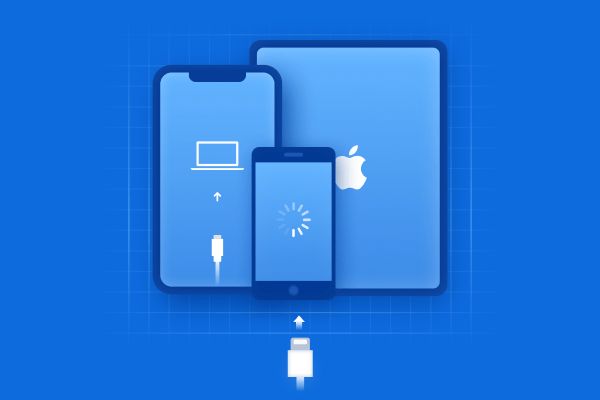
If something goes wrong during installation and your iPhone gets stuck on the Apple logo or Recovery Mode, you should know your options in advance. A force restart (Volume Up, Volume Down, then hold Side button) can fix many cases, but not all. If it still won't work, you'll need a computer with iTunes/Finder or an iOS Repair tool, like Tenorshare ReiBoot, to fix the device.
If the Apple iOS 27.2.1 update is causing numerous user-reported bugs, here's how you can repair them in several ways. Pick a solution according to where the problem appears:
iOS 27 problems could be too severe to fix with a restart or settings change. When that happens, like a boot loop, a frozen Apple logo, an unresponsive phone, or repeated update failures, you may use a tool like Tenorshare ReiBoot.
It's an iOS repair tool that can fix many system issues (150+ types) without erasing your data. ReiBoot can repair iOS latest update issues, resulting from deeper system glitches that normal troubleshooting doesn't address. It also allows you to downgrade from iOS 27 back to iOS 26 if the Beta is too unstable. Here is the iOS 27.1 bug fixes ReiBoot offers:
Here's how to resolve iOS 27 problems with ReiBoot:








If your device gets stuck during the iOS 27 installation or shows a Software Update Failed error, work through these steps in order:
Keyboard lag, slow animations, and overall sluggishness in the first days after a major Beta are usually caused by background reindexing rather than a permanent performance problem. Give the phone 24 to 48 hours before drawing conclusions. If it persists, here's how you can fix an iOS keyboard bug and performance issues:


If your iPhone falsely shows a liquid detection warning that prevents charging, and you are certain the port is dry and undamaged, this is a known Beta software bug rather than a hardware issue. Do not use a hair dryer or compressed air, as this can cause actual damage. Here's the correct way to resolve the iOS 27 Liquid Detected bug:


Third-party apps that have not been updated for iOS 27 APIs will crash, freeze, or refuse to open. This is especially frequent in the first two weeks of any major Beta cycle. Here's how you can fix the issue:


Apple Beta updates can sometimes cause serious problems, though completely breaking a device is uncommon. Always back up your iPhone before installing, and avoid using Beta software on your main or important device.
Use the Feedback Assistant app to report bugs. Explain how the issue happened, mention the apps involved, and send logs so Apple can find and fix the problem.
iOS 27 updates will come every 2 weeks in early summer and every week closer to iOS 27 launch. Smaller updates will arrive less regularly, often every 2--4 weeks.
iOS 27 is expected to be an exciting update with improved features, and a focus on stability. But even then, with the first Developer Beta on June 8, you might face some iOS 27 bugs. People who prepare properly will have fewer issues. That means keeping a recent backup, making sure there is enough storage, and knowing how to fix problems if they happen.
Most small issues can be resolved with basic fixes, but serious problems like boot loops, failed updates, or a frozen Apple logo may need an iOS Repair tool like Tenorshare ReiBoot. It can fix 150+ iOS issues in one click without restoring your iPhone or erasing its data.


then write your review
Leave a Comment
Create your review for Tenorshare articles
Share this post


ReiBoot - No.1 Free iOS System Repair Software
Fix 150+ iOS Issues without Data Loss & Safely iOS 27 Upgrade/Downgrade
ReiBoot: No.1 iOS Repair Tool
Fix 150+ iOS Issues, No Data Loss
By Jenefey Aaron
2026-10-14 / iOS 27