
 iOS Tips & Latest Updates
 Bug Fixes, Unlock Guides
 Giveaways & Freebies
then write your review


ReiBoot - No.1 Free iOS System Repair Software
Fix 150+ iOS Issues without Data Loss & Safely iOS 27 Upgrade/Downgrade
ReiBoot: No.1 iOS Repair Tool
Fix 150+ iOS Issues, No Data Loss
Siri AI is one of the major new features introduced with iOS 27, but not everyone wants to use it. Some users prefer the simpler Classic Siri experience, especially if they mainly use Siri for basic tasks.
If you want to downgrade from Siri AI to Siri Classic, you do not need to downgrade your entire iPhone from iOS 27. Apple provides a built-in option to switch back to Siri Classic.

No.Switching from Siri AI to Siri Classic is different from downgrading iOS 27 to an earlier iOS version. Apple currently allows users on iOS 27 to turn off Siri AI and switch back to the previous Siri experience directly from Settings. You can keep using iOS 27 without restoring or reinstalling the operating system.
You can switch from Siri AI to Siri Classic directly from your iPhone's Siri settings.
Open Settings and tap Siri. Scroll down and tap Turn Off Siri, then confirm the action.

After turning Siri off, return to the same Siri settings page and tap Turn On Siri. iOS 27 will then give you the option to choose which Siri experience you want to use.
When the Siri version options appear, select Use Siri Classic. Your iPhone will switch back to the previous Siri experience without requiring an iOS downgrade.

Apple also provides Siri version controls through Screen Time → Content & Privacy Restrictions → Siri, where supported devices can choose between Siri AI (Beta) and Siri Classic.

Switching to Siri Classic does not downgrade your iPhone's operating system. Your device remains on iOS 27, while Siri uses the previous version instead of Siri AI.
This can be useful if you prefer a simpler Siri experience or do not want to use the new Siri AI features yet.
Keep in mind that Siri Classic does not provide the same AI capabilities as Siri AI. Apple describes Siri AI as a beta experience with features such as personal context understanding, onscreen awareness, and broader conversational capabilities. Availability also depends on device, language, and region.
The reasons vary from user to user.
Some Reddit users have reported that Siri AI does not always handle more complex requests as expected, while others prefer the faster and simpler behavior of the previous Siri for basic commands. These are individual user experiences rather than a general assessment of Siri AI.
The broader discussion around iOS 27 also shows that some users are still waiting for Siri AI access or are experimenting with different Siri settings. Others simply want more control over which Apple Intelligence features are active on their devices.
If you only want to stop using Siri AI, switching to Siri Classic is the simpler option. You do not need to downgrade iOS 27.
If your goal is not just to change Siri, but to leave iOS 27 completely, that is a different process.
An iOS downgrade restores an earlier firmware version to your iPhone. Apple must still be signing the target iOS version for a traditional restore to work, and the process can erase your device.
So before downgrading, make sure the target iOS version is still signed and back up important data.
If you only want to replace Siri AI with Siri Classic, however, an iOS downgrade is unnecessary.
If you decide that you actually want to downgrade your entire iPhone from iOS 27 to an earlier iOS version, Tenorshare ReiBoot provides a guided iOS Upgrade/Downgrade workflow.
Instead of manually selecting and restoring an IPSW through Finder or iTunes, you can follow the downgrade process directly in ReiBoot.
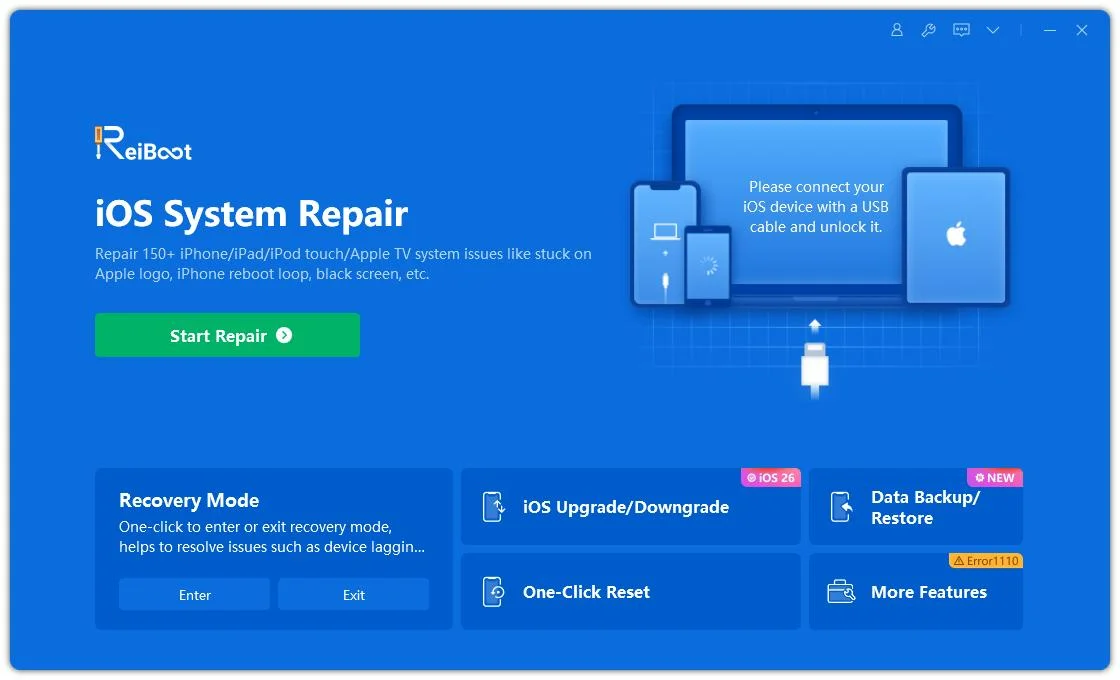
Launch ReiBoot on your computer and connect your iPhone. Once the device is detected, click iOS Upgrade/Downgrade to access the downgrade options.
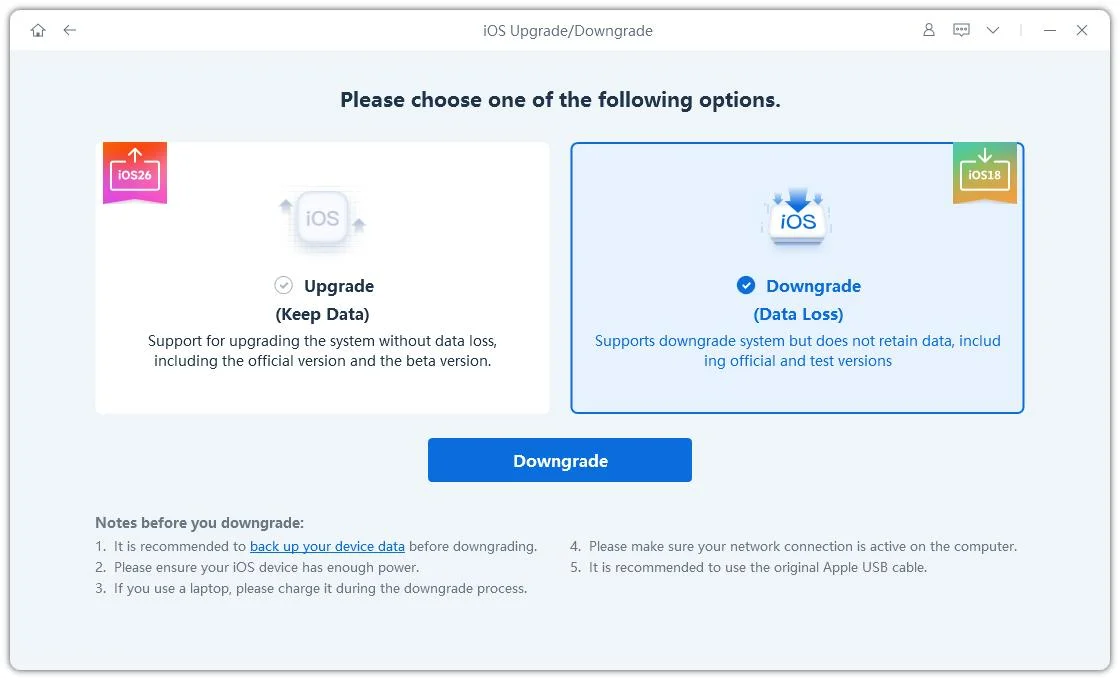
Select Downgrade to enter the iOS downgrade workflow. ReiBoot will then prepare the available firmware options for your device.
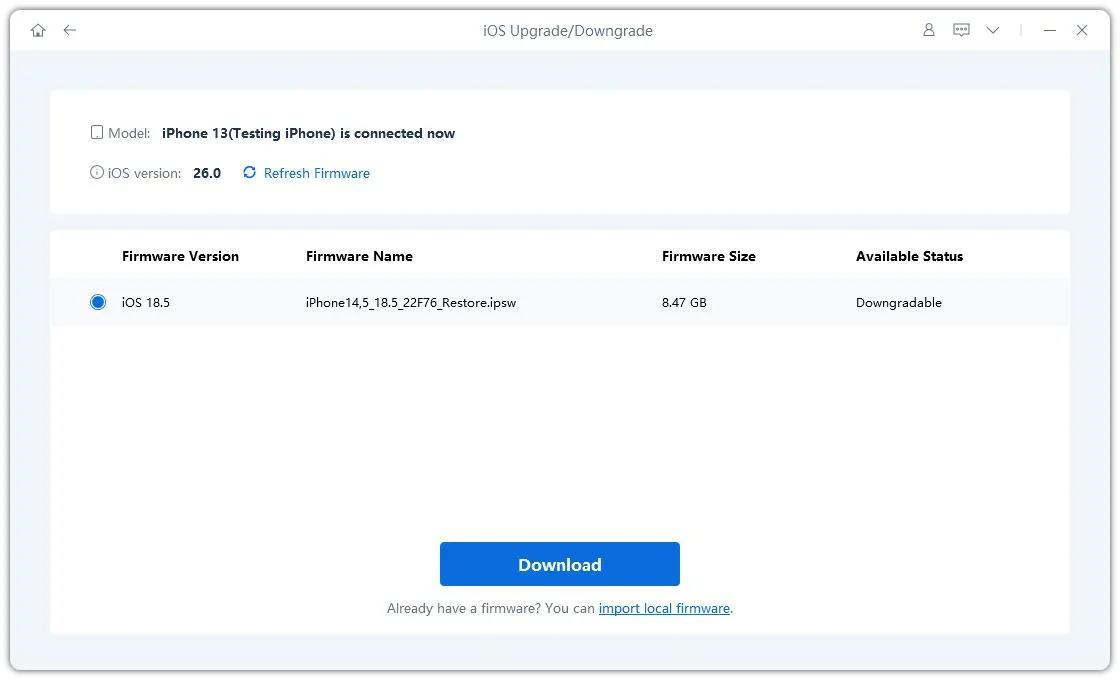
ReiBoot automatically detects your current iOS version and displays the available downgrade firmware. Click Download to download the required firmware package.
Once the firmware package has been downloaded, click Initiating Downgrade to start the downgrade process. Before continuing, make sure you have backed up any important data because the downgrade will erase the device.

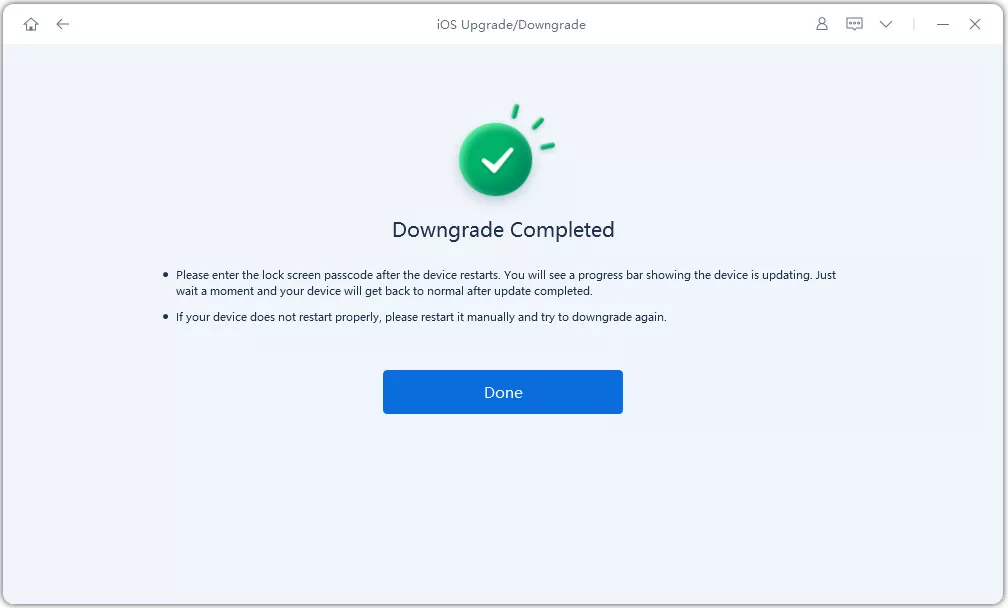
ReiBoot will begin installing the selected firmware and downgrading your iPhone. Keep the device connected throughout the process and do not disconnect it until the downgrade is complete.




These two actions solve different problems.
 Please swipe to view
If your only goal is to get the previous Siri experience back, there is no reason to downgrade the entire operating system.
If you searched for “downgrade from Siri AI to Siri Classic,” you probably do not need to downgrade your iPhone at all.
On iOS 27, Apple provides a direct way to switch from Siri AI back to Siri Classic through the Siri settings. Only consider a full iOS downgrade if you want to leave iOS 27 itself and return to an earlier iOS version.
For that separate use case, check the signing status of the target firmware first and back up your iPhone before starting the downgrade process.


then write your review
Leave a Comment
Create your review for Tenorshare articles

Share this post


ReiBoot - No.1 Free iOS System Repair Software
Fix 150+ iOS Issues without Data Loss & Safely iOS 27 Upgrade/Downgrade
ReiBoot: No.1 iOS Repair Tool
Fix 150+ iOS Issues, No Data Loss
By Jenefey Aaron
2026-09-24 / iOS 27