
 iOS Tips & Latest Updates
 Bug Fixes, Unlock Guides
 Giveaways & Freebies
then write your review
Best AI Blemish Remover Tools & How to Remove Blemishes from Photos Easily (Free & Paid)
Everyone is beautiful barefaced, laughing, imperfect. But pimples or spots can ruin a photo. ai blemish remover tools fix them naturally without making skin look fake. They keep your skin texture and make selfies or portraits look better.
In this guide, we’ll show the best ai blemish remover apps and four simple ways to get flawless, picture-perfect photos.

Show More
Part 1. What is an Blemish Remover?
An photo blemish remover is a tool that helps remove pimples, dark spots, acne scars, and wrinkles from photos. It fixes these spots while keeping your skin looking natural.
Some apps do this automatically using , while others let you remove spots manually. People use them for selfies, portraits, and social media photos to make pictures look clean and professional. Modern tools match your skin tone and texture for smooth, natural results.
Part 2. Top Free & Paid AI Blemish Remover Tools
2.1 PixPretty: Best AI Blemish Remover to Remove Facial Blemishes
PixPretty is a professional photo blemish remover that helps you quickly remove pimples, dark spots, wrinkles, and other facial imperfections. It works for selfies, portraits, fashion, and wedding photos, keeping your skin looking natural. With -powered tools, you can enhance skin, adjust colors, and reshape facial features. PixPretty is available on web and desktop, making it easy to create flawless, professional-looking photos with minimal effort.
Key Features :
- AI Face Enhancement: Smooth skin, remove blemishes, brighten complexion.
- Skin Smoothing: Maintain natural texture while reducing wrinkles, acne, and dark circles.
- Face & Body Reshaping: Adjust eyes, nose, lips, or body proportions naturally.
- Color Adjustment & Filters: Improve skin tone and overall photo aesthetics.
- Batch Processing: Edit multiple photos at once for consistent results.
Official Guide: How to Use PixPretty
How to Use PixPretty to Remove Blemishes
- Log In
- Create or Open a Project
- Apply Presets and Blemish Removal
- Export Your Photo
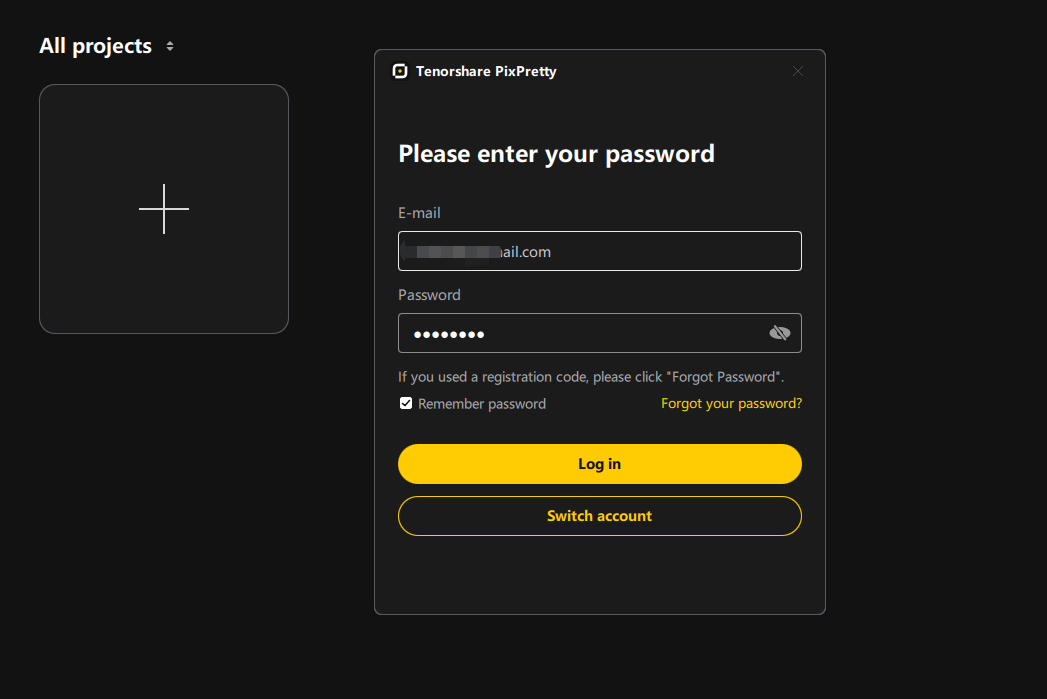
Download pixpretty on your pc. Enter the email and password you used to register PixPretty.
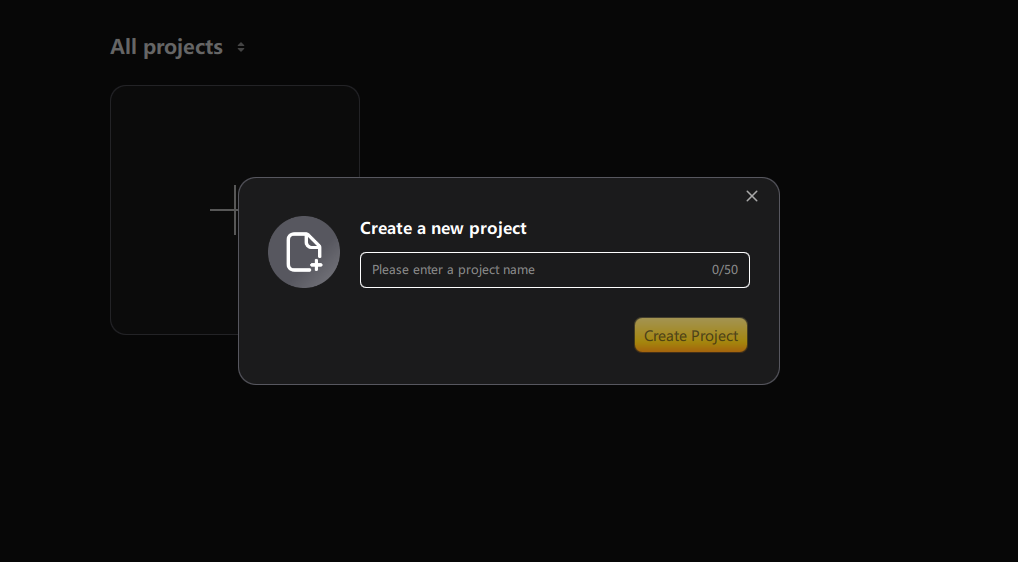
Click the “+” icon to create a new project or select an existing project from your local files. You can sort projects by date, name, or update time.
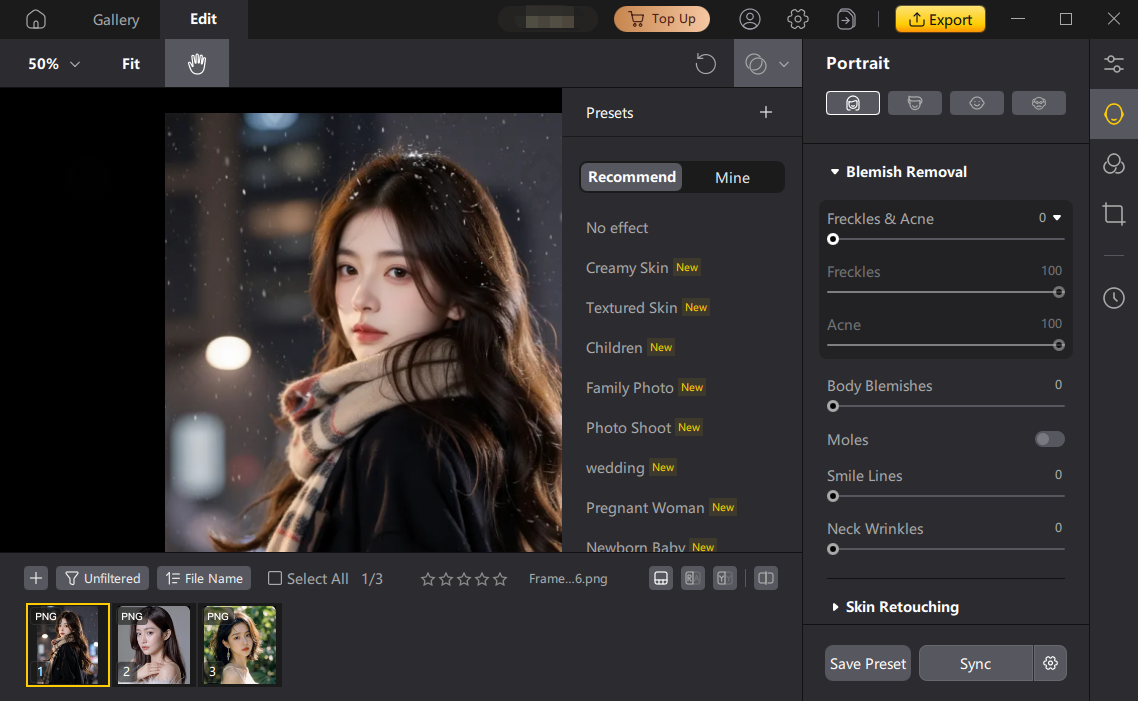
Use Portrait Presets or Composite Presets for blemish removal. These automatically smooth skin, remove pimples, acne, wrinkles, and adjust skin tone. You can preview changes in the image preview area and use the Compare Views button to see before-and-after results.
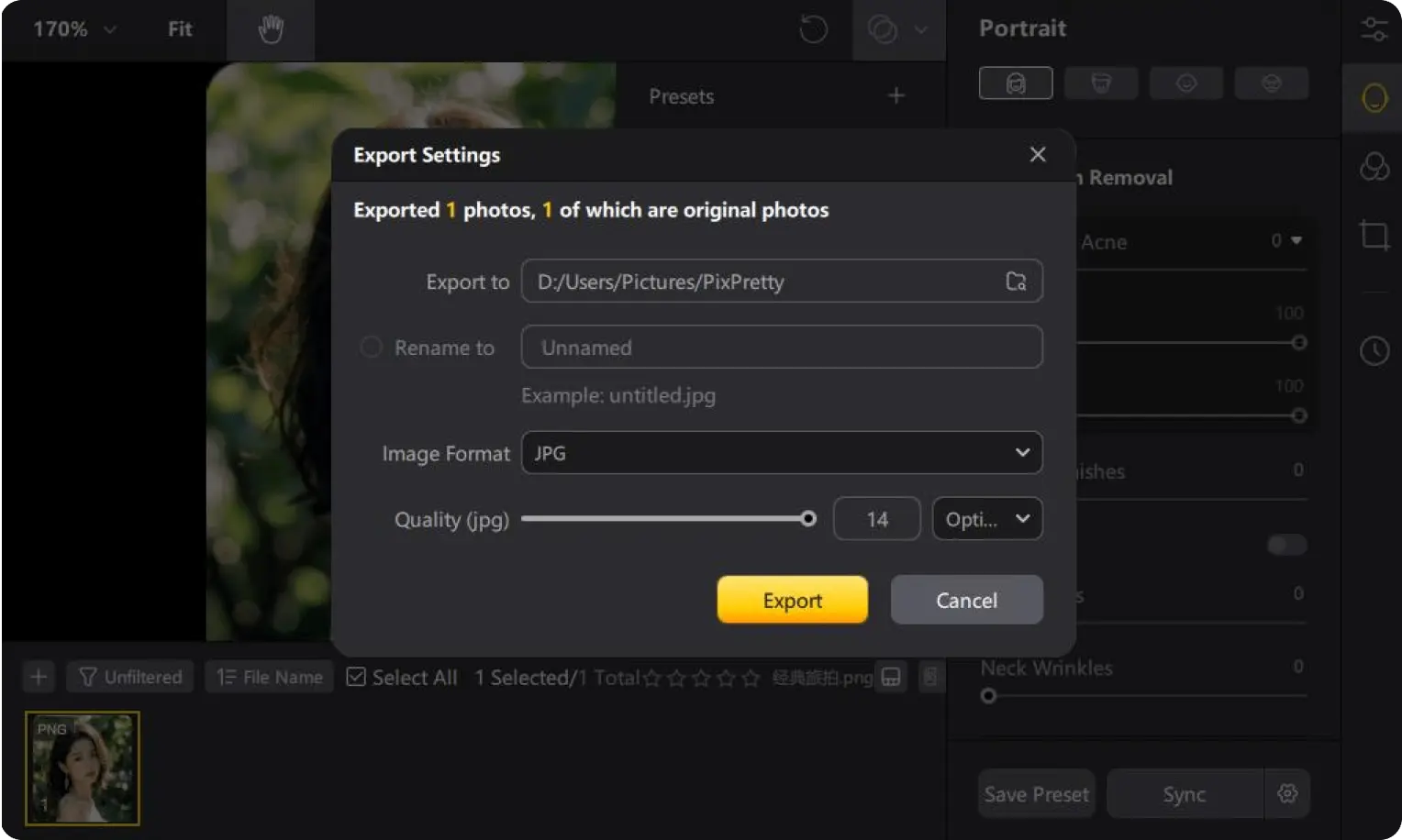
Once satisfied, click Export to save your retouched image. You can also batch process multiple photos to save time while keeping consistent results.
2.2 Fotor: Free Online Photo Blemish Remover
Fotor is a free online image blemish remover that helps you quickly fix pimples, dark spots, acne scars, and wrinkles. It is an ai-powered tool that works in your browser, so no download is needed. You can remove blemishes from photos online free and make your selfies, portraits, or social media photos look smooth and natural.
The free version has basic blemish removal and skin smoothing, while the premium version adds more filters, batch editing, and advanced features for better results.
Pros:
- Easy and beginner-friendly
- Works online, no download needed
- AI keeps results natural
- Quick and simple blemish removal
Cons:
- Free version has limited tools
- Batch editing needs premium
- Advanced features require a paid plan
2.3 CapCut Blemish Remover
CapCut is a mobile app with a CapCut blemish remover that helps you quickly fix pimples, acne, dark spots, and wrinkles. You can also remove blemishes from photos online free using its tools. The app works for both photos and video snapshots, making it perfect for TikTok, Instagram Reels, and other social media content.
Its smooths skin naturally while keeping texture real, and the simple interface makes it easy for beginners to get professional-looking results quickly.
Pros:
- Free mobile app with built-in blemish removal
- Works for both photos and video snapshots
- AI keeps skin smooth and natural
- Quick and easy to use for social media
- Includes filters, effects, and color adjustments
Cons:
- Mobile-only; no desktop version
- May struggle with complex lighting or heavy shadows
- Not ideal for professional-level photo editing
- Limited advanced features in free version
- Requires some practice to use all editing tools efficiently
2.4 Adobe Photoshop (AI Beta): Image Blemish Remover
Adobe Photoshop (AI Beta) is a professional tool that helps you ai remove facial blemishes with precision. Using AI features like the Spot Healing Brush and Blemish Remover, you can quickly fix pimples, dark spots, acne scars, wrinkles, and small unwanted objects while keeping skin texture natural. It works with high-resolution images for professional results.
However, Photoshop is complex, expensive, and desktop-only, with a free trial that has limited features, making it less suitable for casual or quick edits.
Pros:
- Professional-grade ai remove facial blemishes
- Precise Spot Healing Brush for flawless edits
- Clone Stamp and Healing Brush for advanced corrections
- Maintains natural skin texture
- Works on high-resolution images for professional projects
Cons:
- Expensive subscription required
- Complex interface, hard for beginners
- Overkill for casual users or quick social media edits
- Desktop-only; not mobile-friendly
- Free trial limited in features and file size
Part 3. Comparison Table of Popular AI Blemish Removers
 Please swipe to view
Tool
Platform
Free Version
Best For
Rating
PixPretty
Web/Desktop
Yes
Professional photo editing
Fotor
Web
Yes(Watermark)
Quick edits
CapCut
Mobile
Yes
Video creators
Adobe Photoshop
Web
No
Designer
Conclusion:
For anyone looking to ai blemish remover or an image blemish remover that is fast, accurate, and easy to use, PixPretty is the top choice. It works on both web and desktop, offers professional-quality results, and keeps skin looking natural. Whether you’re editing selfies, portraits, or social media photos, PixPretty’s tools make blemish removal simple and efficient.

Hey! 👋
Welcome to Apple tech Hub!
Need help
iPhone setup guide?
New Guide
iOS 27 Tips & Tricks 🎉

Speak Your Mind
Registrer/ Login
Speak Your Mind
Leave a Comment
Create your review for Tenorshare articles
Related articles
All topics
Share this post



By Jenefey Aaron
2026-09-28 / AI Insights