Dealing with a whatsapp blurred picture can be frustrating. It gets worse when you need to view an important memory or document. In 2025, this issue will be more common than before. Storage limits, backup settings, slow internet, and download restrictions often cause it.
This guide explains the common causes of blurry photos on WhatsApp. It also shares quick solutions to restore image quality. You'll also learn easy tips to prevent this problem.
Many users notice their WhatsApp pictures blurred on both Android and iPhone. This usually happens when the app can't load the image clearly due to incomplete downloads, low storage, or temporary app glitches. People often ask, Why is my WhatsApp profile picture blurry on iPhone/android? This issue appears when the photo is too small, over-compressed, or stretched beyond WhatsApp's recommended size.
Sometimes, ASO-related app optimization updates also affect how WhatsApp handles image quality. During these updates, pictures may load with lower resolution until the app adjusts or refreshes.
Two main reasons your WhatsApp pictures get blurred:
Poor or unstable internet connection the image doesn't download fully.
Low-quality or compressed photo, especially when uploading a profile picture on iPhone.
Part 2. How to Fix Blurred Pictures on WhatsApp
If you're trying to figure out how to fix blurry pictures on whatsapp android/iPhone, the good news is that most issues can be solved with simple checks and quick settings adjustments. Blurry images usually occur when the photo isn't fully downloaded, your storage is low, or your network connection is unstable.
Steps to Fix whatsapp photos blurred
Check your internet connection
A weak connection slows down media loading. Switch to a stronger Wi-Fi network or turn on mobile data to help WhatsApp download the picture clearly.
Tap the blurred image to re-download it
Sometimes the photo didn't download fully the first time. Tap on the blurred image and let WhatsApp reload the file with a stable connection.
Enable media auto-download
Go to Settings > Storage and Data and turn on auto-download for images. This helps WhatsApp automatically download pictures in the background so they don't stay blurry.
Restore deleted media from WhatsApp backup
If the photo was removed from your device storage, WhatsApp won't load it properly. Restore your chat backup to recover the missing image.
Check free storage space
Low storage can stop WhatsApp from saving or loading media clearly. Delete unnecessary files, videos, or apps to free up space.
Ask the sender to resend the image
The original file might be corrupted or heavily compressed. Request a fresh copy so you get a clear version.
Update WhatsApp to the latest version
Outdated versions sometimes cause media loading issues. Updating the app makes sure smoother downloads and better image quality.
Part 3. How to Prevent WhatsApp Pictures From Becoming Blurred
Keeping your WhatsApp photos clear is easy when you follow a few good habits. Blurry or pixelated images usually happen because of low-quality uploads, low storage, weak internet, or WhatsApp's automatic compression. These small issues can make your photos, statuses, and shared media lose quality.
With the right settings, enough storage, and a stable connection, you can keep your images sharp every time. Below is a simple list of steps that will help you how to fix blurry pictures on whatsapp android/iPhone.
Steps to Prevent WhatsApp Pictures From Becoming Blurred
1. Enable HD upload for photos and videos in WhatsApp settings (if the feature is available on your iPhone). This makes sure images are sent in higher resolution.
2. Avoid sending screenshots or images already compressed by other apps. Use original photos from your camera roll to maintain maximum clarity.
3. Keep enough free storage space on your iPhone/android. When storage is low, WhatsApp may offload or compress media files, causing them to appear blurred.
4. Do not use third-party cleaning apps that remove WhatsApp folders or cached media. These tools often delete important image data and cause photos to blur.
5. Turn off Low Data Mode on your iPhone and inside WhatsApp if it restricts upload quality or compresses outgoing images.
6. Use iCloud Photos or Google Photos for higher-quality backups, so your images remain safe and uncompressed even if WhatsApp removes local copies.
7. Avoid heavy background downloads while uploading photos, as it can slow down your connection and reduce the upload quality.
Part 4. Prevent Blurred WhatsApp Pictures with iCareFone Transfer
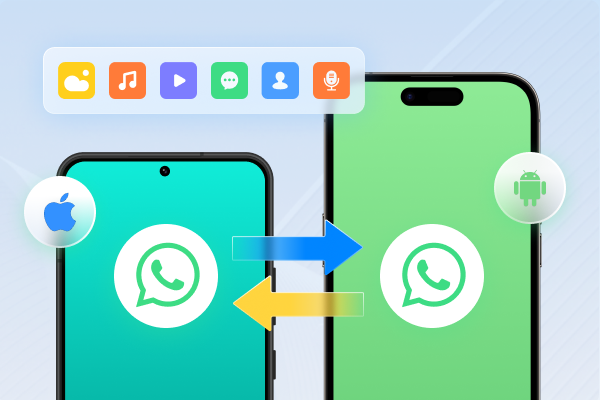
One easy way to avoid blurred or missing WhatsApp pictures is by keeping your chats and media safely backed up and properly transferred between devices. Tenorshare iCareFone Transfer is one of the best tools for this job. It helps you move your WhatsApp data between Android and iPhone without losing quality, without resetting your phone, and without any complicated steps.
iCareFone Transfer supports the latest systems, including iOS/iPadOS 26 and Android 16, and is trusted worldwide for its high success rate and fast performance.
Advantages of Tenorshare iCareFone Transfer
Transfer WhatsApp or WhatsApp Business between Android and iPhone after setup without wiping your device.
Quickly restore WhatsApp from Google Drive to iPhone or from an iCloud backup to Android.
Combine old and new WhatsApp messages between Android and iOS in one step.
Transfer GBWhatsApp to WhatsApp or move GBWhatsApp data to another device smoothly.
Offers a 99.9 percent success rate based on more than 14 years of experience.
Transfer WhatsApp between Android to iPhone, iPhone to Android, Android to Android, and iPhone to iPhone.
Complete transfers in around 30 minutes, which is faster compared to Move to iOS or Smart Switch.
Protect your WhatsApp backups with a password to keep your data private.
Part 5. FAQs on WhatsApp Blurred Pictures
Q1. Why are the pictures someone sent me blurry?
Pictures may look blurry because WhatsApp compresses images to make them smaller. Slow internet or large files can also cause WhatsApp blurred pictures.
Q2. How to prevent WhatsApp from reducing image quality?
Use the "Send as Document" option instead of the normal photo attachment. This keeps the original quality. Also, make sure your internet connection is strong.
Q3. How do I restore original quality on WhatsApp?
Unfortunately, once an image is compressed and sent, you cannot fully restore it on WhatsApp. To maintain original quality in the future, always send images as documents or use cloud storage links.
Conclusion:
WhatsApp blurred picture when the app reduces its quality or when the photo is uploaded in low resolution. You can stop this by sending photos as documents, using a good internet connection, and choosing high-quality images. And if you want an easy way to protect your chats and media when changing phones, iCareFone Transfer is a reliable tool to keep everything safe and crisp.




 iOS Tips & Latest Updates
 Bug Fixes, Unlock Guides
 Giveaways & Freebies





By Jenefey Aaron
2026-10-20 / Transfer