

 iOS Tips & Latest Updates
 Bug Fixes, Unlock Guides
 Giveaways & Freebies


ReiBoot - No.1 Free iOS System Repair Software
Fix 150+ iOS Issues without Data Loss & Safely iOS 27 Upgrade/Downgrade
ReiBoot: No.1 iOS Repair Tool
Fix 150+ iOS Issues, No Data Loss
You might have put your iPhone SE into Recovery Mode to fix a minor issue, but what if it gets stuck in that state, perpetually? If that has happened with you and you're not sure why or how to fix it, don't worry.
If your iPhone SE is stuck in Recovery Mode, that can happen for many reasons, and we'll talk about it in this post. We'll also show you simple steps to get your iPhone SE, particularly all iPhone SE models, out of Recovery Mode. Besides, we'll also throw in some tips to prevent your iPhone SE from getting stuck in Recovery Mode in the future!
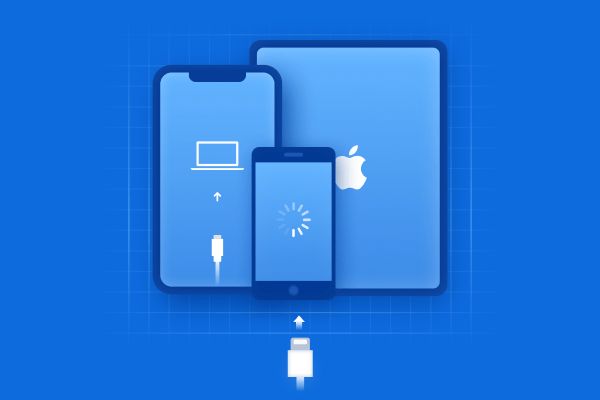
Recovery Mode is a special state on your iPhone that helps fix problems when it won't start or work properly. It lets you use a computer to update the software or reset the device. You might have your iPhone SE stuck in Recovery Mode due to numerous reasons, which we'll explain in the section beneath. You can fix them both using a computer and without a computer, based on your situation.
When putting iPhone SE in Recovery Mode, it might get stuck in that state due to several reasons, such as the following:
A failed or interrupted iOS update or downgrade.
An unsuccessful jailbreak attempt of your iPhone SE.
Corrupted system files.
Problems during a restore using iTunes.
Hardware issues like a bad battery or motherboard, but these are rarely the cause of your iPhone SE getting stuck in Recovery Mode.
You can get your iPhone SE out of Recovery Mode with two quick fixes. One is a force restart, and if it doesn't work, you can proceed to the second one, which uses iTunes/Finder to restore your iPhone SE to its default state. Here's how to use them:
A force restart is a quick and easy way to fix an iPhone SE stuck in Recovery Mode, without losing data. It can fix any temporary glitches and close background apps that are making your iPhone SE unresponsive in Recovery Mode. While helpful, it's not a permanent fix and won't solve deeper software or hardware issues. Here's how to force restart your iPhone SE:


If a force restart doesn't fix iPhone SE in Recovery Mode, use iTunes/Finder to restore it. This will fix serious software problems and install the latest iOS, which may boost performance. However, it erases all data unless you have a backup. The process can also take time and requires a computer, which might not be convenient for everyone. Follow the steps below to use iTunes/Finder to restore your iPhone SE:
Plug your unresponsive iPhone SE into your computer. Then, open Finder (on newer Macs) or iTunes (on older Macs or Windows).
If your iPhone SE is stuck in Recovery Mode, you'll see options to "Update" or "Restore" in iTunes.

Try "Update" first to keep your data. If that doesn't work, choose "Restore" to erase everything and reinstall iOS.
[If you don't want to lose data and are short on time, use an iOS repair tool like Tenorshare ReiBoot. It provides a free one-click solution to exit Recovery Mode without data loss and iTunes. The tool also supports all iPhone SE models and iOS versions (including iOS 26). Here are its core features:]




Here's how to use Tenorshare ReiBoot to fix the iPhone SE stuck in Recovery Mode:
Connect your unresponsive iPhone SE to your computer. Then, execute ReiBoot on the same computer.

Once the tool recognizes your iPhone SE in Recovery Mode, hit "Exit" to get it out of it.


You can prevent your iPhone SE from getting stuck in Recovery Mode in the future by taking some proactive measures. Here are the precautions you can follow:
If your iPhone SE is stuck in Recovery Mode, that can happen for various reasons like failed updates, glitches, or hardware problems. You can try a force restart or restore your device using iTunes or Finder, but these methods can sometimes lead to data loss.
[So, the safest way to fix this problem without losing your data is via an iOS repair tool like Tenorshare ReiBoot. It helps you exit Recovery Mode with just one click, supports all iPhone SE models, and fixes many other iOS problems quickly.]


Tenorshare ReiBoot - Fix iOS Issues






then write your review
Leave a Comment
Create your review for Tenorshare articles
Share this post


ReiBoot - No.1 Free iOS System Repair Software
Fix 150+ iOS Issues without Data Loss & Safely iOS 27 Upgrade/Downgrade
ReiBoot: No.1 iOS Repair Tool
Fix 150+ iOS Issues, No Data Loss
By Jenefey Aaron
2026-09-28 / iPhone Tips