

 iOS Tips & Latest Updates
 Bug Fixes, Unlock Guides
 Giveaways & Freebies
then write your review


ReiBoot - No.1 Free iOS System Repair Software
Fix 150+ iOS Issues without Data Loss & Safely iOS 27 Upgrade/Downgrade
ReiBoot: No.1 iOS Repair Tool
Fix 150+ iOS Issues, No Data Loss
Apple’s first foldable, the iPhone Duo, has two displays and a dual-battery design, so a dark screen isn’t always as clear-cut as on a regular iPhone. An iPhone Duo that won’t turn on might just have a fully drained battery. It could also have a frozen iOS, a startup problem, or hardware damage.
That means the solutions must differ for each scenario. In this guide, we’ll start with quick checks and move to more advanced recovery options, so you can find the right fix without erasing anything you don’t have to.

When an iPhone Duo screen is black, it looks the same whether the cause is a flat battery or a cracked display connector. So, it helps to know the usual suspects before you start:
As the Duo has two displays, “black screen” deserves a second look. iOS switches to the appropriate display depending on whether the phone is open, closed, or flipped over. Before you conclude the iPhone Duo is completely dead, open it fully and check the inner display, then close it and check the outer one. This is our own practical suggestion rather than an Apple instruction, but it costs ten seconds.
Here’s how to fix the iPhone Duo black screen issue in 5 ways, starting with the most basic one:
A drained battery is the most frequent reason an iPhone can look dead. Apple recommends charging an iPhone that won’t turn on for 1 hour, then trying again. If a low-battery icon appears, charge for 30 minutes or until it starts. Do it properly:

If iPhone Duo is powered on but frozen, a force restart can cut power to the chip and restart iOS. It doesn’t erase phone data. Here’s how to perform iPhone Duo force restart:

If the Apple logo appears but the iPhone Duo stalls during startup, move on to Recovery Mode.
Recovery Mode is the next step if charging and a force restart fail, or if the iPhone Duo won’t restart during startup. It lets a Mac or PC reinstall iOS. Here’s how to go about it:

If a computer detects the Duo in Recovery Mode despite black screens, that’s a good sign. It suggests the phone is powered and responding, pointing more toward software or display trouble than a dead battery. But if Recovery Mode fails, or the button is broken, proceed to Tenorshare ReiBoot.
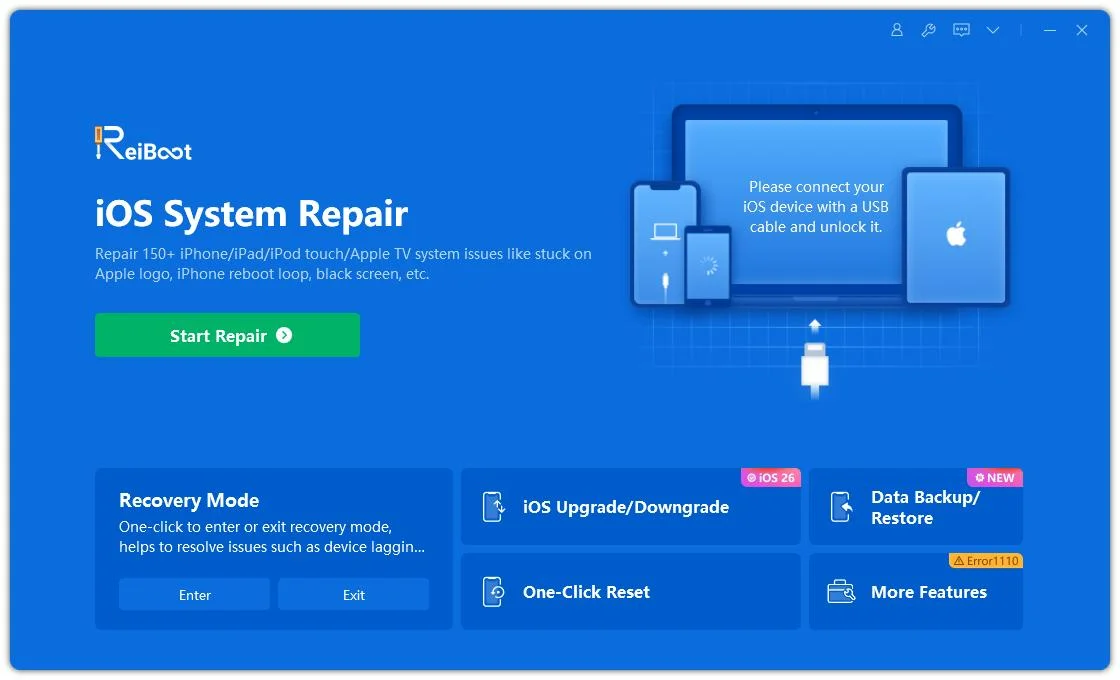
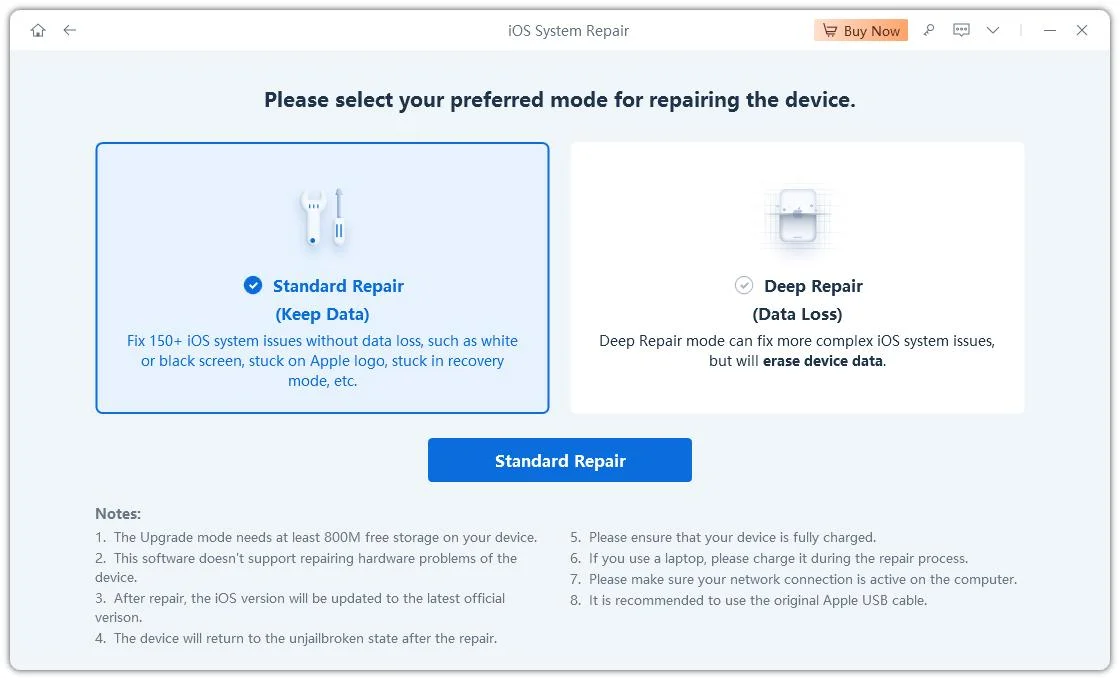
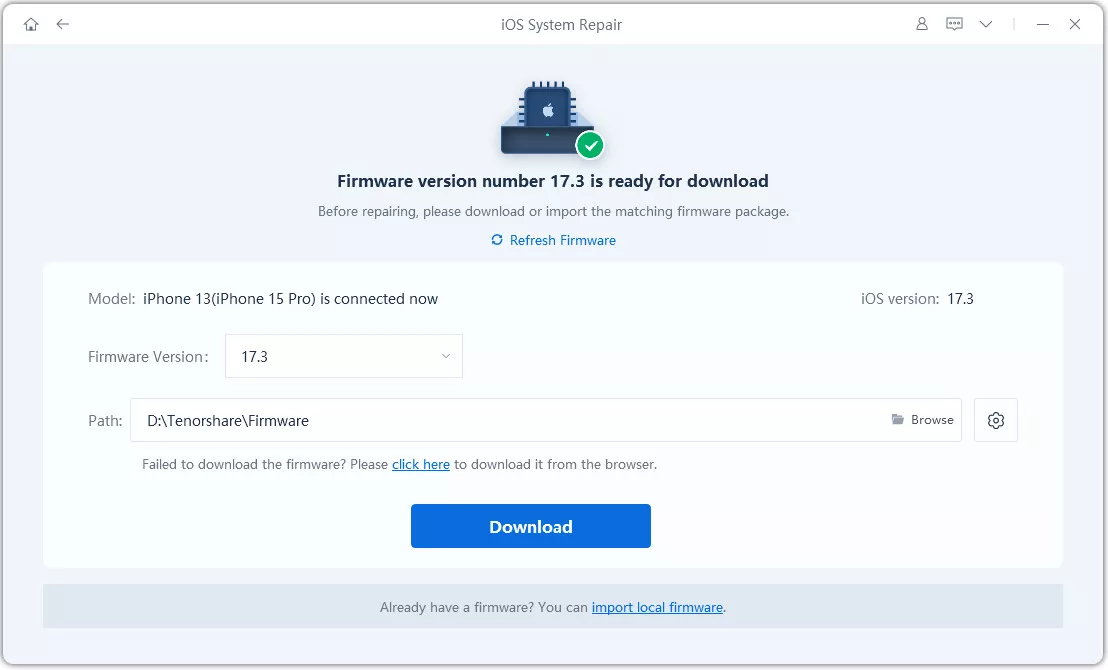
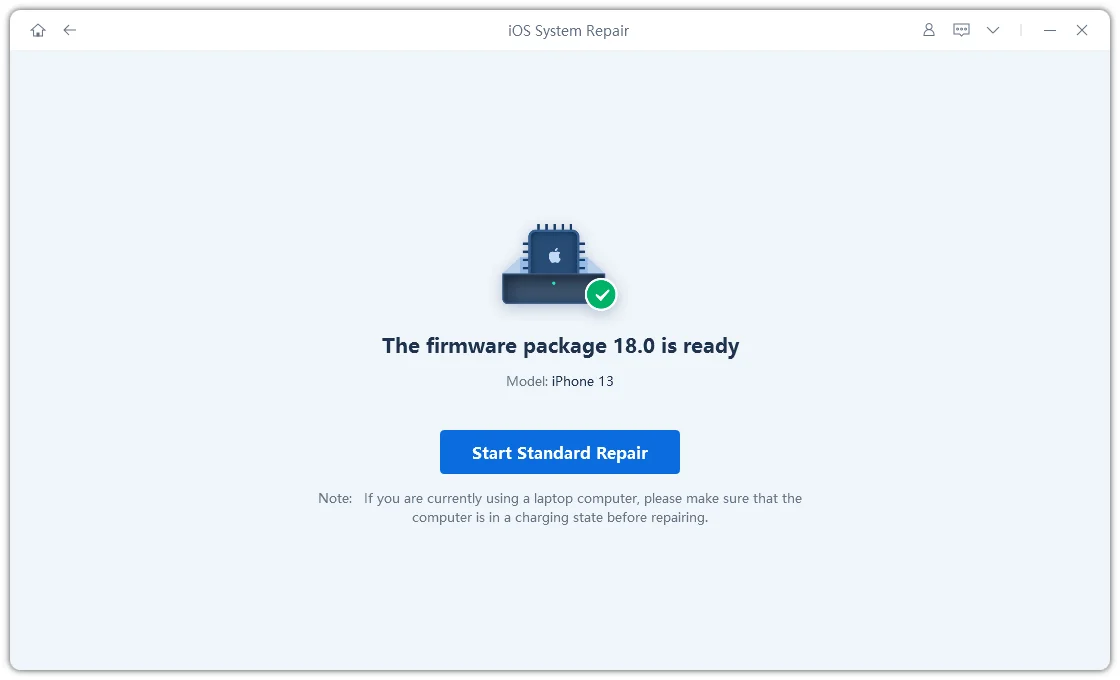
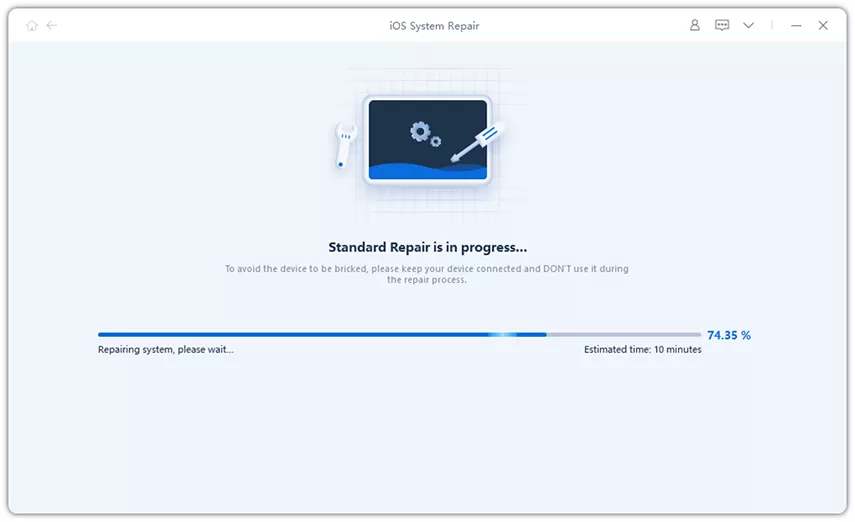
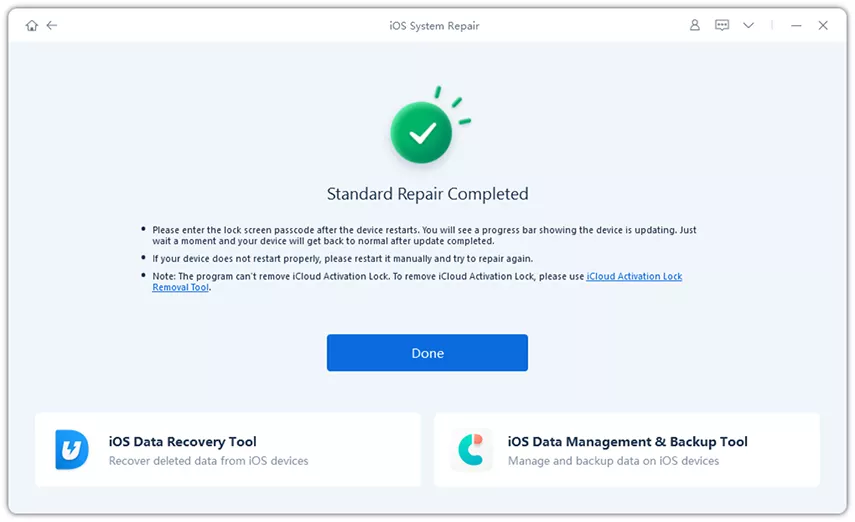
In case your iPhone Duo fails to enter Recovery Mode, it may be due to a deeper iOS issue. Try Tenorshare ReiBoot for software-related problems, such as an iPhone stuck on the Apple logo, restarting repeatedly, or trapped in Recovery Mode. Here’s what the software offers:




Here’s how to fix iPhone Duo black screen with ReiBoot:
If your iPhone Duo still won’t turn on after applying the fixes above, the problem is probably beyond what software can resolve. Stop troubleshooting and contact Apple Support if:

Before booking, remember that Apple rates the Duo IP68, but says water resistance can decrease over time and liquid damage isn’t covered by the standard warranty. If it gets wet, don’t charge it. In case you have AppleCare+, check your coverage, as it includes accidental damage such as drops and spills.
The “Black Screen of Death” on an iPhone can describe two different problems. It can mean a phone that’s completely unresponsive or one that’s powered on but has no display.
If there’s no screen, sound, or vibration, the cause is likely a dead battery or software freeze. But if you hear notifications, feel vibrations, or a computer recognizes the phone, the problem points more toward the display or its connection.
Go through the steps in order:
Signs the phone is running despite a dark screen include sounds, notification tones, vibrations, or a computer recognizing it. Shining a bright light across the display may reveal a faint image, pointing to a backlight or display issue.
With two screens, open and close the iPhone Duo to see whether either responds. If the phone is clearly alive but neither screen functions, or the issue followed a drop or liquid exposure, it’s likely a hardware fault.
No. A force restart simply reboots the phone and keeps your photos, messages, and apps intact. Whereas “Restore” in Recovery Mode is what erases data.
When an iPhone Duo won’t turn on, the fix depends on the failure. A drained battery may need an hour of charging, a frozen system may need a force restart, and a startup problem may require Recovery Mode. In case Recovery Mode fails, you can try Tenorshare ReiBoot before service. A dead display, failed battery, or physical or liquid damage needs professional repair.


then write your review
Leave a Comment
Create your review for Tenorshare articles

Share this post


ReiBoot - No.1 Free iOS System Repair Software
Fix 150+ iOS Issues without Data Loss & Safely iOS 27 Upgrade/Downgrade
ReiBoot: No.1 iOS Repair Tool
Fix 150+ iOS Issues, No Data Loss
By Jenefey Aaron
2026-10-07 / iPhone 18