

 iOS Tips & Latest Updates
 Bug Fixes, Unlock Guides
 Giveaways & Freebies


ReiBoot - No.1 Free iOS System Repair Software
Fix 150+ iOS Issues without Data Loss & Safely iOS 27 Upgrade/Downgrade
ReiBoot: No.1 iOS Repair Tool
Fix 150+ iOS Issues, No Data Loss
Search any support forum for an iPhone that charges but never appears on a computer, and you'll find the same problem. A March 27, 2025 Microsoft Q&A post describes an iPhone 15 charging on a Windows 11 desktop, but not appearing in File Explorer or prompting for Trust. The same phone functioned normally on an older Windows 10 laptop.
Now the same issue affects Apple's first foldable, the iPhone Duo. If your PC only shows that the phone is charging, the old troubleshooting steps still apply. This guide shares 6 fixes for iPhone Duo not connecting to PC, starting with simple checks, then moving to app conflicts and Apple driver repair.

A computer-to-phone connection is a chain of handshakes. When one fails, the result can look the same. The phone charges, but the computer sees nothing. Frequent causes for the "iPhone Duo not connecting to PC" issue include:
Here's how to fix "iPhone Duo USB connection to PC" problems. Each takes a few minutes, and each rules out one link in the chain.
Start with the physical connection, as it's the quickest and most popular thing to rule out:

Unlock the Duo with Touch ID or your passcode and leave the "Home Screen" visible before you plug in. The device must be unlocked for it to appear in the "Apple Devices" app. Then check the setting that controls how the phone treats wired connections. To do so:

In case the "Trust" prompt never appeared when you connected the iPhone Duo to your computer, or you tapped "Don't Trust," reset the phone's trust settings. This won't erase personal data, but it'll reset location and privacy permissions if the PC won't detect iPhone Duo:

Windows 10/11 replaced iTunes' all-in-one role with Apple Music, Apple TV, and Apple Devices. The Apple Devices app now handles iPhone backups, restores, updates, and syncing. Thus, the "iPhone Duo not recognized by PC" issue is usually not a driver conflict but Apple's new device-management setup. Avoid mixed iTunes installs, and use one clean Apple Devices setup. Here's how:


When iPhone Duo is not connecting to PC, the Apple driver may be the problem. Open "Device Manager" (right-click "Start") on PC and check:

An "iPhone Duo charging but not showing on PC" fix depends on how you installed Apple's software:
Microsoft Store apps:

Apple-installer iTunes:


If the driver is missing, uninstall and reinstall Apple's software from one source. Avoid random driver-pack sites, and back up any iTunes library before uninstalling.
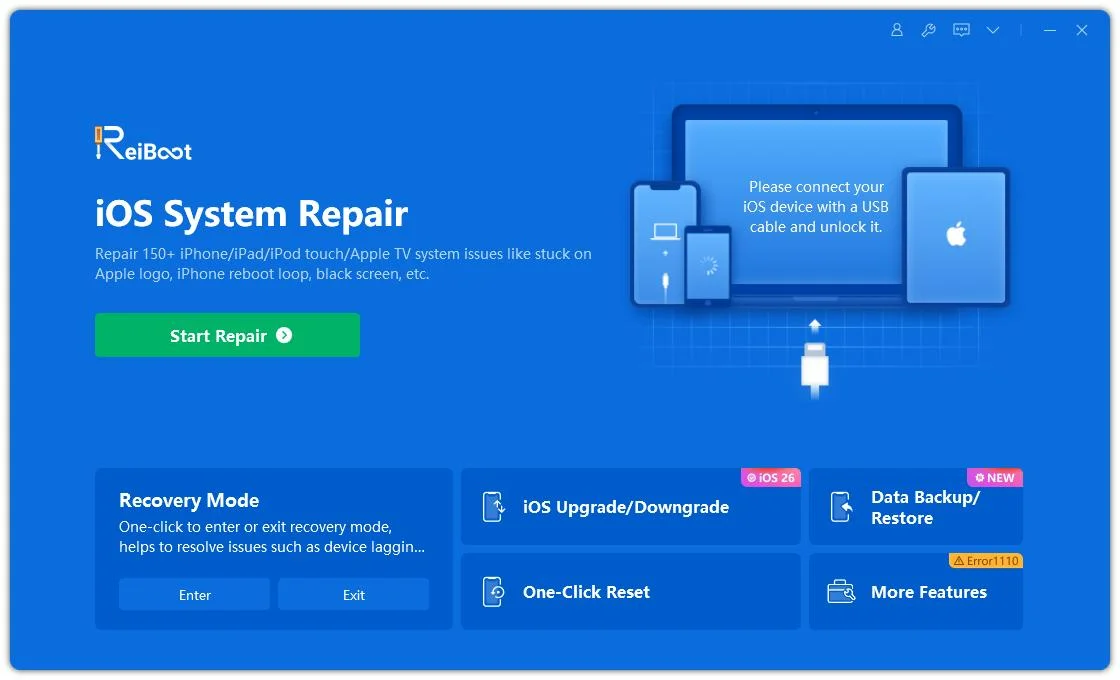
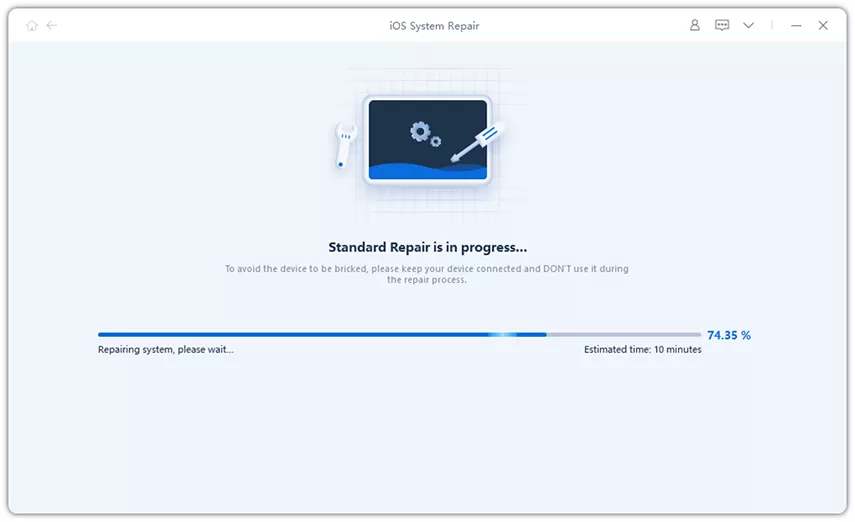
Manual fixes can work, but Device Manager, reinstalling Apple apps, and an unresponsive phone can become a dead end. Tenorshare ReiBoot, available for Windows and macOS, targets two areas that can remain after those steps. These include computer-side iTunes and Apple components and software glitches within iOS itself.




Here's what ReiBoot does for connection problems:
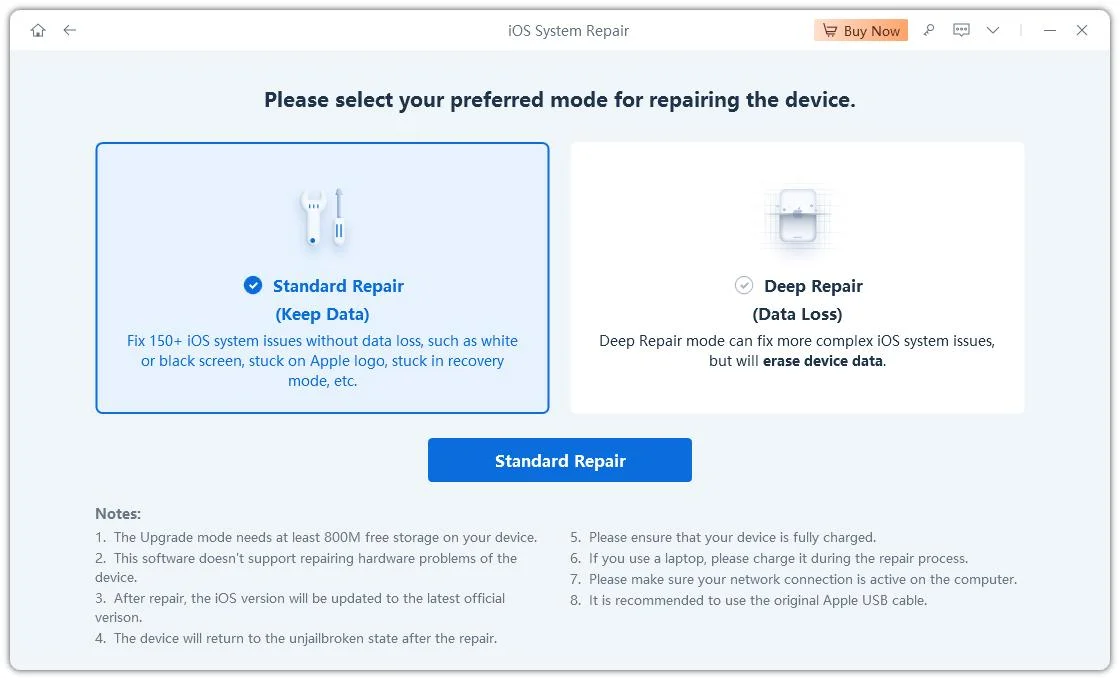
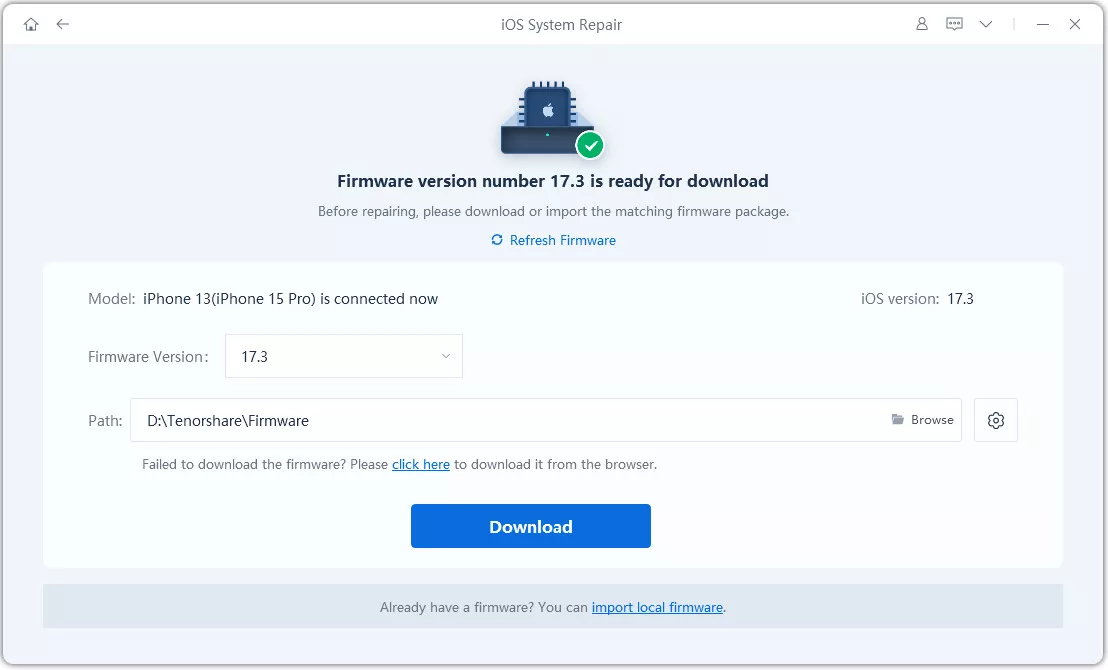
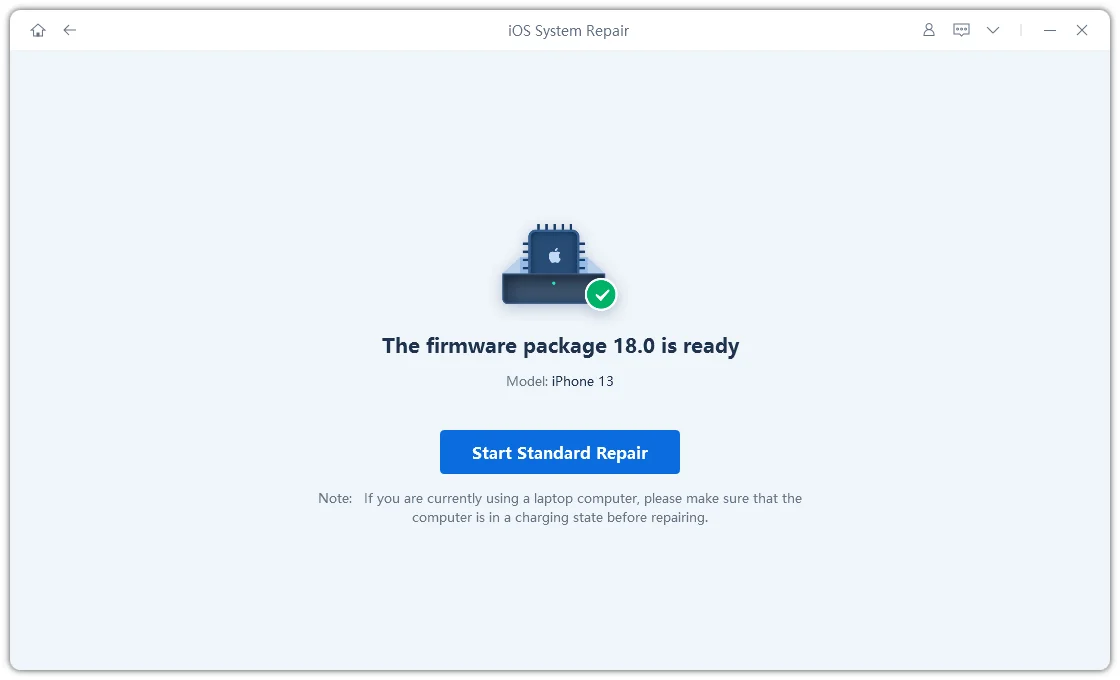
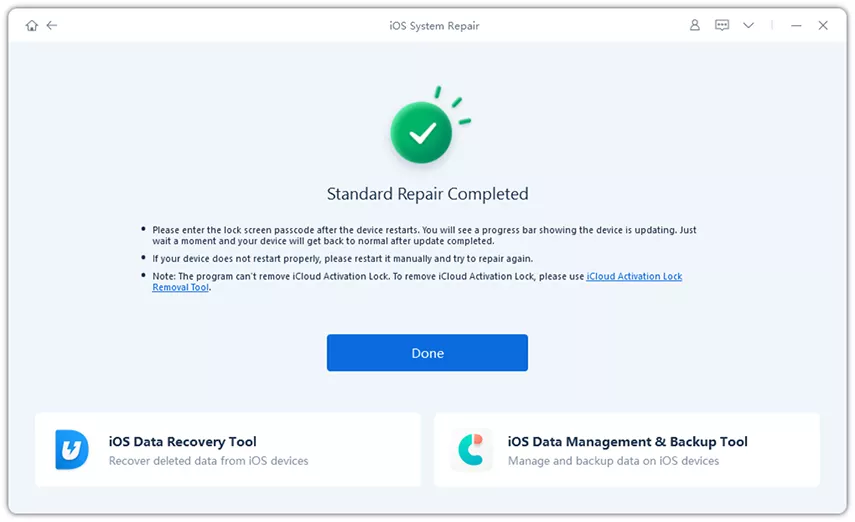
Here's how to fix the iPhone Duo connection problem with ReiBoot:
Charging only needs power wires. Data transfer also requires functioning data lines, a functioning port and driver, an unlocked phone, and an accepted "Trust" prompt. A charge-only USB-C cable or power-only hub can therefore charge the phone without enabling data. Try another cable and a motherboard USB port first.
Windows can import iPhone photos through its camera-style connection, which exposes the "DCIM" folder in "File Explorer." "Apple Devices" and "iTunes" use separate Apple components, including the "Apple Mobile Device USB driver" update and "Apple Mobile Device Service (AMDS)."
If "DCIM" functions but "Apple apps" don't detect the phone:
Unplug the cable, unlock the Duo, and head to:
A new iOS release can leave Windows or Apple software out of date. Also, manually installed "iTunes" may not update like the Microsoft Store version. So, keep Windows and Apple software updated, especially Apple Devices. Then reset Location & Privacy to restore the "Trust" prompt. If Duo is still not recognized, ReiBoot may help resolve iOS software issues.
Yes. Third-party antivirus or firewall software can block iTunes or Apple Devices from detecting your iPhone. Temporarily pause the security software, reconnect the device, add the Apple apps to its allow list, then turn protection back on.
When an iPhone Duo is not connecting to PC, check the cable and port, unlock the phone, and approve Trust. Use the correct Apple device-management app, and update or reinstall the Apple USB driver. On Mac, accept "Allow accessory to connect?" and check Finder.
If the Duo still isn't detected, Tenorshare ReiBoot is the next option. Its free Recovery Mode can restart the connection, while Standard Repair can address iOS-side faults without erasing data.
Get Tenorshare ReiBoot for a quick, trouble-free connection fix if manual driver updates fail.


then write your review
Leave a Comment
Create your review for Tenorshare articles

Share this post


ReiBoot - No.1 Free iOS System Repair Software
Fix 150+ iOS Issues without Data Loss & Safely iOS 27 Upgrade/Downgrade
ReiBoot: No.1 iOS Repair Tool
Fix 150+ iOS Issues, No Data Loss
By Jenefey Aaron
2026-10-20 / iPhone 18