

 iOS Tips & Latest Updates
 Bug Fixes, Unlock Guides
 Giveaways & Freebies

ReiBoot - No.1 Free iOS System Repair Software
Fix 150+ iOS Issues without Data Loss & Safely iOS 27 Upgrade/Downgrade
ReiBoot: No.1 iOS Repair Tool
Fix 150+ iOS Issues, No Data Loss
Have you noticed that the Display Zoom option is missing from your iPhone Duo after setup? You're not alone. Some iPhone Duo owners have found that although they can choose Default, Medium, or Large during initial setup, they can't find the same option in Settings afterward.
If your screen looks too small or too large, there are a few alternatives you can try before considering a factory reset. And if you decide to erase your iPhone and set it up again, make sure your important data is backed up first. This guide explains what you can do and how Tenorshare ReiBoot can help with data backup and restoration.

During initial setup, iPhone Duo lets you choose between Default, Medium, and Large display sizes. However, unlike other iPhone models, where Display Zoom can usually be adjusted later through Settings > Appearance > Display Zoom, this option reportedly disappears once setup is complete.

MacRumors confirmed that the option was still missing on iPhone Duo running iOS 27.2 in its November 2, 2026 report. The publication also reported that an Apple Support senior advisor had told a user that erasing the device and setting it up again was the only way to choose a different option.
Here's what this means for users:
 Please swipe to view

So, before resetting your device, it's worth trying the display adjustments that are still available.
Apple has not publicly explained why Display Zoom cannot be changed after the initial setup. It remains unclear whether this is an intentional design decision or a limitation that will be addressed in a future iOS update.
There is also no confirmed announcement from Apple about restoring the missing option. A future software update could bring changes, but users should not assume this will happen until Apple provides more information.
For now, if you selected the wrong display size, there is no confirmed way to change it through Settings. You can try other display adjustments first or consider resetting your device. Before erasing it, make sure your important data is backed up.
You currently can't access the original Display Zoom control after setup, but several settings can make content easier to read or view.
These alternatives don't fully replace Display Zoom, which changes the overall scale of the interface. However, they may be enough if your main concern is text readability or seeing small details.
Please swipe to view
If text is too small to read comfortably, try the Larger Text setting.
This setting works with apps that support Dynamic Type. It won't enlarge every icon or interface element, but it can make supported text much easier to read.
If the text looks too thin or difficult to distinguish, Bold Text may help.
This changes the appearance of text without increasing the overall interface scale.
For users who need to magnify small details temporarily, Accessibility Zoom offers another option.
Keep in mind that Accessibility Zoom is a magnification tool, not a permanent Display Zoom replacement. You may find it less convenient for everyday navigation.


Try Larger Text and Bold Text together first. If they make your screen comfortable enough to use, you may not need to erase your iPhone at all.
If none of the alternatives gives you the display size you want, you may consider erasing your iPhone Duo and going through the initial setup again. However, Erase All Content and Settings removes your personal data and settings from the device. Before proceeding, make sure you have a usable backup and know how to restore it.
You can use Apple's iCloud or computer backup options, or choose Tenorshare ReiBoot's Data Backup feature to back up your iPhone to a computer.


A factory reset removes data stored on your iPhone. Without a backup, you may lose important photos, messages, files, and other personal information.
Before erasing your device, check that:
- Your latest backup has completed successfully.
- You know your Apple Account login details.
- Important photos and files are saved or synced.
- You have enough available storage on your computer or in iCloud.
- You understand which data and settings your chosen backup method can restore.
If you prefer to keep a backup on your computer, Tenorshare ReiBoot offers a Data Backup feature for iPhone and iPad. It lets you create a device backup and review the backup after the process finishes.
To back up your iPhone Duo:
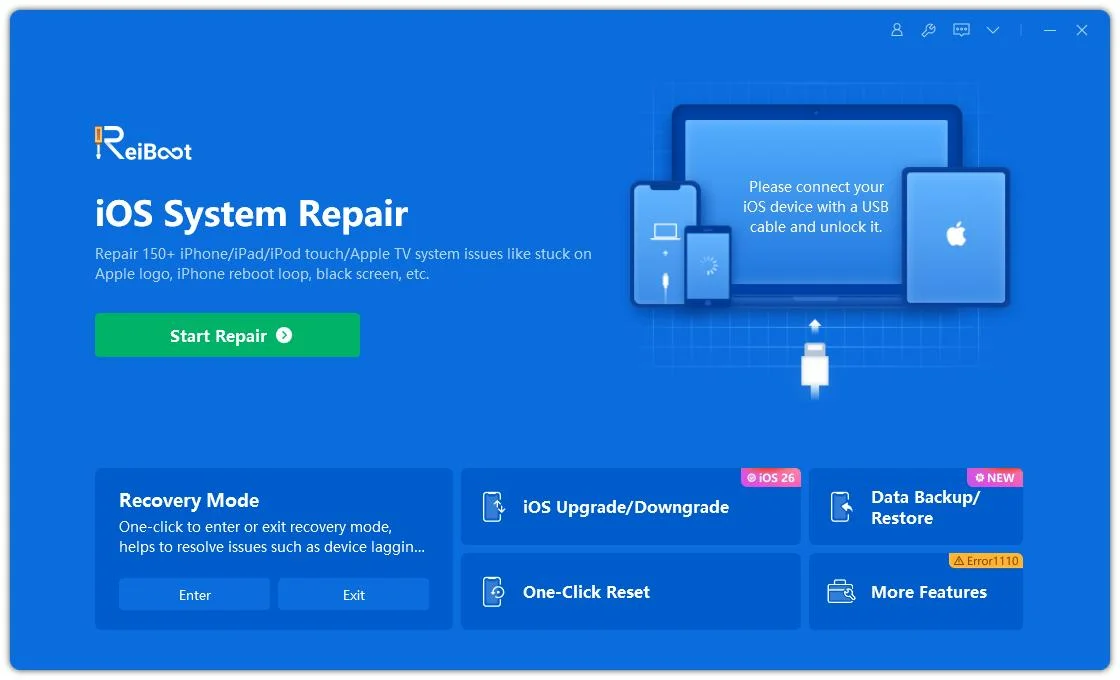


ReiBoot's backup is a data backup, not a guarantee that every iPhone setting will be saved. It does not change the Display Zoom option or guarantee that your selected zoom level will be preserved after restoration. Check the current program instructions and backup contents before erasing your device.
You can also back up your iPhone through Apple's built-in options:
- iCloud: Go to Settings > \your name\ > iCloud > iCloud Backup, then tap Back Up Now.
- Mac: Connect your iPhone and use Finder to create a backup.
- Windows PC: Use the Apple Devices app or iTunes, depending on your setup.
Choose the method that best fits your needs, and verify that the backup is complete before moving on.
Once you've confirmed that your backup is ready, you can proceed with erasing your iPhone Duo.
Before resetting, make sure you have your Apple Account credentials and understand the implications for your eSIM and other device settings.
To erase your iPhone:
Your iPhone will restart and display the initial setup screen.
Follow the setup instructions until you reach the Appearance screen.
You'll be able to choose from the available display size options, such as Default, Medium, or Large. Take your time to compare them before continuing.
If possible, check how each option looks on both the inner and outer displays. Choose the one that feels most comfortable for everyday use.

The current reports suggest that the initial setup screen is the available opportunity to choose Display Zoom. However, Apple has not confirmed that erasing and setting up again will permanently resolve the limitation. Check the option after setup rather than assuming it will remain available.
After setting up your iPhone Duo, you may want to restore the data you backed up earlier.
ReiBoot's Data Restore feature can detect available iTunes backups or allow you to import supported third-party backup files. You can then select a backup and restore it to your device.
Here's how:


Restoring a backup may replace existing data on your iPhone. ReiBoot's guide also instructs users to turn off Find My iPhone before restoring. Review the prompts carefully and keep another copy of any important current data before proceeding.
You can also restore from an iCloud backup or a computer backup using Apple's official restore process. See Apple's guide to restoring an iPhone from a backup.
If you need more detailed instructions, see our guide on restoring an iPhone from a backup using iCloud or a computer.
One more thing: restoring your data does not guarantee that the Display Zoom choice will be retained or changed. The backup and restore process is intended to help recover supported data, not to modify this particular display setting.
Some iPhone Duo owners have reported that Display Zoom is available during initial setup but disappears from Settings afterward. MacRumors confirmed the missing option on iOS 27.2, but Apple has not publicly explained why.
Currently, there is no confirmed way to change the original Display Zoom selection after setup. You can adjust text size, enable Bold Text, or use Accessibility Zoom, but these features don't replace Display Zoom.
According to a user-reported Apple Support conversation covered by MacRumors, erasing the device and setting it up again was the only available way to choose a different option. However, Apple has not officially guaranteed this outcome.
Erasing your iPhone removes data stored on the device. You should create and verify a backup before resetting. You can use iCloud, a computer backup, or a suitable third-party backup tool such as ReiBoot.
No. ReiBoot does not directly change or restore the missing Display Zoom control. Its Data Backup and Data Restore features can help you back up and recover supported iPhone data if you decide to reset your device.

then write your review
Leave a Comment
Create your review for Tenorshare articles
Share this post


ReiBoot - No.1 Free iOS System Repair Software
Fix 150+ iOS Issues without Data Loss & Safely iOS 27 Upgrade/Downgrade
ReiBoot: No.1 iOS Repair Tool
Fix 150+ iOS Issues, No Data Loss
By Jenefey Aaron
2026-11-04 / iPhone 18