

 iOS Tips & Latest Updates
 Bug Fixes, Unlock Guides
 Giveaways & Freebies

ReiBoot - No.1 Free iOS System Repair Software
Fix 150+ iOS Issues without Data Loss & Safely iOS 27 Upgrade/Downgrade
ReiBoot: No.1 iOS Repair Tool
Fix 150+ iOS Issues, No Data Loss
Apple Pencil support on iPhone Duo brings new possibilities for taking notes and drawing, but connection problems can get in the way. If your Apple Pencil keeps disconnecting, won't reconnect, or appears connected but doesn't work, the fixes depend on your device and Pencil model. This guide covers the connection steps for iPhone Duo first, followed by common fixes for iPad.

Before troubleshooting, check two things: iPhone Duo supports Apple Pencil (USB-C) only, and you need a USB-C cable to pair it. Other models, including Apple Pencil Pro and Apple Pencil (2nd generation), aren't compatible.
If your Pencil won't connect or has disconnected, pair it again:


Apple Pencil needs to be paired again after you restart iPhone Duo, turn off Bluetooth, or pair the Pencil with another device. If the connection stopped working after one of these actions, repeat the cable pairing process.
Apple Pencil uses Bluetooth for its wireless connection after pairing. Open Settings > Bluetooth and make sure Bluetooth is enabled. Also check the Pencil's battery level in the Batteries widget. If the battery is low, connect it to iPhone Duo with a USB-C cable to charge it.
If the Pencil still disconnects, turn Bluetooth off and on, then reconnect it using the cable if necessary.

If Apple Pencil appears connected but won't write or draw, open Notes and test it there. You can also try another app that supports Apple Pencil.
- Works in Notes but not another app: Check whether the app supports Apple Pencil and whether an update is available.
- Doesn't work in any supported app: Reconnect the Pencil and check for available iOS updates.
Because iPhone Duo has both an inner and an outer display, you can also test the Pencil on each screen. This helps determine whether the problem occurs on one display or across the device.
You can also check Settings > Apple Pencil on your iPhone Duo. If Only Draw with Apple Pencil is enabled, your finger can still scroll and select items, but drawing input is limited to Apple Pencil. You can also check whether Scribble is enabled if you're having trouble converting handwriting into text.
A temporary iOS issue may affect how connected accessories respond. Restart your iPhone Duo and check Settings > General > Software Update for an available update.
After restarting, remember to pair Apple Pencil again using a USB-C cable.
If you've checked compatibility, battery, Bluetooth, and pairing but your iPhone Duo also freezes, restarts unexpectedly, or shows other system problems, the issue may involve iOS rather than the Pencil alone.
You can use Tenorshare ReiBoot to troubleshoot supported iOS system issues.


What Can ReiBoot Do?
If your iPhone Duo has broader system issues alongside Apple Pencil connection problems, you can try ReiBoot's Standard Repair to troubleshoot supported iOS issues.
How to Use ReiBoot?
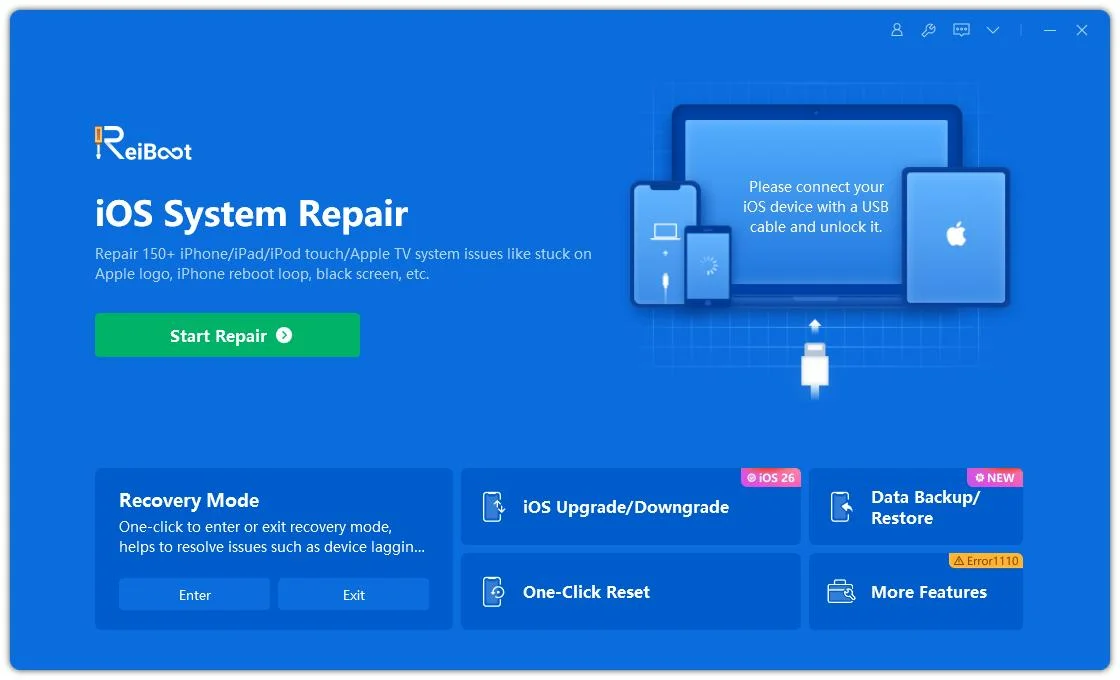
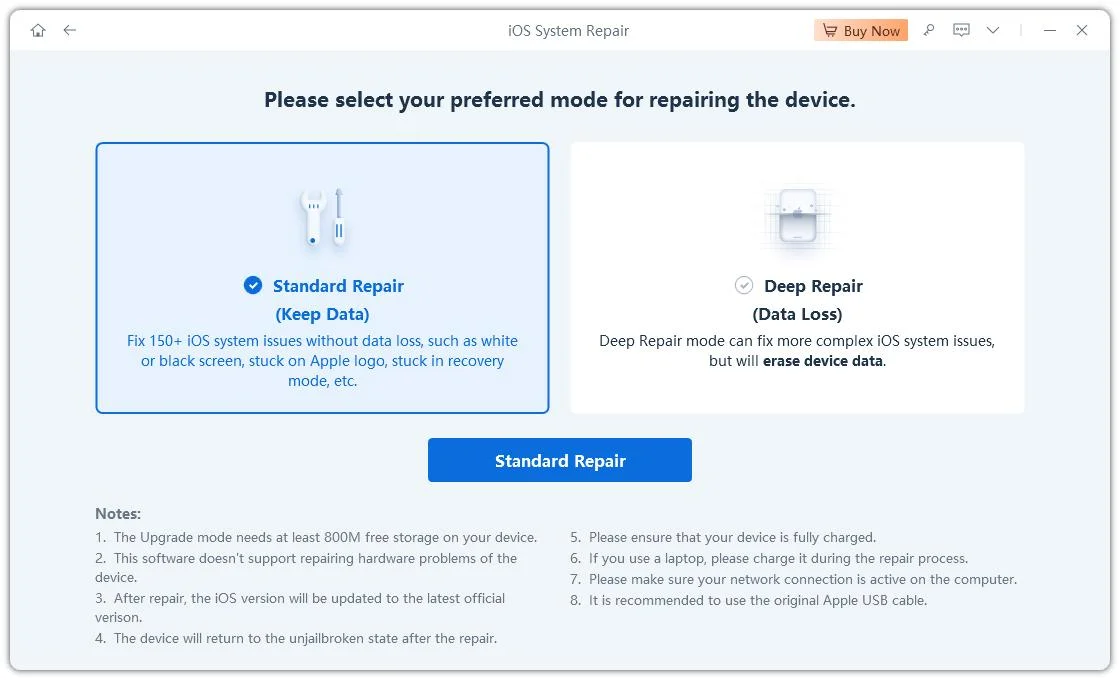
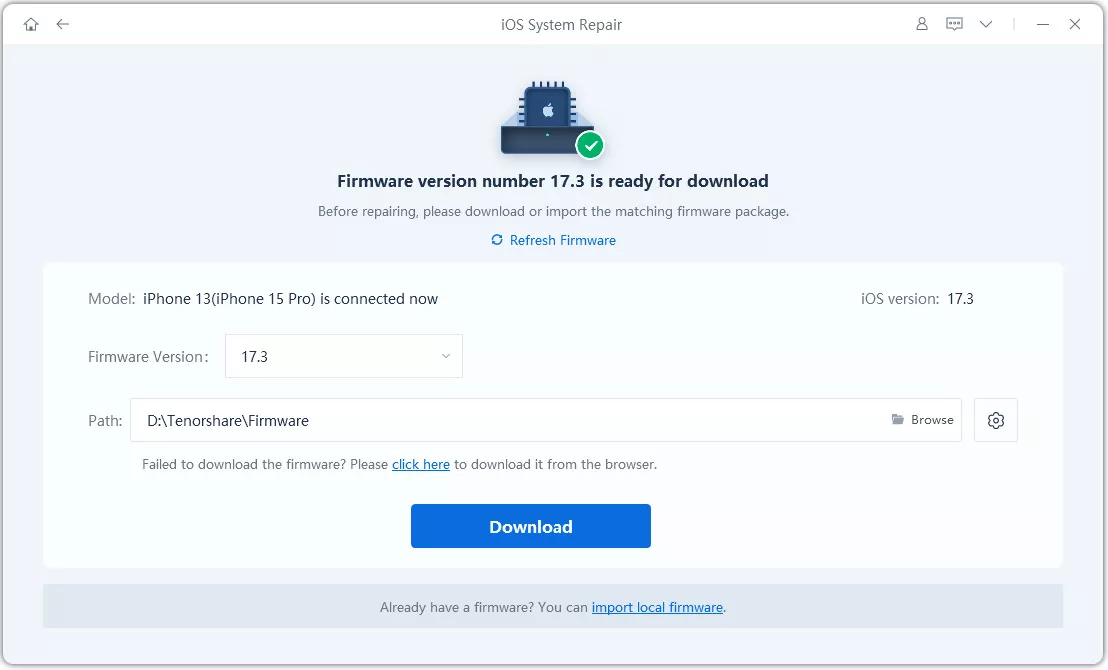
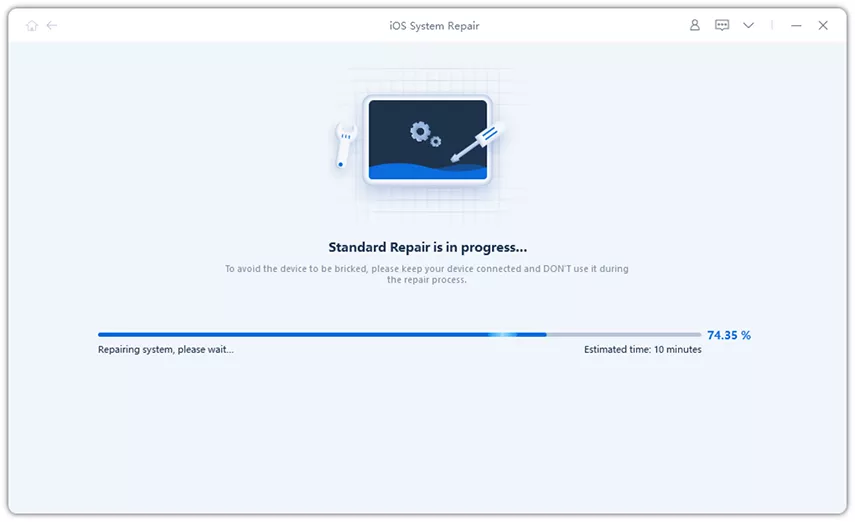
ReiBoot does not directly repair Apple Pencil hardware or guarantee a fix for Bluetooth or USB-C pairing problems. Check the current device and iOS compatibility before using it.
If you're using Apple Pencil with an iPad, first make sure your Pencil model is compatible. Pairing methods vary: some models connect magnetically, while Apple Pencil (USB-C) uses a USB-C cable.
A low battery can interrupt normal use. Charge your Pencil using the method supported by your model. For magnetic models, attach it to the compatible magnetic connector on your iPad; for Apple Pencil (USB-C), use a USB-C cable.
If you're using a magnetic Apple Pencil, try removing your iPad case temporarily. Some thick or poorly fitted cases may interfere with the magnetic connection between the Pencil and iPad, preventing it from attaching or charging properly.

If your Apple Pencil stays connected but doesn't respond when writing or drawing, check whether the tip is loose or damaged. For models with a removable tip, gently tighten it or replace it if necessary. Keep in mind that a loose tip can affect writing input, but it doesn't necessarily mean the Bluetooth connection is dropping.
What If Apple Pencil Disconnects Again After Pairing?
Some iPhone Duo users have reported that their Apple Pencil USB-C works normally for a few minutes after cable pairing, then disconnects even though it still appears in the Bluetooth device list as "Not Connected."
If this happens, try the following checks:
If Apple Pencil continues disconnecting after these checks, even after re-pairing and updating iOS, the issue may require further troubleshooting or assistance from Apple Support.

Apple Pencil needs to be paired again after you restart your iPhone Duo, turn off Bluetooth, or pair it with another device. In these cases, reconnect it using a USB-C cable.
If the Pencil keeps disconnecting, refresh the Bluetooth connection:
For Apple Pencil (USB-C), connect it to the iPad with a USB-C cable and tap Tap to Connect when prompted.

If the connection remains unstable, restart your iPad and check Settings > General > Software Update. Install an available update if appropriate, then reconnect Apple Pencil and test it in Notes.
If possible, try the Pencil with another compatible iPad. If it works there, the issue may be related to your original iPad rather than the Pencil itself.
No. Apple Pencil support is limited to compatible devices. iPhone Duo supports Apple Pencil (USB-C), but this does not mean other iPhone models support Apple Pencil.
Apple Pencil (USB-C) can be connected to a USB-C cable for charging and pairing. Disconnect the cable after pairing to use it wirelessly.
If possible, test your Pencil with another compatible iPad. You can also try another compatible Pencil with your iPad. These tests help narrow down whether the problem is with the Pencil or the device.
If Apple Pencil keeps disconnecting, start by checking compatibility, battery, and the correct pairing method. iPhone Duo requires Apple Pencil (USB-C) and a USB-C cable for pairing, while iPad pairing steps depend on the Pencil model. If the problem continues, test another supported app or device to narrow down the cause.


then write your review
Leave a Comment
Create your review for Tenorshare articles
Share this post


ReiBoot - No.1 Free iOS System Repair Software
Fix 150+ iOS Issues without Data Loss & Safely iOS 27 Upgrade/Downgrade
ReiBoot: No.1 iOS Repair Tool
Fix 150+ iOS Issues, No Data Loss
By Jenefey Aaron
2026-11-04 / iPhone 18