
Fix iPhone 18 Stuck on Setup With These 9 Simple Solutions

authorPic

By Jenefey Aaron

2026-09-10 / iPhone 18

Setting up a new phone should be exciting, not frustrating. But if your iPhone 18 stuck on setup screen will not move forward, you are not alone. Your iPhone may freeze on the Apple logo, the "Hello" screen, Wi-Fi setup, or Apple ID step.

In most cases, this does not mean there is a serious problem. Before visiting an Apple Store, let's look at why this happens and how you can fix it.

How to Fix Common Iphone Issue

Part 1: Why Is Your iPhone 18 Stuck on Setup?

Sometimes, your iPhone may seem stuck while it is still completing a setup step. Check where the setup has stopped first. The table below shows common iPhone 18 setup issues, their possible causes, and what you can try.

swiper icon Please swipe to view
Where Your iPhone Is Stuck
What Might Be Causing It
What to Try
Screen is frozen and nothing responds
Software glitch
Wait, then force restart
Apple logo or Hello screen
Setup interruption
Restart and try again
Wi-Fi connection screen
Weak or unstable Wi-Fi
Try a stable network
Apple ID setup
Verification or connection issue
Check internet and try again
“Setting Up Your Account”
Apple service or setup delay
Restart and check internet
Data transfer/Quick Start
Transfer connection interrupted
Keep both iPhones nearby and retry

Part 2: How to Fix iPhone 18 Stuck on Setting Up Your Account

Most cases can be fixed with a few simple and safe steps. Try the following solutions one by one before moving to more advanced options.

1. Wait, Charge the iPhone, and Check Apple Services

A new iPhone may take a few minutes to activate and set up your account. Keep it connected to power and wait. Low battery or Apple service issues may also slow things down.

Steps to fix iphone 18 stuck on setting up your account:

  • Plug your iPhone 18 into a charger.
  • Wait 10--15 minutes.
  • Check your Wi-Fi.
  • Check Apple's system status.

2. Switch Wi-Fi and Disable VPN

A weak connection can cause your new iPhone to get stuck on setting up your account. Try switching to a stronger Wi-Fi network and complete the setup again.

Steps to fix iphone 18 stuck on setup:

  • Go back to the Wi-Fi screen, if the option is available.
  • Disconnect from the current network.
  • Connect to another stable Wi-Fi network.
  • Turn off your VPN before continuing the setup.
  • Turn Off Vpn Before Continuing Setup

3. Verify or Temporarily Skip Apple Account Setup

An iPhone 18 taking forever to set up may be having trouble verifying your Apple Account. Checking your account details or setting up the account later can help you move past this step.

Steps to fix iphone 18 setup issues:

  • Check that your Apple Account email and password are correct.
  • Make sure you can receive any verification code required.
  • Try signing in again.
  • Choose Forgot password or don't have an Apple? if you need access to other sign-in options.
  • Choose Forgot Password or Alternative Sign in
  • Choose Set Up Later for your Apple Account, if available.
  • Finish setup and sign in later through Settings.
  • Finish Setup and Sign in Later

4. Restart Quick Start and Both iPhones

A setting up your account iPhone stuck screen can also appear when Quick Start does not complete properly. Restarting both iPhones refreshes the connection and lets you begin the setup again.

Steps to fix iphone 18 setup issues:

  • Cancel the Quick Start process, if possible.
  • Restart your old iPhone.
  • Restart your new iPhone 18.
  • Place both iPhones close together.
  • Both Iphones Placed Close Together
  • Turn on Bluetooth and connect both iPhones to Wi-Fi.
  • Restart Quick Start and follow the on-screen steps.

5. Force Restart the iPhone 18

Sometimes the screen simply locks up mid-process for no obvious reason. A quick force restart shakes it loose and gets things moving again.

Steps to fix new iphone stuck on setting up your account:
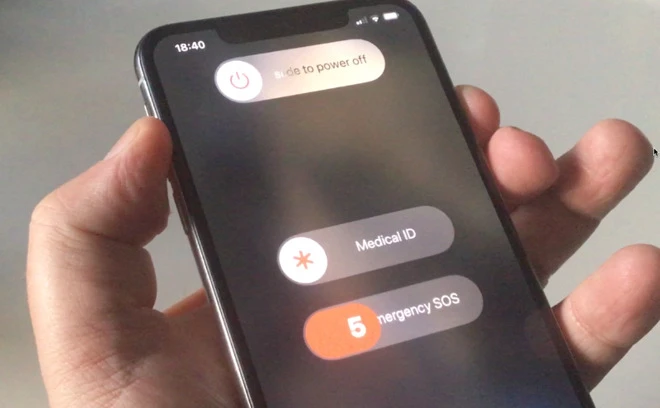
  • Press and release Volume Up.
  • Press and release Volume Down.
  • Press and hold the Side button.
  • Release it when the Apple logo appears.
  • Release Button When Apple Logo Appears

6. Fix iPhone 18 Setup Without a Factory Reset Using ReiBoot

Still stuck after trying the basic fixes? A system repair tool can help without jumping straight to a factory reset. Tenorshare ReiBoot is designed to repair common iOS problems while keeping your personal data safe. It can help when your iPhone 18 is stuck during setup, frozen on the Apple logo, or having trouble starting normally.

Key features:

  • No data loss: Repairs iOS issues without deleting your personal files.
  • Fixes 150+ iOS issues: Helps with stuck screens, boot problems, black screens, and more.
  • One-click repair: Simple steps make system repair easier.
  • Supports the latest iOS: Works with supported iOS versions and iPhone models.
  • Recovery and DFU Mode: Helps recover an iPhone that cannot start normally.

How to fix iphone 18 taking forever to set up with Reiboot:

  • Download and install ReiBoot on your Windows PC or Mac. Open it and connect your iPhone 18 with a USB cable. Once the device is detected, click Start Repair.
  • Install Reiboot and Start Iphone Repair
  • Select Standard Repair from the repair options. This mode can fix common iOS issues without deleting your personal data.
  • Standard Repair Fixes Ios Issues Safely
  • Click Download to get the required firmware package. The file is about 5GB, so the download may take some time.If ReiBoot does not detect your iPhone, follow the on-screen steps to enter Recovery Mode. You can also try DFU Mode if needed.
  • Large Firmware Download May Take Time
    Recovery Mode and Dfu Mode Steps
  • After the firmware finishes downloading, click Start Standard Repair. Keep your iPhone connected and wait for the repair to finish.
  • Start Standard Repair After Firmware Download
  • ReiBoot will automatically restart your iPhone after the repair. Once it turns on, check whether the setup process is working normally.
  • Reiboot Restarts Iphone After Repair

7. Update or Restore iOS in Recovery Mode

Recovery Mode can help when your iphone 18 stuck on setting up your account and normal troubleshooting does not work. Try updating iOS first, as this can reinstall the system without erasing your data.

Steps to fix iphone 18 stuck at setup:

  • Connect your iPhone 18 to a Mac or Windows PC with a USB cable.
  • Open Finder on a Mac or the Apple Devices app on Windows.
  • Put the iPhone into Recovery Mode:
    • Quickly press and release Volume Up.
    • Quickly press and release Volume Down.
    • Press and hold the Side button until the Recovery Mode screen appears.
    Side Button Press Shows Recovery Mode
  • Find your iPhone in Finder or Apple Devices.
  • Select Update and follow the on-screen instructions.
  • Select Update and Follow Instructions
  • Keep your iPhone connected until the update finishes, then try setup again.
  • Use Restore only if the update fails and you are ready to erase the device.
  • Use Restore Only After Failed Update

8. Erase the iPhone and Set It Up Again

A iphone stuck on setting up your account for a long time may need a fresh setup. Erasing the iPhone removes its current settings and data, so use this option only after trying the other fixes.

Here is how to fix stuck at setup iphone:

  • Open Settings and tap General.
  • Scroll down and select Transfer or Reset iPhone.
  • Tap Erase All Content and Settings.
  • Erase All Content and Settings Option
  • Enter your passcode and confirm the reset.
  • Wait for your iPhone to erase and restart.
  • Connect to Wi-Fi, complete setup, and restore your backup.

9. Contact Apple or Your Carrier

Some setup problems may be related to your SIM, eSIM, carrier, or Apple services. When your new iPhone is stuck on setting up your account, contact support if the problem continues after trying the fixes above.

Part 3: Choose the Right Fix and Avoid Losing Data

Not every fix has the same level of risk. Start with simple options that do not erase your data, and use a factory reset only when other methods fail.

1. Compare the Fixes by Data Risk

The table below makes it easier to choose the right solution for different iPhone 18 setup issues.

swiper icon Please swipe to view
Fix
Best For
Computer Needed?
Data Risk
Wait and check Apple services
Temporary setup delays
None
Switch Wi-Fi or disable VPN
Connection problems
None
Verify or skip Apple Account setup
Account verification issues
None
Restart Quick Start
Transfer or setup problems
None
Force restart
Frozen setup screen
None
ReiBoot Standard Repair
Serious iOS system issues
Low; designed to keep data
Recovery Mode Update
iOS software problems
Low; update option normally keeps data
Erase iPhone and set up again
Persistent setup errors
High; erases all data
Contact Apple or carrier
Activation or hardware issues
None

2. How to Prevent iPhone Setup Issues

A little preparation can make setup easier. Keep stable Wi-Fi, your Apple Account details, and a backup of your old iPhone ready. These steps can also help prevent common iPhone 18 setup issues.

  • Update your old iPhone before using Quick Start.
  • Back up your data before transferring it.
  • Use a stable Wi-Fi connection.
  • Keep both iPhones nearby with Wi-Fi and Bluetooth on.
  • Keep both devices connected to power.
  • Keep your old iPhone nearby for verification codes.
  • Give the transfer time to finish, especially with lots of data.

FAQs About iPhone 18 Stuck on Setup

1. Why Is My iPhone Stuck on Setting Up Your Account?

A slow internet connection, account issue, or small software problem can cause this. Try switching Wi-Fi or restarting your iPhone.

2. Why Is My iPhone 18 Taking Forever to Set Up?

A slow connection or large data transfer can make setup take longer. Keep your iPhone charged and wait a little longer.

3. Will Force Restarting Delete My Data?

No. A normal force restart does not erase your photos, apps, messages, or other personal data. It simply restarts the iPhone.

4. Can I Skip Apple Account Setup?

Yes, you can usually choose to set up your Apple Account later during the iPhone setup process. You can then sign in from Settings after completing the setup.

Conclusion

An iPhone 18 stuck on setup does not always mean something is seriously wrong. Start with simple fixes like checking Wi-Fi, restarting the device, or trying the setup again. More advanced options, such as Recovery Mode, can help with stubborn software issues. Still stuck? Tenorshare ReiBoot can help repair common iOS problems without a factory reset. Its Standard Repair mode is a simple option to try before taking more drastic steps.


Speak Your Mind

Registrer/ Login

then write your review

Speak Your Mind

Leave a Comment

Create your review for Tenorshare articles

Related articles

All topics

Share this post

Tenorshare ReiBoot

ReiBoot - No.1 Free iOS System Repair Software

Fix 150+ iOS Issues without Data Loss & Safely iOS 27 Upgrade/Downgrade

ReiBoot: No.1 iOS Repair Tool

Fix 150+ iOS Issues, No Data Loss




