


 iOS Tips & Latest Updates
 Bug Fixes, Unlock Guides
 Giveaways & Freebies


ReiBoot - No.1 Free iOS System Repair Software
Fix 150+ iOS Issues without Data Loss & Safely iOS 27 Upgrade/Downgrade
ReiBoot: No.1 iOS Repair Tool
Fix 150+ iOS Issues, No Data Loss
You decide to finally try the new iOS 27 update. Everything’s working perfectly fine… The progress bar moved, and the iPhone was ready for the update to new features.
Until everything suddenly stopped. And now, all you can see is the screen frozen on “Install Now." Well, that is the “iOS 27 stuck on install now” error, and no doubt, it can be pretty annoying to deal with.
But don't panic. This issue has been common since the Beta release. And there are several effective ways to get it fixed quickly without risking your data.
Keep reading to find the best solutions!
Don’t just assume your phone has a problem and start fixing it. You must first analyze, even if it is an actual problem, and if the update is genuinely frozen.
Because sometimes, an “iOS update stuck on install now” issue is temporary. It can simply be a false alarm caused by these three.
1. Apple Server Traffic Congestion: It is very common for the server to get congested due to high traffic, which usually occurs right after the release of a new Beta.
2. Heavy File Unpacking: The iOS Beta installer is a huge file. It must be unpacked, every cluster should be verified, and the system partition should be prepared.
3. Storage Constriction: In many cases, the time of verification is slowed down when the phone is working on the edge of the storage capacity.
[The “15 Minute Rule"]Remember the 15-minute rule, as it helps identify whether the problem is an easy fix or a major headache.
➔To perform this test, leave your phone alone for 15 minutes. Keep an eye on the phone.
➔If there is a transition from iOS stuck on preparing updates or “move to iOS stuck on estimating to a black screen with an Apple logo within that window.
That means there is no major issue with your phone.
On the other side, it can be a problem if the wheel is constantly spinning for 15 minutes, along with very hot temperatures and no change in the progress bar.
And if that happens, it is a sign that the iPhone is stuck in the "Software Update Install Now.”
Now that it's clear that your phone needs proper assistance, it's time to move forward with the basic operational fixes as follows.

Here’s what you need to check:
●Make sure your local Wi-Fi isn’t running behind a strict corporate firewall or a custom profile that blocks Apple's verification servers.
●Turn your router off and back on again if necessary. Try to avoid public WiFi or mobile hotspots, as the signals are weak.
●Also, there must always be 5GB of free space available on your device before you install the Beta to avoid facing an iOS update stuck on installing error.

If your iPhone's battery is below 50% and not connected to a power source, iOS 27 will automatically disable the "Install Now" action. Connect your device to a charger. Once the battery reaches the required level, the stuck installation process will usually resume.

The update file sometimes gets trashed automatically when downloading over WiFi.
And guess what happens next? Your iPhone totally panics, refuses to run, and leaves you staring at a frozen screen.
The fastest fix for that is cleaning the corrupted files and starting fresh.
1. Go to "Settings" → "General" → “iPhone Storage."
2. In iPhone Storage, seek the iOS 27 update file.
3. Tap it and select “Delete Update.”

4. Restart your phone.
5. Go back to “Settings,” and tap on “General.”
6. Lastly, select “Software Update” and download the update again.

Overall, this method to solve “iPhone stuck on software update install now” is super effective for most users.
A desynchronized beta enrollment status can prevent the installation from completing. Since Apple now links beta access directly to your Apple Account, toggling this setting forces a server refresh.
1. Navigate to Settings > General > Software Update.
2. Tap Beta Updates and change the selection to Off.
3. Restart your iPhone to clear the temporary update cache.
4. Go back to the Beta Updates menu, re-select iOS 27 Developer Beta (or Public Beta), and try to install the update again.
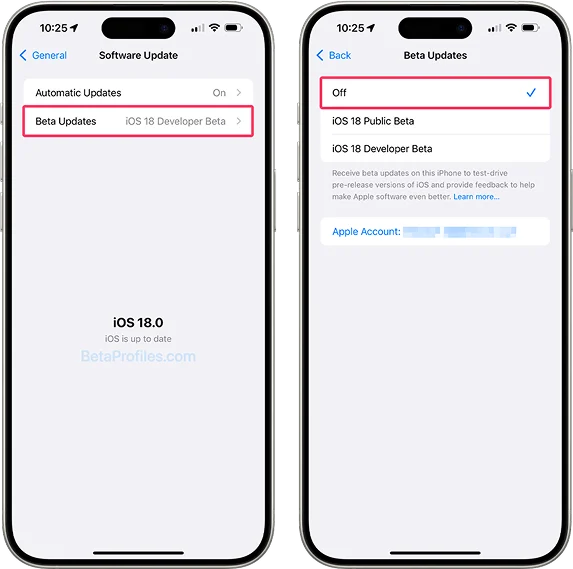

If your device still relies on a traditional downloaded profile, you can remove it via Settings > General > VPN & Device Management, then redownload it from the Apple Beta Software Program website.

Deep system configuration conflicts can block the installation command. This action only resets system-level settings (like Wi-Fi and Bluetooth) and will not delete personal data such as photos or apps.

Has your phone gotten completely unresponsive? Well, a force restart is the only option left. Even Apple itself officially recommended this method for frozen devices.
Here is how you can do it:
1. Press and quickly release Volume Up.
2. Press and quickly release Volume Down.
3. Press and hold the side button.
4. Release when the Apple logo appears.

This often resolves the iPhone stuck on install now screen issue instantly.
If this does not solve the issue, you can contact Apple Support for further assistance
Opting for Tenorshare ReiBoot for OS 27 Beta Stuck is the safest fix so far.
Unlike Recovery Mode restores, ReiBoot’s “Standard Repair” fixes iOS system issues without erasing photos, apps, messages, or other personal data.
And that’s exactly why many users prefer it during unstable Beta releases.
Wondering how ReiBoot can help? Well, it can efficiently help fix:
●iPhone frozen during update
●Update verification failures
●iOS is stuck on preparing the update
And guess what? You absolutely need:
➔No technical skills needed
➔No jailbreak required
➔No data loss during Standard Repair




Step #1: Download and launch ReiBoot on your computer. Connect your frozen iPhone to your machine using an authentic Apple USB-C or Lightning cable.
Step #2: You will find a green “Start Repair” button on the main dashboard. Click it to open the advanced diagnostic environment.

Step #3: Select “Standard Repair.” The option is very critical, as it targets the corrupted system file without triggering a data wipe.

Step #4: Once you do that, the system starts to read the device model and display the appropriate iOS 27 firmware match. Tap “Download” to pull the clean system files directly from the secure server network.

Step #5. After the downloading is done, tap “Start Standard Repair.” The device connection must be strong during the process.


Don't want to use a third-party application? That's completely fine.
You can still resolve the issue with the help of Apple recovery mode. But in that case, you must have a recent backup then.
[Critical Warning]: If your phone doesn't have a recent backup, you will lose all your data, including camera roll, local app data, and setting configurations.
To perform this method, follow these steps:
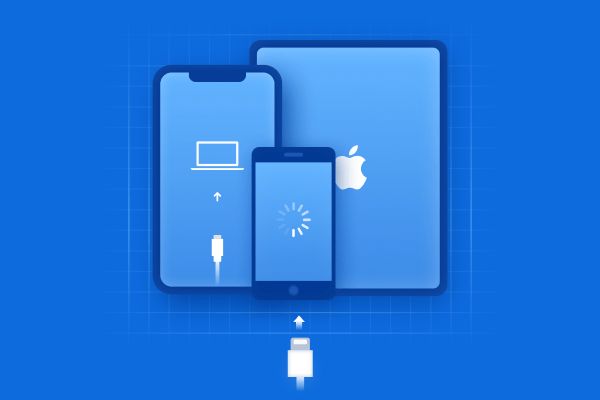
1. Link the phone to the computer. Open “Finder” (on macOS Catalina or later) or “iTunes” (on Windows or older macOS builds).
2. Trigger recovery mode on the phone by pressing the volume up, volume down and power button.

3. Now press the side button and hold it. The Apple logo will appear on the screen, but don't stop pressing the button there. Keep pressing until a dark screen showing a lightning cable pointing toward a laptop display appears.

4. A pop-up window will automatically appear on your computer screen stating that a problem exists with your device.
5. Select “Update” first. This instructs the machine to try reinstalling the operating system framework without wiping your files.

6. If the update fails, repeat the process and click “Restore.” This will completely wipe your local disk clean and install a fresh factory copy of the stable software release.

If the issue continues after trying this, you can contact Apple Support for additional assistance.
Beta versions are specially made for testing. That’s why they can have bugs and performance issues.
If the iOS Beta is still causing problems, switching back to the stable public version is the smartest solution!
Want to downgrade to the stable version using the special built-in feature in Tenorshare ReiBoot , but not sure how? Here’s all you need to do:
➔Connect the phone to your laptop or PC, and launch the tool.
➔Select the iOS Upgrade/Downgrade panel and select "Downgrade."
➔Now, wait for a few moments, and the system will itself get the process done.
Want to avoid future update headaches? Here is what you should do:
Tip 1: Keep battery percentage above 50: A low battery can corrupt updates.
Tip 2: Maintain free storage: At least 10GB to reduce the chances of installation failures.
Tip 3: Avoid weak or public Wi-Fi: Always use a strong private network.
Breaking free from the stuck update can feel like a relief. But the thing is, your job does not finish over here. Yes, you heard it right.
Because even if the problem is solved, the frozen files might have left behind useless data and cache, which can eat up your storage.
To fix this, allow your phone to completely cool down for a moment. Then, go to settings, and carefully review the file storage, deleting all the unnecessary and unknown files.
Believe me, Tenorshare ReiBoot and this simple and quick step will keep your device healthy and ensure you won't have to face another “iOS 27 stuck on install now” headache down the road.
This can happen due to multiple factors, such as low storage, overloaded Apple servers, and Beta software bugs.
Q2. How Long Should an iOS Update Take?Normally, it should consume about 10 to 20 minutes. However, if you are using a poor internet connection, the span can increase to a few hours as well.
Q3. Can Force Restart Delete Data?Well, that’s not the case. A force restart simply refreshes the device and does not erase personal files at all.


then write your review
Leave a Comment
Create your review for Tenorshare articles
Share this post


ReiBoot - No.1 Free iOS System Repair Software
Fix 150+ iOS Issues without Data Loss & Safely iOS 27 Upgrade/Downgrade
ReiBoot: No.1 iOS Repair Tool
Fix 150+ iOS Issues, No Data Loss
By Jenefey Aaron
2026-10-19 / iOS 27