

 iOS Tips & Latest Updates
 Bug Fixes, Unlock Guides
 Giveaways & Freebies
then write your review


ReiBoot - No.1 Free iOS System Repair Software
Fix 150+ iOS Issues without Data Loss & Safely iOS 27 Upgrade/Downgrade
ReiBoot: No.1 iOS Repair Tool
Fix 150+ iOS Issues, No Data Loss
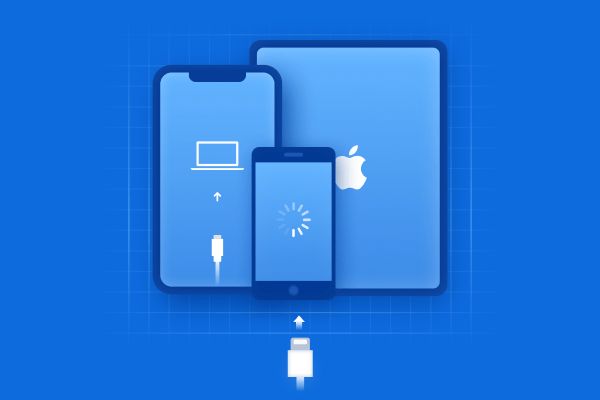
Staring at a black, unresponsive screen after updating to the iOS 27 is terrifying. You probably think your iPhone is permanently bricked. Take a deep breath—your device isn't dead, and you don't need a costly trip to the Apple Store. This is a common glitch, and we can help you fix it. In this guide, I will show you 6 proven ways to fix your iOS 27 stuck on DFU mode. From a quick 10-second force restart to advanced system repairs, we’ll get your iPhone back to normal safely.

Before trying any repair method, make sure your phone is truly in DFU Mode.
Many users confuse DFU Mode with Recovery Mode because both stop the iPhone from loading normally. However, they look very different.
Recovery ModeIf you see:
● A cable icon
● A laptop icon
● An iTunes or Finder logo
● Instructions to connect to a computer
Then your device is in Recovery Mode.

If:
● The screen is completely black
● No Apple logo appears
● No icons appear
● The phone still connects to a computer

Then your iphone is stuck in dfu mode. DFU stands for Device Firmware Update. This mode allows deep communication between the iPhone and a computer. It bypasses the normal iOS startup system completely. That is why the screen stays black. If your iOS 27 stuck on dfu mode problem matches the second description, continue with the fixes below.
The first thing you should try is a force restart. This method is the fastest answer for users searching how to exit dfu mode quickly. In many cases, the phone simply needs a forced reboot to reload the system. However, beta software bugs sometimes ignore button inputs, so do not panic if it fails the first time.
Force Restart for iPhone 12 to iPhone 17 ModelsFollow these steps carefully:
1. Quickly press Volume Up
2. Quickly press Volume Down
3. Press and hold the Side Button
4. Keep holding until the Apple logo appears
Do not release the Side Button too early. Some users need to hold it for 20 to 30 seconds.

1. Press and hold the Power Button
2. Press and hold the Home Button together
3. Keep holding both buttons until the Apple logo appears
Why This WorksA hard reset cuts temporary system loops and forces the iPhone to reload core startup files. If the DFU session is not deeply damaged, the device exits normally.
This fix often works when users search:
● how to get iphone out of dfu mode
● how to exit dfu mode
● dfu mode iphone stuck
If your screen stays black after several tries, move to the next fix.
This method sounds strange, but many users on Reddit and Apple forums report success with it. The idea is simple. Let the battery fully drain until the iPhone powers off completely. After that, charge the phone again and try turning it on normally.
How to Try It1. Disconnect the iPhone from all cables
2. Leave it unplugged
3. Wait until the battery reaches 0%
4. Charge the phone for at least 30 minutes
5. Press the Power Button
Sometimes the device exits DFU Mode automatically after a full shutdown.
The DownsideThis process takes time.
Depending on the battery level, it may take:
● Several hours
● Overnight
● Even one or two days
Still, it remains a useful trick if your iphone is stuck in dfu mode and other quick methods fail. Some users try this method before restoring the device because it avoids data loss.
If button combinations fail, a repair tool may help. One popular option is Tenorshare ReiBoot . ReiBoot includes a free feature that helps users exit Recovery Mode and DFU Mode with one click. This method is helpful when dfu mode not showing up properly inside iTunes or Finder. The best part is that this method usually does not erase data.
Download and install ReiBoot on your Windows PC or Mac.
Step 2: Connect Your iPhoneUse a working USB cable to connect the iPhone. Wait for ReiBoot to detect the device.
Step 3: Click “Exit Recovery Mode”Even though the button says Recovery Mode, ReiBoot can often detect DFU Mode as well. Click the button and wait.
Step 4: Let the Device RestartYour iPhone should reboot normally within a few minutes.





● No technical knowledge needed
● Fast process
● Usually no data loss
● Helpful for iOS 27 stuck on dfu mode issues
● Works when physical buttons fail
This method is especially useful if your dfu mode iphone stuck issue happened right after installing the beta update.
If Fix 1, Fix 2 and Fix 3 fail, the iOS 27 installation files may be badly damaged. At this point, you need a deeper repair solution. This is where ReiBoot Standard Repair becomes useful. Unlike a basic reboot, Standard Repair downloads a fresh copy of iOS and repairs damaged system files from the core. Most importantly, it does NOT erase your photos, apps, videos, messages, or personal files. That makes it one of the safest ways to fix iOS 27 stuck on dfu mode.
Standard Repair can fix:
● dfu mode iphone stuck problems
● Black screen loops
● Frozen Apple logo
● Boot loops
● Failed beta updates
● Touchscreen freezing
● Random restart issues
Step 1: Download ReiBoot on your Windows PC or Mac. After installation, open the software and connect your iPhone 17 using a working USB cable.

Step 2: Once ReiBoot detects the device, click the Repair Operating System option from the main screen.
Step 3: Select Standard Repair to fix the iOS 27 stuck on dfu mode issue without deleting your photos, apps, or personal data.

Step 4: ReiBoot will automatically detect the correct iOS firmware for your iPhone. Click Download and wait for the firmware package to finish downloading.

Step 5: Click Start Standard Repair and keep your iPhone connected during the process. ReiBoot will repair the damaged system files and fix the dfu mode iphone stuck problem safely.

Step 6: After the repair finishes, your iPhone will reboot normally. Once the Apple logo appears, the device should successfully exit DFU Mode.

When beta files become corrupted, the startup process breaks before iOS fully loads. A simple reboot cannot replace damaged system components.
Standard Repair rebuilds the broken iOS system safely.
This method is one of the best solutions for users asking:
● how to get iphone out of dfu mode
● how to exit dfu mode safely
● iphone is stuck in dfu mode after beta update
If nothing else works, Apple officially recommends restoring the iPhone through Finder or iTunes. However, there is a major downside. This method erases EVERYTHING on the device unless you already have a backup.
WARNINGThis process deletes:
Only continue if:
● You already backed up your iPhone
● You accept possible data loss
Use a USB cable.
Open:
● Finder on Mac
● iTunes on Windows or older macOS versions
Step 2: Detect DFU DeviceThe software should detect an iPhone in recovery or DFU state.
Step 3: Click Restore iPhoneChoose Restore. The system downloads fresh iOS firmware and reinstalls everything.

Keep the phone connected until the process finishes.
One common issue during restore is the dfu mode stuck waiting for iphone message.
This usually happens because of:
Try these fixes:
If the restore process completes successfully, the phone exits DFU Mode automatically.
If all software fixes fail, the issue may come from hardware damage. This happens more often than many users expect. Sometimes the iOS 27 update only exposes an existing hardware problem.
Possible Hardware ProblemsYour device may have:
If the phone never responds during repairs, professional inspection may be necessary.
Signs of Hardware DamageWatch for these symptoms:
An Apple technician can run diagnostics and confirm whether the issue is software or hardware related. This is often the final solution when iphone is stuck in dfu mode permanently.

When your iPhone gets stuck in DFU (Device Firmware Update) mode during the iOS 27 installation, it points to a critical failure in the update sequence. The device locks into a deep recovery state because the operating system cannot complete its normal startup or restore protocols.
Here are the primary triggers for this issue:
Taking proactive steps before initiating the update can significantly reduce the risk of your device bricking or entering a continuous DFU loop.
Seeing a completely black iPhone after installing a beta update feels stressful, especially when nothing responds on the screen. Fortunately, most cases of iOS 27 stuck on dfu mode can be fixed safely. Start with a force restart first because it takes only seconds. If the buttons fail, try a one-click helper like ReiBoot. For deeper system corruption, Standard Repair offers one of the safest ways to repair damaged iOS files without deleting your data. And finally, if software repairs fail completely, contact Apple Support to check for hardware damage. The key thing to remember is this: a black screen does not always mean your iPhone is dead. In most cases, there is still a path to recovery.
If the screen stays completely black but the computer still detects the device, your iPhone is likely in DFU Mode. Recovery Mode usually shows a cable or laptop icon instead.
How to get iPhone out of DFU Mode without losing data?The safest method is using a force restart or a repair tool like ReiBoot Standard Repair. These methods can often fix the issue without deleting personal files.
Why is my iOS 27 stuck on DFU Mode?Beta software sometimes installs broken system files or crashes during updates. This can force the iPhone into DFU Mode during startup.
What causes “dfu mode stuck waiting for iphone” error?This error usually comes from cable issues, USB port problems, outdated iTunes versions, or driver conflicts between the iPhone and computer.
What if DFU Mode is not showing up correctly?If dfu mode not showing up in Finder or iTunes, try another USB cable, restart the computer, or use a repair tool that detects DFU automatically.
Can DFU Mode damage my iPhone?DFU Mode itself does not damage the device. It is a repair state built into iPhones. Problems happen when corrupted firmware or failed updates interrupt the startup process.


then write your review
Leave a Comment
Create your review for Tenorshare articles
Share this post


ReiBoot - No.1 Free iOS System Repair Software
Fix 150+ iOS Issues without Data Loss & Safely iOS 27 Upgrade/Downgrade
ReiBoot: No.1 iOS Repair Tool
Fix 150+ iOS Issues, No Data Loss
By Sophie Green
2026-10-19 / iOS 27