If your MacBook Pro or MacBook Air is constantly running out of storage,
duplicate files are often the hidden culprit. Over time, downloads, backups,
edits, and syncs quietly create multiple copies of the same files.
Learning how to find and delete duplicate files on Mac helps free up
space, boost performance, and keep your system organized. This article
explores the 5 quick, safe, and proven ways to find duplicates on Mac, from
AI-powered tools to free manual methods.
Part 1. Best Software to Find and Mass Remove All Duplicate Files on Mac
Free [Fatest]
Manually searching for duplicates on macOS can be time-consuming and
error-prone. This is where a professional duplicate file finder for Mac
becomes the most efficient solution.
Tenorshare Cleamio
is an AI-powered duplicate file finder for Mac that helps you find and
remove duplicate files in bulk, without risking important data. Cleamio can
scan all types of duplicate files, such as documents, videos, photos, audio
files, and more.
It works on both your Mac's internal storage and external drives, making it
perfect for cluttered Macs. Thanks to smart MD5 detection and AI comparison,
Cleamio accurately identifies duplicates and eliminates duplicate files on
Mac without accidental deletion. Plus, it offers 15 free removals, so you
can clean duplicate files on Mac quickly at no cost.
What Makes Cleamio Unique Compared to Other Methods?
AI-powered & automatic detection (no manual checking)
Supports all file types, not just photos
Mass delete duplicate files on Mac in one click
Safe removal with no accidental data loss
Free duplicate file, large file, and
junk file cleanup
up to 15 files
Faster and more accurate than Finder or Terminal commands
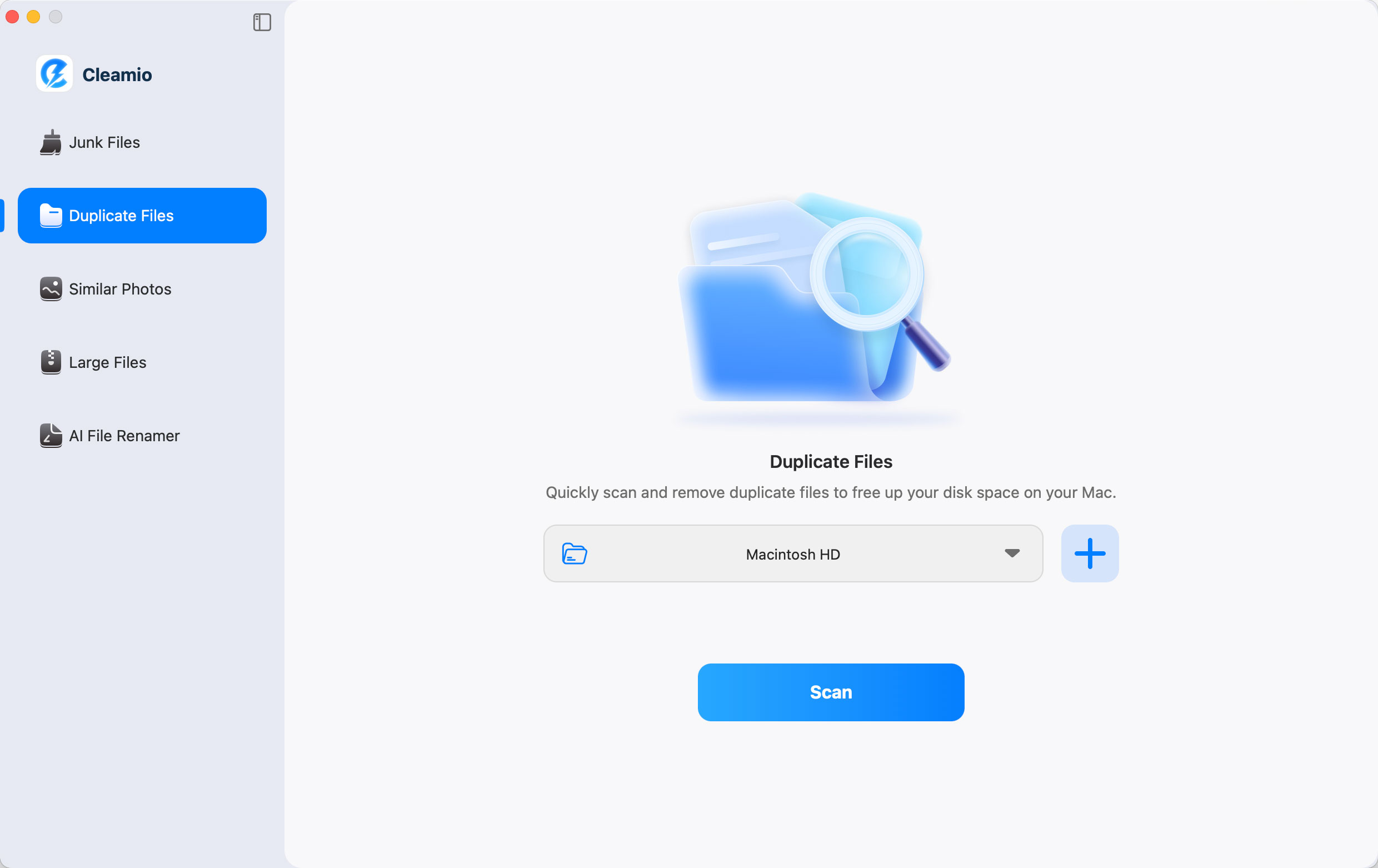
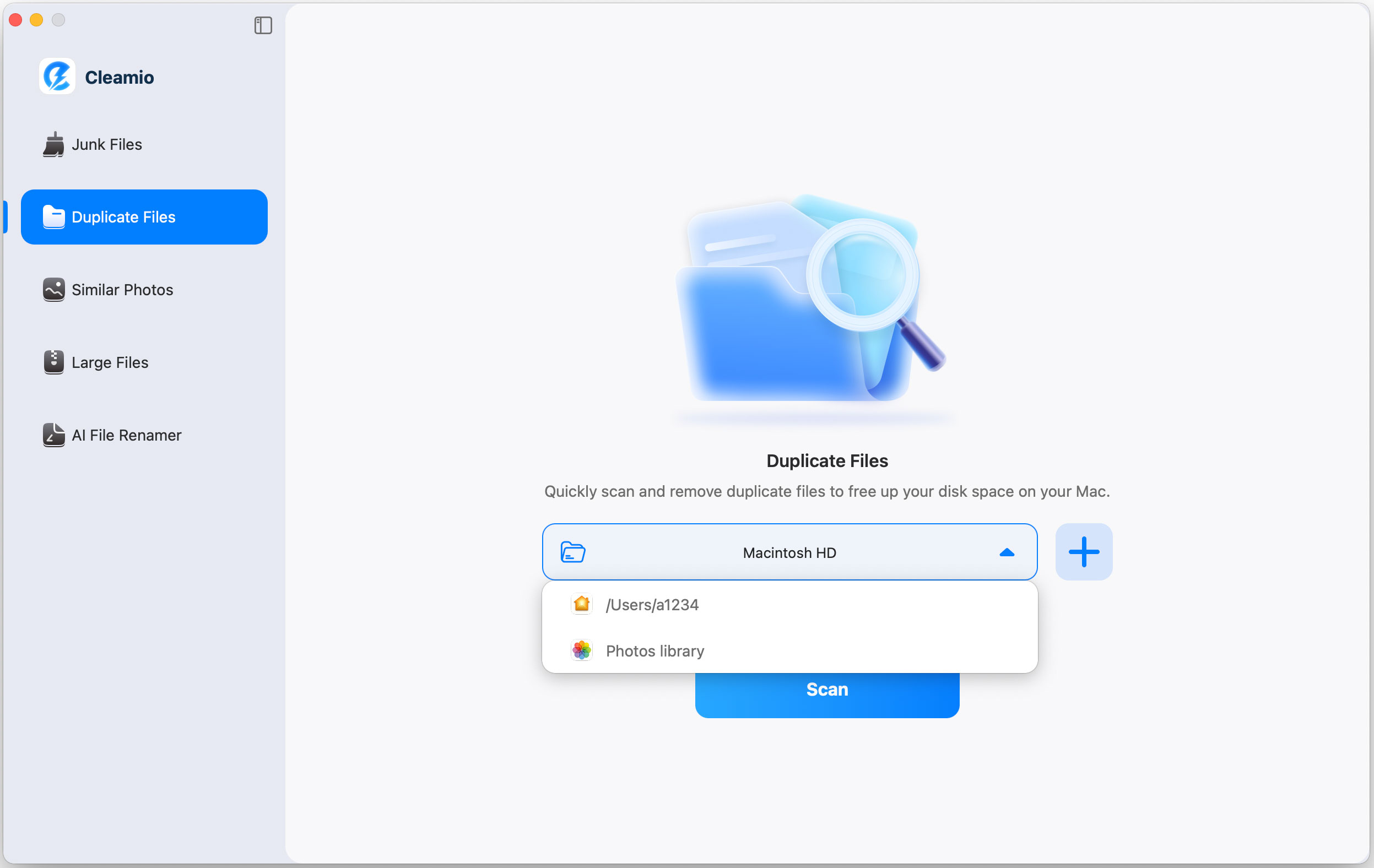
Select the folders you want to scan. You can pick common folders or add
multiple folders by clicking the "+" button.
(Optional) Before scanning, go to "Cleamio" then "Preferences" to choose
file types, skip hidden files, or adjust photo similarity.
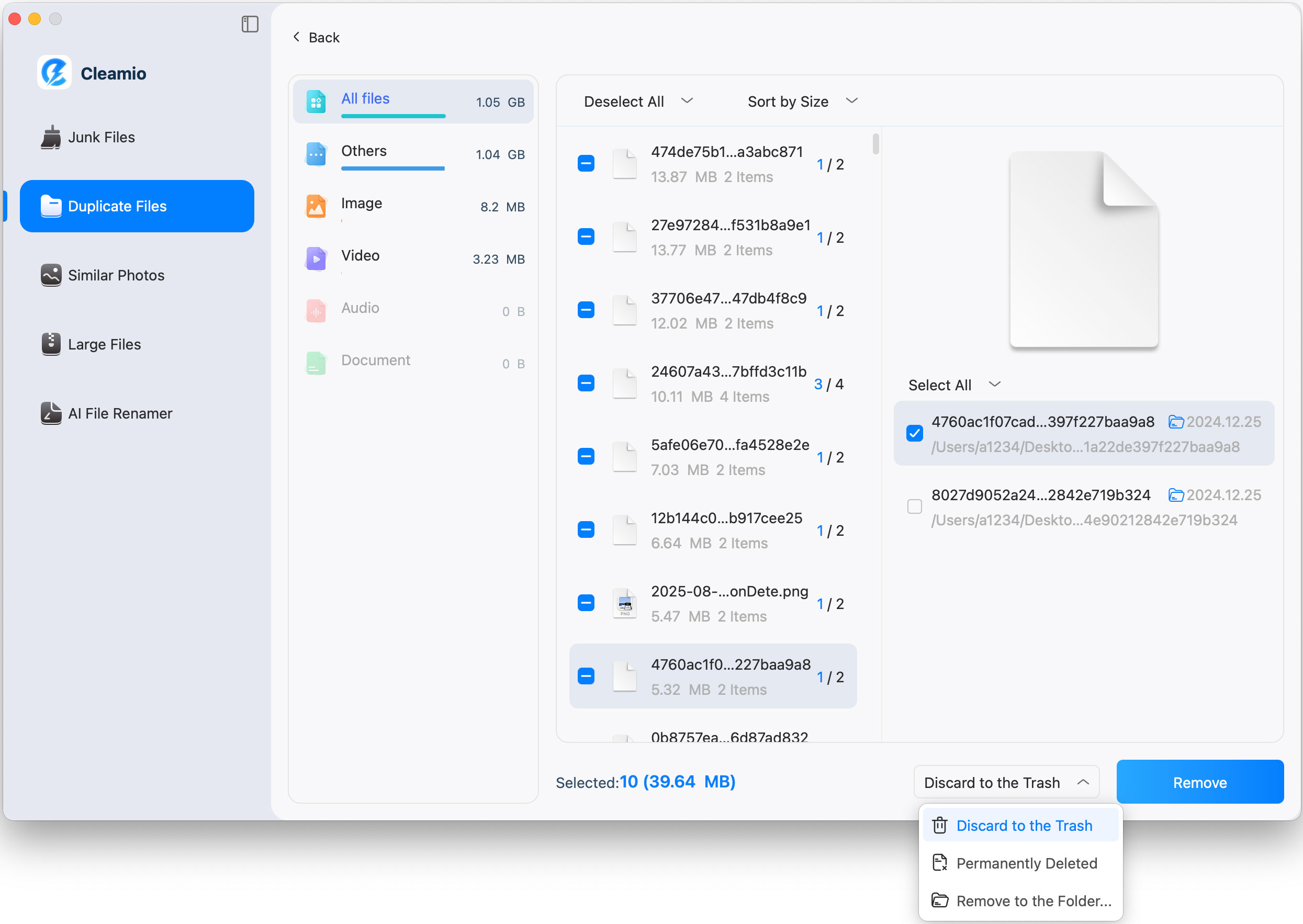
Click "Scan." Cleamio displays duplicate files by type (photos, videos,
documents, audio, etc.) after scanning. They can be sorted into size,
date, or quantity.
Select the duplicates you want to delete, or use "Auto Select" to safely
choose the largest or oldest files. Choose how to remove them (Trash or
permanent delete), then click "Remove."
Part 2. How to Find and Delete Duplicate Files on Mac for Free Manually
If you prefer free, built-in tools, macOS provides several manual ways to
locate duplicate files on Mac. These methods work best for small libraries.
1. Find and Delete Duplicate Photos in the Photos App
The Photos app stores everything in one library and lets you manually review
and remove duplicates safely. Even when Photos does not automatically detect
every duplicate, you can still delete unwanted copies by checking albums,
dates, and similar images.
The Music app (and iTunes on older Macs) includes a built-in "Show Duplicate
Items" feature. It can list duplicates based on details like artist, album,
and track name. You can also identify exact duplicates for more accurate
results.
Steps:
Open the Music or iTunes app.
Go to File > Library > Show Duplicate Items.
To find exact duplicates, hold the Option key and click File >
Library > Show Exact Duplicate Items.
Review the list of duplicate songs. Select duplicates you want to delete
(keep the highest quality version).
Right-click and choose "Delete from Library". Confirm by clicking
"Delete Song" > "Move to Trash".
Pros
Native solution for music files
Shows both similar and exact duplicates
Displays file info (bitrate, size) to help choose which to keep
Manual selection can be time-consuming for large libraries
Doesn't work for other media types
Cons
Only scans Music library, not other folders
3. Use Smart Folders in Finder to Search for Duplicate Files
Finder Smart Folders enable you to find duplicate files on Mac by sorting
files by name, size, type, or date. This facilitates easier identification
of duplicates, particularly in frequent problem areas such as the Downloads
folder.
Steps:
Open Finder.
Navigate to the Finder menu, choose "File", then "New Smart
Folder".
Press the Plus button in the upper right corner and select search
parameters: Kind, Date, Name, File Type and other filters.
Sort the results by "Size."
Now open files that share the same name or the same size, and compare
them to confirm whether the content is duplicated.
Delete unwanted copies manually.
Pros
Customizable search across any folders
Can save and reuse search criteria
No third-party software needed
Very time-consuming for large numbers of files
Risk of accidentally deleting wrong files
Can't detect duplicates with different filenames
Cons
Only finds files with similar names, not identical content
4. Mass Find Duplicate Files Using Terminal (Command Line)
Terminal can compare file hash values (like MD5). When files share the same
hash value, they are identical copies. It is an effective technique when
precise copies are needed, but it may be confusing to novices.
Steps:
Download a duplicate-finder script.
Open "Terminal" in the "Applications" folder, then "Utilities."
Type cd ~/\Foldername (such as cd ~/downloads) to access the
directory where you want to find duplicate files.
Run: "find ./ -type f -exec md5 {} ; | awk -F '=' '{print $2 "t" $1}' |
sort | tee duplicates.txt" and press Enter. (This creates a list of duplicate paths in
duplicates.txt.)
Open the file: open duplicates.txt.
Manually review and delete listed files via Finder or Terminal (rm
/path/to/file---use carefully).
Pros
Can scan entire system or specific folders
Content-based detection (finds files with different names)
Powerful for large-scale searches
Can be scripted for automation
Risk of deleting wrong files with rm command
No visual interface or preview
Slow for large directories
Output can be difficult to interpret
Cons
Requires technical knowledge
5. Check Mail Attachments & Storage Management
Apple Mail stores attachments locally, and duplicates can build up over
time. Cleaning attachment folders can free a surprising amount of storage,
especially if you receive many repeated PDFs, images, or documents.
Steps:
Open Finder.
Press Shift + Command + G to open the "Go to Folder" window.
Copy and paste the following path, then press "Return":
~/Library/Containers/com.apple.mail/Data/Library/Mail Downloads.
Finder will open the "Mail Downloads" folder, which contains all
attachments opened from Mail.
Sort by name/size, select duplicates, move to Trash.
Pros
Built-in system tool
Shows file sizes to prioritize big duplicates
Safe deletion (Mail attachments remain in emails)
Helps free up significant space quickly
Doesn't scan all file locations
Manual identification of duplicates
Can't batch delete multiple items
Cons
Limited to Mail attachments and system folders
Part 3. Why Do Duplicate Files Accumulate on Mac?
Duplicate files build up on a Mac slowly, often without the user noticing.
Daily tasks like downloading, syncing, and backing up files can easily
create copies over time.
Common Duplicate File Types on Mac
Photos and screenshots
Videos and screen recordings
Music and audio files
Documents (PDFs, Word, Excel, PPT)
App installers and update packages
Email attachments
Main Reasons Duplicate Files Accumulate
Downloading the same file more than once
Importing photos repeatedly from the iPhone or the camera
Using AirDrop, iCloud, or external drives frequently
Saving files in multiple folders "just in case."
App updates are leaving old cache or backup files
Email attachments auto-downloading
Manual copying instead of moving files
Over time, these habits make it difficult to locate duplicate files on Mac
without using a dedicated duplicate file finder.
Part 4. How to Prevent Duplicate Files on Mac in the Future
Once you clean up duplicates, prevention is key. A few smart habits can help
you avoid clutter and reduce the need to constantly search for duplicate
files on Mac.
Useful Tips to Prevent Duplicate Files
Avoid downloading the same file multiple times. Check Downloads first
Use Move instead of Copy when organizing files
Keep photos in one primary Photos library
Rename files clearly to avoid accidental duplicates
Regularly clean your Downloads and Desktop folders
Be cautious when syncing data across multiple devices
Run a duplicate file scan monthly using a reliable duplicate file finder
for Mac
Using a reliable tool to occasionally search for duplicate files on Mac
ensures long-term storage efficiency and smoother performance.
FAQs About Finding Duplicate Files on Mac
Q1: Is there a way to delete all duplicate files on a Mac?
Yes. You can delete all duplicate files on a Mac by using a dedicated
duplicate file finder. These tools scan your Mac and safely remove
duplicates in bulk.
Q2: How to delete duplicate files on an external hard drive in Mac?
Connect the external hard drive to the Mac and scan it with a duplicate file
finder that can support external storage. Then check and remove the
duplicate files securely.
Q3: Can Clean My Mac find duplicate files?
Built-in Mac tools can show large or similar files, but they cannot
accurately detect all duplicate files. A dedicated duplicate finder works
much better.
Q4: What is the duplicate file remover on a Mac?
A duplicate file remover is software designed to find and delete duplicate
files on Mac, such as photos, videos, documents, and more, without deleting
originals.
Q5: Can Mac detect duplicate Photos?
Yes. The Photos app on Mac can detect duplicate photos and suggest merging
or deleting them, but it only works for images in the Photos library.
Q6: Can I delete cloned files on Mac?
Yes, it is possible to delete cloned files in case they are actual
duplicates. It is better to always preview them or use a clever tool to save
valuable files first before deletion.
Conclusion
Duplicate files can slow down your Mac and waste valuable storage space.
While manual methods can help, they are time-consuming and risky. The
smartest way to find and delete duplicate files on Mac in 2026 is to
use an AI-powered solution. Tenorshare Cleamio stands out as a fast, safe,
and beginner-friendly duplicate file finder for Mac. It offers deep scans,
smart removal, and free deletions. For effortless cleanup and long-term
performance,
Cleamio
is highly recommended.






 iOS Tips & Latest Updates
 Bug Fixes, Unlock Guides
 Giveaways & Freebies






By Jenefey Aaron
2026-09-28 / File Tips