WhatsApp is rolling out its own Android cloud backup, called "WhatsApp
cloud storage." It offers 2GB of free, end-to-end encrypted storage, letting
you back up chats without Google Drive. The
WhatsApp new cloud backup Android feature is currently in
beta (version 2.26.46.4), with the WhatsApp cloud backup beta Android rollout
gradually reaching selected testers.
This is welcome news if your Google account is running out of space. Currently,
WhatsApp backups share Google's 15GB of free storage with Gmail and Google
Photos. As this WhatsApp backup alternative rolls out in beta on Android,
here's what you need to know, how to enable it, and how it compares with
Google Drive and computer backups.
Part 1. What Is WhatsApp's New Cloud Backup on Android?
WhatsApp's new cloud backup is a WhatsApp native backup option. This
WhatsApp cloud storage Android feature provides another way to store your
chats without relying on Google Drive. Instead of sending your chat backup
to Google Drive, WhatsApp stores it on Meta's own servers. In the app, it
shows up as
WhatsApp cloud storage, a new choice in the Chat backup settings.
Reports first said the feature was in development in April 2026. On November
17, 2026, this WhatsApp built-in cloud backup Android feature started
reaching some beta testers. An iPhone version, which works as an alternative
to iCloud, is being tested through TestFlight at the same time.
Key Facts at a Glance
Please swipe to view
Item
Details
Name in the app
WhatsApp cloud storage
Version
WhatsApp beta for Android 2.26.46.4
Free storage
2GB (separate from your Google account storage)
More storage
WhatsApp Plus: $2.99/month, +100GBMeta One: from $7.99/month, up to
4TB
Encryption
End-to-end, always on (passkey or 64-digit key)
After a subscription ends
Backup kept for at least 4 months
Availability
Some beta testers; no public release date yet
These plans and prices come from beta reports published in November 2026.
Meta may change them before the public launch. Some older articles mention a
50GB paid plan; that figure is out of date.
Why WhatsApp Is Adding Its Own Backup
There are three clear reasons behind the change:
Google storage fills up fast. A WhatsApp Android cloud
backup on Google Drive uses the same 15GB as Gmail and Google Photos,
unlike the new WhatsApp Android cloud backup option.
Not everyone has a Google account. Until now, people
without one had no cloud backup on Android at all.
Privacy is built in. With Google Drive, end-to-end
encryption is an extra setting many people never turn on. With WhatsApp
cloud storage, it's always on.
Part 2. How to Turn On WhatsApp Cloud Backup on Android (Beta)
The WhatsApp cloud backup beta Android rollout is only switched on for some
accounts so far. Here's what you need first, then the steps.
What You Need
WhatsApp beta for Android 2.26.46.4 or later. You can
sign up through the
WhatsApp beta program on Google Play. Beta spots are sometimes full, so you may need to try again later.
The feature on your account. The rollout is gradual.
Installing the beta doesn't guarantee you'll see the new option yet.
A way to unlock the backup. You'll set a passkey or get a
64-digit key. Keep the key somewhere safe, such as a password manager.
Step-by-Step: Switch to WhatsApp Cloud Storage
Switching takes about a minute once the feature reaches your account.
Everything happens in the same Chat backup screen you already use for Google
Drive, and you can switch back at any time.
Make one last backup to Google Drive first. That way you still have a copy
of your chats before you change providers.
Open WhatsApp and go to Settings >
Chats > Chat backup.
Tap the backup provider option and choose
WhatsApp cloud storage.
Set up encryption. Choose Use passkey to unlock the
backup with your fingerprint, face or screen lock, or choose the
64-digit encryption key and save it.
Tap Back up to create your first backup, then pick how
often WhatsApp should back up (daily, weekly or monthly).
If you lose your passkey or your 64-digit key, WhatsApp can't unlock your
backup for you, and those chats can't be restored. Save the key before you
tap Back up.
What Happens When the 2GB Is Full?
When your backup grows past 2GB, WhatsApp stops making new backups. Your
chats stay on your phone, but anything new isn't protected until you free up
space. You have four ways out:
Leave out videos. Turn off
Include videos in Chat backup. Videos are usually the
biggest part of a backup.
Clear large files. Go to Settings>
>Storage and data> Manage storage and
delete big files and forwarded media you don't need.
Buy more space. WhatsApp Plus adds 100GB, and Meta One
plans go up to 4TB.
Switch back to Google Drive. If you have spare Google
storage, this is the free option.
How to Switch Back to Google Drive
You can change providers in the same menu. Go to Settings > Chats >
Chat backup, tap the backup provider, and choose Google Drive. Pick your
Google account, then tap Back up to make a fresh copy there. It's a good idea
to run that manual backup right away, so your newest messages are saved on the
new provider.
Part 3. Back Up WhatsApp on Android Without Cloud Limits Using iCareFone
Transfer
WhatsApp cloud storage is a good start, but it has three gaps. The 2GB fills
up fast with photos and videos, the feature is still beta-only, and the
backup can't move to an iPhone. A full backup on your own computer avoids
all three. It also helps people moving the other way: if you're leaving an
iPhone, you can bring your iCloud chats to Android.
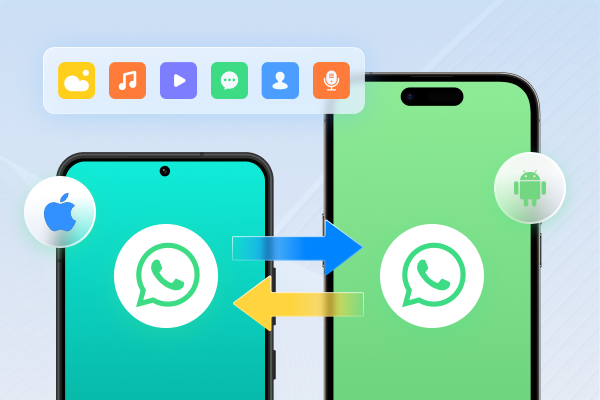
Tenorshare iCareFone Transfer
is a desktop program for Windows and Mac that backs up, views, restores and
transfers WhatsApp data between Android and iPhone. It saves your whole
WhatsApp backup to your computer, so the only size limit is your hard drive.
For users who need a WhatsApp iCloud backup alternative Android users can
rely on, iCareFone WhatsApp Transfer supports restoring WhatsApp data from iCloud to
Android.
Key Features:
Back Up WhatsApp Locally: Back up WhatsApp and WhatsApp
Business data from Android to your Windows PC or Mac without relying on
Google Drive or iCloud storage. Keep your chats and media safely stored on
your computer.
Preview and Export Backups: Browse your WhatsApp backups
before restoring them, export conversations as HTML files, and save
photos, videos, and documents separately for easy access.
Protect Your Backups: Add password protection to your
local WhatsApp backups for an extra layer of privacy and security.
Restore WhatsApp Backups Across Platforms: Restore Google
Drive WhatsApp backups to iPhone or transfer iCloud WhatsApp backups to
Android. This makes it easier to switch between platforms and provides a
convenient
iCloud backup alternative for WhatsApp on Android.
Transfer WhatsApp Without Factory Reset: Move WhatsApp
data between Android and iPhone without erasing your device or performing
a factory reset.
How to Back Up WhatsApp from Android to a Computer
Install and open iCareFone WhatsApp Transfer on your computer, then click
WhatsApp on the main screen.
Connect your Android phone with a USB cable. If asked, turn on USB
debugging on the phone and allow access.
Click Backup in the left menu, pick your phone under
Select Backup Device, and click
Back Up Now.
Follow the prompts on your phone. iCareFone WhatsApp Transfer may ask you to turn
end-to-end encryption off and on again, use the 64-digit key option, and
create a fresh backup in WhatsApp. Wait while it reads your data, and keep
the phone connected. When you see Backup successfully!,
your chats are saved on your computer.
How to Restore an iCloud WhatsApp Backup to Android
Connect your iPhone, open WhatsApp >
Backup, and choose the From iCloud tab.
Click Back Up Now and follow the on-screen steps to sign
in and download your WhatsApp iCloud backup to the computer.
Connect your Android phone, go to View & Restore,
select the backup, and click Restore to Android. Then
pick the data types and click Continue.
When the restore finishes, sign in to WhatsApp on your Android phone with
the same phone number and restore the chats when asked.
Part 4. WhatsApp Cloud Storage vs Google Drive: Which Cloud Backup
Should You Use?
Both options keep your chats in the cloud, but they suit different people.
If you want a WhatsApp backup without Google Drive, WhatsApp cloud storage
is the first official way to do it. A backup on your computer is a third
option. Here's how the three compare.
Please swipe to view
Feature
WhatsApp cloud storage
Google Drive backup
Computer backup (iCareFone Transfer)
Free space
2GB for WhatsApp only
15GB shared with Gmail and Photos
Limited only by your computer's disk
Paid upgrade
WhatsApp Plus or Meta One
Google One plans
Paid license (1 month, 1 year or lifetime)
Encryption
Always on
Optional end-to-end
Optional password
Needs a Google account
Restore to iPhone
No (needs a tool)
Availability
Beta, gradual
Everyone
Everyone
Which one fits you?
Small chats, no Google account: WhatsApp cloud storage.
2GB is plenty for text and a modest number of photos.
Lots of photos and videos: Google Drive, if you have free
space, or a backup on your computer.
Moving to an iPhone, or want a copy you control: a
computer backup. WhatsApp's native Google Drive and cloud storage backups
cannot be restored directly through WhatsApp on iPhone.
Part 5. FAQs About WhatsApp's New Cloud Backup on Android
1.Is WhatsApp's new cloud backup free?
Yes. The first 2GB is free and doesn't touch your Google storage. If you
need more, WhatsApp Plus ($2.99/month) adds 100GB, and Meta One plans start
at $7.99/month with up to 4TB.
2.How do I get WhatsApp cloud storage on Android?
Join the WhatsApp beta on Google Play and update to version 2.26.46.4 or
later. Then check Settings > Chats >
Chat backup. The rollout is gradual, so the option may not
show up straight away.
3.Is WhatsApp cloud backup encrypted?
Yes. Backups in WhatsApp cloud storage are always end-to-end encrypted.
You'll need your passkey or 64-digit key to restore them, and WhatsApp can't
recover the key for you.
4.Can I restore a WhatsApp cloud backup to an iPhone?
No. Like Google Drive backups, WhatsApp native backup options only restore
on their respective platforms. To move your chats to an iPhone, use
WhatsApp's built-in chat transfer or iCareFone WhatsApp Transfer.
5.Can I restore WhatsApp chats from iCloud on Android?
No. WhatsApp iCloud backups cannot be restored directly to Android because
iCloud is designed for Apple devices. However, if you're switching from an
iPhone to an Android phone, you can use a tool like Tenorshare iCareFone
Transfer to restore your WhatsApp chats from iCloud to Android without
losing your existing conversations.
Conclusion: Should You Use WhatsApp's New Cloud Backup on Android?
WhatsApp's native backup gives Android users 2GB of free, end-to-end
encrypted storage without Google Drive, but it's still in beta and only
reaching some accounts. If your chats are mostly text, the WhatsApp new
cloud backup for Android option is worth turning on as soon as you see it.
For big photo and video libraries, Google Drive still offers more free
space. If you want a full copy with no size limit, or you're moving between
Android and iPhone, back up to your computer with
iCareFone Transfer.



 iOS Tips & Latest Updates
 Bug Fixes, Unlock Guides
 Giveaways & Freebies



By Jenefey Aaron
2026-11-19 / WhatsApp