QuickShare not working on Samsung devices can be frustrating, especially when you need to transfer files quickly. This feature is designed for fast and seamless sharing, but glitches, outdated software, or connection issues can sometimes cause it to fail.
In this guide, we cover 10 effective and easy ways to fix QuickShare not working. Following these steps will help you restore smooth file transfers and get your Samsung device sharing files effortlessly again.
In most cases, when QuickShare does not work properly on a Samsung phone, the problem is usually linked to small connection or system errors. Before trying any fixes, it’s helpful to know what might be causing the issue.
Bluetooth or Wi-Fi is off, and QuickShare needs both to find nearby devices.
Device visibility is turned off, so your Samsung phone doesn’t show up for sharing.
The system software is outdated, which can cause QuickShare to stop working.
The file is too large or in an unsupported format, causing the transfer to fail.
A temporary glitch or corrupted cache is affecting the feature until the phone is restarted or the cache is cleared.
Part 2. 10 Ways to Fix Quick Share Not Working on Samsung
When QuickShare not working issues appear on your Samsung mobile or PC, the problem is usually related to settings, connections, or outdated software. Whether Quick Share is stuck on preparing, waiting for response, or failed to send, these simple fixes help you restore smooth sharing on Samsung phones, Windows 11, and PC.
1. Check Quick Share Visibility Settings
Quick Share only works when your phone is visible to nearby devices. If your device isn’t discoverable, transfers will fail, which is often the reason behind quickshare not working in Samsung mobile.
Open the Settings app on your Samsung device.
Scroll down and tap Connected devices to continue.
Select Quick Share from the list of options.
Tap Who can share with you to open visibility settings.
Choose Contacts only or Anyone nearby for sharing.
For smooth transfers, select Anyone nearby to stay visible.
2. Keep the Screen On While Receiving Files
Quick Share may stop working if the receiving device is locked or inactive. Keeping the screen awake helps the connection stay stable throughout the transfer.
Keep the receiving phone unlocked and active during the entire transfer.
Place both devices close to each other to maintain a strong connection.
3. Turn Off Battery Saver or Power Saving Mode
Battery-saving features can block background activity or limit wireless connections, which can cause quick share failed to send errors. Disabling these features allows Quick Share to function without interruptions.
Open Settings and select Battery and device care.
Tap Battery and disable Power saving mode.
Go to More battery settings and turn off Adaptive battery, which limits app activity automatically.
4. Enable Wi-Fi, Bluetooth, and Location
Quick Share depends on Wi-Fi, Bluetooth, and sometimes Location to connect devices. If any of these are off, sharing may fail or your device may not appear.
Swipe down to open the Quick Panel.
Turn on Wi-Fi to enable connection.
Switch on Bluetooth to detect nearby devices.
Turn on Location services, as Quick Share sometimes needs it to detect nearby devices.
5. Toggle Airplane Mode On and Off
Airplane Mode resets wireless connections, which can fix temporary network issues causing quick share not working on PC or mobile. This is a quick way to refresh your network settings without affecting personal data.
Swipe down from the top of your screen to access the Quick Panel.
Tap Airplane mode to turn it on; this disables all wireless connections.
Wait for about 10 seconds for the network to reset. Tap Airplane mode again to turn it off.
6. Clear Quick Share Cache
Corrupted cache files can interrupt Quick Share and cause unexpected errors. Clearing the cache refreshes the app without deleting your personal data.
Open the Settings app on your phone.
Tap Apps to view the full app list.
Scroll down and select Quick Share from the list.
Tap Storage to view data options.
Press Clear cache to remove temporary files.
7. Restart Both Devices
A simple restart refreshes all services and fixes minor glitches that affect Quick Share. This is a fast and effective way to restore normal sharing.
Hold the Power button on your Samsung phone.
Tap Restart to reboot the device.
Restart the receiving device as well for best results.
8. Update Your Device Software
Outdated system software can cause compatibility errors, especially after new feature updates. Installing the latest version resolves many issues like quick share not working windows 11 when sharing across devices.
Open Settings on your PC.
Go to Windows Update from the left menu.
Click Check for updates and wait for Windows to scan.
If updates are available, click Download and install.
9. Reconnect Quick Share on Windows PC
If Quick Share is not detecting your device on Windows, refreshing the connection helps. This is especially useful for quick share not working on pc situations.
Open Settings on your Windows 11 computer.
Click Bluetooth & devices to continue.
Select Quick Share from the list.
Turn Quick Share off, wait a moment, then turn it back on.
10. Reset Network Settings
Resetting network settings restores Wi-Fi, Bluetooth, and mobile network configurations. This helps fix deeper connection problems when quick share not working on pc or mobile after trying other methods.
Open Settings on your Samsung device.
Tap General management from the menu.
Select Reset to view reset options.
Tap Reset network settings to continue.
Part 3. iCareFone – The Best Alternative to Quick Share
When Quick Share is not working or facing issues like “quick share failed to send” or “quick share stuck on preparing,” managing your iPhone data can become frustrating.
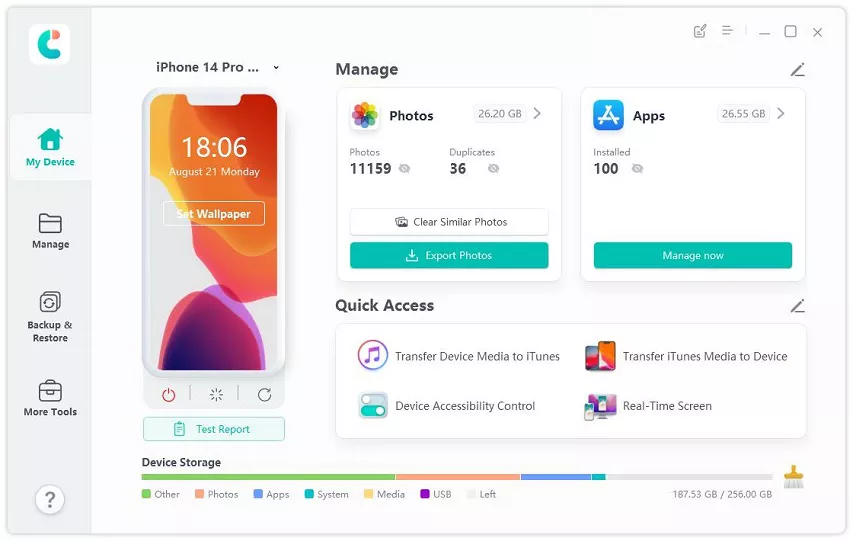
Tenorshare iCareFone is a reliable all-in-one solution for transferring, backing up, and managing your iPhone or iPad data. With iCareFone, you can handle your iOS data quickly, safely, and without relying on Quick Share.
Advantages of Tenorshare iCareFone
Move photos, videos, music, contacts, and messages between iPhone/iPad and PC or Mac with one click.
Backup your device anytime without iCloud or iTunes and restore files safely without losing existing data.
Download apps not available in your region, update, or uninstall apps directly from your computer.
Turn HEIC images into JPG in batches without losing quality.
Import or export only what you need and delete duplicates to save space.
Keep private files safe with a virtual USB only accessible through iCareFone.
Works with photos, music, messages, WhatsApp chats, bookmarks, and more.
Easy to use, even for beginners.
Steps to Transfer iPhone Photos to PC/Mac Using iCareFone
Download and install Tenorshare iCareFone on your PC/Mac. Then, attach your iPhone to the same computer and unlock it.
If asked, choose “Trust This Computer” on your iPhone. Once your iPhone is recognized, tap “Manage.”
Choose the files to move to the computer from your iPhone. Hit “Export.” Select “Import” if you want to transfer files from your PC/Mac to your iPhone.
Part 4. FAQs on Quick Share Not Working
Q1. How to reset Quick Share on Samsung?
Go to Settings, Apps, Quick Share. Tap Storage, then Clear Cache and Clear Data.
Q2. Why is Nearby Share not working?
Nearby Share may not work if Wi-Fi or Bluetooth is off, device visibility is turned off, or battery saver is on. Turn these on and keep your devices close.
Q3. How to enable Quick Share on iPhone?
Quick Share is only available on Samsung/Android devices. On iPhone, use AirDrop or a tool like Tenorshare iCareFone to transfer files.
Conclusion
Experiencing QuickShare not working can interrupt your workflow and make sharing files a hassle. Most problems can be fixed by adjusting settings, updating software, or restarting devices. For those looking for a smooth, reliable alternative, Tenorshare iCareFone provides an all-in-one solution to transfer, manage, and back up your iPhone or iPad data effortlessly. With its simple interface and powerful features, sharing and managing files has never been easier.










 iOS Tips & Latest Updates
 Bug Fixes, Unlock Guides
 Giveaways & Freebies





By Jenefey Aaron
2026-10-14 / Transfer