

 iOS Tips & Latest Updates
 Bug Fixes, Unlock Guides
 Giveaways & Freebies


Cleamio: All-in-One Mac Cleaner & Optimizer
Clean junk files, free up space, and boost Mac performance
No.1 Mac Cleaner & Optimizer
Clean, speed up, and optimize your Mac
Seeing the warning “not enough disk space on Mac” or “Your disk does not have enough free space on Mac” can instantly interrupt your work, block updates, and even prevent app installations. Even worse, sometimes the message appears when you believe there is still plenty of storage available. The good news is that most storage issues can be fixed quickly with the right steps. This guide walks you through practical and safe solutions.

Knowing your Mac's disk space usage is the first step to troubleshooting "Not Enough Disk Space" issues. macOS provides built-in tools to view total capacity, used space, available space (including purgeable space), and a breakdown by category (e.g., Apps, Documents, System Data).
Checking disk space on macOS only takes a few clicks.
Click the Apple menu in the top-left corner.
Select “System Settings” (or “About This Mac” on older macOS versions).
Click “General” > “Storage” and wait for macOS to calculate and display the storage categories.

You’ll see a color-coded bar showing Apps, Documents, System Data, Photos, and more. This overview helps identify which category is consuming the most space.
macOS needs free disk space for several background tasks: virtual memory, software updates, Time Machine snapshots, and app caches. Here's what to keep in mind:
Minimum recommended free space:
Warning signs you're running low:
Your Mac may display "Not Enough Disk Space" alerts even when Storage settings show significant free space (or "plenty" available). This often stems from purgeable space (files macOS can automatically delete when needed, like caches or temporary data), hidden system reserves for operations, or misreported "available" space that isn't truly empty for intensive tasks.

Here are some typical situations users experience:
These issues are usually tied to hidden or temporary storage consumption.
Several hidden factors may consume space without being obvious:
Identifying these storage consumers is key to solving the “not enough disk space on Mac” error effectively. Now, let’s move and see how to get more disk space on Mac and simple solutions to fix the error.
Running low on Mac storage doesn't have to be a headache. While built-in tools like Storage Management help with basics, they often miss hidden junk, duplicates, or leftovers that bloat "System Data" (formerly "Other").
For the fastest, safest, and most comprehensive cleanup, especially when dealing with purgeable space, large files, or stubborn caches, a dedicated tool like Tenorshare Cleamio stands out as one of the best options in 2026.
Cleamio is an AI-powered Mac cleaner and optimizer (notarized by Apple for safety) that performs a deep, one-click scan to reclaim significant space. Users report freeing 20–280 GB monthly on average, with collective totals over 12 PB. It focuses on thorough yet secure removal without risking important files or privacy (all cleaning happens locally).
Key Features Relevant to Freeing Up Disk Space:
One-click removal of system caches, logs, app leftovers , download residues, DMG files, temporary files, and hidden clutter
Delete browser caches and browsing data
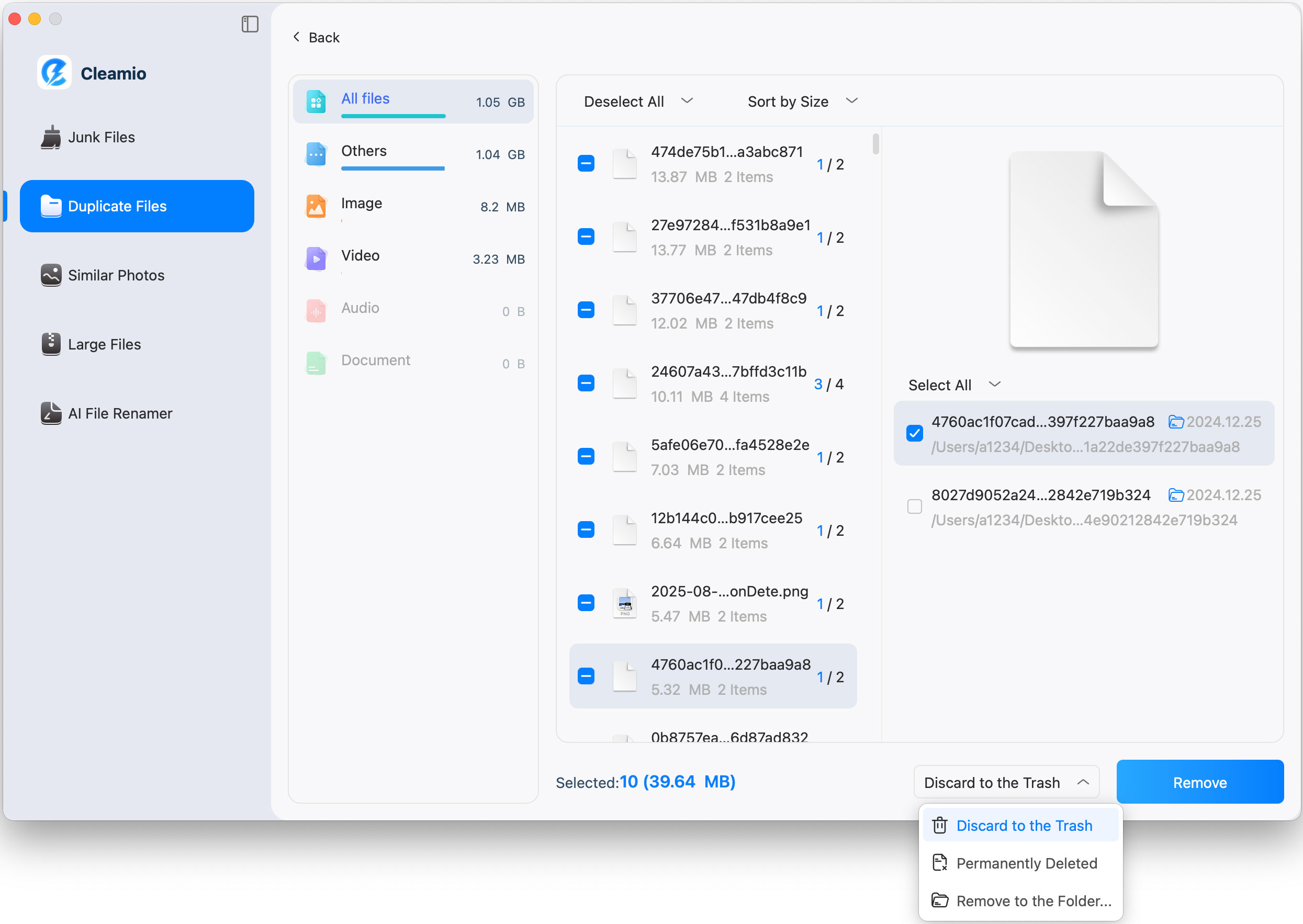
Find and remove duplicate files using MD5 algorithm
Detect and safely remove large and old files (e.g., 4K videos, RAW photos, old archives)
Completely uninstall apps and remove their leftovers
Prompt users on which data is safe to delete and which to keep
Steps to Clear Disk Space Using Tenorshare Cleamio:
Download and install Tenorshare Cleamio from the official website. Launch the program and select “Junk Files” > “Scan” to analyze your Mac storage.

Review detected junk files like system and app caches, browser caches and cookies, log, unused installer, and more. Select items and remove them to free up disk space on your Mac by clicking "Smart Cleanup."

Once the process is complete, you can click "OK" and check if the storage issue with your Mac is solved. Just like Junk files, you can use Cleamio to remove duplicates, large files, and more.

If you hope to delete space-hogging large files, duplicate files, or leftover files, etc., just open Cleamio and choose the item you want (“Duplicate Files”, “Similar Photos”, “Large Files”, “App Management”, etc.)
Delete Large Files

Search for and Delete Similar Photos

Scan and Delete Duplicate Files
Completely Uninstall Apps on Mac

Delete Leftover Files on Mac

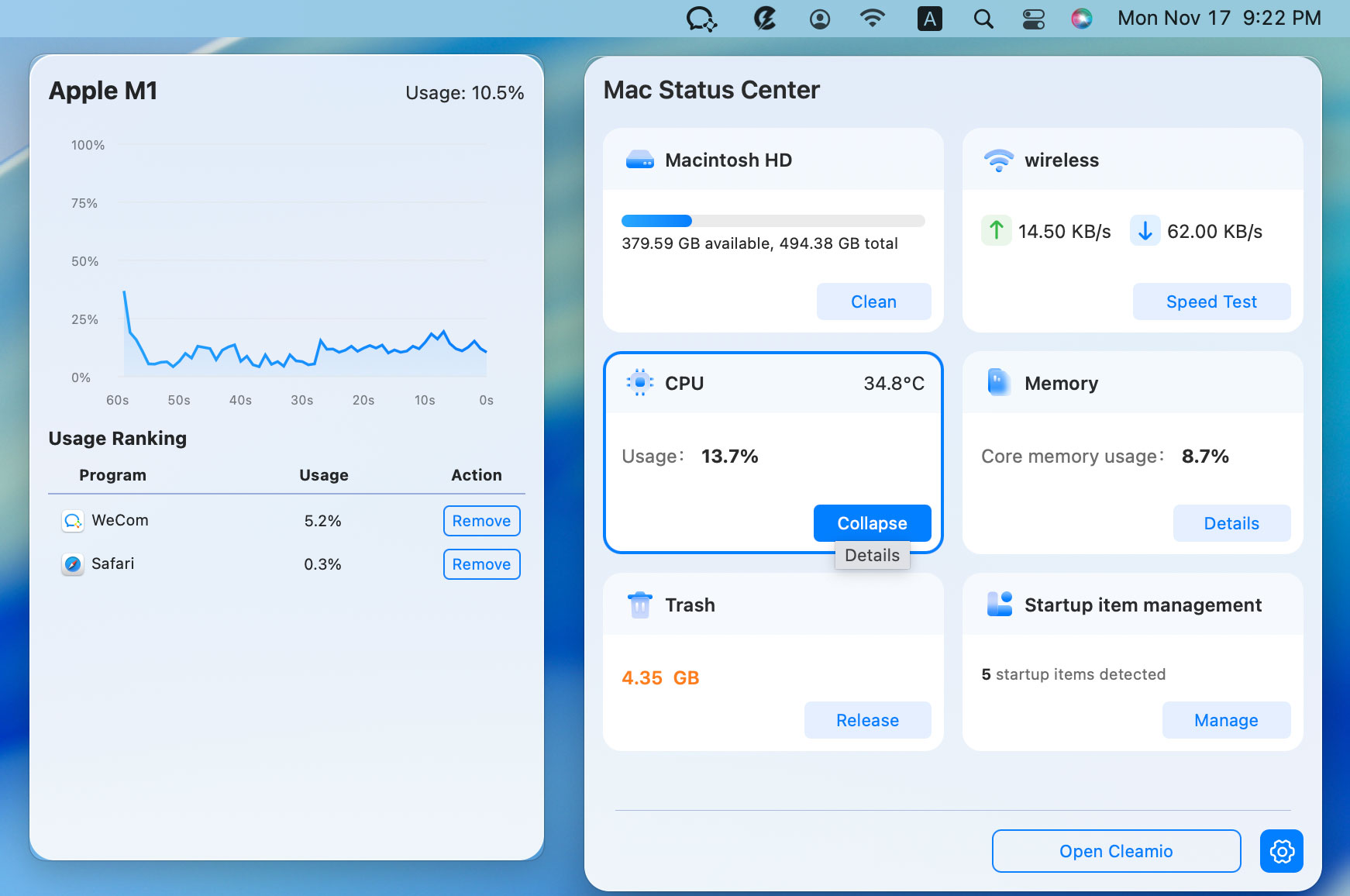
Disable Background Apps to Reclaim CPU and Memory
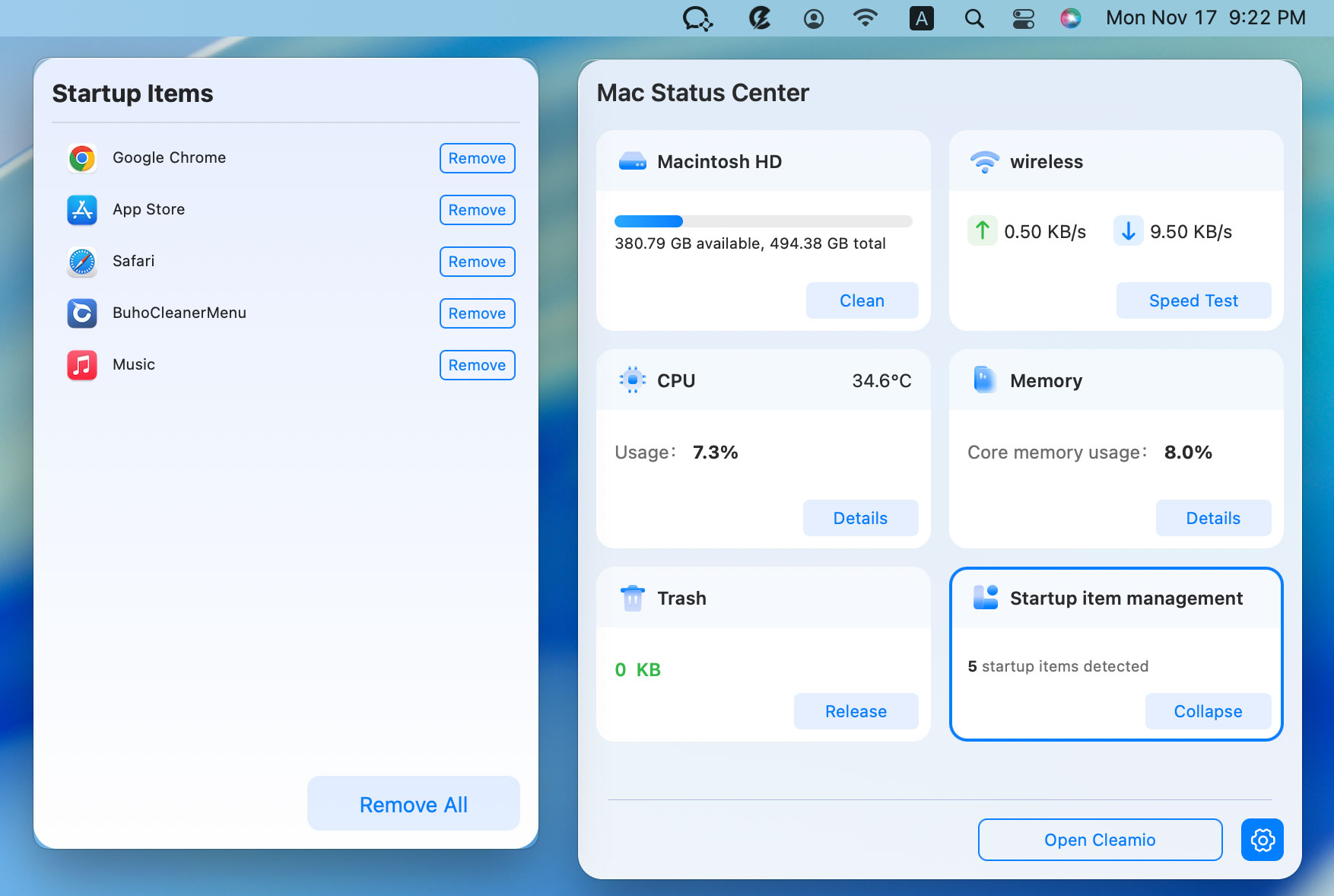
Disable and Manage Startup Items
The entire process takes only a few minutes and does not require advanced technical knowledge.
If you prefer hands-on solutions, there are several manual methods you can try. These approaches target hidden storage consumers and temporary files that often cause disk space errors. While effective, they require careful attention to avoid removing important data.
Time Machine creates local snapshots even if you don’t actively use external backups. These snapshots can silently occupy dozens of gigabytes of storage. Removing them can immediately free up significant space.
Open Terminal and run: “tmutil listlocalsnapshots /".
Identify snapshot dates and delete using: “sudo tmutil deletelocalsnapshots [date]".

macOS includes built-in storage recommendations that help identify large or unnecessary files. These tools are safe because they focus on non-essential data. They can quickly free up space without using third-party software.
Open "System Settings" and go to "General", then open "Storage”.
Review Recommendations and enable options like “Optimize Storage” and “Empty Trash Automatically", then remove suggested large files.

System caches and log files accumulate over time. While usually harmless, they can grow unexpectedly large. Clearing them may resolve persistent storage warnings.
Restart in Safe Mode first (hold Shift during boot) to auto-clear some caches.
Open “Finder” and click “Go" from the top, then choose "Go to Folder”.
Type “~/Library/Caches” and “~/Library/Logs” similarly.

Local iPhone backups stored on your Mac can consume significant space. If you frequently sync devices, these backups may accumulate unnoticed. Removing outdated backups can quickly free up storage.
Open "System Settings", then go to "General" and open "Storage”.
Click the “i” button against “iOS Files” to expand your local iPhone backups.

Select and delete the old backups that are no longer needed to free up some space when your Mac's disk is full.
Files remain on your Mac until the Trash is emptied. Many users forget this simple step, allowing gigabytes of data to sit unused. Regularly emptying the Trash prevents unnecessary storage warnings.
Right-click the Trash icon and select “Empty Bin”.
Confirm deletion by clicking “Empty Bin” and waiting until it is complete.
Large video files, photos, and projects often take up most of your disk space. Moving them to an external drive or cloud storage reduces pressure on your internal SSD. This is especially useful for users working with media files.
Preventing storage issues is easier than constantly fixing them. A few proactive habits can keep your Mac running smoothly for years.
Developing these habits prevents the recurring “not enough disk space on Mac” warning.
The “not enough disk space on Mac” error can interrupt updates, installations, and backups, but it is usually easy to fix. By checking storage usage, removing hidden files, and clearing unnecessary data, you can restore performance quickly. For the fastest and safest solution, Tenorshare Cleamio offers automated cleanup and deep scanning to reclaim space efficiently.


then write your review
Leave a Comment
Create your review for Tenorshare articles
 Cleamio
All-in-One Mac Cleaner & Optimizer
Share this post


Cleamio: All-in-One Mac Cleaner & Optimizer
Clean junk files, free up space, and boost Mac performance
No.1 Mac Cleaner & Optimizer
Clean, speed up, and optimize your Mac
By Jenefey Aaron
2026-10-20 / Mac Cleanup