

 iOS Tips & Latest Updates
 Bug Fixes, Unlock Guides
 Giveaways & Freebies


ReiBoot - No.1 Free iOS System Repair Software
Fix 150+ iOS Issues without Data Loss & Safely iOS 27 Upgrade/Downgrade
ReiBoot: No.1 iOS Repair Tool
Fix 150+ iOS Issues, No Data Loss
Are you curious how long Apple Intelligence takes to download or why it gets stuck at preparing? This article tells you the download time of Apple Intelligence, the reason and the way to fix the interruption caused by download time. Find out how to troubleshoot Apple Intelligence download problems, verify your device settings, and get the new AI features from Apple up and running.

If you are considering there is a fixed time promised, then that is wrong. The time it takes will vary based on a number of factors. These factors include internet speed, device storage, Apple servers, and the complexity of the AI features you plan to use on your device.
Some people are able to finish the download in a short amount of time, while others have said that Apple Intelligence has been downloading for hours. In some situations, the process can seem frozen for 10 hours or more.

Apple Intelligence downloads background resources, and doesn't work like a traditional app installation. Your iPhone may need to download AI models, language resources, and system resources before features become fully enabled. You can also check out community platforms like Reddit to read out other's views about it.
 Please swipe to view
A strong Wi-Fi connection and enough storage space are usually the first things to look for when considering the duration of the Apple Intelligence download.

If Apple Intelligence seems to be stuck on your iPhone, it is not necessarily because your phone has frozen. It may be that the system is still downloading or preparing resources in the background.
Here are the common messages and what they typically mean:
Please swipe to view
The "Assets need to finish downloading" message can be especially puzzling. It just means that your device hasn't finished downloading all the Apple Intelligence modules it needs. This may take longer depending on your connection and the amount of storage you have available.
The new generation AI features from Apple rely on on-device processing for much of the work. So the system needs to download and install supporting models, before features like Writing Tools, Genmoji, Image Playground and Visual Intelligence can be fully functional.
If your Apple Intelligence download is taking too long, try these solutions from top to bottom.
Apple Intelligence requires downloading a large number of system resources. This may not work over mobile data or an unreliable Wi-Fi connection. You need to ensure your iPhone is connected to a reliable Wi-Fi network.
To test your connection:


Do not switch between Wi-Fi networks while the download is in progress.
If possible, you can try to move closer to your router or reboot your router before attempting again.
Certain background downloads and system processes may be more efficient while the iPhone is charging.

Plug your device to your charger and connect it to Wi-Fi for a while. This is especially useful if the Apple Intelligence download is preparing resources in the background.
Also, plugging in the iPhone will prevent interruptions from a low battery or battery saving mode kicking in.
Lack of space is among the most frequent causes of system downloads failing or being left half-finished.
Apple Intelligence needs free space for the AI models, temporary installation files and system resources.While your iPhone has a little bit of free space, that might not be sufficient to get through the entire installation process.
To check storage:
Open Settings and navigate to the General.
Tap iPhone Storage.

Delete some videos, duplicate photos, unused apps, or big downloads if your storage about to get full.
Having enough free space can also help boost your iPhone's overall performance.
A simple reboot might fix temporary software bugs that affect downloads and work in the background.
To turn off or restart the iPhone 12, iPhone 12 Pro, iPhone 12 Pro Max, or iPhone 12 mini:
Press and hold the side button and one of the volume buttons.

Slide to power off.

Wait for a few seconds.
Turn iPhone on.
After rebooting, plug in and connect to WiFi. See if Apple Intelligence is still downloading.
Wrong or missing configurations could prevent Apple Intelligence from being Enabled as expected.
Go to:
Settings and then head to Apple Intelligence & Sir.

Based on device and iOS version you may find under related to Apple Intelligence, Siri language and Feature activation.
Check that Apple Intelligence is turned on and your device is using a supported language and region. Certain features may also be enabled depending on the Siri language that is chosen. If you just changed the language configuration, the system might need to download some resources.
Having an older version of iOS can have compatibility issues with Apple Intelligence.
Apple Intelligence features are added and enhanced with iOS updates. On older software, downloads may fail or get stuck, even if your device is eligible.
To update iOS:

Ensure your iPhone is connected to Wi-Fi and has sufficient battery or is connected to power for the duration of the update.
If you are still experiencing Apple Intelligence Download Stuck message, you can turn off and on the function to refresh the progress temporarily.
Go to:

The resource preparation can be restarted. But don't toggle the feature on and off too many times if the download is already going well.
If you have done the usual troubleshooting and Apple Intelligence is still stuck on "Preparing," the problem is probably not with the download, but rather an issue with the iOS system.
In this case, a professional iOS system repair software can help you get rid of software glitches and you don't have to take complicated technical operation. Tenorshare ReiBoot is the solution for your iPhone and the iOS system any problem including iPhone stuck on updating, recovering, starting or processing system preparation.
It comes in handy when:





Make sure you back up important data and adhere to the instructions from the manufacturer before employing any third party repair software.
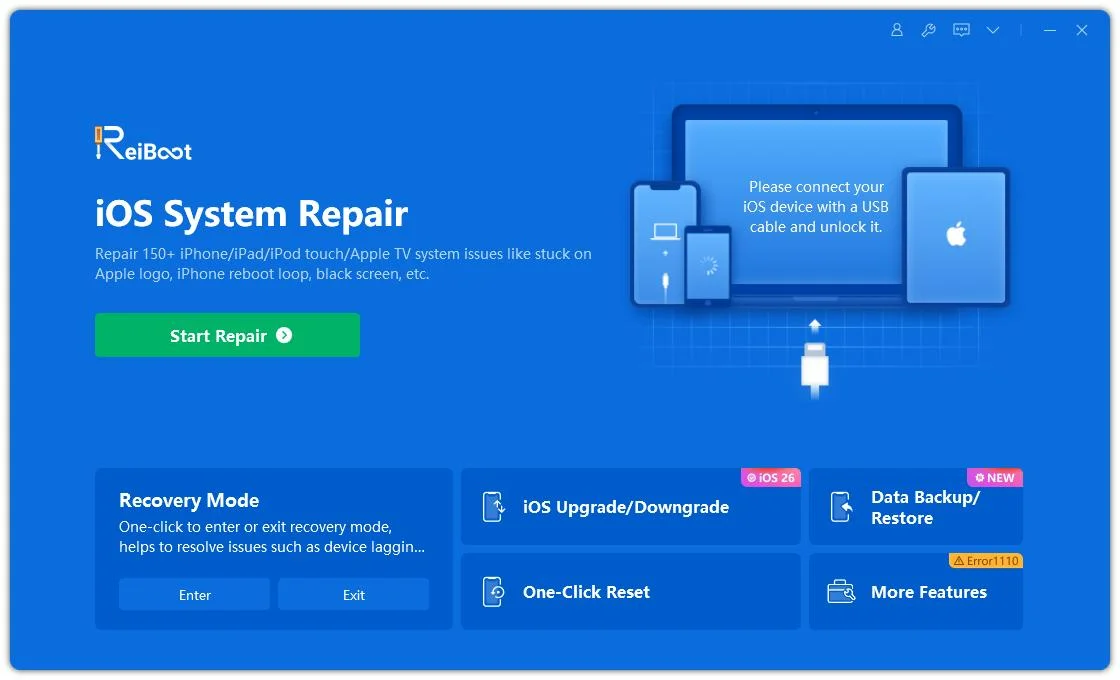
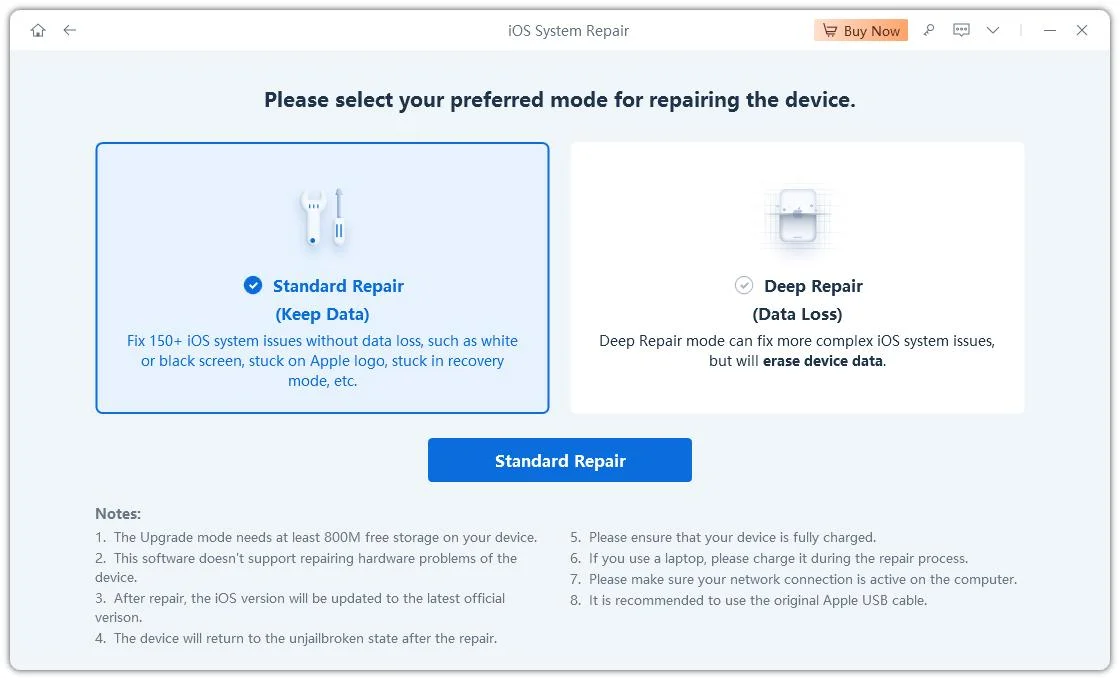
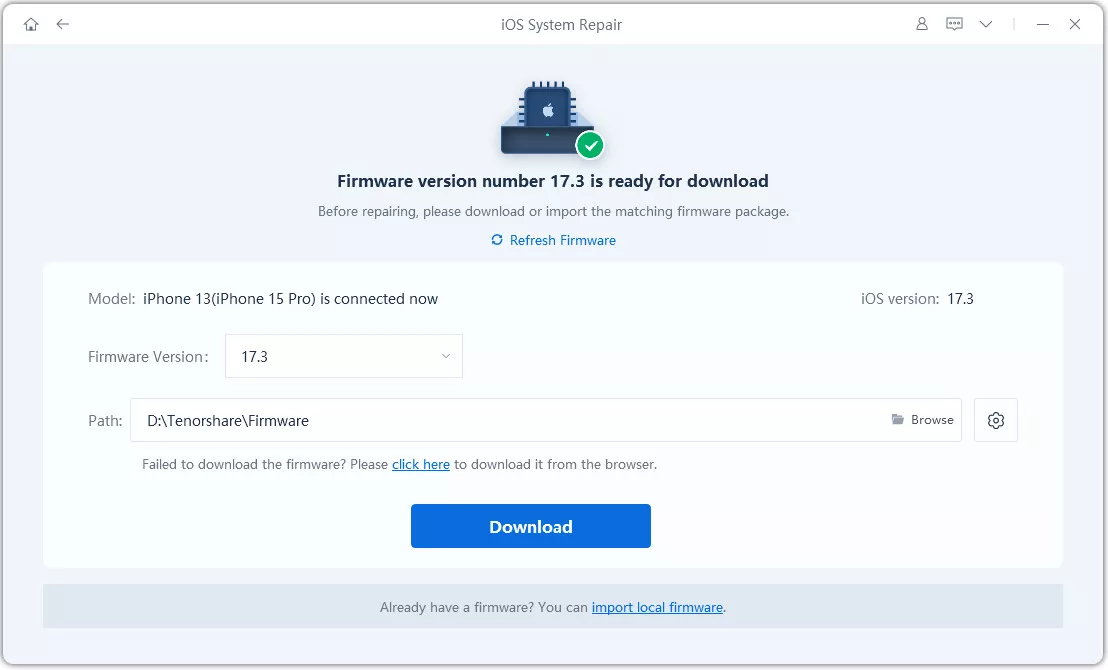
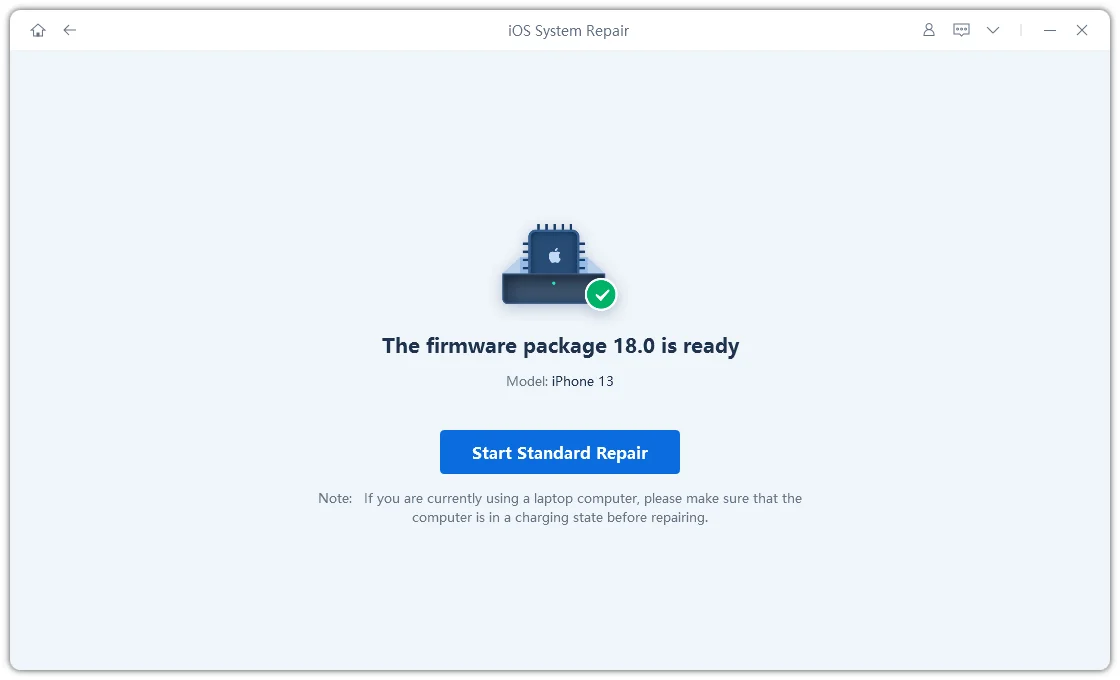
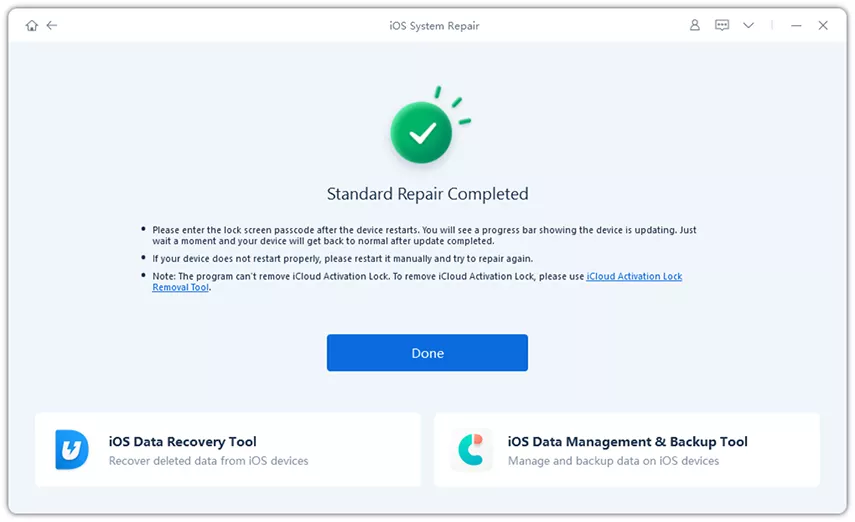

Always back up important data before attempting any system repair. Standard Repair is designed to retain data, while advanced repair options may have different data loss consequences.
The time it takes to download Apple Intelligence depends on your Wi-Fi speed, the amount of storage you have, the Apple device you are using, and the conditions of Apple's servers. For some people it may finish in a few minutes, while for others it may take a few hours.
Apple Intelligence may still be downloading the necessary AI models and system resources. The process can be prolonged due to slow internet, lack of storage or intermittent Apple server issues.
The Apple Intelligence download stuck issue can be caused by unstable Wi-Fi, an old version of iOS, insufficient storage or a software bug. In most cases, restarting the device and ensuring these factors are in order can resolve the problem.
Storage requirements can vary based on the device and features being installed. It is always a good idea to keep some free space as Apple Intelligence resources might require additional storage for on-device AI processing.
If your Apple Intelligence download is slow, try these tricks:
Apple Intelligence download issues can often be resolved by checking your Wi-Fi, storage, and iOS settings. However, persistent problems may require system-level troubleshooting. Tenorshare ReiBoot offers an efficient solution for fixing iPhone software glitches, stuck downloads, and preparation errors, helping users restore normal device functionality without complicated technical methods.


then write your review
Leave a Comment
Create your review for Tenorshare articles

Share this post


ReiBoot - No.1 Free iOS System Repair Software
Fix 150+ iOS Issues without Data Loss & Safely iOS 27 Upgrade/Downgrade
ReiBoot: No.1 iOS Repair Tool
Fix 150+ iOS Issues, No Data Loss
By Jenefey Aaron
2026-11-03 / iOS 27