

 iOS Tips & Latest Updates
 Bug Fixes, Unlock Guides
 Giveaways & Freebies
then write your review


ReiBoot - No.1 Free iOS System Repair Software
Fix 150+ iOS Issues without Data Loss & Safely iOS 27 Upgrade/Downgrade
ReiBoot: No.1 iOS Repair Tool
Fix 150+ iOS Issues, No Data Loss
Installed iOS 27, and now your iPhone screen is completely black? No Apple logo, no charging indicator, nothing? Beta software is inherently unstable, and a black screen after installation is one of the most reported issues every year.
Here, we have created a detailed guide on what you should do if your iPhone won't turn on after iOS 27 beta update.

Before jumping into fixes, understanding why iOS 27 won't turn on will help you to solve the problem easily. Official, unmodified iOS beta software has a 0% rate of permanent hardware destruction. So don't worry.
Then, what causes the iOS 27 Black Screen of Death? Here are the most common reasons:
What to do if iPhone won't turn on after iOS 27 update? These are your starting points. They're free, require no computer, and occasionally work. Don't count on them if your device crashed hard --- but always try these first.
A force restart is the go-to move for any unresponsive iPhone. Here's what to do when your iOS 27 won't turn on:

If the screen remains black after two attempts, move on. A force restart cannot fix software corruption.
If iOS 27 won't turn on or charge, your battery may be completely depleted.
No indicator after 30 minutes? The issue is almost certainly not the battery. Your iOS 27 won't turn on after charging overnight.
As part of iOS 27, won't turn on troubleshooting, inspect your hardware:

If all three basic steps fail and your iPhone won't turn on after iOS 27 update, you need advanced solutions.
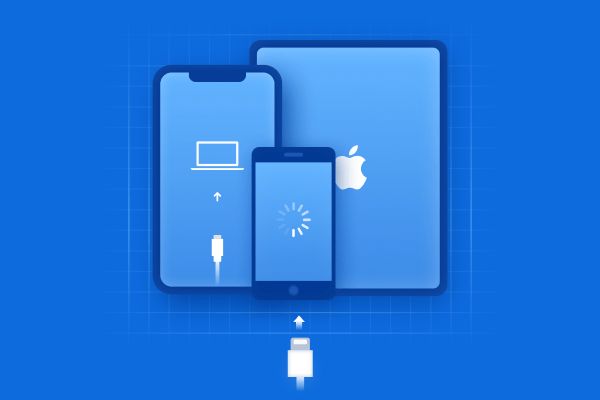
Recovery Mode lets your computer reinstall iOS without wiping your data. 90%+ Data Retention with Recovery Mode. Choose Update, not Restore.
Plug your iPhone into a Mac (open Finder) or Windows PC (open iTunes). Use a trusted cable.


On your computer, click Update, not Restore. This reinstalls iOS while preserving your data.

The download and reinstall can take several minutes. If it exceeds 15 minutes, your device exits recovery mode automatically. Repeat Step 2 and try again.
How to fix black death on iOS 27? Tenorshare ReiBoot is the most reliable option to fix the iOS 27 won't turn on issue. It is built for this exact problem, when an iPhone shows a black screen and does not respond after a beta update.
ReiBoot fully supports iOS 27, making it the best iOS system repair software to fix iPhone stuck on Apple logo or black screen issues.
Key features






Once your device is responsive again, removing the beta profile prevents the same issue from recurring. How do I restart an unresponsive iOS 27? Follow the procedure for iOS 16.3 and Older:


On newer iOS versions, beta enrollment is managed through the Software Update settings directly.
What do I do if my iOS 27 won't turn on at all? DFU (Device Firmware Update) mode is the deepest restore option available. Unlike Recovery Mode, it completely wipes and reinstalls both the firmware and iOS from scratch. If you can't back up due to the black screen, accept that data loss may occur.
Here's how to on DFU Mode and solve the iPhone won't turn on after iOS 27 beta update issue:


After restoring, set up your iPhone as new or from a backup. Do not import iCloud data during initial setup if you want a fresh start. Update iOS normally afterward, then restore your data. This will solve the iPhone won't turn on after iOS 27 update issue.
Start with a force restart: press Volume Up, press Volume Down, then hold the Side button for 10--20 seconds. If the iOS 27 black screen of death persists after two attempts, your device has a deeper system issue. Connect to a computer and use ReiBoot's Standard Repair or attempt Recovery Mode through Finder or iTunes.
If it's simply a drained battery, 15--30 minutes of charging usually brings it back. If it's a system crash, waiting alone won't help --- the screen won't recover on its own. Stop waiting after 30 minutes and move to the advanced solutions above.
This typically points to a beta-related system crash rather than hardware failure. The fastest fix without a computer is a force restart. If that fails, use ReiBoot for a one-click repair. How do I fix a stuck in recovery mode? DFU Mode is your last available option. But it erases your data.
If your iOS 27 screen won't turn on after an update, first use the simple solutions. When those free methods fall short, and iOS 27 turned off and won't turn back on, you should consider using Tenorshare ReiBoot. The tool delivers the fastest, safest fix of the issue.


then write your review
Leave a Comment
Create your review for Tenorshare articles
Share this post


ReiBoot - No.1 Free iOS System Repair Software
Fix 150+ iOS Issues without Data Loss & Safely iOS 27 Upgrade/Downgrade
ReiBoot: No.1 iOS Repair Tool
Fix 150+ iOS Issues, No Data Loss
By Jenefey Aaron
2026-10-19 / iOS 27