

 iOS Tips & Latest Updates
 Bug Fixes, Unlock Guides
 Giveaways & Freebies


ReiBoot - No.1 Free iOS System Repair Software
Fix 150+ iOS Issues without Data Loss & Safely iOS 27 Upgrade/Downgrade
ReiBoot: No.1 iOS Repair Tool
Fix 150+ iOS Issues, No Data Loss
Running the iOS 27 should give you access to the latest Apple features, but beta software can sometimes trigger serious startup issues. One of the most common problems is an iPhone getting stuck on the Apple logo, spinning wheel, or loading screen during boot.
If your device will not start properly after the update, there is no need to panic. How long will iOS 27 be stuck on an Apple logo? It depends on what kind of error occurred. Here's a complete guide on how to fix iOS 27 beta stuck on Apple Logo.

iOS 27 stuck on Apple logo issues usually trace back to a failed update or corrupted firmware. Beta updates fail roughly 45% of the time due to insufficient local storage. Before trying any fix, identify what your screen shows.
If you see a logo with a progress bar, your phone may still be finishing the update. Keep it plugged in and wait up to an hour. If the logo is stuck with no progress, or iOS 27 keeps flashing apple logo when charging, you need to act.
Common causes include:
Check out this table and find the iOS 27 stuck on Apple logo solution at a glance:
 Please swipe to view
How do I fix the black death on my iOS 27? A force restart clears temporary glitches without touching your data. Try this first.

If your iPhone boots normally, you're done. If it loops back to the stuck screen, move to Solution 2
How to fix stuck at Apple logo endless reboot trick? This is Apple's recommended method for fixing a stuck update. Choose Update, not Restore.
Update reinstalls iOS while keeping your photos, apps, and settings intact. This approach directly addresses iOS 27 on Apple logo after recovery mode situations.
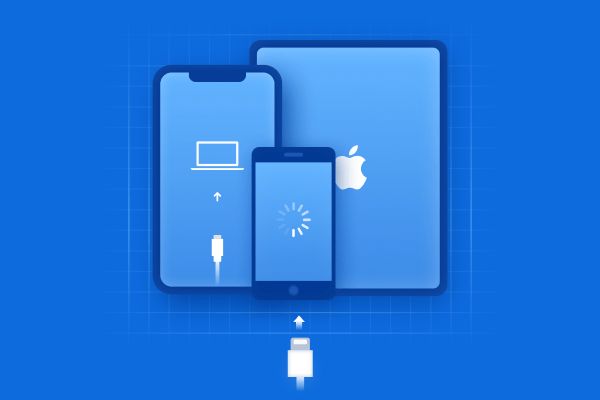
Plug your iPhone into a Mac (use Finder) or Windows PC (use iTunes). Use a genuine or certified cable.

In Finder or iTunes, click Update, not Restore. This is critical. Restore wipes your device; Update does not.

The process downloads and reinstalls iOS, which can take several minutes. If it runs past 15 minutes, your phone exits recovery mode automatically. If that happens, repeat Step 2 and try again.
This method resolves most cases of iOS 27 stuck on Apple logo after restore and iOS 27 stuck on the Apple logo after force restart.
If Solution 2 doesn't work or keeps looping, do I fix the black death on my iOS 27? Tenorshare ReiBoot is the next step. It is the best iOS system repair software to fix an iPhone stuck on Apple logo for users who want a reliable fix without risking their data. It works on all iPhone models and fully supports iOS 27.
Key features:




Step-by-step guide:


This tool is especially useful when standard recovery mode isn't resolving the loop, making it ideal for the iOS 27 stuck on Apple logo fix that protects your files.
DFU (Device Firmware Update) mode performs a complete erase and fresh iOS install. Use this only if the previous solutions have all failed.

DFU mode erases all data on your device. Only proceed if you have a recent backup or are comfortable with data loss.


This is the solution for the most severe iOS 27 stuck on Apple logo screen fix scenarios where nothing else has worked.
Once your phone is back up, take these steps to avoid the problem in future beta installs:
Community members on the Apple Support Discussions thread have also flagged these as recurring factors in iOS 27 stuck on Apple logo with progress bar situations.
Start with a force restart. If that doesn't break the loop, use Tenorshare ReiBoot's Standard Repair or try Apple's Recovery Mode Update (Solution 2).
Wait 10--15 minutes. If there is still no progress after that, move on to the fixes above. For iOS 27 stuck on Apple logo with loading bar, you can wait up to an hour if the bar is visibly moving.
Use the Recovery Mode Update in Solution 2, or run ReiBoot's Standard Repair. Both can exit a recovery loop without wiping your data. This covers iOS 27 stuck on Apple logo hard reset not working situations where buttons alone aren't enough.
iOS 27 stuck on Apple logo screen how to fix? Force restart your iPhone after facing the issue. If the iOS 27 stuck on Apple logo after restore problem continues, try Apple's official Recovery Mode Update to reinstall iOS without losing data.
If that loops or fails, Tenorshare ReiBoot's Standard Repair is the most reliable no-data-loss option. Reserve DFU mode for severe cases only, since it wipes everything. Whatever you do, always back up your device before installing any beta software.


then write your review
Leave a Comment
Create your review for Tenorshare articles
Share this post


ReiBoot - No.1 Free iOS System Repair Software
Fix 150+ iOS Issues without Data Loss & Safely iOS 27 Upgrade/Downgrade
ReiBoot: No.1 iOS Repair Tool
Fix 150+ iOS Issues, No Data Loss
By Jenefey Aaron
2026-10-19 / iOS 27