

 iOS Tips & Latest Updates
 Bug Fixes, Unlock Guides
 Giveaways & Freebies


ReiBoot - No.1 Free iOS System Repair Software
Fix 150+ iOS Issues without Data Loss & Safely iOS 27 Upgrade/Downgrade
ReiBoot: No.1 iOS Repair Tool
Fix 150+ iOS Issues, No Data Loss
iOS 27 autocorrect not working can make a normally smooth typing experience very frustrating. This is a situation when your iPhone suddenly stops correcting misspelled words, starts suggesting meaningless words, or stops suggesting corrections altogether. In most of the cases, the issue is caused by a disabled keyboard option, wrong language settings, or a fleeting software bug.

So if you are wondering how to fix 'why is my iPhone autocorrect not working ', here are ten ways to solve the problem. These solutions include troubleshooting guides from basic to advanced options to avoid device reset, which can result in data loss.
Auto-correct works based on the settings you configure on your iPhone. So, changes in settings can be a possible reason for iOS 27 autocorrect not working. Let's dive into the details of what can cause this issue:

If you observe that everything was working perfectly and the iPhone autocorrect is not working after the update, do look at your keyboard settings first to conclude if the update has permanently broken the feature.
Here are top 10 Solutions to fix autocorrect not working iPhone. As you are not sure about the cause, begin with the simpler solutions and progress to the more complex ones as needed. This would save your time and efforts. All these ten troubleshooting ways are easy to perform without any third-party device integration. These simple methods are also discussed on Reddit.
The first and foremost thing you need to do is to verify if Auto-Correction is on. If you haven't yet enabled Auto-Correction, you can do so in the Settings app of your iPhone or iPad like this:
Open the Settings → General → Keyboard.
Locate Auto-Correction and verify if it has been enabled.


You may also want to enable Check Spelling and Predictive. While they have distinct purposes, turning them on can enhance your typing experience without grammatical and spelling mistakes.
For Confirmation that the auto-correction is enabled, launch Messages or Notes and intentionally misspell a couple of words. If they go instantaneously, you're fixed.
If you still have an issue with your iPhone keyboard autocorrect not working, check other keyboard settings.
Navigate to the Settings tab → General → Keyboard.
Look for options like:

Not all keyboard settings affect autocorrect directly, but checking out the entire settings carefully can help identify the real cause for auto-correction failure.
If Auto-Correction is enabled and the feature still does not respond, continue to the next solution.
Choosing the language is very necessary for people who speak bilingual or more. Your iPhone defines which words should be corrected by the active keyboard, including its language resources.
Open the Settings tab on your iphone → General → Keyboard → Keyboards.

View the keyboards you've added on your iPhone. Confirm that the language you are using is supported and that you selected it properly.
While typing, press the Globe key to change keyboards and test if autocorrect is working in another language.

This can explain to users who are bilingual or multilingual that autocorrect is not working on iPhone even though Auto-Correction is enabled.
Sometimes a simple settings refresh can resolve an iOS autocorrect not working issue.
Open the Settings tab and navigate to General to choose the Keyboard option.
Simply, turn Auto-Correction off and wait several seconds. Then turn it on.

Return to your preferred typing application and test the keyboard. This method is particularly useful when the setting appears to be enabled, but the feature is not responding correctly. It effectively refreshes the option without requiring a complete device reset.
Temporary system errors can cause keyboards to not work. If the iOS27 autocorrect not working issue arises very suddenly, it is worth trying to reboot your device.
Turn off your iPhone, wait a moment, then turn it back on. After the device restarts, open Notes or Messages and try Auto-Correction.

Restarting can clear up temporary processes and refresh parts of the system that may have gotten themselves temporarily tied-up.

If the problem occurs right after the iOS update is installed, restarting the device should be the first step before trying other technical troubleshooting procedures.
If the issue seems to be with a single language keyboard, then try removing it and adding it back helps.
Open the iPhone Settings → General → Keyboard → Keyboards.
Tap Edit, delete the affected keyboard, then tap Add New Keyboard to re-add it.

Switch to the newly added keyboard when typing, and see if Auto-Correction works after you have added the keyboard back.
This may help if you have one keyboard that is behaving differently than the rest. Additionally, you can double-check that you have the proper language and keyboard layout installed.
Your iPhone picks up on words and typing habits as you use it. In rare cases, non-standard learned words or dictionary data can cause unexpected keyboard behavior.
To reset the keyboard dictionary, navigate to:
Settings → General → Reset → Reset Keyboard Dictionary.
Note that this will delete any learned words and customized keyboard dictionary data. It does not delete your photos, apps, messages, or any other personal content.
Test the keyboard again after you've reset the dictionary.
If all the above methods fail, check out if a new iOS update is available in your iPhone settings. Upgrade your device to the latest version to avoid all kinds of bugs, including the auto-correction not working.
To check for new updates, navigate to Settings → General → Software Update. If there is any update available.

Third-party keyboard apps can offer great features, but under certain circumstances they may cause compatibility issues.
If you use a keyboard like Gboard or any other third-party keyboard, revert back to the default Apple keyboard temporarily.

Navigate to Remove or disable entire third-party keyboards, and try typing with the default Apple one.
If autocorrect works fine after that, then the third party keyboard is the problem. After that, you can update, reinstall, or reconfigure the third-party app.
This is a very common reason you should consider when anyone asks why autocorrect is not working on iPhone, even if it is enabled.
If all else fails, you can try resetting all settings on your iPhone.
Follow the step-by-step procedure below:
Open Settings → General → Transfer or Reset iPhone → Reset → Reset All Settings.

This is more radical than clearing the keyboard dictionary, as it also resets a number of other system preferences and settings to default.
It's not the same as wiping out the iPhone, but you might have to reconfigure some settings. But you should prefer this one after trying all the above 9 methods. iphone autocorrect not working after update
If you are sure the keyboard dysfunction is due to other system errors like app crashing, freezing, giving you errors, or unexpected software bugs, you might indeed have a bigger problem than just your physical keyboard and iPhone autocorrect not working after update.
In those situations, my recommendation is to use Tenorshare ReiBoot iOS system-repair tool. It is an advanced iOS repair software that allows you to quickly fix and troubleshoot some iOS-related issues.




Let's list out a few features of it, and the rest you can check out from the official webpage for a detailed overview.
You can reset your iPhone using ReiBoot easily to configure default settings. This would help you automatically detect the issue and resolve it in a short time.
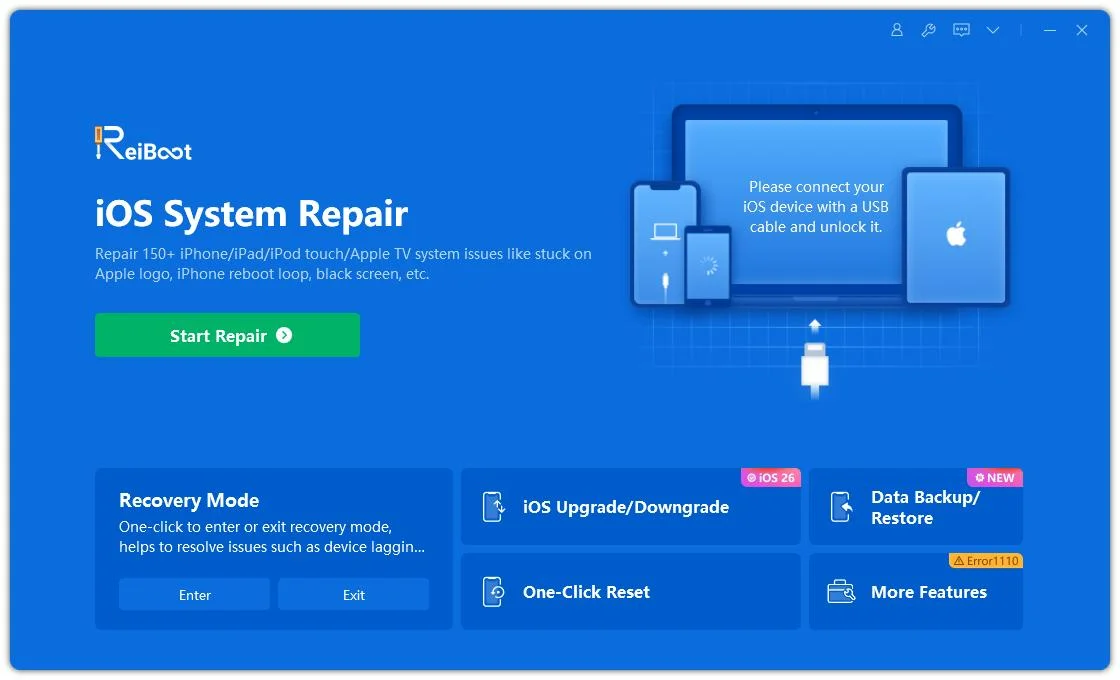
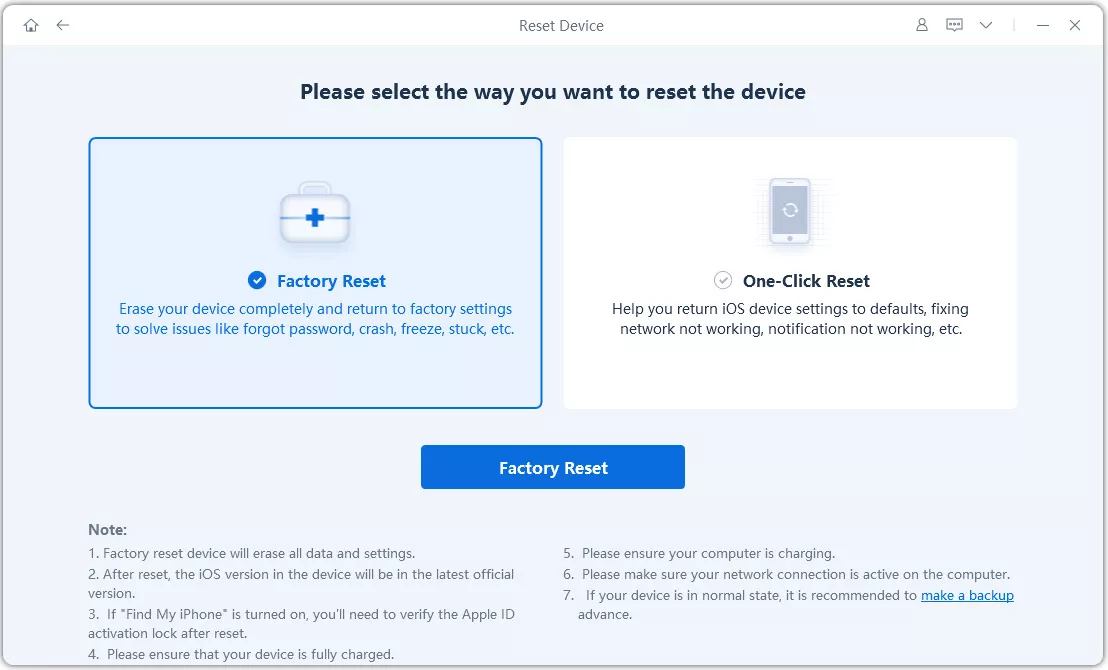
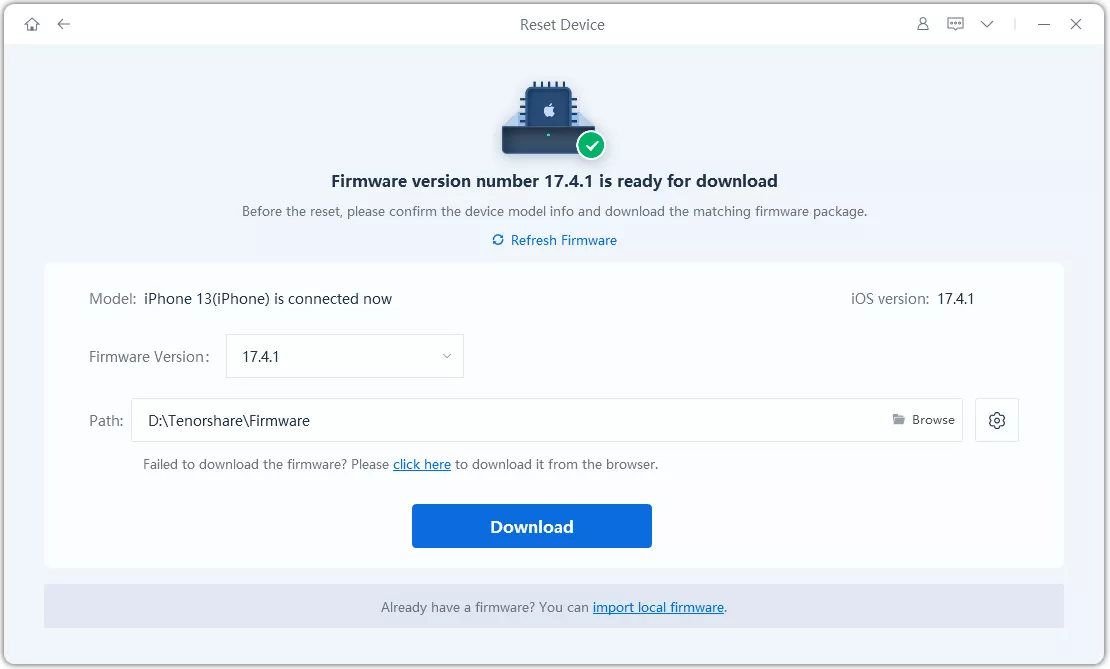
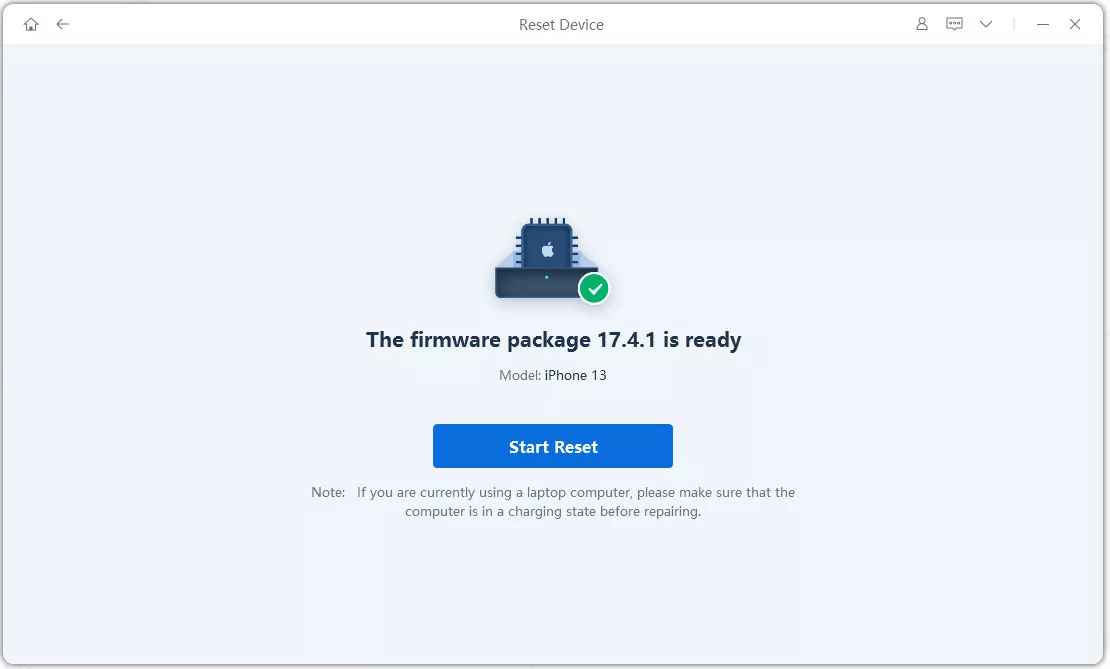
Please create a backup of your iphone before initiating, as all the data and settings will be removed once the device is reset.
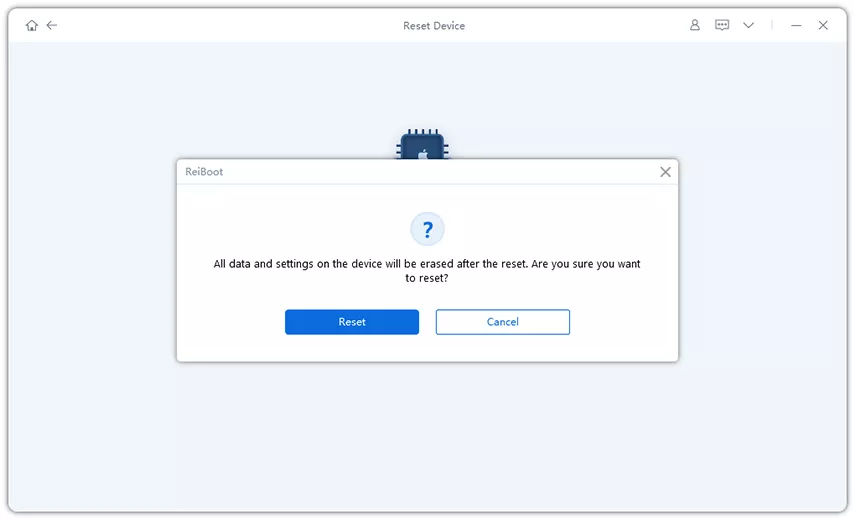
Wait for 10 minutes for your reset process to complete. You will be notified when done.
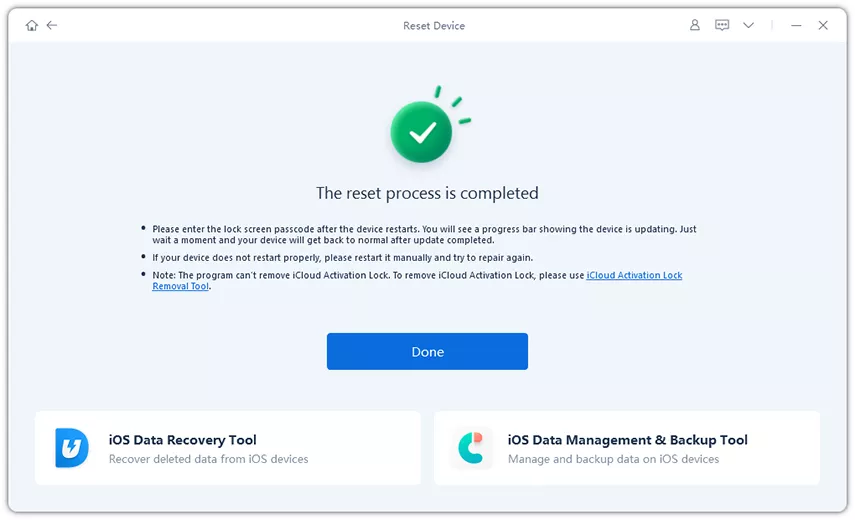
The issue may be due to modified keyboard settings, language settings, a temporary software glitch, or a problem introduced in an early release of iOS. Turn on Auto-Correction first, reboot your iPhone, and update your software if an update is available. This will clarify the question why is my autocorrect not working iPhone.
Visit Settings → General → Keyboard, and toggle on Auto-Correction. You may also find information on Check Spelling and Predictive to enhance your typing experience.
If Auto-Correction is activated but does not work, verify the current active keyboard language, reboot the iPhone, and try Apple's standard keyboard. If the problem persists, you can also reset the keyboard dictionary.
Your iPhone might be set to the wrong keyboard language, Auto-Correction could be turned off, or there may be a temporary keyboard glitch that's interfering with corrections. Incompatibilities can also arise from third-party keyboards.
Begin by toggling Settings → General → Keyboard → Auto-Correction. Then reboot the iPhone, look for a further iOS update, remove the keyboard, and temporarily turn off 3rd party keyboards. Reset the keyboard dictionary or all settings if necessary.
If you are searching why is autocorrect not working on iPhone 27, you can begin with the keyboard settings, language, and software updates before going for advanced solutions. Generally, the problems can be solved with a simple reboot or refresh of the settings.
But if the autocorrect problem comes along with freezing, crashing, or any other iOS issues, you may want to try a system repair tool. Download Tenorshare ReiBoot to analyze and fix popular iOS system problems and retrieve your iPhone to its normal state.


then write your review
Leave a Comment
Create your review for Tenorshare articles

Share this post


ReiBoot - No.1 Free iOS System Repair Software
Fix 150+ iOS Issues without Data Loss & Safely iOS 27 Upgrade/Downgrade
ReiBoot: No.1 iOS Repair Tool
Fix 150+ iOS Issues, No Data Loss
By Jenefey Aaron
2026-10-14 / iOS 27