

 iOS Tips & Latest Updates
 Bug Fixes, Unlock Guides
 Giveaways & Freebies

ReiBoot - No.1 Free iOS System Repair Software
Fix 150+ iOS Issues without Data Loss & Safely iOS 27 Upgrade/Downgrade
ReiBoot: No.1 iOS Repair Tool
Fix 150+ iOS Issues, No Data Loss
An eSIM can stop working for several reasons, from activation problems and incorrect cellular settings to network issues or a temporary iOS glitch. You may see No Service, lose mobile data, or find that your eSIM will not activate at all.These issues can be frustrating, but you can usually fix them with a few simple checks. This guide explains why your eSIM not working on iPhone Duo may happen and walks you through 8 practical fixes to restore your cellular connection.

The cause of an eSIM problem depends on what you see on your iPhone. Check the symptom first to understand what may be causing your iPhone Duo eSIM not working issue.
If your eSIM does not appear under Settings > Cellular, it may not have been activated correctly. Check that your carrier supports eSIM and that the activation process was completed.
Your eSIM may be installed but unable to connect to the carrier network. A network problem, disabled cellular line, or Carrier Lock could be the reason. Check your carrier and device status.
You can have signal but still have no mobile data if the wrong line is selected. Go to Settings > Cellular > Cellular Data and make sure your eSIM is selected.
This does not always mean your eSIM has a problem. With Dual SIM, one line may show No Service during a call depending on your carrier and settings. Check whether both lines work normally when you are not on a call.
If the issue started after an iOS update, it may be related to a temporary software or cellular settings problem. Try the basic fixes first. If the iPhone Duo eSIM issues continue, an iOS system repair may help.
An eSIM problem can come from your carrier, cellular settings, network connection, or iOS. Start with the simple checks below and move to the stronger fixes only if the problem continues. These methods can help with eSIM no service on iPhone, and other dual SIM eSIM problems.
Your eSIM needs an active cellular plan and proper carrier activation to work. If there is a problem with your plan or iPhone Duo eSIM activation, your iPhone may not connect to the network.

A Carrier Lock can stop an eSIM from working if it belongs to a different carrier. Checking this first can save you from changing other settings unnecessarily.

Your eSIM may be active but not selected for calls or mobile data. This is a common setting to check when you have iPhone Duo cellular data not working.

Turning Airplane Mode on and off gives your iPhone a quick network refresh. It can help when the eSIM was working earlier but suddenly shows eSIM no service on iPhone.
A restart can clear temporary software or network problems that may affect your eSIM. Try this if your eSIM suddenly stops working without any changes to your plan.
Carrier settings and iOS updates can include fixes for cellular and network-related problems. Keeping both up to date can also help prevent dual SIM eSIM problems caused by outdated software.

Resetting your network settings is a stronger option when the basic fixes do not work. It can help with persistent eSIM not working on iPhone problems, but it will remove saved Wi-Fi passwords and other network settings.

Deleting your eSIM should be the last step because you may need your carrier to issue a new one. Confirm that the carrier can reactivate or reissue your eSIM before removing it.

Some eSIM problems can be linked to iOS system issues, especially when they appear after an update or alongside other software problems. Tenorshare ReiBoot provides several repair options to troubleshoot these issues. Carrier activation and network problems still need to be handled by your carrier.


What Can ReiBoot Do?
How to Use ReiBoot to Repair iPhone Duo System Issues
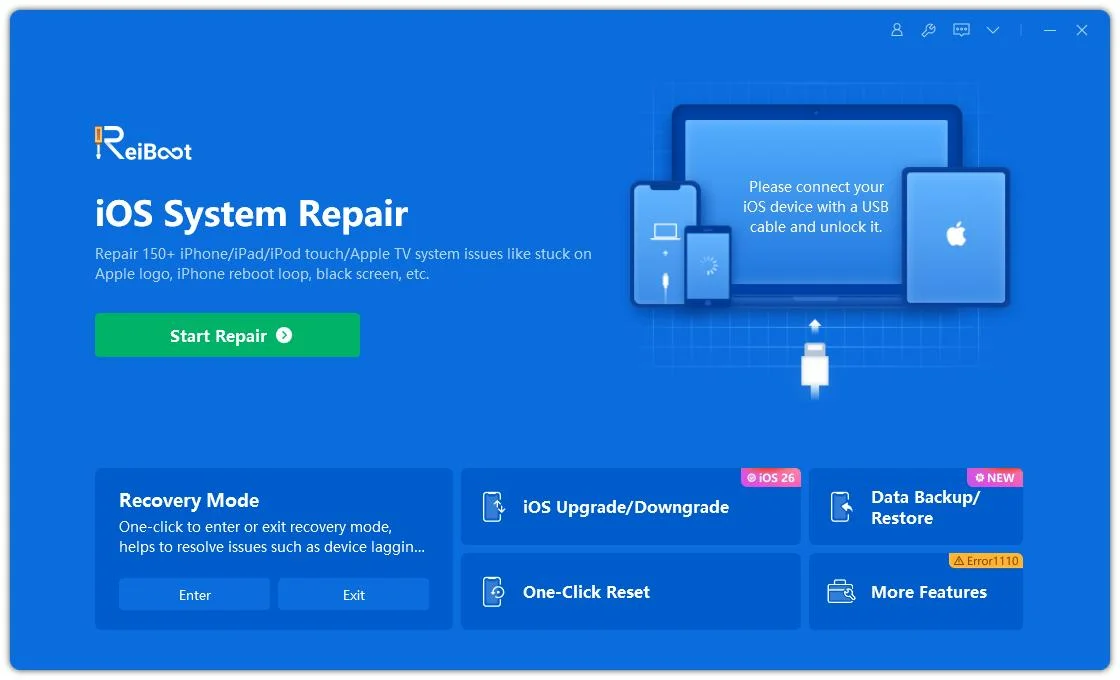
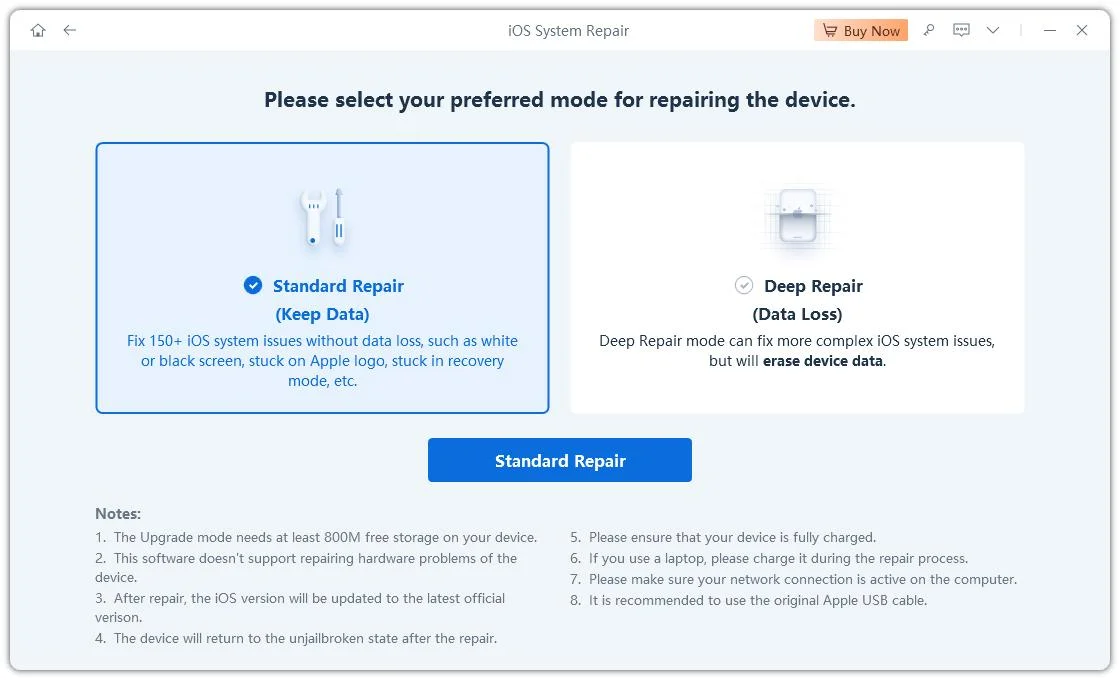
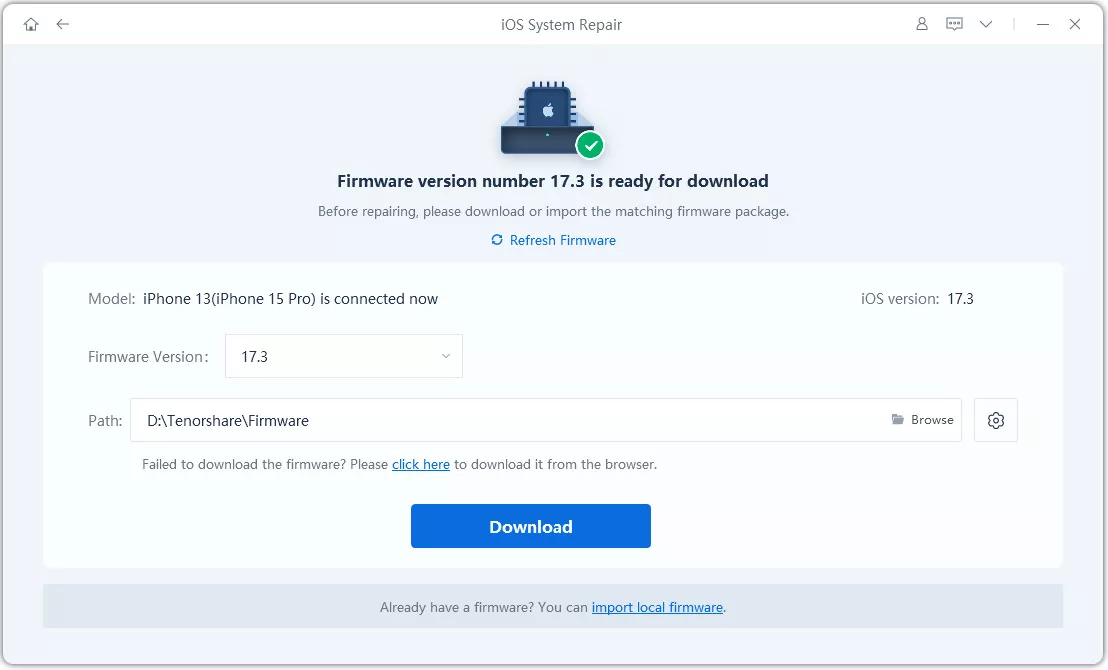
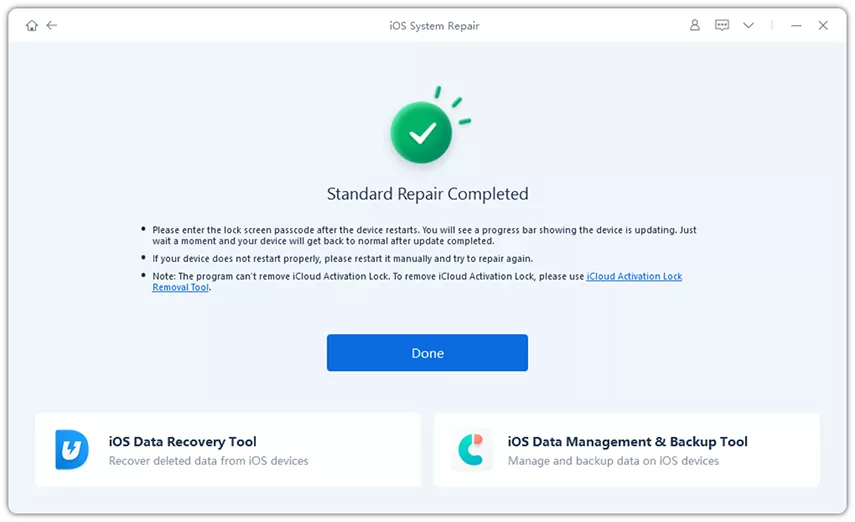

ReiBoot may help with eSIM problems caused by an iOS system issue, but it cannot resolve carrier activation, provisioning, account, or other carrier-side eSIM problems.
Yes, you can use two eSIMs at the same time on supported iPhone models. Both lines can be active, but the exact Dual SIM features depend on your iPhone and carrier.
No. Resetting network settings does not delete your eSIM. It only removes saved Wi-Fi networks, passwords, and other network settings.
ReiBoot can help when the problem is caused by an iOS system issue. It cannot fix carrier activation, provisioning, account problems, or other carrier-side eSIM issues.
An eSIM not working on iPhone Duo can often be traced to the carrier, eSIM activation, cellular settings, or a temporary network issue. Check these areas first and avoid deleting your eSIM unless other fixes do not work. When the carrier and network are working normally but the problem still continues, an iOS system issue may be the cause. Tenorshare ReiBoot can help repair common iOS system problems without erasing your data with Standard Repair. Download ReiBoot and give it a try when basic troubleshooting does not fix the issue.


then write your review
Leave a Comment
Create your review for Tenorshare articles
Share this post


ReiBoot - No.1 Free iOS System Repair Software
Fix 150+ iOS Issues without Data Loss & Safely iOS 27 Upgrade/Downgrade
ReiBoot: No.1 iOS Repair Tool
Fix 150+ iOS Issues, No Data Loss
By Jenefey Aaron
2026-11-03 / iPhone 18