With the arrival of iOS 27 and Apple Intelligence, users rely on Siri for daily tasks more than ever. If you need to recover Siri message deleted permanently due to system updates or accidental loss, knowing the right restoration steps is essential to getting your history back.
This guide explains why your Siri interactions disappear, how the data is stored, and the most effective methods to successfully restore your request history on your iPhone.
Siri messages refer to the results and interactions generated when you use Siri, including voice commands, AI responses, and actions performed on your device. These may appear in apps like Notes, Messages, or system logs depending on your settings.
What Are Siri Requests?
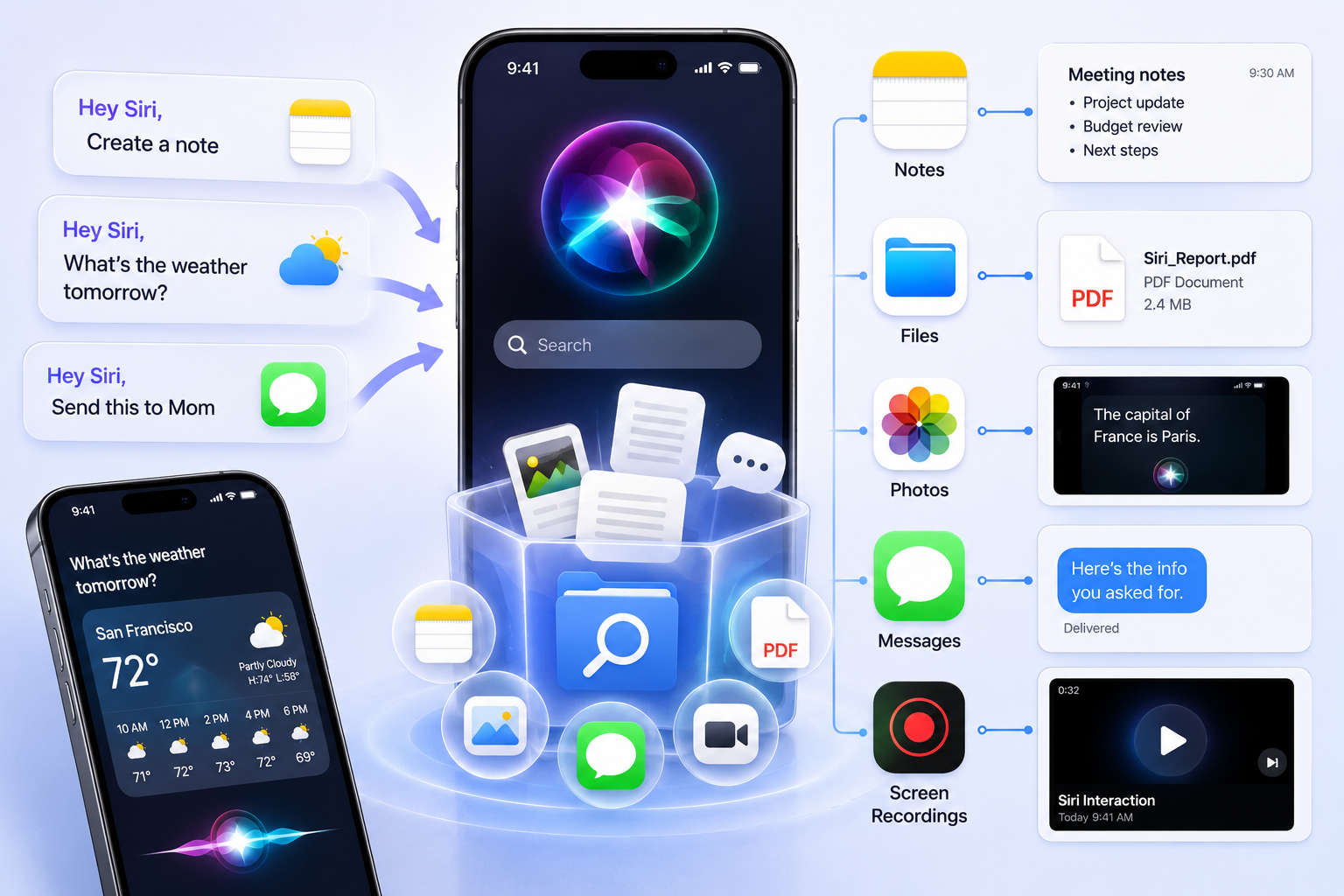
Siri Requests are the commands you give to Siri, such as:
"Set a reminder"
"Send a message"
"What’s the weather today"
"Create a note"
In simple terms:
Siri Requests = input (what you ask)
Siri Messages = output (what Siri produces)
New Siri AI Features in iOS 27
The Siri AI feature iOS 27 update has introduced deeper contextual awareness. Siri now acts as a central hub for synthesized information, capable of pulling data across disparate apps.
Because of this integration, the messages and data it handles—whether stored in Notes, Files, or other native applications—are critical for your daily productivity and workflow continuity.
Can You Recover Deleted Siri Messages?
If the Message Still Exists on Your Device
If you have not performed a factory reset or cleared your system cache, there is a high probability that the data is still residing in the device’s internal database.
Often, when you delete a "message" or a saved note, the system simply marks the space as "available" rather than overwriting it immediately, meaning the file may still be indexed and accessible if you look in the right folders.
If the Message Was Deleted
If the message was saved into an app (such as Notes or Files) and then deleted, you have a limited window of opportunity to recover it. Generally, Apple provides a 30-day "grace period" for deleted items stored in iCloud-linked applications.
Once this period expires, or if you have manually emptied the "Recently Deleted" folder, the recovery complexity increases significantly.
Why Are Siri Messages Missing After iOS 27?
iCloud Sync Delays
Sometimes Siri-related data is temporarily unavailable due to sync delays with Apple cloud services.
Apple ID or Device Changes
Switching Apple IDs or restoring a device can cause Siri history to appear missing until re-synchronization completes.
Deleted Notes or Files
Many Siri outputs are stored indirectly. If those apps are cleaned up, Siri-related records may disappear too.
Apple Intelligence Data Not Fully Loaded
After major updates, Apple Intelligence may re-index data in the background, temporarily hiding recent Siri activity.
How to Recover Siri Messages
If your Siri-related content is missing after updating to iOS 27, recovery depends on where the data was originally stored and whether it has been synced or backed up.
Most Siri Messages are not stored as a single chat history, but are distributed across system apps like Notes, Files, Messages, and Photos. This means recovery usually requires checking multiple locations instead of a single "Siri inbox."
Method 1: Check Saved Siri Content on Your Device
Before attempting any advanced recovery, start by checking local content on your iPhone. In many cases, Siri-generated outputs are still available but stored indirectly.
You should review the following locations:
Notes app
Siri-created notes or copied responses
Files appFiles app
downloaded or exported Siri-related documents
Photos app
screenshots of Siri answers
Messages app
Siri actions sent through iMessage
Screen recordings
saved interactions with Siri
This step is especially useful if you are trying to find saved Siri messages iOS 27, since most data loss cases are actually "hidden storage" rather than true deletion.
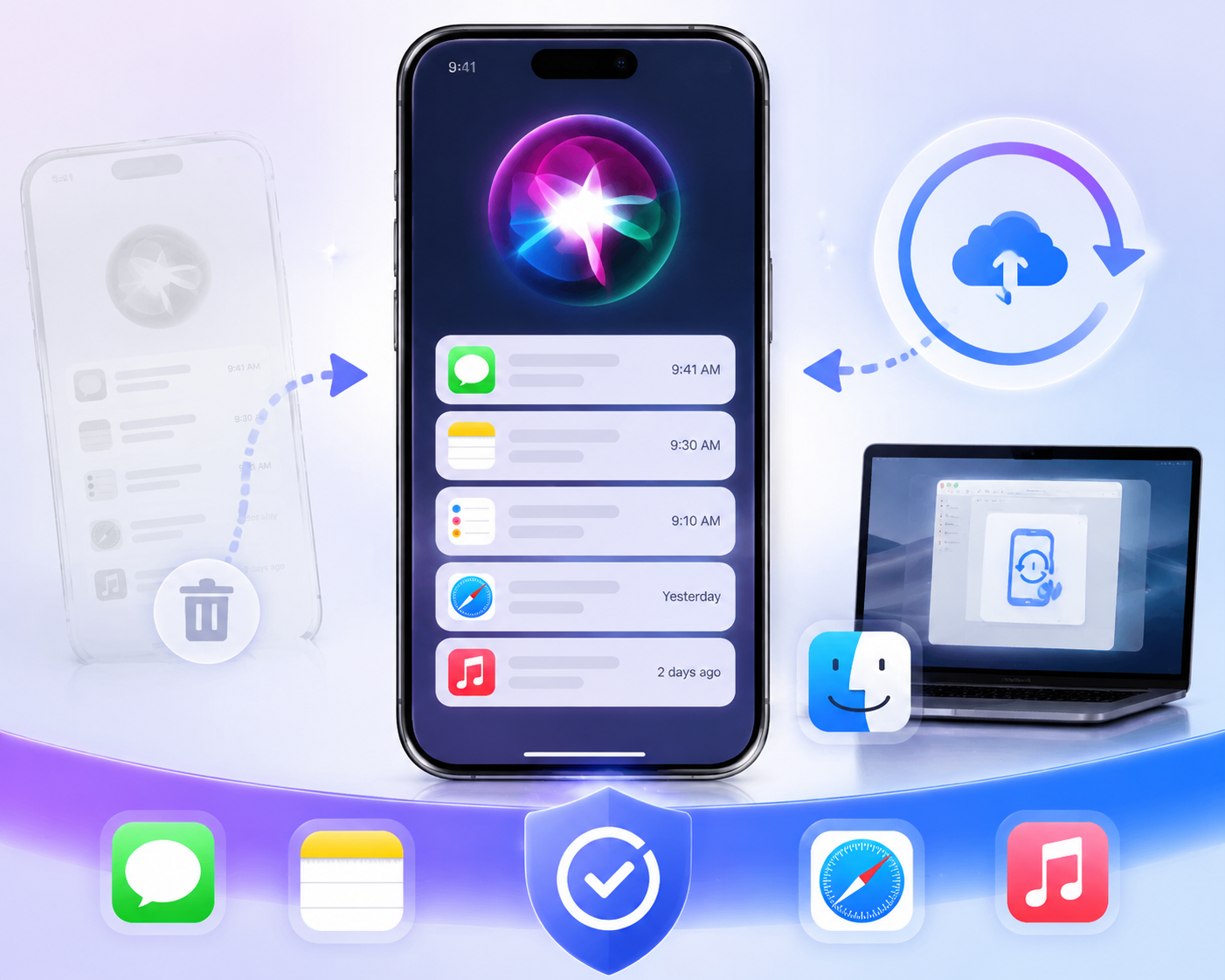
Method 2: Restore Siri Data from iCloud
If you use iCloud syncing, your Siri-related content may still be recoverable through cloud backup.
Check iCloud for:
Notes recovery (recently deleted or synced notes)
Photos recovery (including screenshots of Siri responses)
Files recovery (iCloud Drive documents)
Full device restore from backup
If the missing Siri Messages were synced before deletion, restoring from iCloud is often the most effective official method to recover lost data.
Method 3: Recover Permanently Deleted Siri Messages
In some cases, Siri Messages may be permanently removed due to deletion beyond 30 days, disabled iCloud backups, iOS update overwrites, or cleared Notes, Files, and Photos data.
When this happens, standard recovery methods may not work, and deeper recovery may be required because the data is often stored in fragmented system files rather than a single chat history.
In such cases, professional software like Tenorshare UltData is your best solution, which can scan your device to restore lost Siri-related data, such as notes, screenshots, and system-generated files.
Its key advantages include:
Deep Scanning
It targets fragmented database files and unallocated storage sectors that system tools cannot reach.
Comprehensive Recovery
It restores diverse file types, including Notes, Photos, and app-generated files.
Update-Proof
It is specifically designed to retrieve Siri-related content often lost or corrupted during iOS updates.
Backup Independent
It functions effectively even when traditional iCloud or iTunes backups are missing.
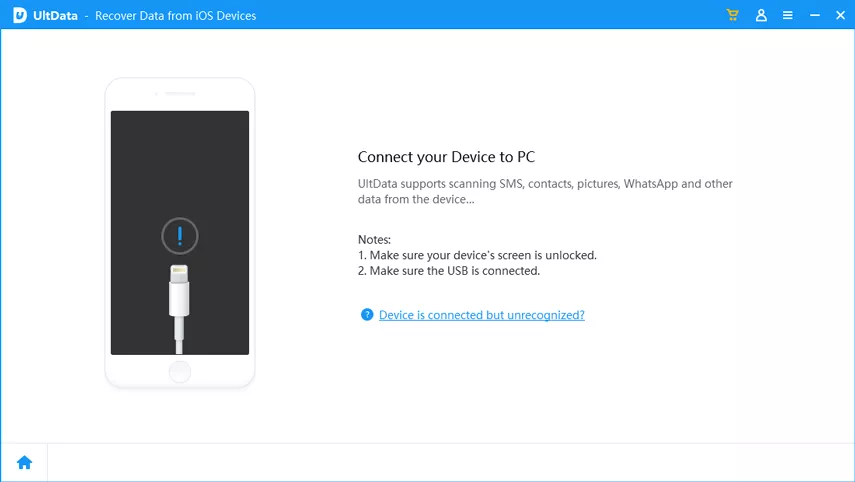
Below are the simple steps to use Tenorshare UltData for iOS:
After downloading the software, click “Data Recovery”.
Connect your phone to the computer using a USB cable.
Choose the data you want to recover.
Select the files you want to recover.
Click the “View” button to open the folder where your data is saved.
How to Prevent Losing Siri Messages in the Future
Preventing data loss is more reliable than recovery, especially after major iOS updates like iOS 27.
Enable iCloud Sync for Key Apps
Make sure the following apps are synced:
Notes
Photos
Files
This ensures Siri-generated content is automatically backed up.
Save Important Siri Outputs Manually
If Siri provides important information, copy it into Notes or Files immediately to prevent accidental loss.
Use Screenshots or Screen Recording
Since Siri does not maintain a traditional chat history, capturing responses is one of the most reliable preservation methods.
Create Regular Backups Before iOS Updates
Always create a full backup before upgrading your device:
iCloud Backup
Finder Backup (Mac or PC)
This ensures you can restore Siri-related data if anything goes missing after an update.
Conclusion
Missing Siri content is often just hidden in your Notes, Files, or backups. However, if your data was cleared from "Recently Deleted" folders or the 30-day window, you may need to recover Siri message deleted permanently using more specialized solutions.
When standard settings fail, advanced tools like Tenorshare UltData can bridge the gap. These tools scan your iPhone’s internal storage to help you retrieve permanently deleted Siri-related files, such as notes, logs, and screenshots, ensuring no important history is lost.










 iOS Tips & Latest Updates
 Bug Fixes, Unlock Guides
 Giveaways & Freebies






By Jenefey Aaron
2026-10-14 / iOS Data Recovery