
 iOS Tips & Latest Updates
 Bug Fixes, Unlock Guides
 Giveaways & Freebies


UltData - Best iPhone Data Recovery Tool
Recover Deleted & Lost Data from iOS Devices Easily, No Backup Needed!
UltData: Best iPhone Recovery Tool
Recover Lost iPhone Data without Backup
If your notes missing after iOS update, this problem is far more common than you might think. Every major iOS release—especially big jumps like iOS 18 to iOS 27 or point updates such as iOS18.7.2—causes waves of users reporting iOS update notes missing or the Notes app showing only a fraction of what was there before.
Unlike photos or messages, Notes relies heavily on sync databases, account permissions, and multiple background services. When an update occurs, iOS may rebuild or migrate these databases, temporarily making notes appear missing. In more complex cases, the update disables email-based Note accounts (like Gmail/Outlook), leaving users with an empty Notes app even though the data still exists on the server.
Understanding the root causes is the key to choosing the correct recovery method.
Understanding why notes disappear helps you choose the right recovery method. Here are the main causes:
The key takeaway: your notes are likely still there—they just need the right steps to become visible again.

Try these solutions in order. Most users recover their notes within the first three fixes.
This is the most common fix for notes missing after iOS update. The update may have disrupted your iCloud connection. By toggling the Notes sync setting off and back on, you force iOS to re-establish the connection to iCloud servers and reload all your stored notes. This process refreshes the authentication token and rebuilds the local Notes index, which often resolves sync-related visibility issues.

Success rate: This method restores missing notes for approximately 40% of users experiencing sync-related issues after iOS updates.
iOS updates sometimes move notes to the Recently Deleted folder instead of displaying them normally. This can happen during database migration when the system temporarily flags notes as deleted. Additionally, notes may be hiding in collapsed subfolders that don't automatically expand after an update. Checking all folder locations thoroughly ensures you don't overlook notes that are simply misplaced rather than truly missing.


Pay special attention to subfolders within email accounts—these often don't auto-expand after updates, and your notes might be hidden inside them even though the parent folder appears empty.
Many users store notes under Gmail, Outlook, or Yahoo accounts without realizing it, and iOS updates frequently disable the Notes synchronization toggle for these third-party email accounts as a side effect of security or account permission reconfigurations. When this toggle is turned off, all notes associated with that email account become invisible in the Notes app, even though the data still exists on the email provider's server. Re-enabling this setting immediately restores visibility to these notes.
Why this works: This single fix resolves 30-40% of iOS notes missing cases because many users don't realize their notes are stored with email accounts rather than in iCloud.

If the basic sync toggle didn't work, you need to force a complete iCloud reconnection by signing out and back in. This process clears corrupted authentication tokens, resets sync permissions, and forces iOS to rebuild the entire Notes database index from scratch. During the sign-out process, choosing to keep a copy of data on your device ensures you don't lose any local notes while the sync refreshes.

If the quick fixes above didn't restore your notes, or if you discover that your notes are truly missing (not just hidden), you need a more powerful solution. This is especially true when:
In these situations, standard Apple recovery methods won't work because they can only restore what was previously backed up. You need a tool that can scan your iPhone's internal system database and recover notes that the Notes app itself cannot access.
Tenorshare UltData is specifically designed to recover iOS data that seems permanently lost. Unlike iCloud or iTunes restoration, UltData performs deep system scans to locate and recover notes from areas that Apple's built-in tools cannot reach.





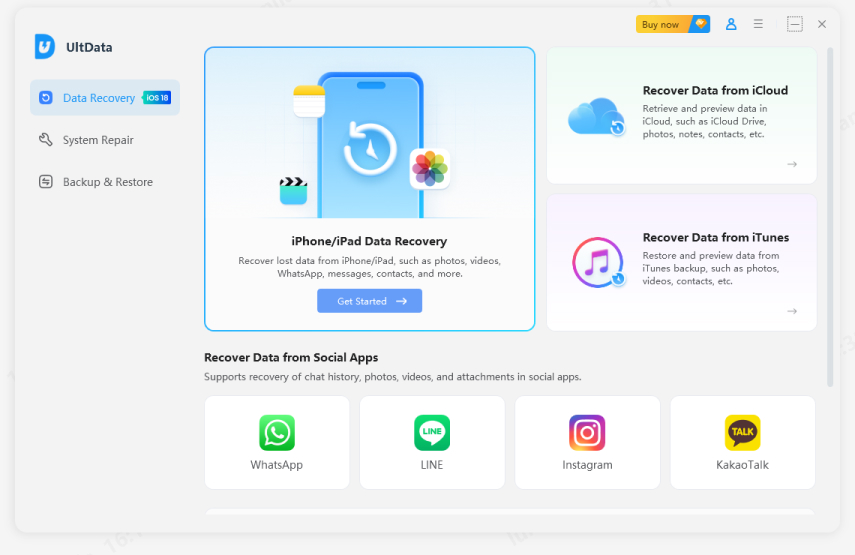
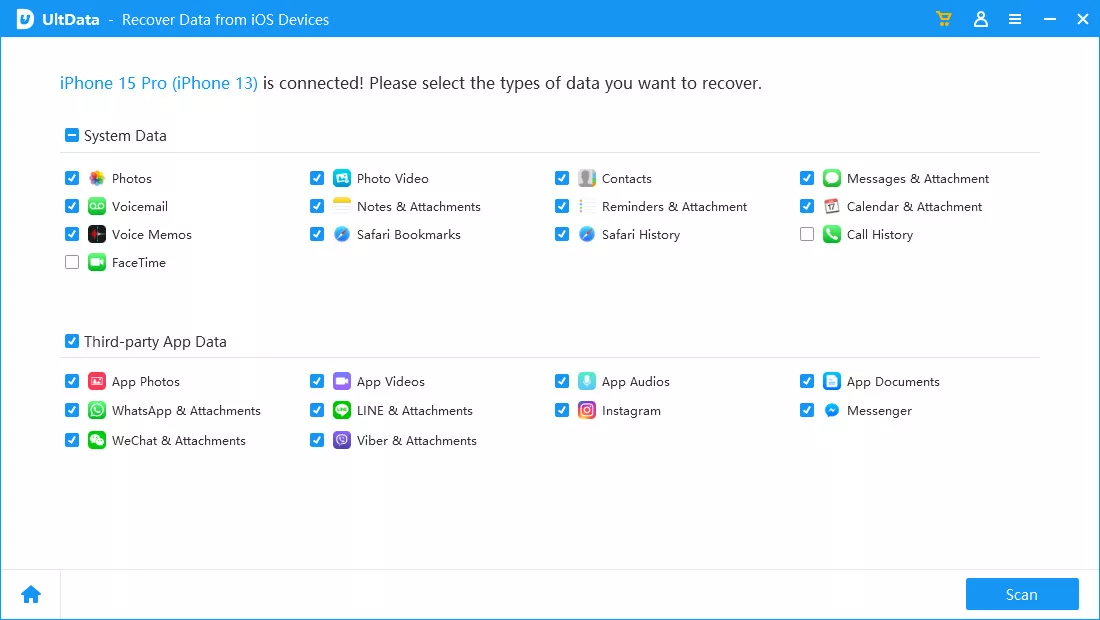

iCloud and iTunes backups only restore synced or previously backed-up notes. UltData goes deeper because it:
This means UltData can often recover notes that appear "gone forever" from the perspective of the Notes app and iCloud.
If you’re experiencing notes missing after an iOS update and you have an iTunes or iCloud backup created before the notes disappeared, you can try these two recovery methods with UltData. Unlike Apple’s official backup restore, which restores the entire device, UltData lets you extract and recover your missing notes without erasing your current iPhone.
If you have an iTunes backup created before the update, UltData can extract notes from it:
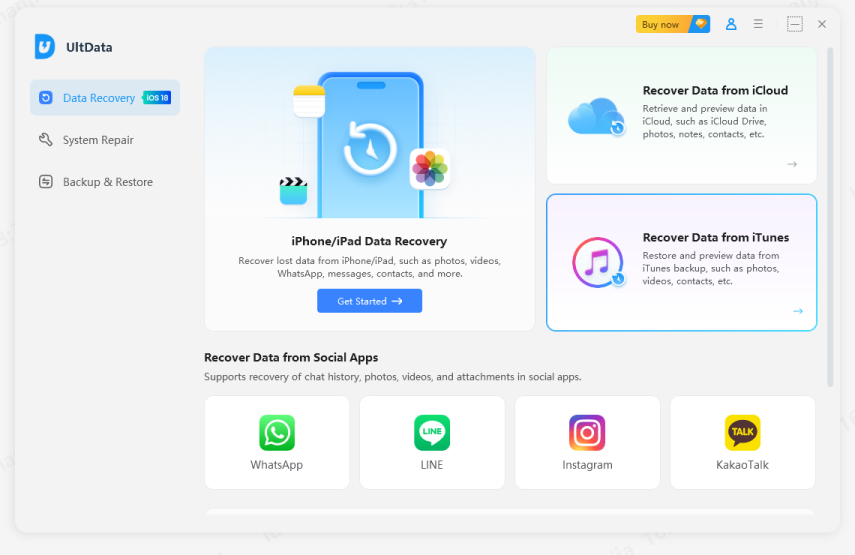
Advantage: Unlike iTunes restore (which erases your current iPhone), UltData extracts only notes without affecting other data on your device.
If you have an iCloud backup that may contain your missing notes:
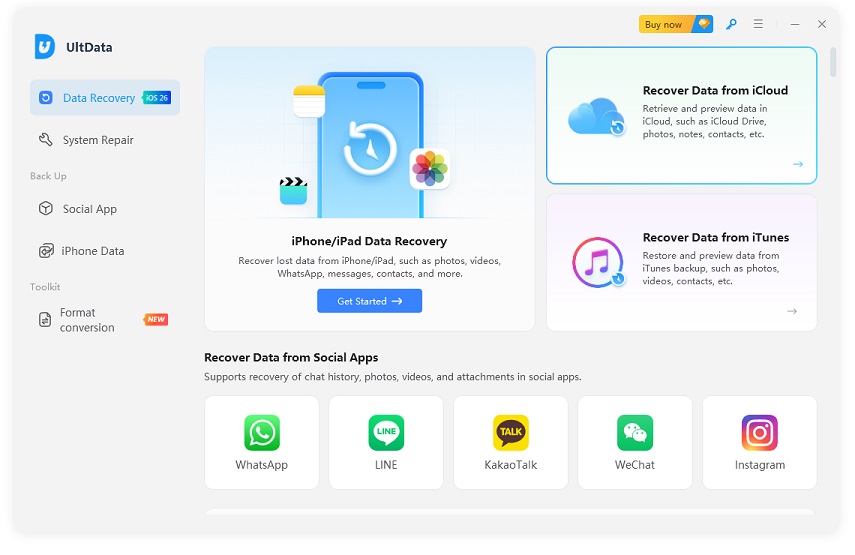
Advantage: You don't need to erase your iPhone or restore everything—just extract the missing notes selectively from your iCloud backup.
In most cases, no. Your notes are usually still stored on your device or in iCloud—they're just temporarily inaccessible due to sync issues, disabled account toggles, or database migration problems. Try the quick fixes in Part 2 first. If those don't work, tools like Tenorshare UltData can recover notes directly from your iPhone's internal database.
Yes. Tenorshare UltData can scan your iPhone's internal SQLite database and recover notes that were never backed up, including local "On My iPhone" notes and deleted content not yet overwritten. This works even when standard Apple recovery methods fail because there's no backup available.
iCloud sync time varies based on your data volume and internet speed. After major iOS updates, it can take anywhere from 10 minutes to several hours (sometimes up to 24 hours) for all notes to fully sync and appear. Make sure you have stable Wi-Fi and sufficient iCloud storage during this process.
iOS updates often disable the Notes toggle for email accounts (Gmail, Outlook, Yahoo) while leaving iCloud Notes enabled. Go to Settings → Mail → Accounts, select each email account, and turn ON the Notes toggle. Your email-based notes will immediately reappear.
Only if the missing notes were included in that backup. Important: Full iPhone restore erases all current data on your device. Before doing this, check iCloud.com to see if notes are there, try the quick fixes in this guide first, or use Tenorshare UltData to selectively extract notes from backup without erasing your iPhone.
Experiencing notes missing after iOS update is frustrating, but in most cases, your data is recoverable.
If those methods don't restore your notes, or if your notes were stored locally without iCloud backup, Tenorshare UltData provides the most comprehensive recovery solution. Its ability to scan iPhone internal databases and retrieve supposedly "lost" notes makes it the go-to tool when standard Apple recovery methods fail.
Remember: act quickly. The sooner you attempt recovery after discovering missing notes, the better your chances of successful restoration—especially for deleted content that hasn't yet been overwritten by new system data.



then write your review
Leave a Comment
Create your review for Tenorshare articles

Share this post


UltData - Best iPhone Data Recovery Tool
Recover Deleted & Lost Data from iOS Devices Easily, No Backup Needed!
UltData: Best iPhone Recovery Tool
Recover Lost iPhone Data without Backup
By Jenefey Aaron
2026-10-20 / iOS Data Recovery