

 iOS Tips & Latest Updates
 Bug Fixes, Unlock Guides
 Giveaways & Freebies


iCareFone - Free iOS Backup tool & Easy Data Manager
Backup/Transfer/Restore/Manage iOS Data with Simple Clicks
Backup/Manage iOS Data Easily
Backup/Manage iOS Data in Clicks
Activating a new iPhone is normally easy, but your iPhone 18 Pro stuck on restore from iCloud would make you upset. Instead of finishing the transfer, you see a progress bar that barely moves or a "Time Remaining: Estimating..." that hangs for much longer than normal. This problem may happen during initial setup, especially when restoring a large iCloud backup that includes photos, videos, apps, messages, and more.

Fortunately, a restore that appears to be frozen doesn't necessarily mean your data is lost. Restore timing are highly variable depending on the size of backup and wi-fi speed, however some content may be downloading in background.
The fact that showing "Time Remaining: Calculating..." doesn't necessarily mean your iPhone is frozen. The device might this during an iCloud restore to communicate with Apple's servers, check how much data it has to download, and categorize various types of content. The estimated time of a large backup or a slow or unstable Wi-Fi connection can make the time hanging or moving back and forth.
Apple states that the first restore could take an hour, or more, depending on the size of the backup and the speed of your network. Apps, photos, music, and other content may continue to restore in the background for hours or days. But if you feel that there's no progress after a long wait, you might want to troubleshoot the restore.
Here are the possible solutions you can try to overcome it:
As already said, the very first thing is to wait for some time, if the progress bar moves forward.
Don't be too quick to reboot your device just because the new iPhone stuck on restore from iCloud time remaining estimating message isn't moving. A large backup can take a long time, especially if it includes large photo and video libraries.

Make sure your iPhone 18 is connected to a strong Wi-Fi network and plugged in to a power source. Don't keep switching Wi-Fi networks or disconnect the device.

Apple recommends that you stay connected to Wi-Fi, since disconnecting might pause the restore process. Once the initial restore it will continue downloading other stuff in the background.
Poor or fluctuating Wi-Fi signals are among the most frequent causes of an iPhone 18 setup stuck on restore from iCloud takes a long time to complete.
Try the following:

Apple in particular suggests to try another network when an iCloud restore fails or experiences issues.
If you can, use a fast, private Wi-Fi connection, and keep the iPhone plugged into power while you restore.
If you noticed your iPhone 18 restore from iCloud stuck problem specifically at the estimating step, just wait for a moment before you think there is something wrong in the process.
The countdown time is the estimation time, which is not always accurate. It may have to analyze the contents of the backup before it can give a useful estimate. A Reddit thread also captures how users can be faced with very long time estimates when transferring data, as a recent poster wrote that an estimating phase eventually moved.

Solution: So, if the iPhone is still on and you are not seeing any error messages, simply leave it connected to Wi-Fi and power for a while before doing something more disruptive.
If the restore really looks frozen, rebooting the new iPhone may help resolve this temporary software or connection glitch.
Process to Restart the iPhone
On a recent-model iPhone that doesn't have a Home button, press the volume up button, then quickly tap the volume down button, and finally press and hold the side button until you see the Apple logo.

Once the device reboots, see if the setup process continues normally.
Don't restart the process if it's only been running for a short time. However, if the new iPhone setup is stuck on restore from iCloud problem continue for a long time, and no progress can be seen, turn off and turn on can be a wise choice. Also, it suggests turning devices off and on as a general troubleshooting step for issues with backup and restore.
If the restore continually fails, you can reboot the setup process and choose the iCloud backup once again.

If the iPhone has been previously fully set up, Apple states you might have to erase the device before restoring from an iCloud backup via the setup process.
Troubleshooting Guide:
On the Setup screen, tap Transfer Your Apps & Data.
Then tap From iCloud Backup, sign in to your Apple Account, and pick the appropriate backup.
Check the date and the size of the backup before you select it so as to ensure you are restoring the right version of your old device.
If you initially tried for a direct device-to-device transfer and it's not finishing, an iCloud backup can offer an alternative path.
When you are setting up, choose Restore from iCloud Backup instead of transferring from your old iPhone. This way your new iPhone can go to the cloud and pick up all your saved stuff from Apple's cloud.

Troubleshooting Guide: Ensure the backup is recent enough to include the data you need. When more than one backup is available, Apple suggests checking their dates and sizes before making a selection.
This method is especially useful if your new iPhone is stuck on restore from iCloud after a failed direct transfer.
If the standard iCloud restore fails repeatedly, a third-party transfer and device management solution can be the best alternative. From my side, the already tested iCareFone is highly recommended. Tenorshare has launched iCareFone to resolve all such issues and provide a seamless user experience without effort.
It is a handy way to manage iPhone data on a computer rather than iCloud, so you can view and transfer data directly. It can be used when your iPhone 18 Pro is stuck on restore from iCloud and hampers your setup process.
iCareFone Features




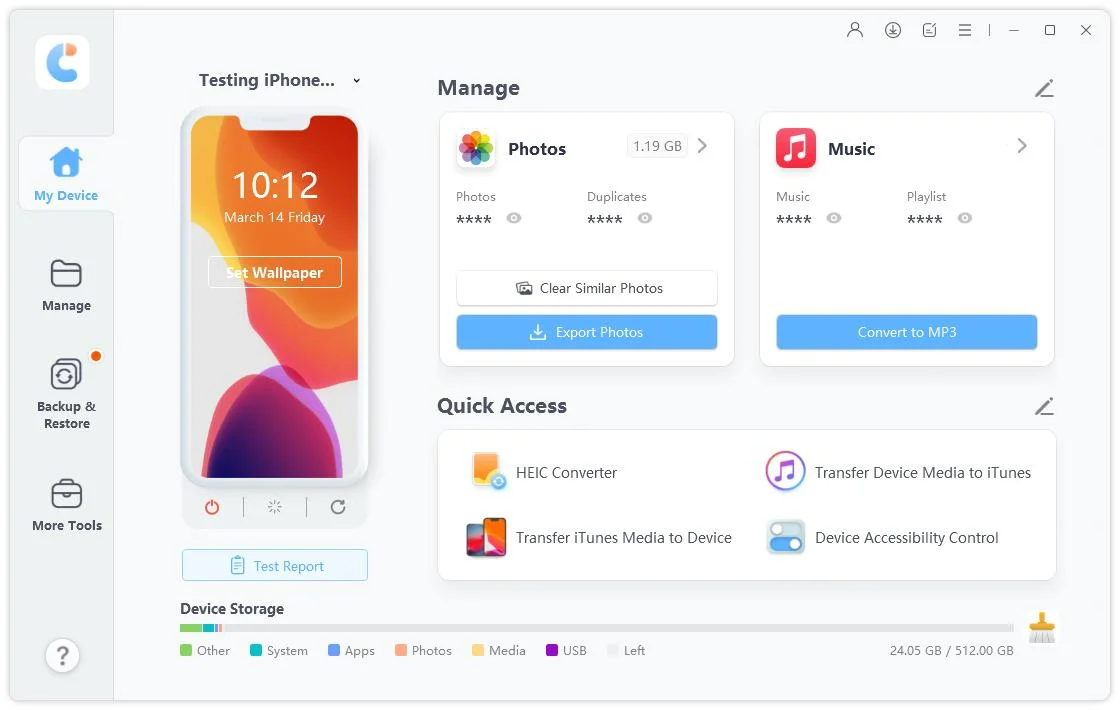
Prior to any third-party software usage, please be sure to have a valid backup of your important data and to thoroughly read over the features and requirements of the software.
Another option is to do the initial set up without importing your data right away. Apple has a proper procedure and guidelines for the situation when a backup requires a newer version of iOS.

Troubleshooting Guide:
Select Don't Transfer Apps & Data, finish the setup, upgrade the iPhone to the newest version of software available, then erase the device, and go back to the setup and restore from the backup.
And this comes in handy when an iCloud backup and the software your new iPhone runs aren't compatible.
Important Instruction: In other words, if you had something to lose on your previous iPhone, don't wipe that original device until you know for sure that your backup or transfer is secure.
There's no one-size-fits-all recovery time. It mainly depends on the size of the backup and your internet speed. The first restore can take minutes to about an hour, and apps, photos, and other content may keep downloading in the background for hours or even days.
When the restore is complete at the end of the initial setup and restore phase, a few things can still be restored in the background. The iPhone Must Stay on Wi-Fi and Connected to Power to download the content.
First, make sure it's connected to power and a stable Wi-Fi network. If the iPhone 18 Pro Max stuck on restore from iCloud issue persists with no development, restart the device, switch to another network, or reboot the setup and pick a different available iCloud backup.
Rebooting is halting the process in the middle, which is bad news for a normal slow restore that you should just wait out. Yet if the device has really frozen, rebooting and trying the restoration once more may clear up whatever temporary condition caused it to hang.
An iPhone 18 stuck on restore from iCloud does not automatically mean that your backup is corrupted or that you have lost your data. Begin by allowing the restoration process sufficient time with your device connected to a stable Wi-Fi network and power source, and then verify the network connection. If those don't work, restart the iPhone, try again with the setup, and use a different backup or restoration method.
For the most convenient one, try out a third-party app as recommended above i.e., iCareFone as a solution. With iCareFone, you can safely set it up without putting your valuable data at risk.


then write your review
Leave a Comment
Create your review for Tenorshare articles

Best Free iPhone Transfer & iOS Backup Tool
Easily, without iTunesShare this post


iCareFone - Free iOS Backup tool & Easy Data Manager
Backup/Transfer/Restore/Manage iOS Data with Simple Clicks
Backup/Manage iOS Data Easily
Backup/Manage iOS Data in Clicks
By Jenefey Aaron
2026-10-26 / iOS 27