

 iOS Tips & Latest Updates
 Bug Fixes, Unlock Guides
 Giveaways & Freebies


ReiBoot - No.1 Free iOS System Repair Software
Fix 150+ iOS Issues without Data Loss & Safely iOS 27 Upgrade/Downgrade
ReiBoot: No.1 iOS Repair Tool
Fix 150+ iOS Issues, No Data Loss
Getting stuck in an endless iOS 27 boot loop—where your iPhone repeatedly flashes the Apple logo and never reaches the Home Screen—can be terrifying, especially with precious data on the line. Instead of blindly testing random troubleshooting tricks, you need a targeted approach. In this ultimate triage guide, we have compiled the 11 most comprehensive solutions structured into a clear, symptom-based diagnostic process. From normal update delays to severe system crashes, we will guide you step-by-step to identify your exact severity level and apply the safest repair method to rescue your device without unnecessary data loss.

To help you navigate the 11 solutions—ranging from a simple wait to deep system restores—we have designed the Repair Priority Pyramid. This visual guide categorizes each method based on its safety, needed time, and technical complexity, allowing you to quickly pinpoint the right starting point for your device.

In most cases, no. An iPhone stuck in a boot loop will rarely resolve on its own, with two notable exceptions:
If your situation doesn't fit these two exceptions, you are likely dealing with beta software bugs, storage exhaustion, or firmware corruption that requires manual intervention.
To prevent unnecessary data loss, do not jump straight to a factory reset. We have structured the 11 fixes into four diagnostic levels based on symptom severity:
Your Action Plan: Assess your iPhone's current behavior, start with Level 1, and work your way down the list until your device successfully boots to the Home Screen.
Major iOS updates—especially massive developer or public beta files like iOS 27—take significantly longer to unpack and install than standard updates.
If your iPhone screen goes black, displays a frozen progress bar, or flashes the Apple logo shortly after the update begins, it is not necessarily a true boot loop. The system could simply be processing heavy installation tasks in the background.
What to do:
Sometimes, an iOS 27 boot loop is triggered by power starvation rather than a software bug. If your battery is completely depleted, or if an aging battery cannot provide the peak voltage required to fully boot the operating system, the device will constantly shut down and restart.
What to do:

If the device has enough power but remains stuck, a force restart is your best defense. This is a hardware-level interruption that forces the iPhone to cut the power cycle and clear its temporary memory, breaking the software dead loop without erasing any of your personal data.
The only official non-computer troubleshooting method recommended by Apple is the Force Restart: Apple Support Guide
Force Restart for iPhone 8 and Later
1. Quickly press and release the Volume Up button.
2. Press and hold down the Volume Down button for a short time.
3. Hold down the Side button.
4. Continue holding until the Apple logo appears.
Force Restart for iPhone 7 Series
1. Hold down the Volume Down button.
2. Hold the Sleep/Wake button down for a long time.
3. Press both at the appearance of the Apple logo.
Force Restart for iPhone 6s and Earlier
1. Press and hold the Home button and Power button.
2. Continue holding the button until the Apple logo appears.

Unpacking and installing the iOS 27 requires significant free space (typically 15-20 GB). If your storage drive hits 100% capacity during or immediately after the update, the operating system will instantly crash. This often results in an "intermittent boot loop," where the phone briefly reaches the Lock Screen or Home Screen before crashing and rebooting again.
What to do if your phone turns on for a few minutes:

If your iPhone manages to boot up and reach the Home Screen but randomly restarts after a few minutes, you are dealing with a moderate system conflict. You can resolve these issues directly from the device's Settings.
Beta updates can sometimes clash with your existing network configurations, custom display settings, or background processes, causing the system to panic and reboot. Resetting all settings will clear these conflicts without touching your personal files.
What to do:


This will NOT delete your photos, messages, or apps. It will only reset your Wi-Fi passwords, Bluetooth connections, and system preferences back to their factory defaults.
When a specific beta version causes widespread boot loop issues, Apple typically rushes out an emergency incremental patch (e.g., a rapid security response or a newer Beta version) to fix the bug.
What to do:
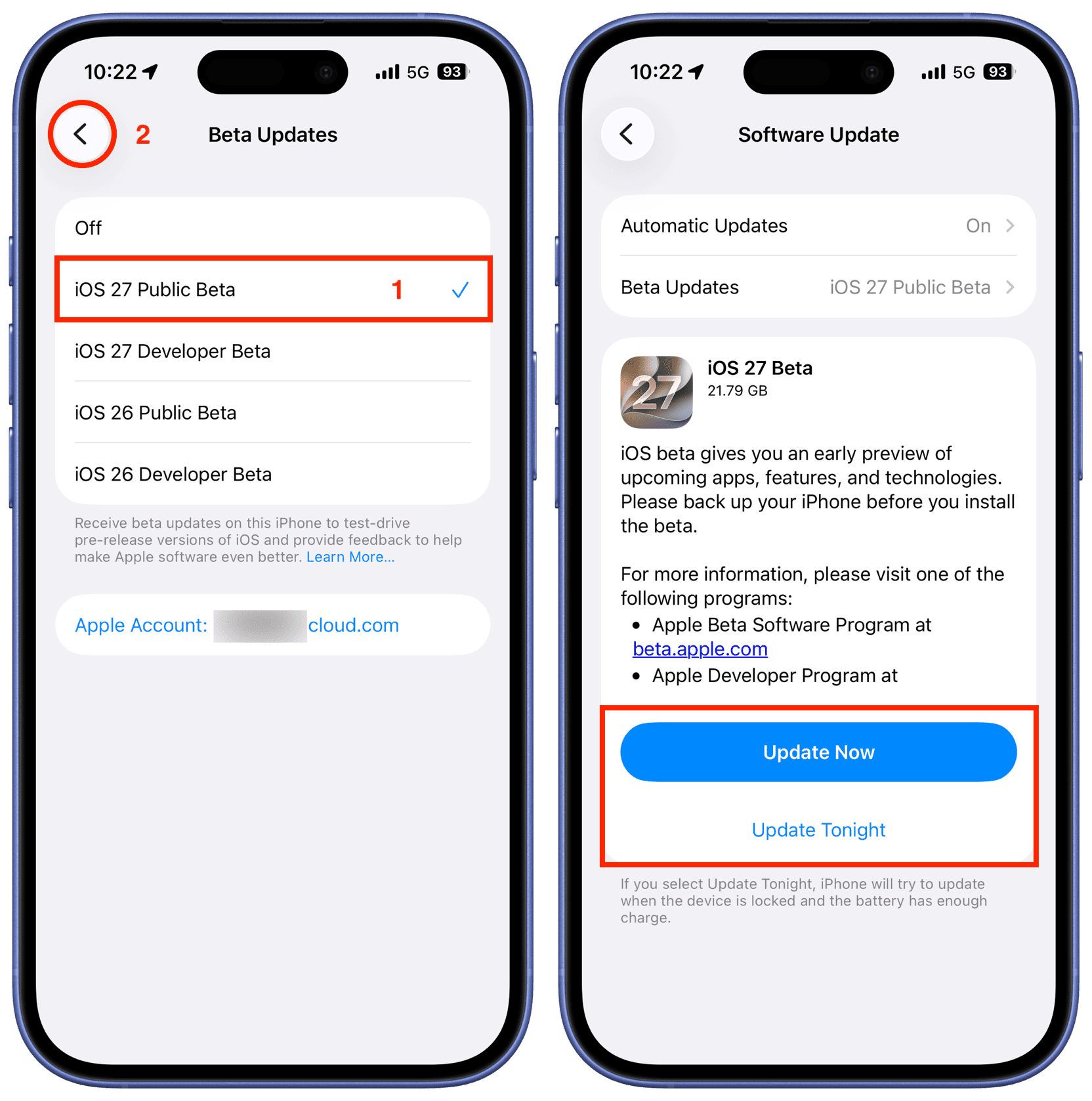
Introduced in recent iOS versions, Apple’s wireless Recovery Assistant allows you to revive a corrupted iPhone without needing a Mac, PC, or cables. If your iPhone is stuck in a boot loop or a recovery state, you can use another Apple device to push a clean firmware repair wirelessly.
What to do:

If your iPhone remains completely unresponsive or trapped in an endless boot loop despite trying all previous steps, it indicates that the core iOS files were deeply corrupted during the Beta installation. Your device requires a system-level firmware repair.
When your iPhone is trapped in an endless reboot cycle, generic troubleshooting often falls short, and traditional restore methods put your precious data at risk. In this critical scenario, Tenorshare ReiBoot emerges as the most reliable rescue solution—offering a highly secure, authoritative, and rapid system repair without compromising your personal files.
Why ReiBoot Stands Out:
Boot Loop-Specific Repair Logic: An iPhone gets stuck in a boot loop when a corrupted system file continuously interrupts the startup sequence. ReiBoot's algorithm is designed to bypass this broken boot cycle entirely. It securely downloads a clean, matching firmware package directly from Apple's servers, and replaces the corrupted startup files and system partition block-by-block. By strictly isolating your user data partition during this process, it breaks the infinite restart loop from the root without touching your photos or apps.




How to use it:
Step 1: Install ReiBootInstall ReiBoot on your Windows computer or Mac.
Step 2: Connect Your iPhoneInstall the software and use a certified cable to connect with the device.

Once your device is detected, click “Standard Repair.”

ReiBoot automatically detects the correct firmware version and downloads it.

Click “Start Standard Repair” and wait for the process to complete.
In many reported cases, this method successfully resolves the iOS 27 boot loop issue without deleting user data.


If you prefer to use Apple's official desktop software and accept the risks, you can attempt to fix the system via Recovery Mode using iTunes (Windows) or Finder (Mac).
What to do:


When the prompt appears, always select "Update" first. This attempts to reinstall iOS without erasing your data. If the update fails and you are forced to click "Restore," IT WILL COMPLETELY ERASE ALL DATA ON YOUR DEVICE.

Device Firmware Update (DFU) mode is the absolute last software resort. Unlike standard Recovery Mode, DFU bypasses the iBoot bootloader, allowing the computer to completely rewrite the firmware from scratch, regardless of what state the current OS is in.

A DFU restore strips your iPhone down to its bare code. If you do not have an iCloud or local backup, this guarantees 100% permanent data loss.
Entering DFU mode requires precise timing. For a detailed visual guide on the button combinations, watch this tutorial:
If your iPhone still boot loops after a successful DFU restore, or if the DFU process fails with specific error codes, software is no longer the issue. You are facing a physical hardware failure—likely a damaged logic board, a faulty storage chip, or a dead battery unable to hold a charge.

It's time to stop tinkering and let the professionals handle it. Book an appointment at the Genius Bar or visit an Apple Authorized Service Provider .
Q1: Can I downgrade from iOS 27 to a stable iOS 26 to stop the boot loop?
Yes. Rolling back to a stable public release often resolves beta bugs. While you can use iTunes/Finder to flash the IPSW file manually, third-party tools like Tenorshare ReiBoot offer a simpler one-click downgrade feature. Note: Apple does not allow restoring an iOS 27 backup onto an iOS 26 device.
Q2: Is it possible to backup my iPhone while it is stuck on the Apple logo?
No. iCloud, iTunes, and Finder require the iPhone to fully boot and be unlocked with your passcode to authorize a backup. To save your files, you must first fix the system using a no-data-loss repair tool before attempting any factory reset.
Q3: Will leaving my iPhone in a continuous restart cycle damage the hardware?
A software boot loop won't permanently destroy your logic board, but the constant restarting generates excess heat and can rapidly degrade battery health. If you cannot repair the system immediately (via iTunes or ReiBoot), it is best to let the battery drain completely to prevent overheating.
Dealing with an iOS 27 boot loop doesn't have to end in panic or a forced factory reset. By following this symptom-based triage guide, you can systematically troubleshoot your iPhone—starting from a simple force restart or storage cleanup for mild glitches, to adjusting system settings for moderate issues.
However, if your device is facing severe firmware corruption and preserving your personal data (photos, messages, apps) is your top priority, Tenorshare ReiBoot remains the most reliable and safest choice. It effortlessly breaks the endless restart cycle without risking a single byte of your data, saving you both time and stress.


then write your review
Leave a Comment
Create your review for Tenorshare articles
Share this post


ReiBoot - No.1 Free iOS System Repair Software
Fix 150+ iOS Issues without Data Loss & Safely iOS 27 Upgrade/Downgrade
ReiBoot: No.1 iOS Repair Tool
Fix 150+ iOS Issues, No Data Loss
By Sophie Green
2026-10-19 / iOS 27