
How to Control PC Music from Your Phone (Android & iPhone)
You can control PC music from your phone using Spotify Connect, a third-party YouTube Music extension, or a remote-control app. Spotify Connect is the easiest free option for Spotify: open Spotify on your PC, tap the device icon in the mobile app, and select your computer. For other players, Unified Remote or KDE Connect can send playback commands from your phone to your PC.
YouTube Music requires a workaround, while iTunes Remote works with supported iTunes and Mac Music libraries. Below are five ways to control PC music from Android, Samsung, or iPhone, plus setup steps and troubleshooting tips.


Part 1. Can You Control PC Music from Your Phone?
Yes. You don't need to walk back to your desk to pause a song or skip a track. There are three ways to do it, and the right one depends on your music app:
- Built-in "connect" casting: the phone app sends commands to the same app running on the PC. Spotify Connect is the main example, and iTunes Remote does the same for iTunes.
- Browser remote extensions: these pair your phone with music playing in a Chrome tab, such as YouTube Music on the web.
- PC remote apps: your phone sends media keys (play, pause, skip, volume) to whatever player is open on the PC. Unified Remote and KDE Connect work this way.
What you need: a phone, a Windows PC or Mac, and in most cases both devices on the same Wi-Fi network.

Part 2. How to Control PC Music from Phone: 7 Easy Ways
Method 1. Control Spotify on PC from Phone with Spotify Connect (Free)
If you listen on Spotify, you don't need anything extra. Spotify Connect is built into the Spotify app on Android and iPhone, and it's the easiest way to control Spotify on PC from phone. The music plays from your computer's speakers, while your phone works as the remote.

Step-by-Step
- Open the Spotify desktop app on your PC and the Spotify app on your phone. Sign in to the same account on both.
- Start playing a song on your phone, then tap the Connect device icon at the bottom of the player.
- Pick your PC from the list. The song moves to your computer, and you can play, pause, skip and change volume from your phone.


the PC only shows up while the Spotify desktop app is open and signed in. On iPhone, also allow Spotify to use your local network in Settings > Spotify > Local Network. Spotify also says you may need to reconnect if playback stays paused for more than 10 minutes.
Method 2. Control YouTube Music on PC from Phone Like Spotify (Chrome Extension)
YouTube Music on a computer has no Spotify Connect-style feature. The YouTube Music app on your phone can cast to TVs and speakers, but your PC's browser isn't on that list. That's why so many people search for a YouTube Music remote control like Spotify Connect.
The closest fix is a YouTube Music remote control Chrome extension called Music Handoff. It makes your YouTube Music tab appear as a cast device in the YouTube Music app. You pair it once with the app's TV code feature, and after that you can control YouTube Music on PC from phone like Spotify: pick the browser in the cast menu and play, pause or skip from your phone.
Step-by-Step
- Install Music Handoff from the Chrome Web Store on your PC, then open YouTube Music in Chrome.
- Open the extension. It shows a short pairing code the first time it runs. Copy it.
- In the YouTube Music app on your phone, go to Settings > Watch on TV > Link with TV code and type the code.
- Tap the Cast icon in the YouTube Music app and choose your browser. Playback now runs in the browser tab, and your phone controls it.

The extension can also pull what's playing on your phone back into the browser tab, and it keeps a separate volume setting for the tab. Its listing says pairing tokens are stored locally and that it talks directly to YouTube's own casting endpoints.
Music Handoff is a third-party extension, not an official Google product. Check its Chrome Web Store listing, update history, reviews, and permissions before installing it. Its functionality may change if YouTube updates its casting system.
Method 3. Mirror Your Phone's Music App to PC with Tenorshare Phone Mirror
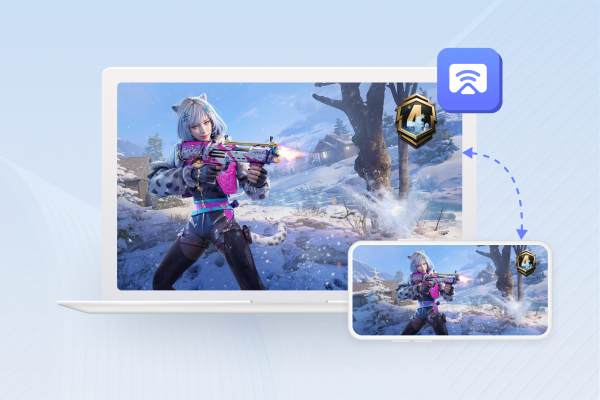
If you want to view your phone's music app on a larger screen instead of remotely controlling a PC music player, Tenorshare Phone Mirror is another option. It mirrors your Android or iPhone screen to a computer, allowing you to view music apps and browse playlists on a larger display. With Android, you can also interact with the mirrored phone using your PC's mouse and keyboard.
Phone Mirror also supports file transfers between Android devices and computers, which can be useful when managing local music files. However, it does not turn your phone into a remote control for music already playing on your PC. Also, Android audio is not mirrored to the computer, so sound continues to play through your phone or a connected audio device.


Key Features:
- Multi-Device Mirroring: Mirror and control up to 5 Android phones simultaneously.
- HD Screen Mirroring: Display your phone screen on a computer in up to 1080p resolution and 60 FPS.
- PC-Based Android Control: Control Android apps on Windows or Mac using your computer's mouse and keyboard, with more options covered in our guide to the best apps to control PC from phone.
- File Transfer: Drag and drop supported files between Android devices and your computer.
- Screen Capture: Take screenshots and record your phone screen directly from your computer. The same screen-mirroring approach can also help with controlling PC YouTube from your phone.
How to Mirror Your iPhone's Music App to a PC
iPhone mirroring works on Windows PCs over Wi-Fi.
- Download and open Phone Mirror on your Windows PC, then click iOS.
- Connect your iPhone and PC to the same Wi-Fi network.
- Open Control Center on the iPhone, tap Screen Mirroring and select Tenorshare Phone Mirror.
- Your iPhone screen appears on the PC. Open your music app and control playback on the iPhone while you view it on the big screen.


How to Control Your Android Music App from a PC
Android mirroring works on Windows and Mac with a USB cable.
- Open Phone Mirror on your computer (Android is the default option) and connect your phone with a USB cable.
- Follow the on-screen guide to turn on USB debugging. Phone Mirror shows brand-specific steps for Samsung, Huawei, Xiaomi, Oppo and Vivo.
- Your Android screen appears on the PC. Open Spotify, YouTube Music or any music app and control it with your mouse and keyboard.


To move music files, click File Transfer on the right toolbar, install the Phone Mirror app on your phone when asked, then drag songs into the mirroring window.

Method 4. Control PC Music from Phone Free with Unified Remote (Android & iPhone)
If you want to control PC music from phone free across different media players, Unified Remote is a flexible option. Its free version includes a Media remote with basic playback controls, so you can manage supported players such as Spotify, VLC, and other desktop media apps from your Android phone or iPhone.

Step-by-Step
- Download and install the Unified Remote Server on your Windows PC, Mac or Linux computer.
- Install the Unified Remote app on your Android phone or iPhone.
- Connect both devices to the same Wi-Fi network. The app finds the server automatically.
- Open the Media remote and use play, pause, skip and volume.
The free app covers basic music control. The one-time Full version ($4.99 in the US stores) unlocks 40+ premium remotes, custom remotes and widgets.
Method 5. Control PC Music from Android/Samsung with KDE Connect
KDE Connect is free and open source. Once paired, its multimedia control lets you pause, skip and change the volume on your computer from your phone. It works on Windows, macOS and Linux, which makes it a great way to control PC music from Android/Samsung phones.

Step-by-Step
- Install KDE Connect on your PC (from the Microsoft Store on Windows) and on your phone from Google Play.
- Connect both devices to the same Wi-Fi network.
- Open the app on your phone, pick your computer and tap Request pairing. Accept the request on the PC.
- Tap Multimedia control in the phone app to play, pause, skip and change the volume.

Samsung Galaxy phones work exactly the same way. Samsung's Link to Windows / Phone Link integration does something different: it controls the phone's music from the PC (see Method 7).
Method 6. Control Music on PC from iPhone with iTunes Remote
Apple's free iTunes Remote app lets you control music on PC from iPhone if you use iTunes for Windows or the Music app on a Mac. You can browse your library, build an Up Next queue and change the volume from the phone.

Step-by-Step
- Install iTunes Remote on your iPhone and connect it to the same Wi-Fi as your computer.
- Open iTunes on your PC (or Music on your Mac) and turn on Home Sharing with your Apple ID, or choose to add a library manually in the Remote app.
- If you add it manually, Remote shows a 4-digit code. Enter it in iTunes or Music on the computer.
- Your library appears in the Remote app. Tap a song to play it on the computer.
If you want to control Apple Music on PC from iPhone with the newer Apple Music app for Windows, iTunes Remote won't work. In the Apple Community, members confirm that the Remote app isn't supported by Apple Music for Windows. Your options are to go back to iTunes for Windows, or use a PC remote app like Unified Remote (Method 4) that sends media keys to any player.
Method 7. Control Phone Music from Your PC with Microsoft Phone Link (the Other Way Around)
Many people searching this topic actually want the reverse: control the music playing on an Android or Samsung phone from the PC. Microsoft Phone Link does that. It shows what's playing on your phone in a small player on the PC with Previous, Play/Pause and Next buttons.

Step-by-Step
- On your Android phone, turn on notifications for your music app in Settings > Notifications.
- On your PC, open Phone Link, go to Settings, and under Personalization turn on Show audio currently playing from my phone.
- Play music on your phone. The player appears in Phone Link, and you can switch between audio sources from the dropdown.
Microsoft says the audio plays from the Android device (or speakers connected to it), not from the PC, and some third-party audio apps aren't supported.
Part 3. Best Way to Control PC Music from Phone: Quick Comparison
 Please swipe to view
Your Final Decision Guide
- If you use Spotify, choose Spotify Connect for built-in music control with no extra setup.
- If you use YouTube Music, try the Music Handoff Chrome extension to control playback from your phone.
- If you want a free option that works with multiple music players, choose Unified Remote.
- If you use an Android or Samsung phone, KDE Connect is a convenient way to control PC media playback.
- If you use an iPhone with an iTunes library, iTunes Remote is a suitable option.
- If you want to mirror your phone's music apps on a computer screen, use Tenorshare Phone Mirror.
Part 4. Why Can't I Control YouTube Music or Apple Music Like Spotify?
Because only Spotify built "control from any signed-in device" into its apps. Here's how the three compare:
- Spotify: Spotify Connect works between any devices signed in to the same account, including the desktop app. That's why your PC appears in the phone's device list.
- YouTube Music: the app's Cast feature only targets TVs, smart speakers and Chromecast devices. YouTube Music control from another device therefore needs a workaround: an extension like Music Handoff that makes the browser look like a cast device (Method 2).
- Apple Music: remote control depends on iTunes Remote, which works with iTunes for Windows and the Music app on Mac, but not with the Apple Music app for Windows (Method 6).
Part 5. Control PC Music from Phone Not Working? Quick Fixes
Most connection problems come from network settings, permissions or outdated apps. Work through the checks below, and test your connection after each one.
- Use the same Wi-Fi: put the phone and PC on the same network. Avoid guest networks, and turn off VPNs on both devices.
- Keep the desktop app open: Spotify Connect only lists the PC while the Spotify desktop app is open and signed in. If the web player doesn't appear, use the desktop app.
- Allow local network access on iPhone: check Settings > \app name\ > Local Network for Spotify, Unified Remote and KDE Connect.
- Re-pair the extension: if YouTube Music stops showing your browser, unlink it and pair again with Link with TV code, especially after a browser update.
- Check the firewall: allow the Unified Remote Server and KDE Connect through Windows Defender Firewall.
- Turn on Home Sharing: iTunes Remote can't find the library without it, or without the 4-digit code.
- Restart everything: close the apps on both devices, restart them, and update to the latest version.
FAQs About Controlling PC Music from Phone
1.Can I control PC music from my phone for free?
Yes. Spotify Connect, KDE Connect, iTunes Remote and the YouTube Music extensions are free, and Unified Remote's free version includes media control.
2.How do I control YouTube Music on PC from my phone like Spotify?
To control YouTube Music on PC from phone, install the Music Handoff Chrome extension and pair it with the YouTube Music app using Settings > Watch on TV > Link with TV code. You can then select your browser to control playback.
3.Can I use my phone to control YouTube Music on my PC?
Yes. A YouTube Music remote control Chrome extension like Music Handoff lets you control playback in Chrome from your phone. Check the extension's permissions before installing.
4.Can I use my phone to control Apple Music on my PC?
With iTunes for Windows or the Music app on Mac, yes, using iTunes Remote. The Apple Music app for Windows doesn't support iTunes Remote, so use a PC remote app like Unified Remote instead.
5.How do I control PC music from Android or Samsung?
Use KDE Connect or Unified Remote for any player, or Spotify Connect if you use Spotify. All three work the same on Samsung Galaxy phones.
6.How to control PC audio from phone?
You can use Unified Remote or KDE Connect to control PC audio from your phone, including playback and volume. Spotify users can also use Spotify Connect for direct playback control.
Conclusion
To control PC music from phone, match the method to your music app. Spotify users should use Spotify Connect, YouTube Music users can add a free extension like Music Handoff, and anyone using another player can pick Unified Remote or KDE Connect. On iPhone with iTunes, the free iTunes Remote app still does the job.
If you'd rather see and use your phone's music app on the big screen, and move songs between your phone and PC, try Tenorshare Phone Mirror.
 iOS Tips & Latest Updates
 Bug Fixes, Unlock Guides
 Giveaways & Freebies
Speak Your Mind
then write your review
Speak Your Mind
Leave a Comment
Create your review for Tenorshare articles
Related articles
All topics
Share this post


By Jenefey Aaron
2026-11-24 / Windows Tips