Control Computer Volume with Your Phone: Pick the Right App for Your Device

authorPic

By Jenefey Aaron

2026-11-24 / Windows Tips

Yes, you can control computer volume with your phone using a remote-control app and a companion program on your computer. Most options connect over Wi-Fi, while some also support Bluetooth. For Linux users, KDE Connect is a free option for controlling supported media players. On Windows, Unified Remote offers basic volume and media controls, while PCVolumeControl lets iPhone users adjust individual app volumes.

Below, you'll find the best options for Android, Samsung, and iPhone, along with setup steps and troubleshooting tips.

control computer volume with phone

Part 1. Quick Answer: Which App Should You Use?

Here's the best free way to control computer volume with phone, sorted by device:

swiper icon Please swipe to view
Your phone
Your phone
Your phone
Your phone
Your computer
Your computer
Your computer
Your computer
Best free option
Best free option
Best free option
Best free option
What it controls
What it controls
What it controls
What it controls
Android / Samsung
Android / Samsung
Android / Samsung
Android / Samsung
Linux
Linux
Linux
Linux
KDE Connect
KDE Connect
KDE Connect
KDE Connect

"System volume" changes everything on the PC at once. "App volume" changes only one program, such as a game or a music player. If that's what you need, jump to the section on changing the volume for just one app.

how to change computer volume from phone

Part 2. How to Control Computer Volume from Android (Samsung Included)

Android gives you several options to control computer volume with phone. Unified Remote is another convenient way to control PC volume from Android, while KDE Connect works with supported Linux media players.

Use KDE Connect (Free and Open Source)

KDE Connect is a free, open-source option for Android users who want to control supported media players on a Linux computer.

  • Free and open source: No subscription or account is required.
  • Linux desktop integration: Works with supported Linux desktop environments and media players.
  • Multimedia controls: Use your phone to manage supported playback functions, such as play, pause, and track navigation.
  • linux desktop media integration

Steps

  • Install KDE Connect on your PC. On Windows, get it from the Microsoft Store; Mac and Linux downloads are on the official download page.
  • Install KDE Connect on your phone from Google Play or F-Droid, and connect both devices to the same Wi-Fi.
  • Open the app, select your computer and tap Request pairing, then accept on the PC. Open Multimedia control and drag the volume slider. You can now control Windows volume from phone with one finger.
tips icon
Tip:

Samsung Galaxy users can also install KDE Connect from Google Play or F-Droid. If the connection drops in the background, check KDE Connect's battery settings in One UI and allow background activity.

Use Unified Remote on Android (and Where to Get the Full Version Safely)

Unified Remote is a polished alternative with big, easy buttons. The free app includes 18 remotes, among them mouse, keyboard and media controls with volume up, down and mute.

  • Download Unified Remote Server for PC from the official download page. It supports Windows 10 or newer, macOS 11 or newer and Linux.
  • use phone as a volume remote for pc
  • Install the Unified Remote app from Google Play.
  • Connect the phone and PC to the same Wi-Fi network. The app finds your computer automatically.
  • Open the Media remote (or Basic Input) and use the volume buttons.

Looking for a "control computer volume with phone APK"? Read this first:

  • The official download page only links to Google Play and the App Store. There's no official APK on the site.
  • On Android, the Full version is a separate paid listing on Google Play, "Unified Remote Full" ($4.99). On iPhone, it's an in-app purchase.
  • So-called "unified remote full apk" files on unofficial sites are cracked copies. They can hide malware, and an app like this gets deep control of your PC.
  • If you can't use Google Play, stick to fully open-source options such as KDE Connect from F-Droid.

Part 3. How to Control Computer Volume from iPhone

iPhone has fewer choices than Android, but apps like Unified Remote and PCVolumeControl make it easy to control PC volume from iPhone.

Unified Remote for iPhone

Unified Remote uses the same server on the PC as the Android version, so the setup is identical: install the server, install the Unified Remote iPhone app, join the same Wi-Fi and open the Media remote. The free iOS app also has the 18 basic remotes; the Full version ($4.99 in-app purchase) adds 40+ premium remotes, custom remotes and widgets.

note icon
Note:

when iOS asks to let the app find devices on your local network, tap Allow, or the app won't see your PC.

PCVolumeControl (Free, Per-App Volume on Windows)

PCVolumeControl turns your iPhone into a wireless volume mixer for a Windows PC. Besides the master volume, it gives you a separate slider and mute button for each program, such as a game, Spotify, Discord or a browser, and it can switch the PC's audio output. It's free and open source, with no ads or accounts, and version 2.0 was released in June 2026.

control pc volume from iphone

Steps

  • Install the PcVolumeControl server on your PC from the project's GitHub page.
  • Install PCVolumeControl on your iPhone and connect both devices to the same Wi-Fi.
  • Your PC appears in the server list automatically. Tap it, then use the master slider or the per-app sliders. New users can tap Set it up for a guided walkthrough.

Mac Only? Two More Options

  • Easy Volume Controller ($0.99): a simple volume and mute remote for iMac and MacBook. You install a free helper app on the Mac from the Mac App Store.
  • Scroll the Volume (free with in-app purchases): a Mac menu bar volume app with an iPhone and Apple Watch companion that can also switch audio outputs. Turn on Remote Control in the Mac app, then pair with the code shown on the Mac.

Part 4. How to Change Computer Volume from Phone for Just One App

Sometimes you don't want the whole PC louder: you want the game quieter and the voice chat louder. Here's how to change computer volume from phone for one program at a time.

  • Spotify: Spotify Connect lets you control playback on your PC from the Spotify mobile app. Its in-app volume control adjusts Spotify playback on the connected device, but it is not a general-purpose PC volume mixer.
  • Browser tabs: some Chrome extensions control a single tab. For example, Music Handoff lets the YouTube Music phone app control a YouTube Music tab and keeps its own volume level for that tab.
  • Every app, from the phone: PCVolumeControl (see the iPhone section) gives you a slider per app, on both iPhone and Android.
  • Set levels on the PC first: EarTrumpet is a free, open-source volume mixer for Windows, available from the Microsoft Store. Set each app's level once in EarTrumpet, then use your phone remote for the master volume. This is the simplest form of application volume control.
  • eartrumpet pc volume mixer

Part 5. Can You Build Your Own Phone Volume Remote? (GitHub Options)

If you like to tinker, you'll find several open-source PC volume control GitHub projects. Most run a small server on the PC; some serve a web page you open in your phone's browser, so there's no phone app to install. Two worth a look:

  • PcVolumeControl (MIT license): a server for Windows and Linux written in Rust, plus Android and iOS clients and a protocol spec. It's the same project behind the PCVolumeControl apps above, and it was updated in 2026.
  • Couch Control (MIT license): a small Python server for Windows. You open your PC's address in the phone's browser to get a volume slider, play/pause and "now playing" info. It's a tiny project with few stars, so treat it as a starting point for your own build.
  • couch control phone media remote
note icon
Note:

only install an APK or installer from a project's own GitHub Releases page, and check the stars, last update and license before running anything on your PC.

Part 6. Bonus: Prefer to Play Music on Your iPhone? Move It with Tenorshare iCareFone

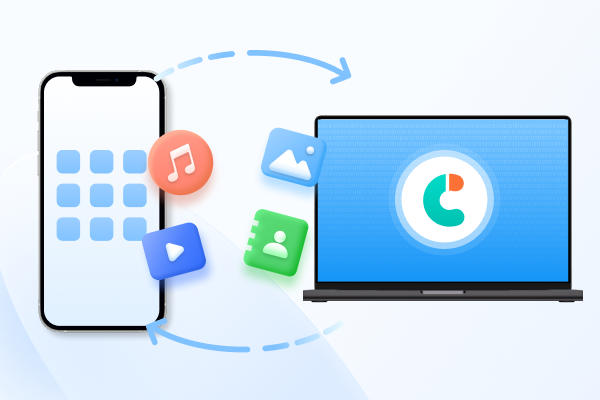
The remote-control apps and tools above let you adjust your PC volume or manage playback from your phone. But if you mainly listen to music stored on your computer, you don't always need to keep your PC running or use your phone as a remote. You can transfer your favorite songs directly to your iPhone and listen to them wherever you go.

Tenorshare iCareFone makes this easier by letting you transfer music between a Windows PC or Mac and an iPhone without iTunes. You can import songs from your computer, export music from your iPhone, organize playlists, and remove tracks you no longer need. Whether you want to move your existing music library to a new iPhone or simply manage your favorite tracks more conveniently, iCareFone provides a straightforward way to handle your music without relying on iTunes.

transfer pc music to iphone

Key Features:

  • Music Transfer: Transfer music between a PC or Mac and an iPhone in both directions, without using iTunes.
  • Playlist Management: Create and organize playlists, and delete unwanted tracks.
  • Music Playback: Play iPhone music on your computer without installing extra apps.
  • Ringtone Creation: Import your favorite audio clip as an iPhone ringtone in one click.
  • iPhone Backup: Back up your iPhone to a computer for free.
  • Remote Control Options: If you also want to use your phone as a remote mouse or control PC YouTube from your phone, dedicated remote-control apps offer additional options.

How to Move Music from Your PC to iPhone with iCareFone

  • Install and open iCareFone, then connect your iPhone with a USB cable (or on the same Wi-Fi). Unlock the iPhone and tap Trust if asked.
  • install icarefone and connect iphone
  • Click Manage in the left menu, then choose Music > All Music.
  • Click Import at the bottom, choose the songs or folder on your computer, and wait for the transfer to finish.
  • import songs or folder
  • Optional: click the + icon under the list to create a new playlist for the songs.
  • create new playlist with plus icon

Part 7. Is It Safe to Control Your PC from a Phone App?

Yes, if you set it up carefully. These apps can press keys and change settings on your PC, so treat them like any remote-access tool.

Stay safe:

  • Download only from Google Play, the App Store, the Microsoft Store or the developer's official site.
  • When Windows asks about the firewall, it allows the server on Private networks only, not public Wi-Fi.
  • Turn on a password or pairing code (Unified Remote supports password protection and encryption; KDE Connect requires pairing).
  • Close or quit the server when you're not using it.

If the volume doesn't change:

  • Run the server as an administrator once, so it has permission to change audio settings.
  • Check the default playback device in Settings > System > Sound > Output. The app changes the default device, so if your speakers aren't selected, nothing seems to happen.
  • Restart both the phone app and the PC server, and make sure both are on the same Wi-Fi network.

FAQs about Control Computer Volume with Phone

1.Can my phone control my computer's volume without an app?

Not on its own. Windows and macOS have no built-in phone volume remote, so you need a helper on the PC. Spotify Connect works without extra software if you already use Spotify, and browser-based projects like Couch Control need no phone app, just a server on the PC.

2.Which app works best on a Samsung phone?

KDE Connect. It's free, has no ads and works on Windows, Mac and Linux. To control computer volume with Samsung phones reliably, set KDE Connect's battery to Unrestricted in One UI.

3.Is there a safe APK to control computer volume?

Yes. A safe control computer volume with phone APK is one from an official source. Use Google Play for Unified Remote and PCVolumeControl, or F-Droid for KDE Connect. Avoid "full" or modded APKs from unofficial download sites.

4.Can I control one app's volume instead of the whole PC?

Yes. PCVolumeControl gives you per-app sliders from your phone, Spotify Connect changes only Spotify's volume, and EarTrumpet lets you set each app's level on the PC.

5.Does it work over Bluetooth or only Wi-Fi?

Most of these apps use Wi-Fi, with both devices on the same network. Unified Remote can also connect over Bluetooth on Android, which helps when there's no shared Wi-Fi.

Final Thoughts

To control computer volume with your phone, pick the app that fits your device: KDE Connect for Android and Samsung, and Unified Remote or PCVolumeControl for iPhone. If you only want to change one app, use Spotify Connect, PCVolumeControl's per-app sliders, or set levels with EarTrumpet. For most people, that's the easiest way to use a phone as a volume remote for a PC. And if your music really belongs to your phone, move it to your iPhone with Tenorshare iCareFone.

img
Hey! 👋 Welcome to Apple tech Hub!
Need help iPhone setup guide?
New Guide iOS 27 Tips & Tricks 🎉

Apple Tech Hub

  • icon iOS Tips & Latest Updates
  • icon Bug Fixes, Unlock Guides
  • icon Giveaways & Freebies
Join Now
img

Speak Your Mind

Registrer/ Login

then write your review

Speak Your Mind

Leave a Comment

Create your review for Tenorshare articles
Related articles

All topics

Share this post

Tenorshare iCareFone

iCareFone - Free iOS Backup tool & Easy Data Manager

Backup/Transfer/Restore/Manage iOS Data with Simple Clicks

Backup/Manage iOS Data Easily

Backup/Manage iOS Data in Clicks