Finding the best way to store photos from iPhone matters a lot when you want to protect your image quality. As photographers, sharing high-quality files with clients is part of our reputation.
Apps like WhatsApp or Instagram often compress images, making them look soft or blurry on larger screens. To avoid this and keep your work safe, this guide explains the most reliable ways to store, back up, and manage your iPhone photos without losing quality.
Part 1. What Counts as the Best Way to Store Photos from iPhone?
When choosing the best way to store photos from iPhone, the goal is simple: keep your images safe, organized, and always in full quality. A good storage method should offer reliability, easy access, and zero compression. Below is a table comparing the most effective storage options, including cloud storage, external drives, computers, and storing photos without iCloud using tools like Tenorshare iCareFone.
Comparison Table: Best Ways to Store Photos from iPhone
Please swipe to view
Method
Description
Quality Loss
Best For
Store Photos in the Cloud
Save photos in services like Google Photos, OneDrive, or Dropbox for easy access on all devices.
No loss if uploaded in “Original Quality.”
Users who want automatic backup and remote access.
Store Photos on an External Drive
Use a portable SSD, HDD, or USB drive with a Lightning/USB-C adapter to store full-resolution photos.
No loss; files stay in original format.
Users needing offline, physical backup.
Transfer Photos to Your Computer
Move photos to a Windows or Mac computer using USB or AirDrop for long-term safekeeping.
No loss; direct file transfer.
Photographers who edit or archive large photo sets.
Store Photos Without iCloud (Tenorshare iCareFone)
Use iCareFone to export photos in original quality without compression or iCloud limits.
No loss; keeps full-resolution HEIC/JPG.
Users who want control, quick transfer, and no cloud dependency.
Part 2. 4 Best Ways to Store Photos from iPhone
Finding the best way to store photos from iPhone depends on what matters most to you: privacy, convenience, cost, or long-term safety. Below are four reliable methods. Each method helps you keep your photos in full quality without compression.
Method 1: Store Photos in the Cloud
Cloud storage is one of the easiest and most convenient ways to back up your iPhone photos. It allows you to store your images online and access them from any device. This method is widely considered the best way to store photos from iPhone to save space, especially if you regularly take high-resolution pictures or videos.
Cloud storage is ideal for those who want to access photos on multiple devices and reduce the risk of losing valuable memories.
How to store photos on icloud
Open Settings on your iPhone.
Tap your name at the top to access Apple ID settings.
Select iCloud, then tap Photos.
Toggle iCloud Photos on. Select Download and Keep Originals under Optimize iPhone Storage to maintain full-quality versions.
Connect to Wi-Fi to upload your library. Large photo collections may take some time to sync.
Method 2: Store Photos on an External Drive
For those who prefer to keep their photos offline, an external drive is an excellent choice. This is the best way to store photos from iPhone without iCloud because it keeps your photos in your possession and prevents dependency on internet services.
External drives allow you to store photos without compression, providing full-quality backups. They are ideal for photographers or anyone with large image libraries. You can store multiple copies and use portable drives for mobility.
How to Transfer Photos to an External Drive
Connect a compatible USB or SSD drive using a Lightning-to-USB or USB-C adapter.
Open the Photos app on your iPhone.
Tap Select and choose the photos or albums you want to transfer.
Tap the Share button, then select Save to Files.
Choose the external drive as the destination.
Wait for the transfer to complete.
Method 3: Transfer Photos to Your Computer
Backing up photos to a computer is one of the most reliable ways to preserve your memories. Unlike cloud storage, storing images on a computer gives you full control over your library and ensures your files remain accessible even without an internet connection. This method is ideal if you want to backup photos in iPhone to PC, keep high-quality originals, or organize your collection by year, event, or project.
How to backup photos in iphone to pc
Use a USB cable to connect your iPhone to your PC.
On your iPhone, tap Trust This Computer and enter your passcode.
On Windows, open the Photos app from the Start menu.
Click Import > From a USB device. Pick the photos you want to save.
Pick a folder on your PC to store your photos. You can organize them by date or event.
Click Import Selected to start transferring. Wait for the process to finish.
Make sure all photos are copied correctly before deleting them from your iPhone to save space.
Method 4: Store Photos Without iCloud Using Tenorshare iCareFone
If you want a quick and easy alternative to iCloud, third-party solutions such as Tenorshare iCareFone offer a full solution. This is considered the best way to store photos from iPhone without iCloud while maintaining original quality.
1. Connect Your Device
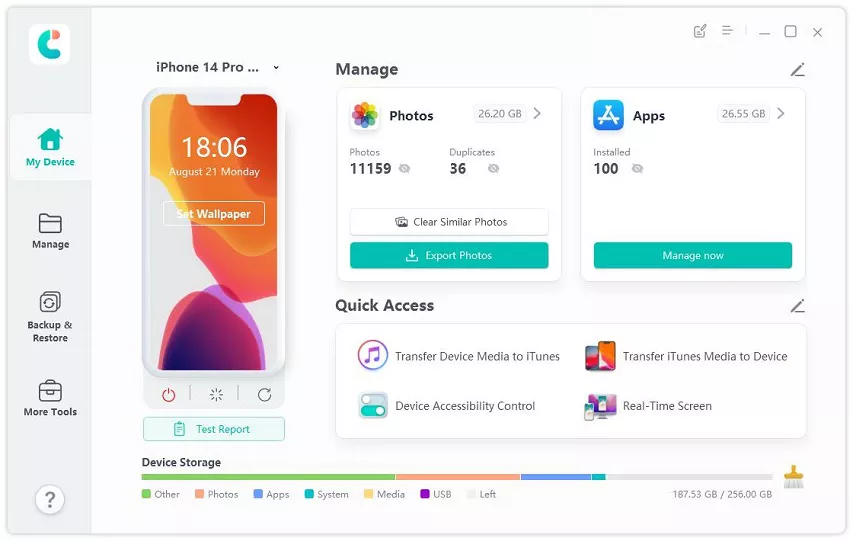
Download and install Tenorshare iCareFone on your PC or Mac. Launch iCareFone. Connect your iPhone using USB or Wi-Fi:
USB: Plug in your device, unlock it, and enter the passcode. iCareFone will detect your device.
Wi-Fi: Make sure your iPhone and computer are on the same Wi-Fi network. Wait a few seconds for iCareFone to detect your device.
Once connected, click the Manage tab from the left menu.
2. Manage Your Photos & Videos
Choose the Photos & Videos option in the Manage section. You can now do the following:
Import/Export Photos and Videos
Scan and Delete Duplicate Photos
Access iPhone Shared Library
Hide/Unhide Photos
Back Up Selected Photos
3. Import or Export Photos
Select the photos you want to export. Press Ctrl to select multiple photos. Click the Export icon at the bottom. Choose the file format (JPG, PDF, etc.) and select a folder to save the photos. Click Next.
Wait for the export to finish. To import photos from your computer to your iPhone, click the Import icon and select the files.
4. Delete Duplicate Photos
Click Duplicates in the left menu. iCareFone will show all duplicate photos on your iPhone. Delete unwanted duplicates with one click to save space.
Part 3: One-Click to Store Photos from iPhone Without iCloud
Tenorshare iCareFone is one of the most efficient tools for managing and backing up iPhone data without using iCloud. It provides a fast, secure, and easy solution for transferring photos from your iPhone to a computer. This makes it the best way to store photos from iPhone without iCloud, especially for users who want full control over their photo library and want to save device storage.
With support for iOS/iPadOS 26, iCareFone lets you manage photos, videos, music, messages, contacts, and apps seamlessly. It works on both PC and Mac and is trusted by over 100 million users worldwide.
Advantages of Using Tenorshare iCareFone
Move all your iPhone photos to PC or Mac quickly. Photos keep their original quality and can be saved as JPG or PDF.
Import, export, hide, or unhide photos easily. Find and delete duplicate photos to free up space.
Save photos, videos, messages, and WhatsApp chats directly to your computer or external drive. Preview and restore backups anytime.
Move music, videos, contacts, bookmarks, and apps between iPhone/iPad and computer. Download apps not available in your country and manage updates from your computer.
Convert HEIC images to JPG in one click for easier access on any device.
Store files safely with a virtual USB. Only iCareFone can access these files, keeping your data secure.
Use developer mode, iPhone test, AI wallpaper generator (Mac only), and device accessibility control for free.
Download and install Tenorshare iCareFone on your PC/Mac. Then, attach your iPhone to the same computer and unlock it.
If asked, choose “Trust This Computer” on your iPhone. Once your iPhone is recognized, tap “Manage.”
Choose the files to move to the computer from your iPhone. Hit “Export.” Select “Import” if you want to transfer files from your PC/Mac to your iPhone.
Part 4. FAQs on Best Way to Store Photos from iPhone
Q1. Where can I put all my photos from my iPhone?
You can store photos in iCloud, Google Photos, or Dropbox. Alternatively, transfer them to a computer, external hard drive, or use Tenorshare iCareFone to save them without iCloud.
Q2. Can I delete photos from my library but still keep them in an album?
No, deleting a photo from your library will also remove it from any album. To keep it, make a separate backup or save it in another folder first.
Q3. Where can I put my photos if my storage is full?
Use cloud storage like iCloud, Google Photos, or Dropbox, or transfer them to your computer or an external drive to free up space on your iPhone.
Conclusion
The best way to store photos from iPhone is to back them up safely, either on your computer, external drive, or cloud, while keeping them organized and high quality. For an easy and reliable solution without iCloud, Tenorshare iCareFone helps you transfer, manage, and back up your photos in just a few clicks. Tenorshare iCareFone is the perfect choice.






 iOS Tips & Latest Updates
 Bug Fixes, Unlock Guides
 Giveaways & Freebies





By Jenefey Aaron
2026-10-19 / Transfer