

 iOS Tips & Latest Updates
 Bug Fixes, Unlock Guides
 Giveaways & Freebies

ReiBoot - No.1 Free iOS System Repair Software
Fix 150+ iOS Issues without Data Loss & Safely iOS 27 Upgrade/Downgrade
ReiBoot: No.1 iOS Repair Tool
Fix 150+ iOS Issues, No Data Loss
Seeing the message "The Connection to iCloud Timed Out" on your iPhone Duo can be frustrating, especially when you're trying to sign in to your Apple Account, sync data, or access iCloud services. This error may occur because of an unstable internet connection, temporary Apple server issues, VPN interference, or incorrect device settings. Fortunately, there are several ways to troubleshoot it. This guide walks you through the possible causes and practical fixes to help restore your iCloud connection.

This message generally means your iPhone couldn't establish a connection to an iCloud service within the expected time. It doesn't necessarily mean there's a problem with your Apple Account or your device.
Here are some possible reasons:
iCloud services require a reliable internet connection. If your Wi-Fi signal is weak, your network keeps disconnecting, or your cellular connection is unstable, your iPhone may fail to communicate with Apple's servers.
Sometimes, the problem isn't on your device. Apple services may experience temporary outages or interruptions that prevent users from signing in or accessing iCloud.
A VPN, proxy, custom DNS, or certain network restrictions may interfere with connections to Apple's services. This can sometimes result in connection timeouts.
If your Apple Account credentials need verification, or an authentication request cannot be completed, you may have trouble connecting to iCloud.
Your iPhone relies on accurate date and time settings for various network and security processes. Incorrect settings may interfere with some service connections.
Temporary software issues can affect how your iPhone connects to online services. If the problem occurs alongside other system symptoms, an iOS-related issue may also be worth investigating.
Before trying more advanced solutions, start with these quick checks. They can help you identify whether the timeout is related to your internet connection, Apple's services, or your iPhone settings.
 Please swipe to view

If the error persists, work through the following solutions one at a time.
A weak or unstable network is one of the first things to rule out. Even if your iPhone shows that it's connected to Wi-Fi, the connection may not be reliable enough to reach iCloud.

Try these steps:

If iCloud works on cellular data but not on your usual Wi-Fi network, the issue may be related to your router or network configuration rather than your iPhone.
If the timeout occurs while restoring an iCloud backup and the restore progress also gets stuck, check our guide on how to fix an iPhone Duo stuck on restoring from iCloud for solutions specific to the restore process.
Before changing your device settings, check whether Apple's services are experiencing an interruption.
If the relevant services are unavailable, changing your iPhone settings is unlikely to solve the problem.
If you're seeing a different message, such as "iCloud Service Temporarily Unavailable," see our guide to fixing the iCloud Service Temporarily Unavailable error for additional troubleshooting steps.
VPN connections and certain network configurations can sometimes interfere with access to Apple's services.
If you're using a VPN, temporarily disconnect it and try connecting to iCloud again.
If you don't use a VPN, check whether your Wi-Fi network has a proxy, custom DNS, or other restrictions. Avoid changing network configurations you don't recognize, especially on a work or school device.
An account verification issue can sometimes prevent you from accessing iCloud.
Make sure you're using the correct Apple Account email address or phone number and password. If you see a verification prompt, follow the on-screen instructions.

If you can't sign in or believe your account may be locked, visit Apple's account recovery page for further assistance.
Don't sign out of your Apple Account as an initial troubleshooting step. First confirm that you know your credentials and can complete any required verification.
Incorrect date or time settings may interfere with certain secure connections. Make sure your iPhone is using the correct time.
If the option is unavailable, your device may have restrictions that prevent you from changing this setting.
A restart can clear temporary software glitches and refresh your device's network connections.
To restart your iPhone:
If a normal restart doesn't help, continue with the next solution.
An outdated iOS version may contain software issues that affect certain system services. Installing an available update can help resolve known bugs and improve system stability.
Before updating, make sure your iPhone has enough battery power and a stable internet connection. Back up important data whenever possible.
After the update is complete, check whether the iCloud connection timeout still appears.
If the previous methods haven't worked, resetting network settings may help resolve network configuration problems.
Keep in mind that this action removes saved Wi-Fi networks and passwords, cellular settings, and VPN settings. It does not erase your photos, apps, or other personal files.
To reset your network settings:
Your iPhone will restart. Reconnect to Wi-Fi and try accessing iCloud again.

Make sure you know your Wi-Fi password before resetting network settings.
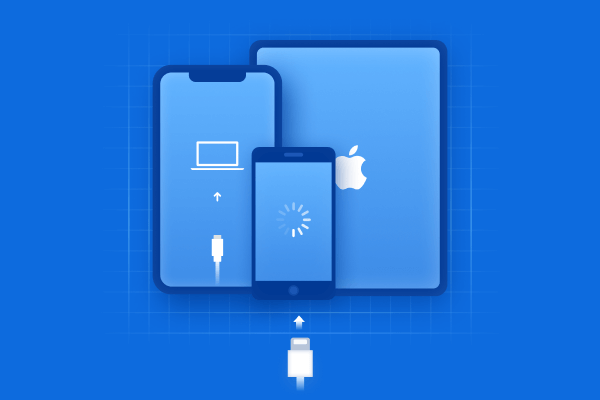
If the iCloud timeout appears alongside other symptoms, such as your iPhone freezing, restarting unexpectedly, or getting stuck on the Apple logo, you may also need to investigate whether an iOS system issue is affecting your device. Tenorshare ReiBoot is an iOS system repair tool designed to address certain supported iPhone and iPad system issues.


Its relevant features include:
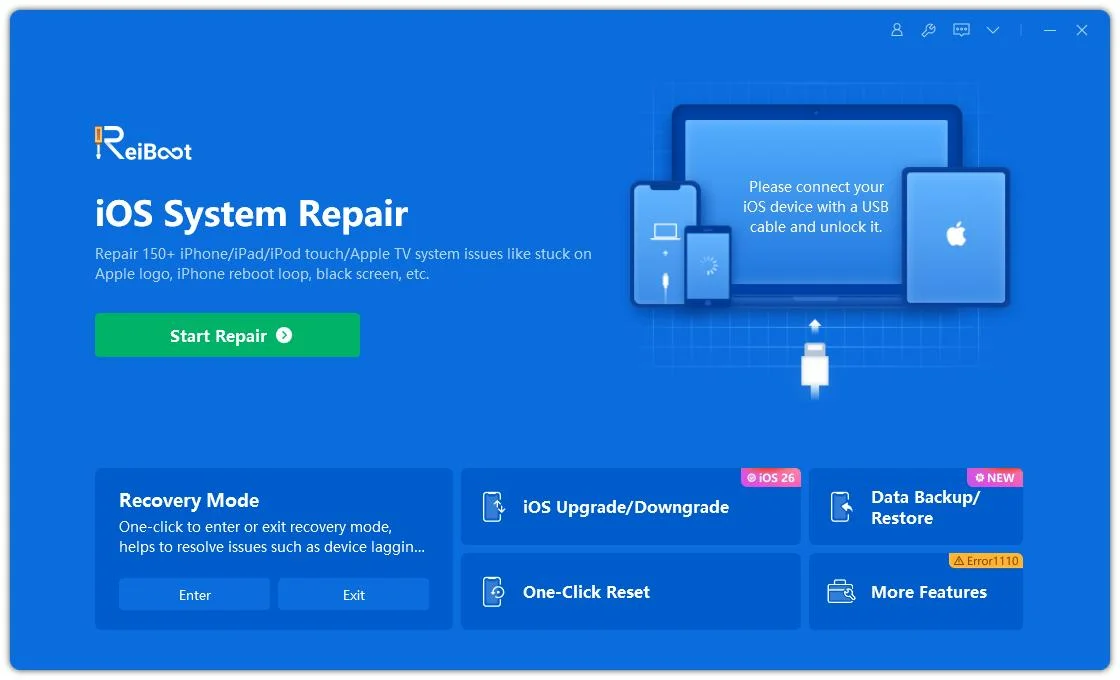
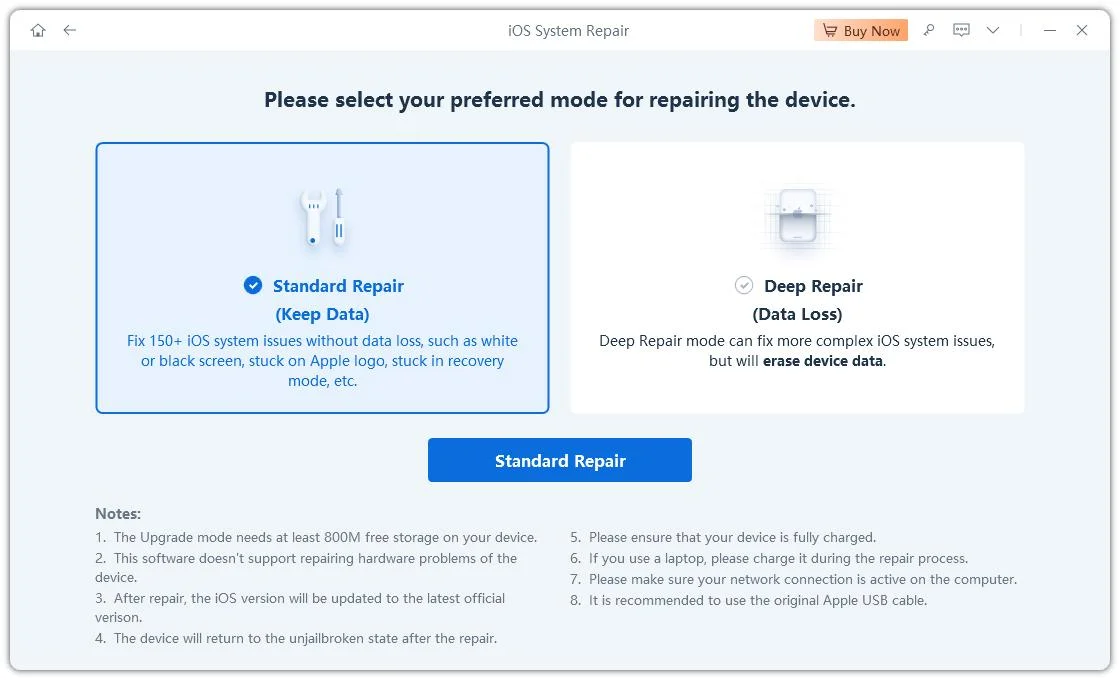
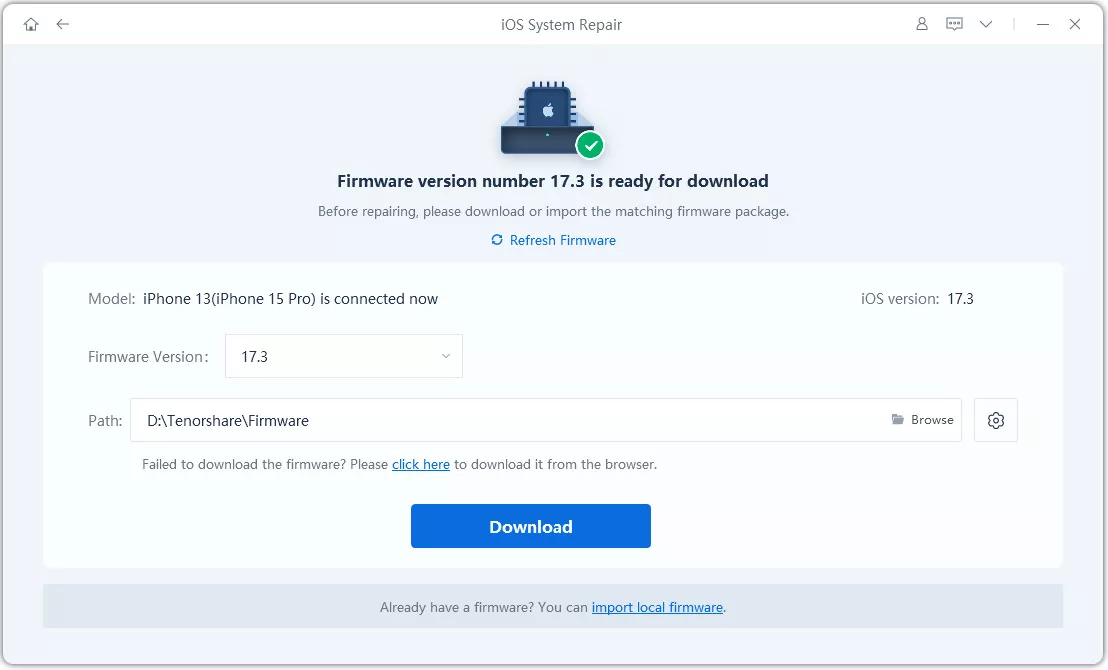
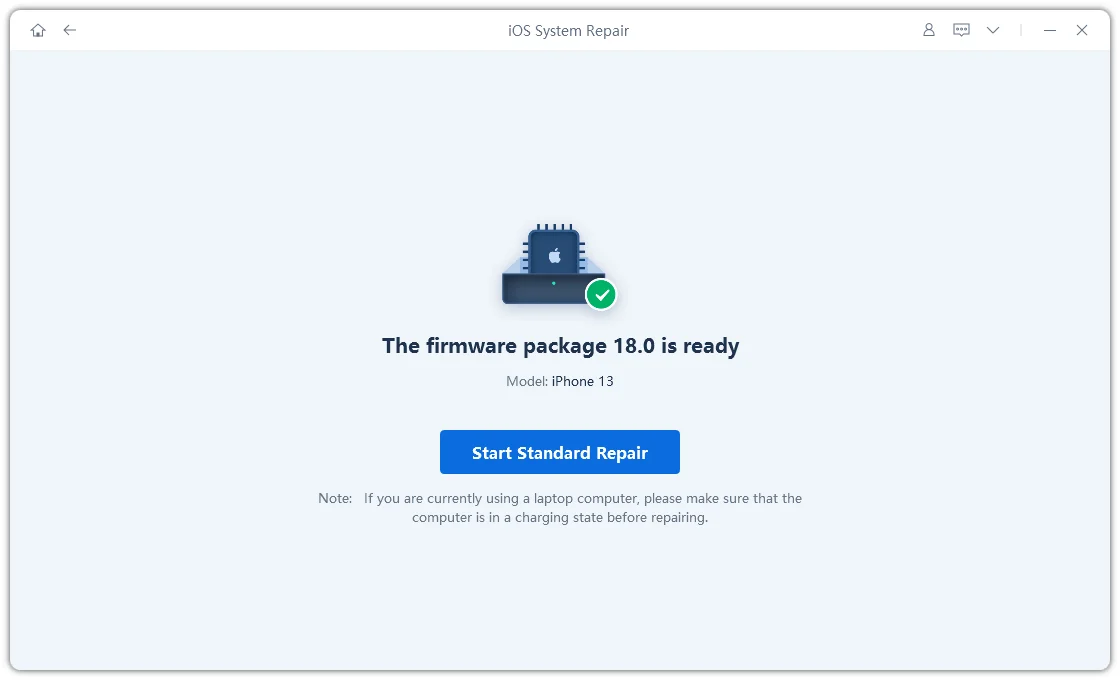
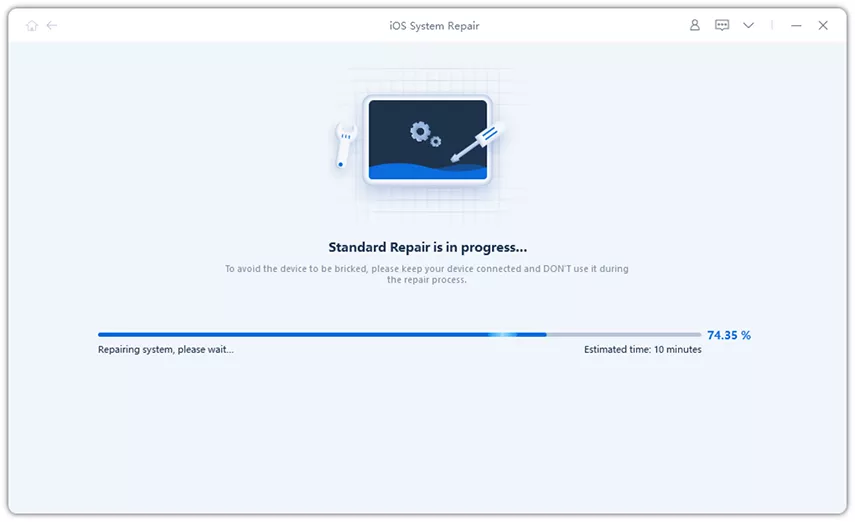
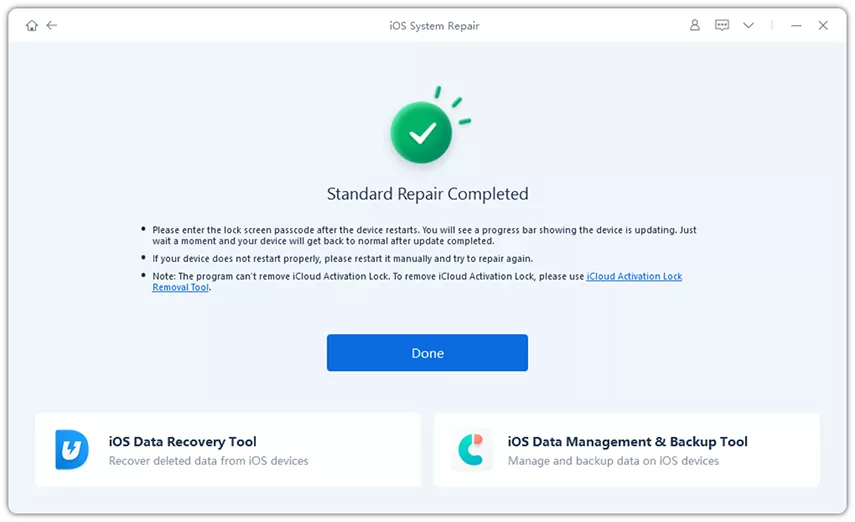
ReiBoot is not a direct fix for iCloud server outages, internet connection problems, or Apple Account verification errors. Standard Repair is designed to retain data, but it's still recommended to back up your iPhone whenever possible before attempting a system repair.
If you've tried the troubleshooting steps above and still can't connect to iCloud, it may be time to contact Apple Support.
In particular, seek help if:
You can visit Apple Support to find the appropriate assistance for your account or device.
When contacting Apple, describe when the error appears, which iCloud service you're trying to use, and which troubleshooting steps you've already tried. This information can help narrow down the cause.
This message usually means your iPhone couldn't establish a connection to an iCloud service in time. Common causes include an unstable internet connection, temporary Apple service interruptions, VPN interference, or account verification issues.
No. A connection timeout doesn't automatically mean your Apple Account is locked. Check your account settings for verification alerts. If Apple explicitly says your account is locked or disabled, follow its account recovery instructions.
Yes, a VPN or certain network configurations may interfere with connections to Apple's services. Temporarily disconnect your VPN and try accessing iCloud again to see whether it makes a difference.
No. Resetting network settings does not erase personal files such as photos, messages, or apps. However, it removes saved Wi-Fi networks and passwords, along with certain cellular, VPN, and network settings.
The "The Connection to iCloud Timed Out" message doesn't always indicate a serious problem with your iPhone Duo or Apple Account. In many cases, checking your internet connection, verifying Apple's service status, and reviewing your network settings are good places to start.
Try the solutions in order, beginning with the simplest checks. If the issue continues across different networks or involves account security, contact Apple Support for further assistance.

then write your review
Leave a Comment
Create your review for Tenorshare articles
Share this post


ReiBoot - No.1 Free iOS System Repair Software
Fix 150+ iOS Issues without Data Loss & Safely iOS 27 Upgrade/Downgrade
ReiBoot: No.1 iOS Repair Tool
Fix 150+ iOS Issues, No Data Loss
By Jenefey Aaron
2026-11-13 / iPhone 18