

 iOS Tips & Latest Updates
 Bug Fixes, Unlock Guides
 Giveaways & Freebies
then write your review

ReiBoot - No.1 Free iOS System Repair Software
Fix 150+ iOS Issues without Data Loss & Safely iOS 27 Upgrade/Downgrade
ReiBoot: No.1 iOS Repair Tool
Fix 150+ iOS Issues, No Data Loss
A stuck setup screen can stop you from getting the most out of your new iPhone Duo. Whether it freezes during activation, gets caught while transferring data, or refuses to move past a setup step, several things can cause the problem. Network issues, software glitches, and transfer errors are some common reasons.
Thankfully, you have a few easy options to try. This guide covers 5 simple methods to fix an iPhone Duo stuck during setup and get your device ready to use.

An iPhone Duo setup frozen screen can happen for several reasons. The problem may come from your internet connection, Apple's servers, data transfer, or the iOS software itself.
An iPhone Duo stuck during setup can often be fixed with a few simple troubleshooting methods. Try these fixes one by one and check the setup screen after each method.
A force restart can refresh the system when the setup screen freezes or stops responding. It does not erase the data on your iPhone.

Setup needs a reliable internet connection for activation, verification, and other online services. Switching networks can help when an iPhone Duo setup not completing issue is caused by an unstable connection.

iPhone duo stuck on quick start can happen when you are transferring a large amount of data from another iPhone. You can complete the basic setup first and transfer your data later.

An iOS software problem can sometimes cause an iPhone Duo setup not completing issue. Updating the iPhone through a computer can install the latest iOS version without choosing the erase option.

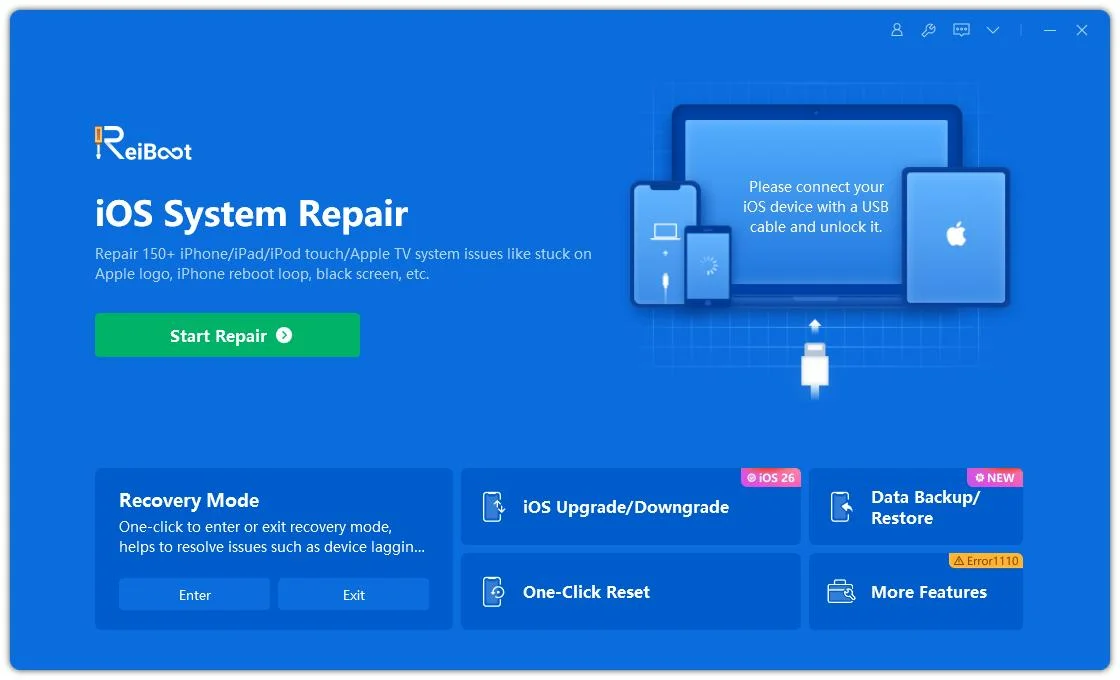
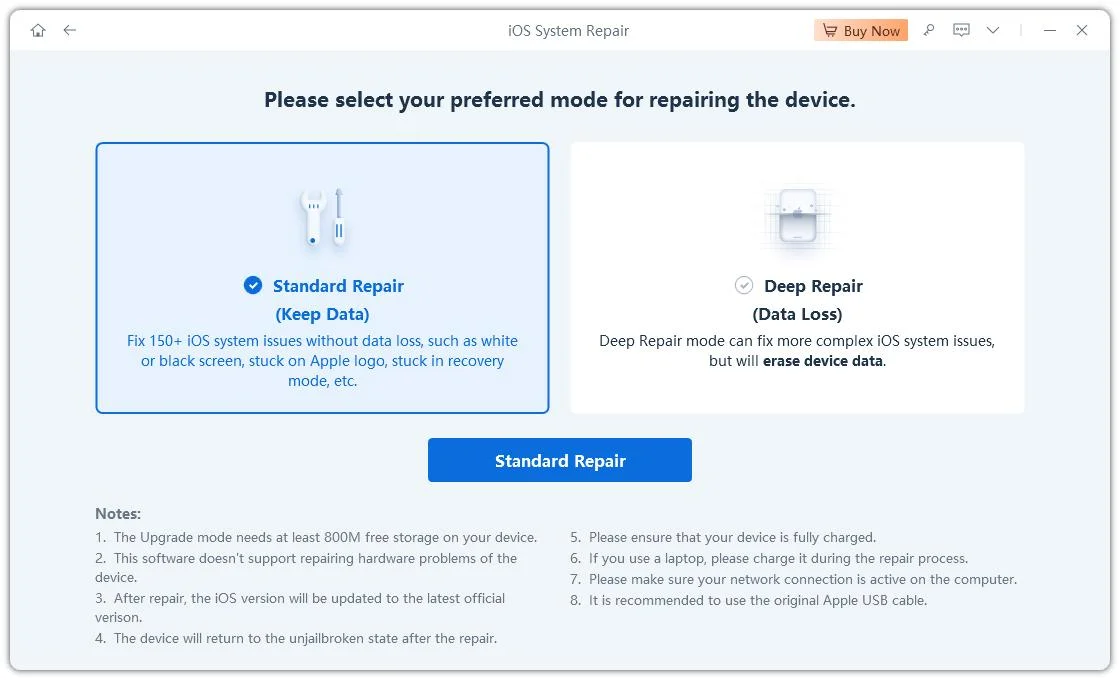
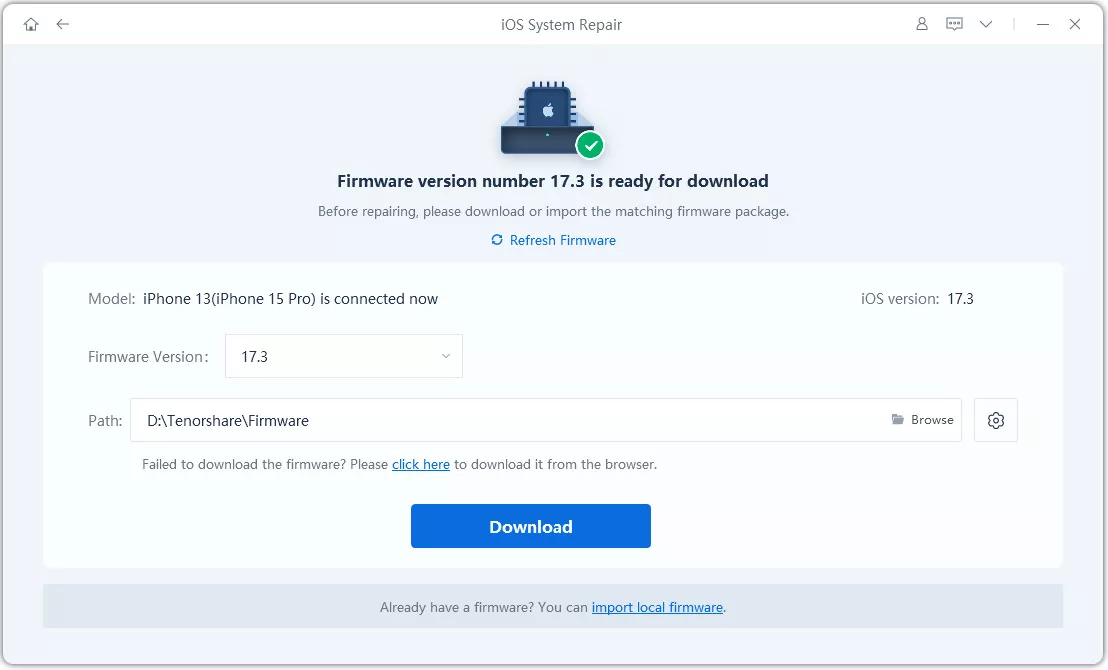
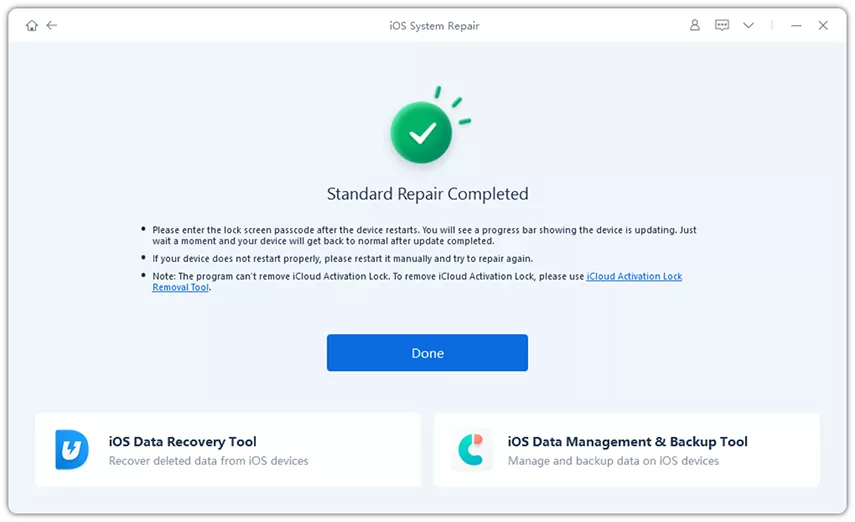
An iPhone Duo stuck during setup can sometimes be linked to deeper iOS system problems that basic troubleshooting cannot resolve. Tenorshare ReiBoot is an iOS system repair tool that can fix 150+ iOS issues, including setup loops, frozen Apple logos, black screens, and other software problems.


It can repair damaged iOS components and restore normal system functions. This can help your iPhone Duo get past a setup screen that refuses to move forward without requiring a factory reset.
Key Features of Tenorshare ReiBoot
How to fix iPhone duo stuck during setup with ReiBoot
Basic setup usually takes a few minutes. Setup can take longer when you transfer a lot of data from another iPhone or restore an iCloud backup.
Yes. Choose Set Up Without Another Device and complete the setup as a new iPhone. You can transfer your data later using iCloud or Tenorshare iCareFone.
No. A force restart does not erase your iPhone's data. It simply restarts the device and can help when the setup screen is frozen.
Try restarting the iPhone and check your internet connection. You can also skip the Apple Account setup when the option is available and sign in later through settings.
A frozen Apple logo can be caused by an iOS software issue. Try a force restart first, and use Tenorshare ReiBoot if the iPhone remains stuck.
An iPhone Duo stuck during setup can often be fixed with a few simple steps. Start with a force restart, then skip Apple Account sign-in or Quick Start when possible. For persistent setup loops, Tenorshare ReiBoot can repair common iOS system issues and help your iPhone get past frozen setup screens. Download ReiBoot and complete your setup with ease.


then write your review
Leave a Comment
Create your review for Tenorshare articles
Share this post


ReiBoot - No.1 Free iOS System Repair Software
Fix 150+ iOS Issues without Data Loss & Safely iOS 27 Upgrade/Downgrade
ReiBoot: No.1 iOS Repair Tool
Fix 150+ iOS Issues, No Data Loss
By Jenefey Aaron
2026-11-03 / iPhone 18