

 iOS Tips & Latest Updates
 Bug Fixes, Unlock Guides
 Giveaways & Freebies

ReiBoot - No.1 Free iOS System Repair Software
Fix 150+ iOS Issues without Data Loss & Safely iOS 27 Upgrade/Downgrade
ReiBoot: No.1 iOS Repair Tool
Fix 150+ iOS Issues, No Data Loss
Putting an iPhone into DFU Mode can help when regular troubleshooting does not fix a serious software problem. It gives you a deeper way to restore or troubleshoot the device when it is stuck, unresponsive, or having update issues.
The process may look complicated at first, but the button sequence is simple once you know what to do. This guide explains how to enter iPhone Duo DFU Mode step by step. You'll also learn how to exit DFU Mode and what to try when your iPhone does not enter it successfully.

DFU Mode (Device Firmware Update Mode) is a deeper recovery state that lets a computer communicate with an iPhone without loading the usual iOS startup process. You may need it when your iPhone Duo cannot boot normally, becomes unresponsive, or Recovery Mode does not fix the problem. It can also be useful for deeper firmware or system recovery.
Recovery Mode loads the bootloader and shows the Connect to Computer screen. DFU Mode works at a lower level, so the iPhone screen stays completely black. Entering DFU Mode requires precise button timing, so follow each step carefully.
A few signs can confirm that your iPhone Duo entered DFU Mode:
An iPhone Duo DFU mode not working issue can happen because of incorrect button timing or a connection problem. Check the following points to find the cause and try the DFU process again.
The iPhone Duo DFU mode steps depend on the correct timing between each button press. A small mistake can make the device restart or enter Recovery Mode instead.
Here is how to put iPhone Duo in DFU mode:

Your computer must detect the iPhone for the DFU process to work properly. A faulty cable, USB port, or connection can make it seem like iPhone Duo DFU mode is not working.
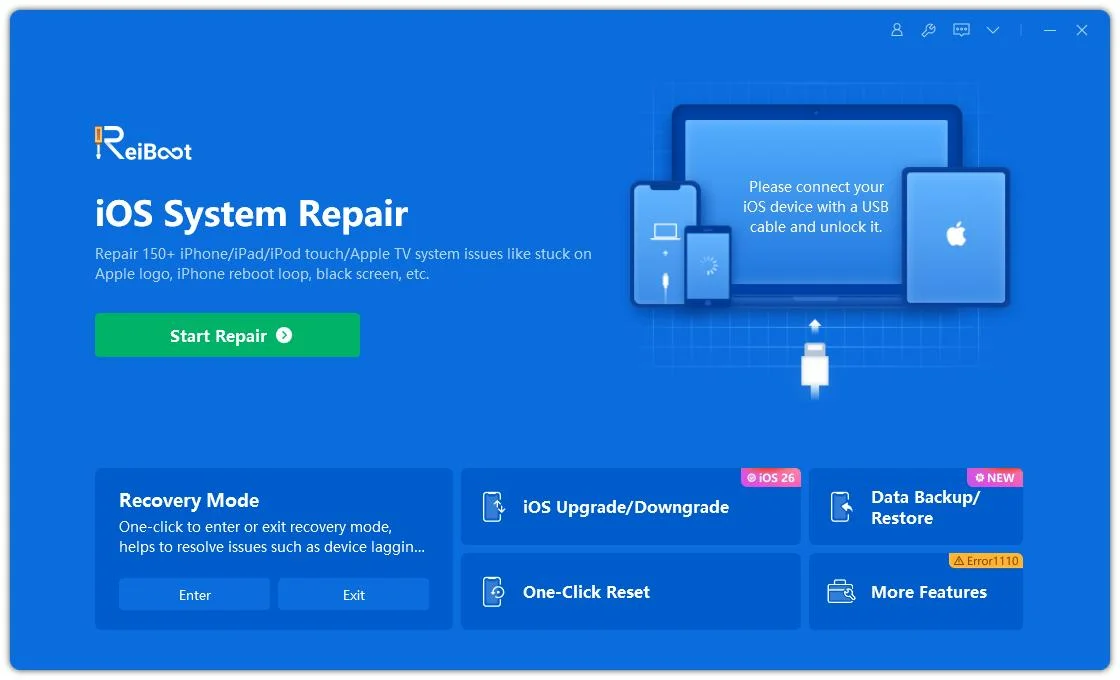
Getting the timing right for DFU Mode can take a few attempts. Tenorshare ReiBoot offers an easier way to handle iPhone recovery and fix 150+ iOS issues from your computer.
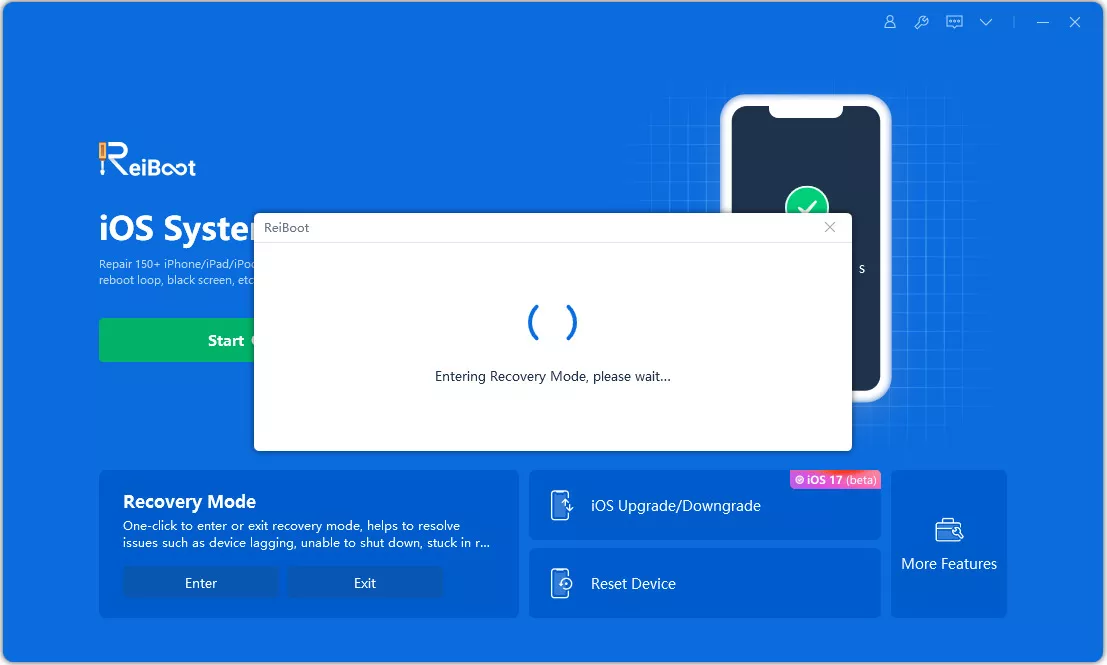
It lets you enter or exit Recovery Mode with one click and includes DFU Repair and System Repair for deeper issues. Its simple interface makes the recovery process easier, even when manual button combinations are difficult.


Key Features of Tenorshare ReiBoot
How to Use Tenorshare ReiBoot to Enter Recovery Mode

Once your iPhone Duo is successfully in DFU Mode, you can use a connected Mac or Windows PC to restore the device. DFU Mode itself does not erase your data. The data loss happens when you choose to restore the iPhone, which reinstalls iOS and erases the device.


A restore erases the data and settings on the iPhone. Back up important information whenever possible before restoring. Simply entering DFU Mode iPhone Duo does not erase anything.
You can use the following steps to exit DFU mode iPhone Duo without restoring the device:

The iPhone should restart normally after this process. Keep in mind that exiting DFU Mode does not necessarily fix the underlying system problem. If the same issue returns, you may need to troubleshoot the device further or use another recovery option.
No. Entering DFU Mode itself does not erase your data. Data loss can happen when you choose to restore the iPhone, so back up important data whenever possible.
No. Simply entering DFU Mode does not erase anything. However, restoring the iPhone can erase its content and settings.
A DFU restore erases the iPhone's content and settings, but it does not normally remove the eSIM. Since eSIM support can depend on the carrier and device setup, check with your carrier if you need to reactivate your cellular plan after restoring.
Yes. You do not need a Home button. The iPhone Duo DFU mode steps use the Volume Up, Volume Down, and Side buttons.
No. The standard DFU process requires a computer to detect and restore the iPhone. Apple also supports Nearby Device Restore on compatible devices, but that works through Recovery Mode and is not the same as DFU Mode.
Not necessarily. DFU Mode does not let you install any older iOS version you want. The iOS version must be supported and signed by Apple for the restore to work.
Entering iPhone Duo DFU Mode requires the correct button sequence and timing. A black screen and computer detection confirm that DFU Mode is active. Check the buttons, cable, and computer connection when it does not work. After entering DFU Mode, you can restore the iPhone through a computer or exit it using the button sequence. If manual DFU entry fails, Tenorshare ReiBoot can provide an easier recovery and repair option.


then write your review
Leave a Comment
Create your review for Tenorshare articles
Share this post


ReiBoot - No.1 Free iOS System Repair Software
Fix 150+ iOS Issues without Data Loss & Safely iOS 27 Upgrade/Downgrade
ReiBoot: No.1 iOS Repair Tool
Fix 150+ iOS Issues, No Data Loss
By Jenefey Aaron
2026-11-03 / iPhone 18