

 iOS Tips & Latest Updates
 Bug Fixes, Unlock Guides
 Giveaways & Freebies
then write your review


ReiBoot - No.1 Free iOS System Repair Software
Fix 150+ iOS Issues without Data Loss & Safely iOS 27 Upgrade/Downgrade
ReiBoot: No.1 iOS Repair Tool
Fix 150+ iOS Issues, No Data Loss
If you are an iPhone user, getting to know about the iPhone 18 Recovery Mode is very crucial. It is a valuable tool to troubleshoot when your device won't boot up, update, or restore itself through the normal route. Whether your iPhone 18 is stuck on the Apple logo, boot loop, freezing during iOS update, or suffering from other system crashes, Recovery Mode may fix a wide range of software-related issues.

In this article, you will learn when to use iPhone 18 Recovery Mode and how to get in/out from it without paying any costs. You will also learn if you could use iPhone recovery mode without a computer. And yes, you will get surprising information about a free tool for recovery mode.
Recovery Mode shouldn't be your go-to "fix" for every little iPhone issue. That said, it's handy when the OS is unable to run the usual boot or upgrade sequence.
These are just a few examples when iPhone 18 Recovery Mode could be needed.
When it comes to your Home screen, Apple logo, or any other screen that your iPhone is stuck on for an unnecessarily long time without showing signs of progress, there is probably an issue with the startup process. Apple does recommend that you use Recovery Mode if the Apple logo continues to display for "several minutes without a progress bar".

There are a few things that can cause an iPhone to be totally unresponsive, including a dead battery, software crash, failed update, or hardware issue. After charging and attempting a force restart, Recovery Mode can be considered if the device still does not start normally. You can also get information about various reasons from Reddit.

Sometimes iPhone 18 is stuck during an iOS update because the download is interrupted or for some other reasons. These reasons might include not enough storage on your device, a poor Internet connection or system errors. When your iPhone 18 is frozen during an iOS update and it won't turn on, you can also get it out of the issue mode with a PC or Mac in Recovery Mode.
If the iPhone 18 keeps restarting it is known as a boot loop and can keep an iPhone from reaching the Home Screen. Recovery Mode may be effective if the device's restart loop has been triggered by an iOS-related issue rather than a hardware problem.

If an error occurs when updating or restoring your iPhone through Finder, Apple Devices, or other recovery method, you might need to put your iPhone in Recovery Mode for another recovery try. Restoring the device erases everything on it, so Apple advises to avoid a restore if an update can resolve your problem.

If charging, force restarting, examining the cable, and other standard troubleshooting tips including the normal troubleshooting doesn't work, then Recovery Mode is the next immediate thing to do. If Recovery Mode also doesn't work, a repair shop might be your only option, especially if a physical button is damaged or your device suffered a hardware failure.
There are two possible solutions for this. Either use the iPhone's default buttons or install a third-party app that allows seamless entry or exit for recovery mode. Before discussing both methods in detail, mentioning the name ReiBoot developed by Tenorshare would be the best choice here.
For those with iPhones that have the newer button arrangement, the Recovery Mode steps are simple:
Use a USB cable to connect the iPhone to a Windows PC or Mac.
On a Mac, open Finder.
On a PC, launch the Apple Devices app, or iTunes if you have it installed.

Access the iPhone in Finder, Apple Devices, or iTunes. If you get the Update / Restore option, try Update first if you want to try reinstalling iOS without wiping your personal data.
To quit Recovery Mode without restoring, you can usually just force-restart the iPhone. If the device keeps going back to Recovery Mode, it may need some further troubleshooting.
If you don't want to manually enter the button sequence, Tenorshare ReiBoot offers a more friendly way to do the job. Its free features line up with what the average user most likely needs to enter and exit Recovery Mode without having to press four different buttons.




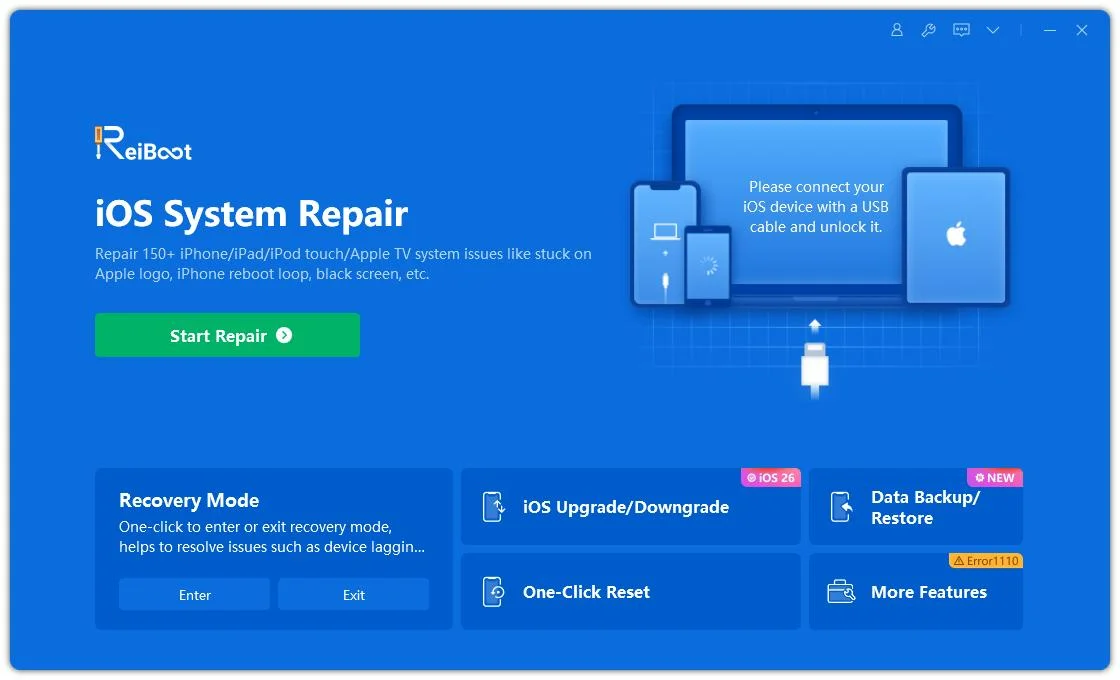

This method is useful when you find it hard to do the button combination, or you just prefer a wizard like interface.
The free Recovery Mode features on ReiBoot are adequate for simple management of recovery mode. More advanced iOS repairs functions go for a paid version. As we are primarily concerned here with recovery mode, ReiBoot is the best free option.
 Please swipe to view
"iPhone recovery mode without computer" is a serious discussion as the concept is very confusing. Let's make it clear first. There is a clear difference between getting into Recovery Mode and actually employing Recovery Mode to upgrade or restore iOS. The button combination can be started without immediately opening the computer. However, Apple's Recovery Mode is really meant to talk to a computer to update or restore the OS.
If you're just after putting your device into Recovery Mode, the physical button sequence will take you to the recovery screen. But to perform the actual Update or Restore operation, a Mac or Windows PC is typically necessary. For those who don't like the button combinations, ReiBoot has yet another method. Better yet, since ReiBoot itself runs on a computer, it does not remove the computer requirement for managing software based Recovery Mode.
Make sure your iPhone is charged and use an original USB cable. Perform the Volume Up, Volume Down, and Side button steps slowly. If the buttons are not working, turn to ReiBoot or Apple Support.
Recovery Mode is a process that usually lasts for a few seconds (like 5). Depending on the firmware download and your internet speed, updating or restoring iOS can take a little longer.
Pre-installed Recovery Mode on Apple is free of charge. Tenorshare ReiBoot is also a handy tool to get in or out of Recovery Mode, for those who want a simpler one-click experience.
Recovery Mode itself does not wipe your data. Update tries to keep your data while Restore erases your iPhone and reinstalls iOS.
iPhone Recovery Mode on iPhone 18 is useful when your iPhone 18 stuck on Apple Logo, iOS updates fail, boot loops, won't turn on and more. While the built-in method from Apple is free, the button combination can be a bit inconvenient to do. Tenorshare ReiBoot provides an unprecedented approach to enable and disable Recovery Mode in just one click, letting you deal more easily with common recovery scenarios. If your iPhone 18 is not responding or freezes, go for Tenorshare ReiBoot now and get a quicker and easier recovery experience.


then write your review
Leave a Comment
Create your review for Tenorshare articles

Share this post


ReiBoot - No.1 Free iOS System Repair Software
Fix 150+ iOS Issues without Data Loss & Safely iOS 27 Upgrade/Downgrade
ReiBoot: No.1 iOS Repair Tool
Fix 150+ iOS Issues, No Data Loss
By Jenefey Aaron
2026-10-26 / iOS 27