Why is Adobe Acrobat so slow when editing even small PDFs? It lags, freezes, and sometimes won’t respond at all. Is this normal or is something wrong with my settings? — Reddit user
Slow performance in Adobe Acrobat has become a widespread issue, disrupting workflows and making even simple PDF tasks feel heavy and time-consuming. The main reason why is Adobe Acrobat so slow is often hidden settings, outdated components, large files, and small system conflicts that reduce its speed.
In 2025, these performance drops are more noticeable as users rely on Acrobat for editing, reviewing, and secure document handling. This guide explains the core causes behind the slowdown and delivers ten effective, practical solutions to help you.
Part 1. Why Is Adobe Acrobat So Slow – Common Causes
Many users face delays or freezing, making them wonder why is Adobe so slow. Its speed often depends on system power, software stability, and how complex the PDF is. Identifying these issues helps you fix the slowdown.
Insufficient system resources: Acrobat is a resource-intensive program. Systems with low RAM, weak processors, or older hardware may struggle to load large PDFs, causing noticeable lag.
Outdated software: Using an outdated version of Acrobat can trigger bugs, performance drops, and compatibility issues with newer operating systems or document formats.
Complex PDF files: PDFs containing high-resolution images, vector graphics, OCR layers, multimedia, or interactive forms require significantly more processing power and take longer to render.
Protected Mode: Acrobat’s security-focused Protected Mode can slow startup times and restrict certain operations, especially on lower-end systems.
Excessive plugins: Unnecessary or outdated plugins may conflict with Acrobat’s core features, consuming additional resources and reducing overall speed.
Corrupted installation:
Damaged program files, incomplete updates, or failed installations can directly affect performance, causing crashes, freezes, or slow response times.
Conflicting background processes: Other applications especially those that handle documents, printing, or security scans can interfere with Acrobat and limit available system resources.
Accumulated temporary files: Large caches, old preference files, and leftover temp data gradually slow down Acrobat’s ability to open, save, or process PDFs efficiently.
Part 2: How to Fix Adobe Acrobat Running Slow on Windows 10/11/Mac
Adobe Acrobat is one of the most widely used tools for viewing, editing, and managing PDF files. However, many users experience performance issues such as lag, slow opening times, or delays while editing.
If you've ever wondered “why is Adobe Acrobat so slow when editing?” or “why is Adobe Acrobat so slow to install?”, you are not alone. This article provides practical solutions to improve Acrobat's speed and introduces a faster, smarter alternative.
1. Use a Faster and Smarter Adobe Acrobat Alternative
When Adobe Acrobat becomes slow, laggy, or heavy on system resources, many users start looking for a PDF editor that opens faster and runs more smoothly. PDNob is a strong option because it focuses on essential tools and keeps everything simple. The interface is clean, it opens quickly, and editing stays smooth without freezes.
PDNob offers the features most people need — OCR, editing, converting, merging/splitting, annotation, and signing — all in a lightweight app. It runs well on both old and new computers and avoids complicated subscriptions. The price is also friendly for students, freelancers, and small businesses who want reliable PDF tools without overpaying.
Advantages of Tenorshare PDNob PDF Editor:
Instant PDF loading: Opens small and large files much faster than traditional PDF editors.
Smooth editing experience: Edit text, images, links, and layouts without lag or crashing.
Accurate OCR technology: Converts scanned pdf into editable and searchable formats with high accuracy.
All-in-one PDF toolkit: Convert, compress, merge, split, annotate, watermark, and sign pdf from one place.
Lightweight and resource-friendly: Designed to consume minimal CPU and RAM, keeping your system fast.
Strong file protection: Add passwords, permissions, and encryption to protect sensitive pdf.
Clean and beginner-friendly interface: Easy for students, freelancers, office workers, and beginners to use.
Budget-friendly pricing: Offers affordable plans suitable for home users, businesses, and educational needs.
How to Use Tenorshare PDNob PDF Editor:
Open PDNob PDF Editor, then click on the "Open PDF" button to import any PDF file you’ve downloaded.
Click the “Edit” button on the top toolbar, then select the text you want to modify. A text box will appear, allowing you to change the text, font, style, size, and color.
To add new text, click “Add Text” under the “Edit” section and place it where needed.
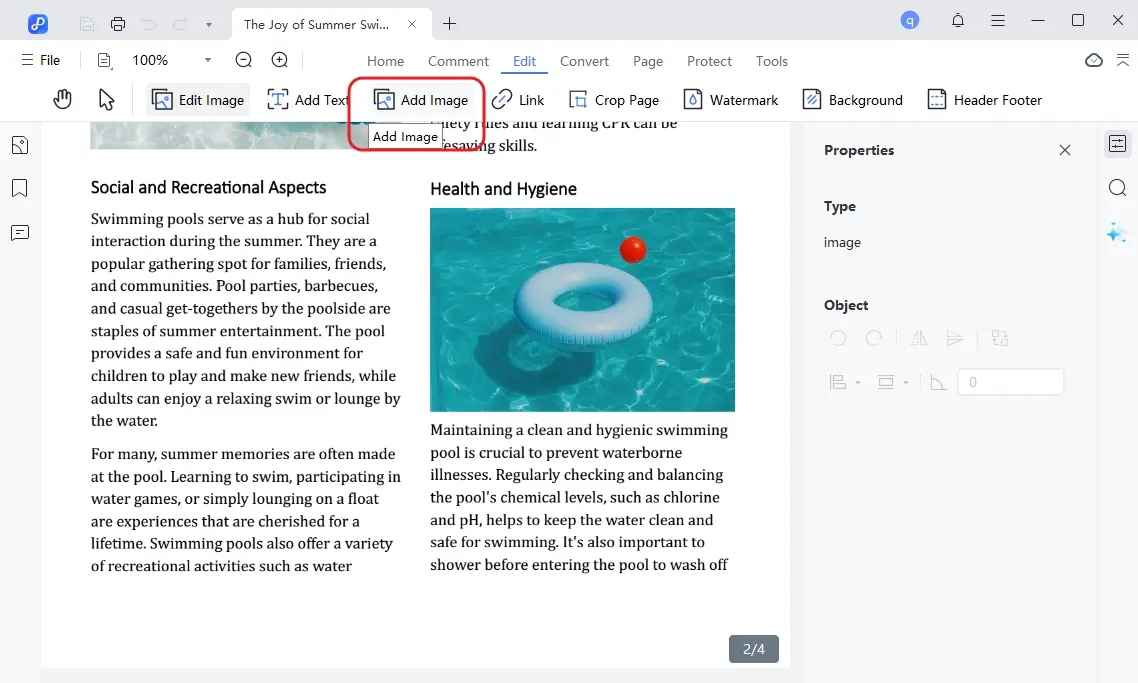
To insert images, click the “Add Image” button and choose the image file to add.
Once you have made all the necessary edits, click on the "Save" button in the top left corner.
2. Update Adobe Acrobat
Outdated versions can slow down performance. Check for updates in Acrobat under Help and select Check for Updates. Keeping Acrobat up to date ensures optimal speed and compatibility.
3. Disable Protected Mode
Protected Mode adds an extra security layer, but it also slows down startup, restricts file access, and introduces delays especially when Adobe Acrobat running slow Windows 11 or on low-end systems. Disabling it can instantly reduce launch time and improve responsiveness.
Choose Preferences from the dropdown. Go to Security (Enhanced).
Uncheck Enable Protected Mode at startup.
Also disable Enhanced Security if performance is extremely slow. Click OK to apply changes.
4. Reset Preferences
Corrupted or overloaded preference files can cause freezing, editing delays, and slow file loading. Resetting preferences is a quick way to fix issues like why is Adobe Acrobat so slow when editing.
Close Adobe Acrobat completely. Open your system’s preferences folder:
Windows: Press Win + R, type %AppData%/Adobe, and press Enter.
Mac: Open Finder, select Go, choose Library, then open Preferences and find the Adobe folder.
Locate the folder named Acrobat. Rename it to Acrobat_old.
Restart Acrobat fresh default settings automatically. Test loading and editing a PDF again.
5. Repair Installation
Repairing Acrobat can fix missing or corrupted files. Open Help and select Repair Installation, then follow the instructions.
Background apps and startup processes can slow Acrobat. Use Task Manager on Windows or Activity Monitor on Mac to disable unnecessary programs.
Press Ctrl + Shift + Esc to open Task Manager. Click the Startup tab.
Review each program’s impact status (Low/Medium/High).
Right-click any heavy or unnecessary entry. Select Disable.
Restart your computer to apply changes.
7. Reduce Recently Used Files
Acrobat loads previews and metadata for recently used documents every time it opens. A long list creates extra processing load and makes users wonder why is Adobe so slow on startup.
Open Adobe Acrobat on your computer.
Click on Edit in the top menu and choose Preferences from the dropdown.
In the Preferences window, select Documents from the panel on the left.
Find the Recently Used Documents section, which controls how many files appear in the recent list.
Reduce the number to 0–10 to minimize background processing and improve Acrobat’s speed.
Click OK to save your settings and close the window.
8. Pause Sync Services
Cloud sync apps like OneDrive, Google Drive, Dropbox, and iCloud constantly scan your files. This slows Acrobat loading especially on Mac users asking why is Adobe Acrobat so slow on Mac when opening online files.
Open your cloud syncing app: OneDrive/Google Drive/iCloud/Dropbox.
Click the Sync or Backup icon. Choose Pause Sync, Pause Backup, or Stop temporarily.
Reopen the PDF in Adobe Acrobat.
Resume syncing when you finish your work.
9. Check Graphics Drivers
Outdated graphics drivers can affect PDF rendering. Make sure your GPU drivers are updated to the latest version provided by the manufacturer.
10. Disable New Acrobat Features
The new UI uses more system resources and loads additional features in the background. Many users report that switching back to the classic layout fixes lag, improving performance when Adobe Acrobat running slow Windows 11 or older Macs.
Open Adobe Acrobat. Click the Menu (three horizontal lines) at the top-left.
Look for the option Disable New Acrobat or Switch to Classic View.
If you've ever experienced Adobe Reader slow performance, or lag while opening, scrolling, or editing PDFs, you're not alone. The causes are often file complexity, software settings, or hardware limitations.
Below are practical tips to speed up any PDF editor, including Adobe Reader and Adobe Acrobat.
1. Optimize Your PDF Files
Identify large or complex PDFs with high-resolution images, embedded fonts, or unnecessary metadata that can slow editing.
Use built-in PDF optimization or compression tools to reduce file size without losing quality.
Remove redundant data by using options like Acrobat Pro’s “Optimized PDF” or “Compress a PDF”.
Flatten PDFs or split very large documents into smaller parts to improve load times and editing speed.
2. Adjust PDF Editor Preferences
Disable resource-heavy rendering settings such as smooth images, smooth line art, or excessive GPU acceleration.
Turn off animations in Page Display settings to improve performance.
Use page caching wisely and select simpler rendering modes for faster responsiveness while scrolling or switching pages.
Limit unnecessary features like online storage prompts, plugins, background services, and reduce the number of recent documents.
3. Use Hardware and System-Level Optimizations
Make sure sufficient RAM and a capable processor to handle large PDF files efficiently.
Close unneeded background apps and services to free up CPU and memory.
Keep your operating system and graphics drivers updated to prevent rendering issues with complex PDFs.
Conclusion:
Large or complex PDF files, unoptimized settings, or limited hardware often explain why Adobe Acrobat is so slow. Optimizing PDFs, adjusting preferences, and ensuring sufficient system resources can help. For a faster alternative, PDNob PDF Editor is recommended. It opens PDFs quickly, edits smoothly, supports OCR, conversion, merge/split, annotations, and signatures, and performs well even on low-resource systems.
The END
About PDNob
I am PDNob.
Swift editing, efficiency first.
Make every second yours: Tackle any PDF task with ease.
As Leonardo da Vinci said, "Simplicity is the ultimate sophistication." That's why we built PDNob.

















By Anna Sherry
2026-10-26 / Knowledge