Adobe Acrobat Not Opening? Quick Fixes for Windows 11/10 & Mac
Is anyone else facing Adobe Acrobat not opening? It shows in Task Manager but never actually opens.---Reddit
Adobe Acrobat not opening is a common issue, especially after system updates, software conflicts, or sudden crashes. Many users report that Acrobat won’t launch at all, opens silently in the background, or fails to open PDF files even though it’s properly installed.
This guide covers proven fixes based on Adobe’s official recommendations and real user experiences shared on Reddit and community forums. If Acrobat still refuses to open, we’ll also show a reliable alternative so you can access your PDFs without wasting time.
Part 1. Why Is Adobe Acrobat Not Opening
Many users ask, why won’t my Adobe Acrobat open even though it’s installed? This problem can affect both the free Reader and Adobe Acrobat Pro not opening, Windows 11, and macOS. Below are the most common signs and the real reasons behind them.
Common Signs of Adobe Acrobat Not Opening
- Adobe Acrobat won’t open after double-clicking the icon
- Acrobat appears in Task Manager, but no window shows on screen
- Acrobat crashes or closes immediately after launch
- Acrobat gets stuck during startup or initialization (for example, at FileOpen or loading screen)
- Adobe Acrobat not opening after a recent update on Windows 10, Windows 11, or macOS
Common Reasons Behind These Issues
- Corrupted Acrobat preference files or damaged cache data
- Conflicts with third-party plugins, such as FileOpen
- Incomplete, failed, or interrupted Adobe updates
- License verification or permission-related problems
- Antivirus or security software blocking Acrobat background processes
Part 2. Fix Adobe Acrobat Not Opening (Program Won’t Launch)
When Adobe Acrobat not opening becomes a daily problem, it usually means the app is blocked during startup rather than fully broken. Follow the solutions below in order, as recommended by Adobe and confirmed by real Reddit users.
1. Close All Adobe Background Processes
Adobe Acrobat not opening often happens when the application is already running in the background without showing any window. This makes it seem like Adobe Acrobat won’t open, even though it appears active in Task Manager.
- Press Ctrl + Shift + Esc to open Task Manager.
- Scroll through the Processes tab and locate entries named Acrobat, Acro, Adobe, or Creative Cloud.
- Select each Adobe-related process one by one.
- Click End Task to fully close them.
- Close Task Manager and double-click the Adobe Acrobat icon again.
2. Check Adobe License and Activation Status
Adobe Acrobat Pro not opening is frequently linked to license validation problems, especially after subscription changes, system upgrades, or signing out of Creative Cloud without reactivation.
- Open the Start menu and search for Acrobat Distiller.
- Launch the app and check for any license or activation warning.
- Look for messages stating the license has expired or is not activated.
- Sign in again using your Adobe account to reactivate the license.
3. Disable Compatibility Mode
Running Acrobat in compatibility mode can interfere with modern system features, which is a common reason Adobe Acrobat not opening Windows 11 or failing on updated Windows 10 systems.
- Right-click the Adobe Acrobat shortcut on your desktop.
- Select Properties from the menu. Open the Compatibility tab.
- Make sure Run this program in compatibility mode is unchecked. Click Apply, then OK.
- Reopen Adobe Acrobat and check whether it launches properly.
4. Remove Third-Party Plugins (FileOpen Issue)
Third-party plugins are a major cause of Adobe Acrobat is not opening, especially tools like FileOpen that load during startup and can block Acrobat before the main window appears.
- Open File Explorer. Navigate to the plugin folder based on your Acrobat version:
- 64-bit: C:\Program Files\Adobe\Acrobat DC\Acrobat\plug_ins
- 32-bit: C:\Program Files (x86)\Adobe\Acrobat DC\Acrobat\plug_ins
- Identify third-party plugin files, such as FileOpen.
- Move these files to a separate folder outside the Adobe directory.
5. Run Adobe Acrobat as Administrator
Permission-related restrictions can prevent Acrobat from accessing required system resources, which is why Adobe Acrobat won’t open unless it is run with administrative privileges.
- Right-click the Adobe Acrobat desktop icon. Select Run as administrator.
- Confirm the permission prompt when it appears.
- After successful launch, right-click the icon again and open Properties.
- Go to Advanced and enable Run as administrator to make this permanent.
6. Temporarily Disable Antivirus or Firewall
Security software sometimes misidentifies Acrobat processes as suspicious, leading to Adobe Acrobat DC won’t open Windows 10 or blocking PDF files from opening in browsers.
- Open your antivirus or firewall control panel.
- Temporarily disable real-time protection or firewall filtering.
- Launch Adobe Acrobat and test its behavior.
- Add Acrobat to the exclusion or trusted apps list.
- Re-enable your antivirus to keep your system protected.
7. Repair or Reinstall Adobe Acrobat
Corrupted or incomplete installation files are one of the most common reasons Adobe Acrobat not opening after updates, system crashes, or interrupted installations.
Repair steps:
- Open Control Panel. Select Programs, then Programs and Features.
- Locate Adobe Acrobat in the list.
- Right-click it and choose Change. Select Repair and complete the process.
- Restart your computer and test Acrobat.
Reinstallation steps:
- Uninstall Adobe Acrobat completely from Programs and Features.
- Restart your system.
- Download the latest version from Adobe’s official website.
- Install Acrobat and sign in to activate it.
8. Try a Different User Account
User-profile corruption can prevent Acrobat from launching, even when the software works fine elsewhere, making this a common cause of Adobe Acrobat Pro not opening on shared systems.
- Log out of your current Windows user account.
- Sign in using another existing account or create a new one.
- Launch Adobe Acrobat from the Start menu.
- Confirm whether the app opens normally in the new profile.
9. Collect Logs and Contact Adobe Support
Persistent cases of Adobe Acrobat not opening may require deeper investigation using crash logs and system diagnostics reviewed directly by Adobe support.
- Note your operating system version and Acrobat build number.
- Collect Acrobat startup and crash logs from your system.
- Visit Adobe Support and submit a detailed support request.
- Attach the logs and describe the exact launch behavior for faster resolution.
Part 3. Fix Adobe Acrobat Won’t Open PDF Files (But the App Opens)
In some cases, Adobe Acrobat opens normally, but PDF files fail to load. The problem is usually related to browser behavior, file associations, or PDF security settings.
PDF Won’t Open in Browser
Modern browsers handle PDFs differently, and conflicts with built-in viewers can stop files from opening in Acrobat.
Steps to fix:
- When a PDF does not open in the browser, choose the Download option instead of viewing it online.
- Save the file to a local folder on your computer.
- Open Adobe Acrobat directly from your desktop or applications list.
- Click File, then Open, and select the downloaded PDF file.
PDF Won’t Open on Desktop
When double-clicking a PDF file does nothing or opens the wrong program, the issue is usually related to the file itself or system settings.
Possible reasons include:
- The PDF file is corrupted or was not downloaded completely
- The file is not correctly associated with Adobe Acrobat
- The installed version of Acrobat or Reader is outdated
Basic Fixes to Solve Adobe Acrobat Won’t Open PDF Files
1. Update Adobe Acrobat or Reader
Older versions of Acrobat may fail to open newer or secured PDF files.
- Open Adobe Acrobat or Reader.
- Click Help in the top menu. Select Check for Updates.
- Install any available updates and restart the application.
2. Set Acrobat as the Default PDF App
Incorrect file associations can prevent PDFs from opening correctly.
- Right-click a PDF file on your desktop. Select Open with, then Choose another app.
- Choose Adobe Acrobat or Adobe Reader from the list. Check Always use this app to open .pdf files.
- Click OK to save the changes.
3. Repair or Reinstall Acrobat
Damaged program files can stop PDF documents from opening even though Acrobat launches.
- Open Control Panel and go to Programs and Features.
- Find Adobe Acrobat and select Change.
- Choose Repair and complete the process.
4. Check Protected Mode and Permission Settings
Protected Mode can block certain PDFs from opening due to strict security controls.
- Open Adobe Acrobat. Go to Edit, then Preferences.
- Select Security (Enhanced). Temporarily disable Enable Protected Mode at startup.
Part 4. Fix Adobe Acrobat Not Opening After Update on Windows 10/11/Mac
Updating Adobe Acrobat or your operating system can sometimes cause the program to stop working. For some, Adobe Acrobat Pro not opening is the result, or the app launches in the background without showing a window. This section explains why updates can cause these issues and how to resolve them.
Common Update-Related Symptoms
After an update, users may notice:
- Adobe Acrobat won’t open at all after launching.
- Acrobat stops responding or crashes immediately.
- Acrobat opens in the background but no window appears.
- PDFs fail to load even though the app starts.
- Acrobat worked fine before the update but now fails to start.
Why Updates Can Break Adobe Acrobat
Updates, while designed to improve features and security, sometimes conflict with system settings or older files:
- The updated Acrobat version may clash with existing system files.
- Switching from Classic Acrobat to the New Acrobat interface can create compatibility issues.
- Preferences may reset or become corrupted during the update.
- Windows or macOS updates can change permissions, services, or registry settings that Acrobat depends on.
What You Can Try First
1. Switch Between New Acrobat and Classic Acrobat
Some updates default to the New Acrobat interface, which may not be fully compatible with your system. Opening Classic Acrobat can help confirm whether the problem is interface-related.
- Locate both New Acrobat and Classic Acrobat on your system.
- Try launching Classic Acrobat to check if PDFs open correctly.
- If Classic works, continue using it until Adobe releases a compatible update or patch.
2. Restart Your Computer to Complete Pending Updates
Incomplete OS or Acrobat updates can prevent the app from opening. Restarting makes sure that updates are fully applied.
- Save all your work.
- Click Start > Power > Restart (Windows) or Apple menu > Restart (Mac).
- After the restart, try opening Adobe Acrobat again.
3. Reset Acrobat Preferences to Clear Update Conflicts
Corrupted or outdated preferences often cause Adobe Acrobat not opening after update. Resetting preferences returns settings to default, resolving conflicts.
- Close Adobe Acrobat completely.
- Press Windows + R (Windows) or Command + Shift + G (Mac).
- Navigate to the preferences folder:
- Windows: %appdata%\Adobe\Acrobat\[version]\
- Mac: ~/Library/Preferences/Adobe/Acrobat/[version]/
- Rename or delete the Preferences folder.
- Restart Adobe Acrobat to generate a new preferences folder.
4. Roll Back the Recent Update
If the app worked perfectly before an OS or Acrobat update, rolling back may restore functionality.
Steps (Windows):
- Go to Settings > Update & Security > Windows Update > Update history > Uninstall updates.
- Select the recent update that caused the issue and uninstall it.
- Restart your computer and test Adobe Acrobat.
Steps (Mac):
- Open System Settings > General > Software Update > More info.
- If a recent update is listed, click Restore or follow Apple’s instructions for rollback.
- Open Acrobat and check functionality.
5. Reinstall Adobe Acrobat if Problems Persist
If none of the above works, reinstalling Acrobat makes sure all files are updated and compatible.
- Uninstall Adobe Acrobat from Control Panel (Windows) or Applications folder (Mac).
- Download the latest version from the official Adobe website.
- Install Acrobat and sign in with your Adobe account.
- Test PDF files to confirm that the update issue is resolved.
Part 5. Adobe Still Not Working? Use a Stable Adobe Acrobat Alternative
Adobe Acrobat, while powerful, has some drawbacks that can frustrate users:
- Bulky: Consumes a lot of system resources and starts slowly
- Expensive: Subscription costs are high with low cost-performance for basic tasks
- Complex: Offers many features most users never need, making it harder to navigate
For a faster, simpler, and more affordable solution, PDNob is a great choice. Unlike Adobe, it is lightweight, fast, and easy to use. PDNob offers a free trial to explore all features and a one-time, lifetime license for long-term use. It covers editing, converting, OCR, annotating, and signing PDFs, making it ideal for students, freelancers, and small businesses.
Key Advantages of PDNob PDF Editor
- Simple and Intuitive Editing — Edit text and images like using Word, no steep learning curve.
- All-in-One PDF Tools — OCR, conversion, merge/split, annotation, and signing in one app.
- Fast and Lightweight — Opens quickly and uses minimal system resources.
- Affordable One-Time Purchase — No recurring subscription fees, suitable for students, freelancers, and small businesses.
- Local File Control — Work offline and save PDFs on your device for better privacy and security.
How to Edit PDF with Tenorshare PDNob PDF Editor
- Open PDNob PDF Editor, then click on the "Open PDF" button to import any PDF file you’ve downloaded.
- Click the “Edit” button on the top toolbar, then select the text you want to modify. A text box will appear, allowing you to change the text, font, style, size, and color.
- To add new text, click “Add Text” under the “Edit” section and place it where needed.
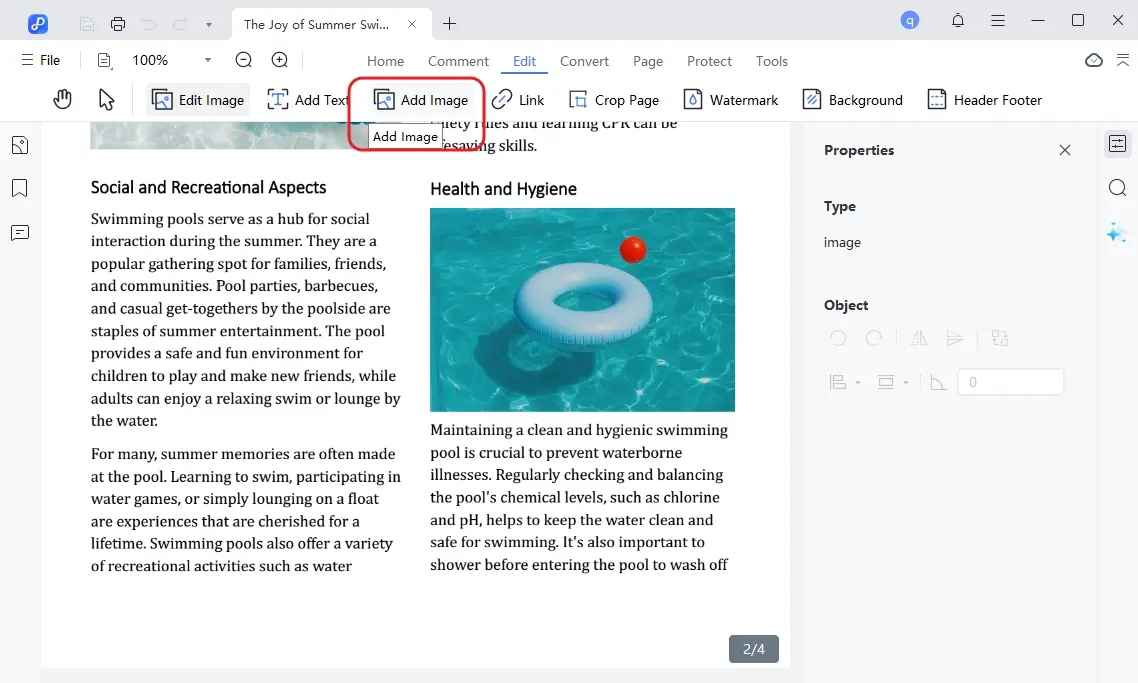
- To insert images, click the “Add Image” button and choose the image file to add.
- Once you have made all the necessary edits, click on the "Save" button in the top left corner.
Conclusion
If you’re struggling with Adobe Acrobat not opening, most issues can be resolved by checking updates, repairing installation, managing plugins, or adjusting permissions. Always back up important PDFs and follow step-by-step fixes carefully to avoid data loss. For users seeking a reliable alternative, PDNob offers a lightweight, fast PDF solution with editing, conversion, OCR, annotation, and signing features.
PDNob PDF Editor Software- Smarter, Faster, Easier
- Instantly read, summarize, and extract insights from PDF
- Convert PDF to 30+ formats like Word, Excel, and images
- Edit text, images, watermarks, links, and backgrounds for PDF
- 99% OCR precision for making scanned PDFs editable and searchable
 The END
About PDNob
I am PDNob.
Swift editing, efficiency first.
Make every second yours: Tackle any PDF task with ease.
As Leonardo da Vinci said, "Simplicity is the ultimate sophistication." That's why we built PDNob.
Speak Your Mind
Leave a Comment
Create your review for Tenorshare articles
























By Jenefey Aaron
2026-09-15 / Knowledge